> ## Documentation Index
> Fetch the complete documentation index at: https://docs.frankieone.com/llms.txt
> Use this file to discover all available pages before exploring further.
# Fraud Checks
### Video Guide
## Introduction
Fraud Prevention & Risk-Based Onboarding lets you screen every applicant during onboarding by analyzing device, email, and phone signals in real time. The API works with FrankieOne oneSDK to gather silent risk indicators and trigger additional checks only when needed, helping you:
* Block fraudulent sign-ups before they reach KYC
* Reduce friction for genuine customers
* Lower manual review and operational costs
## Key Features
Collects IP, user-agent, jailbreak status, VPN usage, and behavioural patterns without user interaction.
Verifies deliverability, tenure, and risk signals behind the scenes.
Combines fraud and KYC scores, applies custom thresholds, and surfaces clear recommendations.
Triggers IDV, liveness, or OCR only for medium or high-risk users.
Configure risk thresholds and scorecards in the portal—no code required.
Combines Fraud and KYC risk into a single assessment for smarter decisions.
## What's a Fraud Check?
After the customer or entity has run the onboarding check, you can view any fraud-related issues in the workflow events tab. If there are any alerts found, these may include risks or issues related to email, phone, device, or IP checks. These alerts can be resolved individually.
## Reviewing Fraud Check Results
Filter the entities table with fraud as one of the selected issues. Selecting an entity that has fraud issues will take you to the entity view and show the workflow events tab with the onboarding fraud check result.
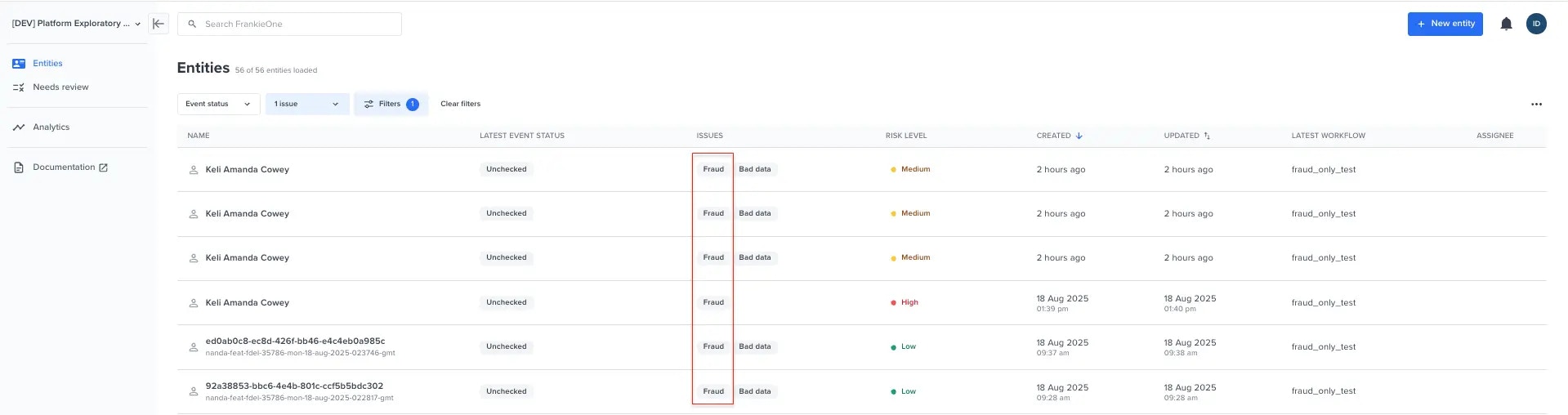 **Displaying Issues**: If the system detects potential fraud issues (known as PROs) in any of the checked sections (such as email, phone, device, IP), you will see a view similar to the image below, prompting you to check and resolve these items.
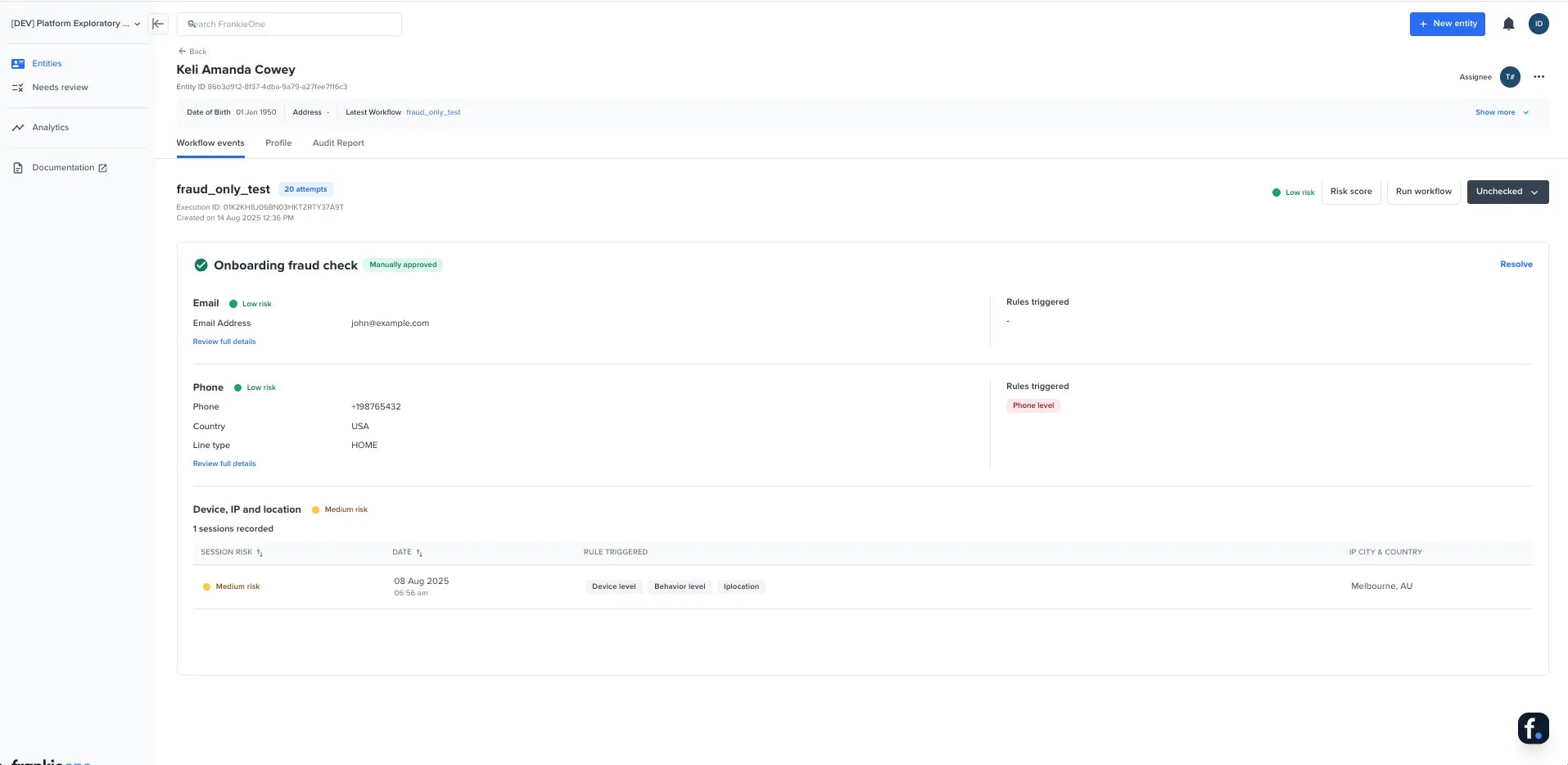 From here, you can view the risk level and overview of each section. Device and IP location are grouped together by `deviceId`.
## Fraud Check Details
**Visibility Requirement**: The onboarding fraud checks are only visible if enabled on your account. To enable them, please reach out to your Frankie Account Manager.
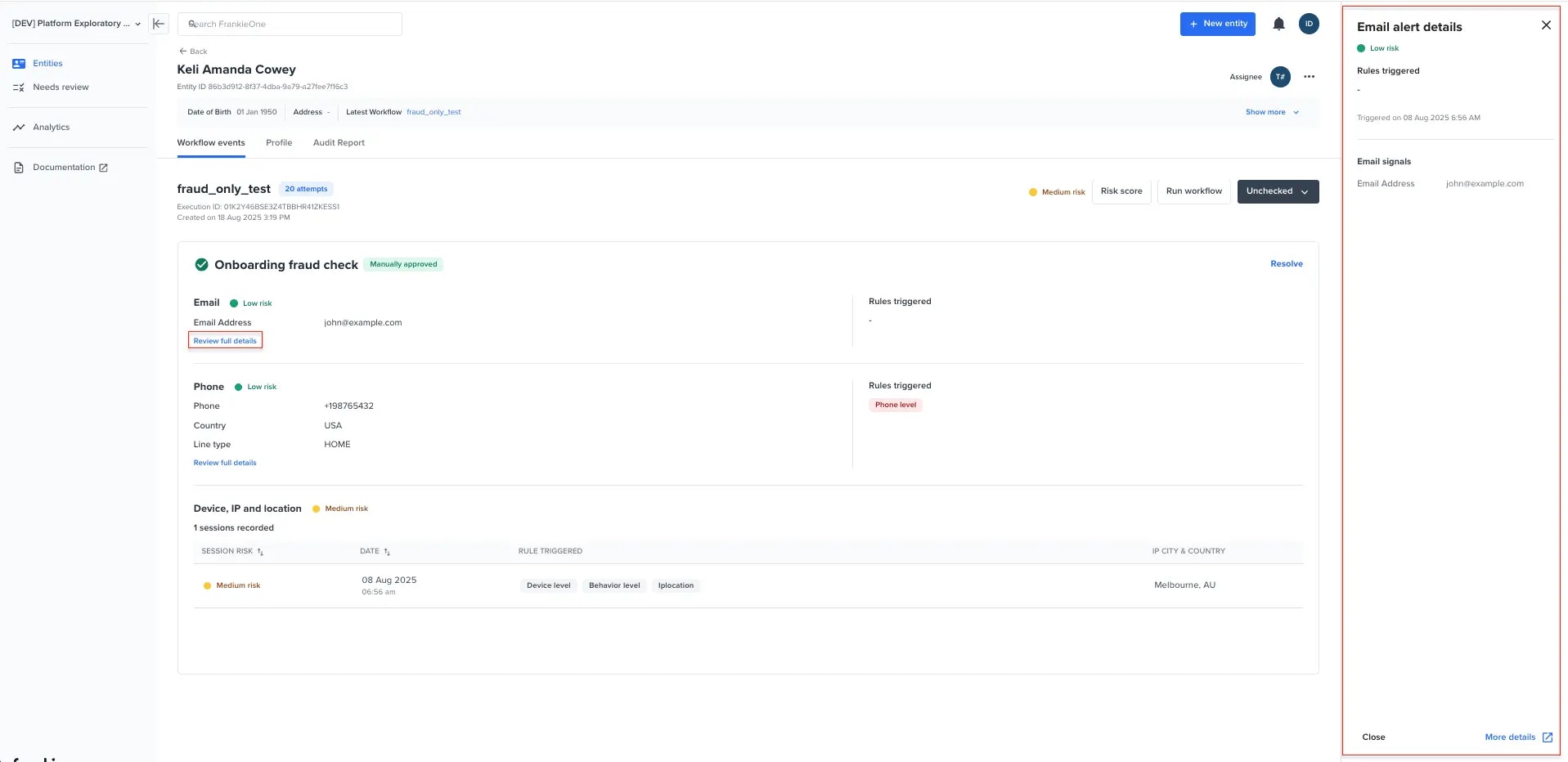
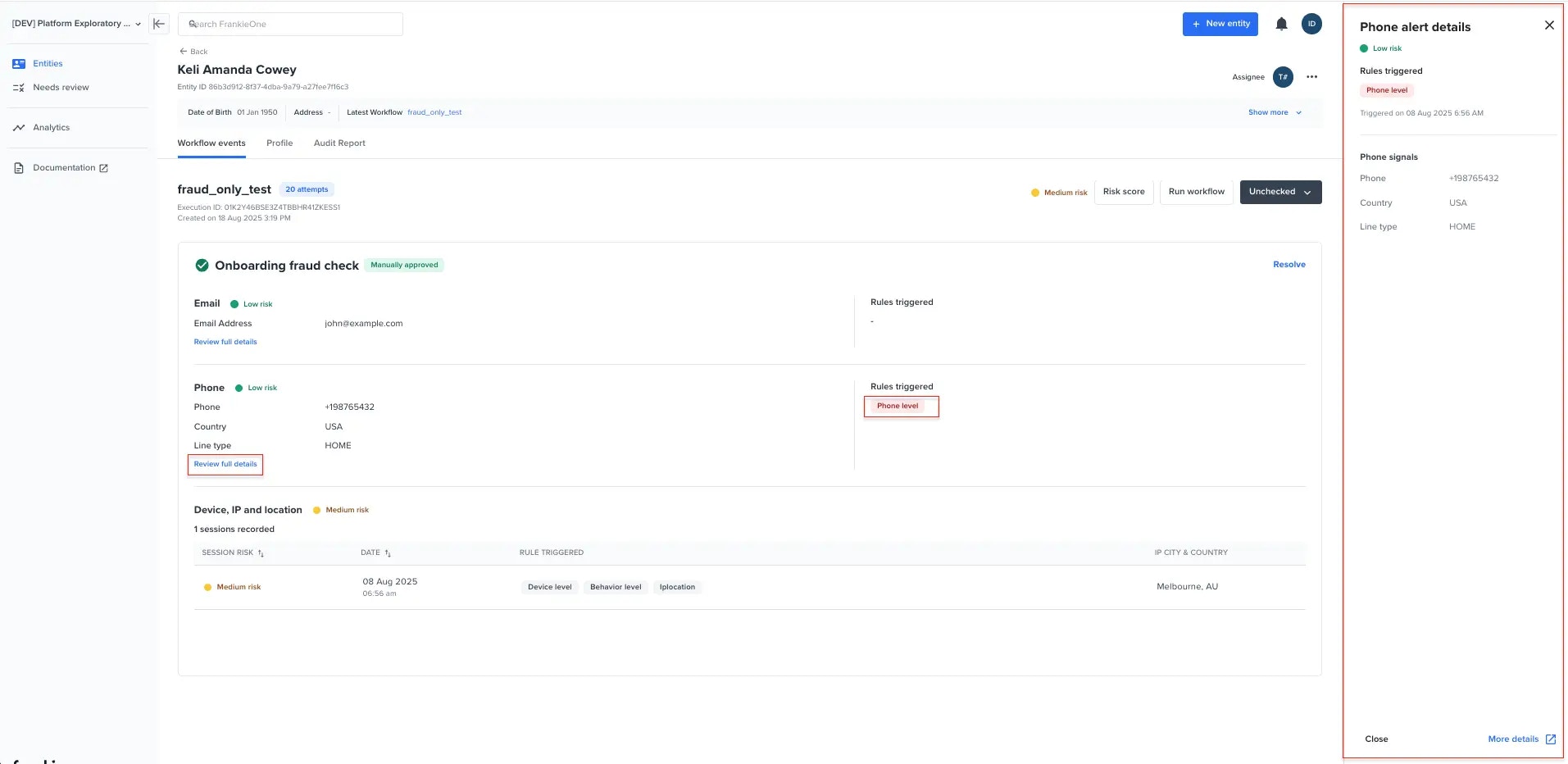
You can view the details by clicking on one of the `Review full details`, `Rules triggered badges`, or the `table rows under the device & IP location`. This will open a drawer with the content of the selected section.
Clicking on "more details" will redirect you to view the external link.
### Email Section:
From here, you can view the risk level and overview of each section. Device and IP location are grouped together by `deviceId`.
## Fraud Check Details
**Visibility Requirement**: The onboarding fraud checks are only visible if enabled on your account. To enable them, please reach out to your Frankie Account Manager.
You can view the details by clicking on one of the `Review full details`, `Rules triggered badges`, or the `table rows under the device & IP location`. This will open a drawer with the content of the selected section.
Clicking on "more details" will redirect you to view the external link.
### Email Section:
 ### Phone Section:
 ### Device & IP Section:
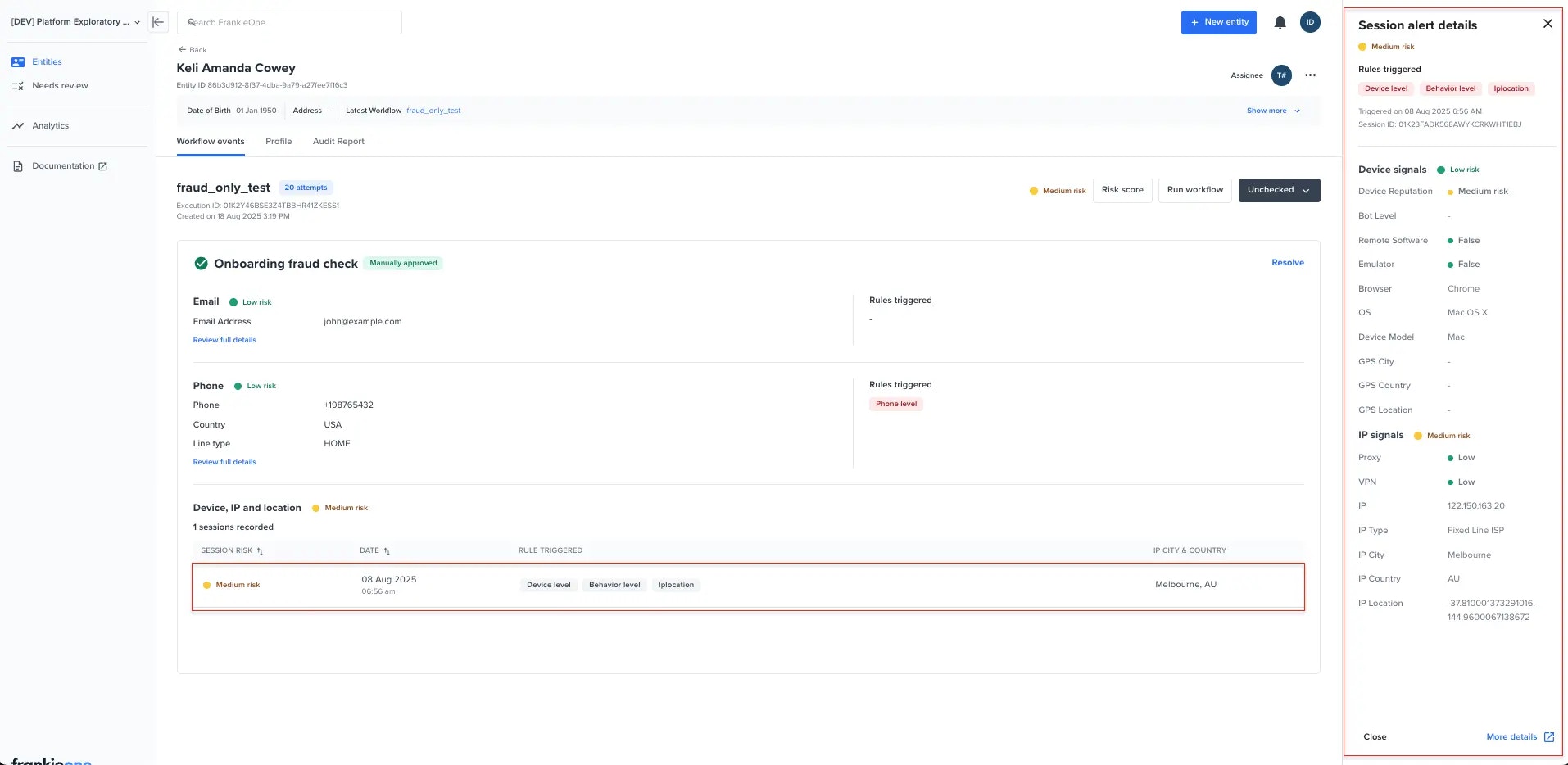 ## Resolving Fraud Check Issues
You can resolve issues by selecting the **Resolve** button on the right side of the onboarding fraud check container.
There may be cases where the resolve button is not visible. This is because there are no PROs that need to be resolved, meaning the email, phone, device, and IP sections are all cleared and nothing needs to be resolved.
If all of the checks need to be resolved, Selecting the **Resolve** link will open a modal. Decide whether to approve or reject and add a comment.
## Resolving Fraud Check Issues
You can resolve issues by selecting the **Resolve** button on the right side of the onboarding fraud check container.
There may be cases where the resolve button is not visible. This is because there are no PROs that need to be resolved, meaning the email, phone, device, and IP sections are all cleared and nothing needs to be resolved.
If all of the checks need to be resolved, Selecting the **Resolve** link will open a modal. Decide whether to approve or reject and add a comment.
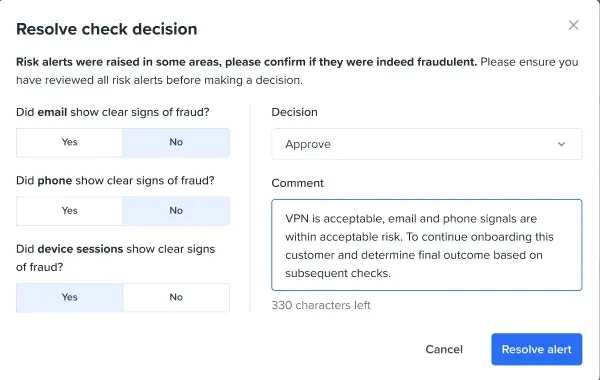 If the device is the only thing that needs to be resolved, then the option will only show the device session.
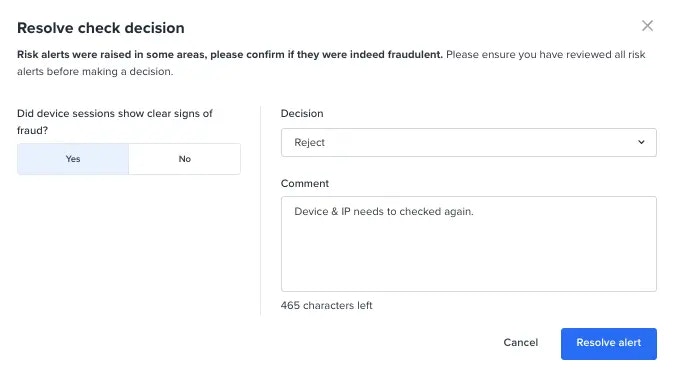 By marking all the signs of fraud as **No**, the decision will only show the **Approve** option.
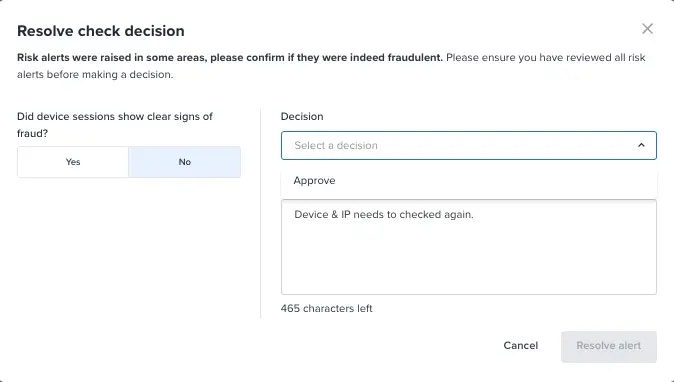 After you click **Resolve alert** with the decision of **Approve**, it will show the status of `Manually approved` beside the onboarding fraud check title.
 If you decide to reject, it will show the status of `Manually rejected` beside the onboarding fraud check title.
 Hover over the comment icon to see the comment box.
 ## Fraud Check Comments
If you click on the comment icon, it will open the comment history box on the right side to see all previous comments after you have resolved an issue.
## Fraud Check Comments
If you click on the comment icon, it will open the comment history box on the right side to see all previous comments after you have resolved an issue.
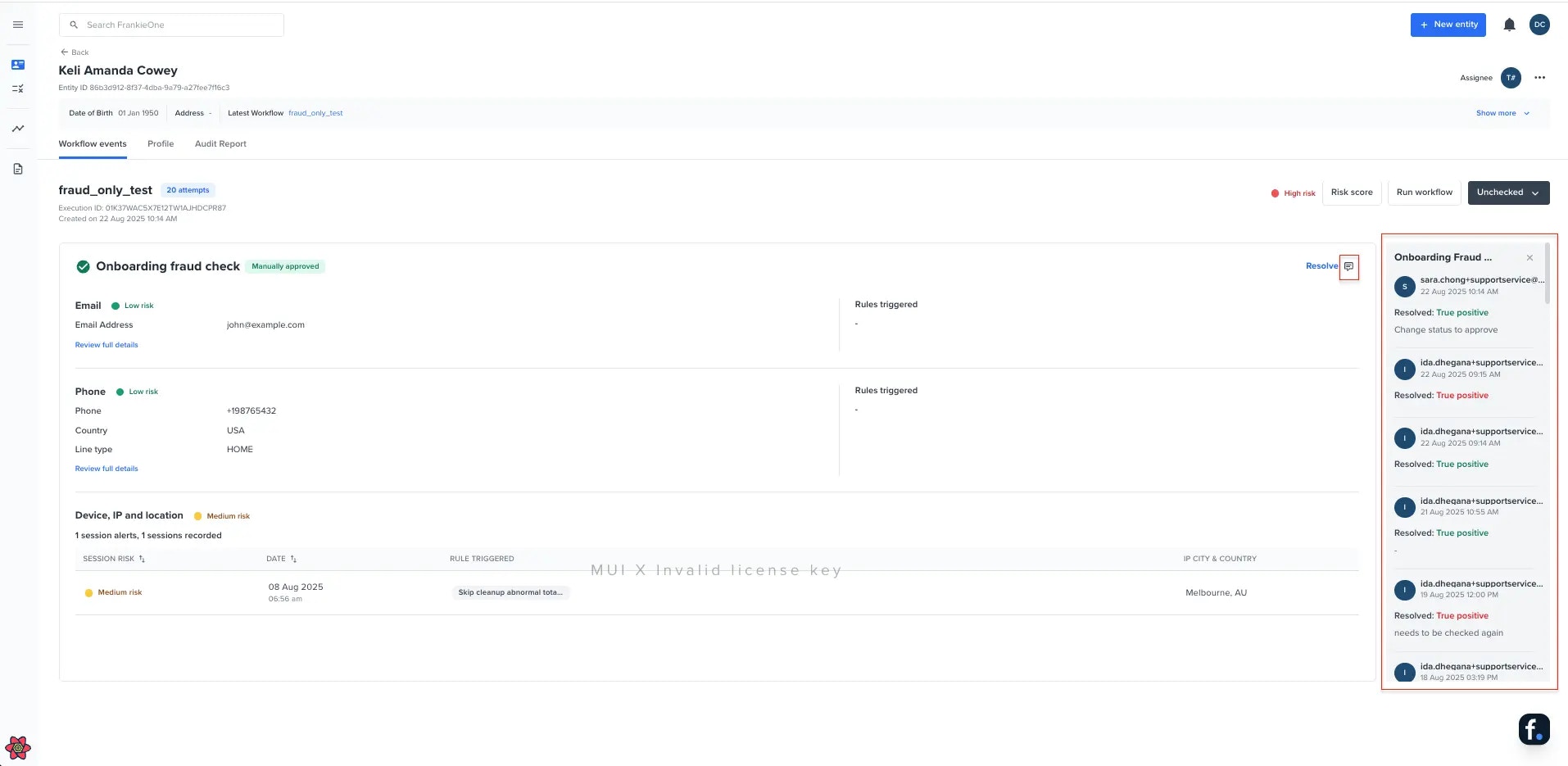 Please be aware that comments may be duplicated after you have resolved an issue. This is expected because answering yes and no in the resolve modal for each of the checks (email/phone/device) will call two APIs simultaneously.