> ## Documentation Index
> Fetch the complete documentation index at: https://docs.frankieone.com/llms.txt
> Use this file to discover all available pages before exploring further.
# Manage Users
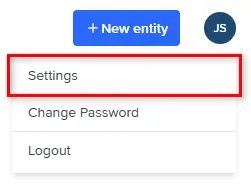
To manage roles in the FrankieOne Portal, select the **Profile** menu, then select **Settings**.
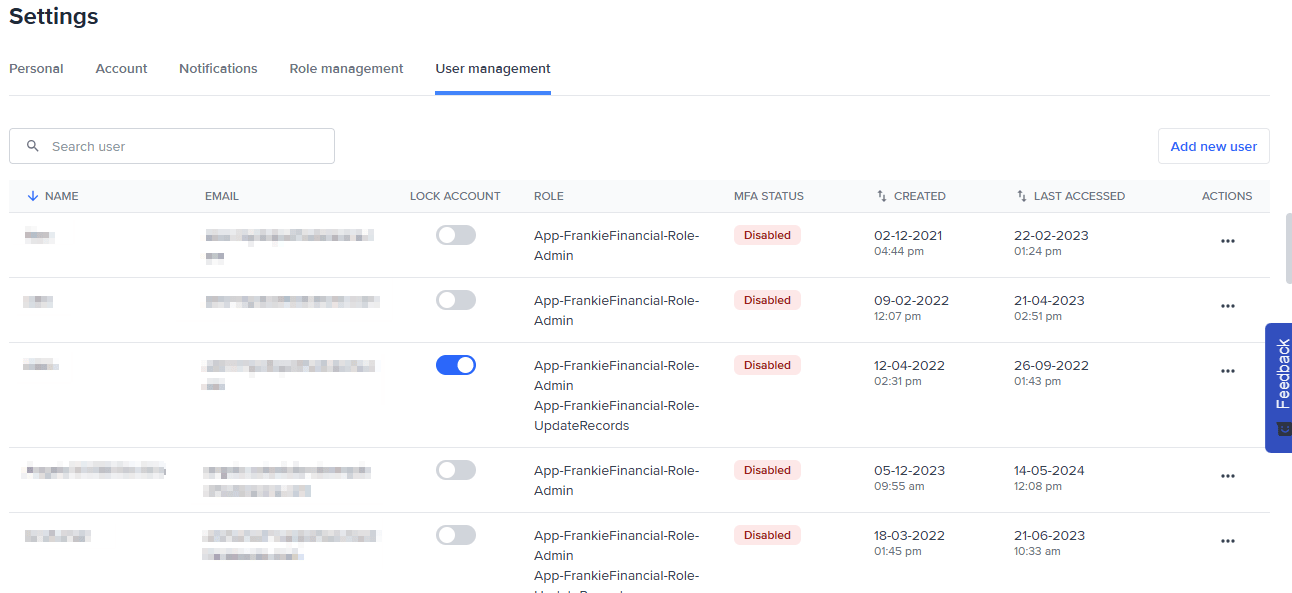
 From the **Settings** page, select **User Management**.
##### Important
For security, users in a **child account** cannot view or assign users from the parent account. This restriction is enabled for all customers by default.
If your business case requires parent-level user management from a child account, contact [FrankieOne Support ](https://frankieone.atlassian.net/servicedesk/customer/portal/3/group/17) to discuss activating the feature flag for your environment.
## User Management
The User Management tab displays a list of all users currently registered in your FrankieOne portal and the roles assigned to them.
From the **Settings** page, select **User Management**.
##### Important
For security, users in a **child account** cannot view or assign users from the parent account. This restriction is enabled for all customers by default.
If your business case requires parent-level user management from a child account, contact [FrankieOne Support ](https://frankieone.atlassian.net/servicedesk/customer/portal/3/group/17) to discuss activating the feature flag for your environment.
## User Management
The User Management tab displays a list of all users currently registered in your FrankieOne portal and the roles assigned to them.
 ## Add a New user
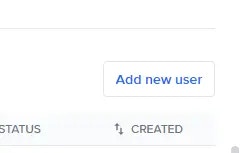
Click the **Add new user** button and enter the name and email address.
## Add a New user
Click the **Add new user** button and enter the name and email address.
 In the **Add new user** setup, ensure that at least one role is assigned to the new user, otherwise they won't be able to access the portal.
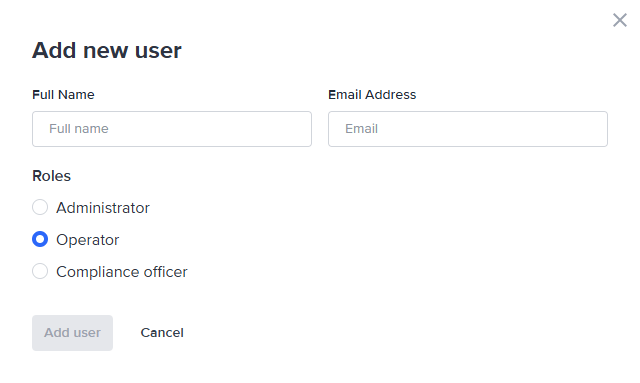 Select the **Add user** button to create the new user.
 An email will be sent to the user with information on setting their password.
## Lock a User
Locking a user prevents the user from having access to the FrankieOne portal, however, it leaves their profile in the FrankieOne system for audit purposes.
An email will be sent to the user with information on setting their password.
## Lock a User
Locking a user prevents the user from having access to the FrankieOne portal, however, it leaves their profile in the FrankieOne system for audit purposes.
 ## Reset the Password
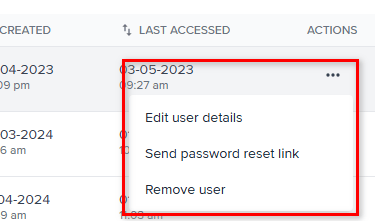
To send a reset password link to a user, click the lock icon associated with that user. This will email a link to the user with instructions on resetting their password.
## Reset the Password
To send a reset password link to a user, click the lock icon associated with that user. This will email a link to the user with instructions on resetting their password.