> ## Documentation Index
> Fetch the complete documentation index at: https://docs.frankieone.com/llms.txt
> Use this file to discover all available pages before exploring further.
# Needs review
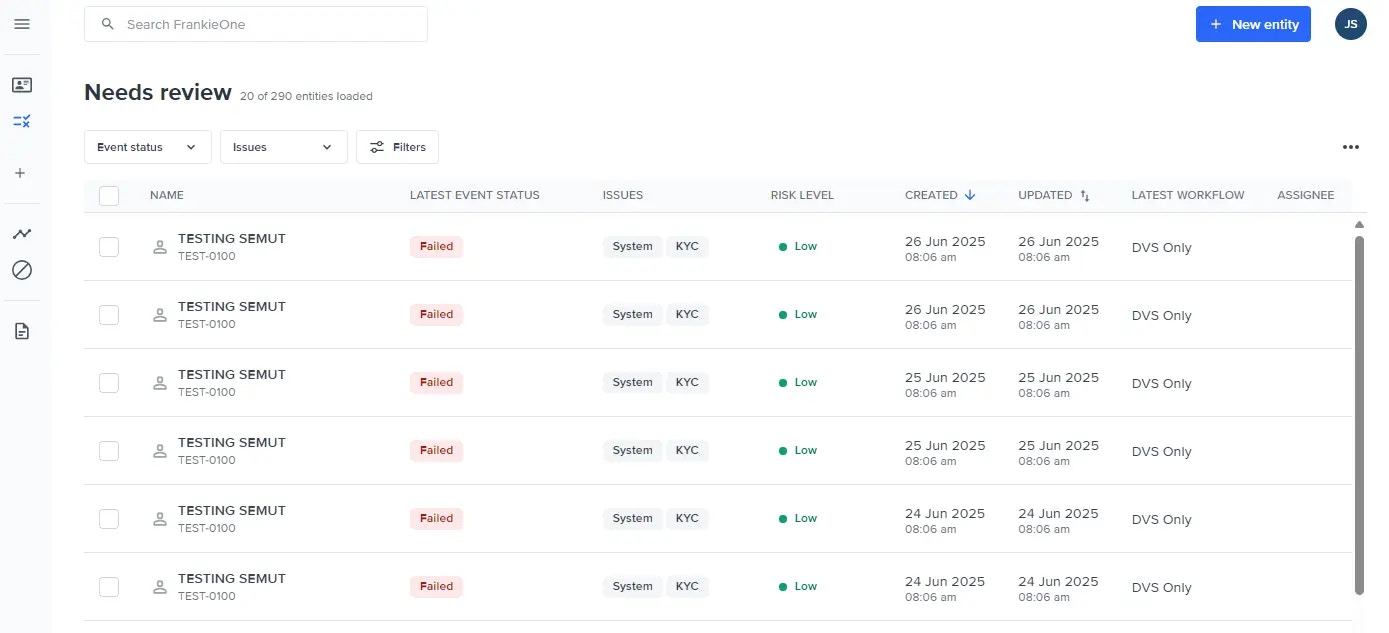
The Needs review list contains all profiles that require manual review.
 | **Label** | **Description** |
| :------------------ | :----------------------------------------------------------------------------------------------------------------- |
| Name | The customer’s full name as collected on the application. This name is used in KYC verification and AML screening. |
| Latest Event Status | Displays the status of executed workflow event. |
| Issues | Displays any issues found in the customer application. |
| Risk Level | Risk level of customer. |
| Created | Display the age of the customer application. |
| Updated | Displays when the last change was made to the customer application. |
| Latest Workflow | Displays the workflow used |
| Assignee | Displays the user assigned to the customer application for review and decisioning. |
## List Filtering & Sorting
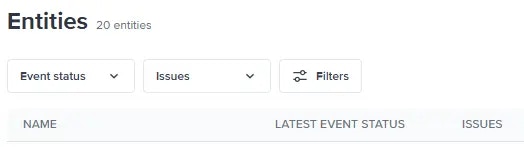
You can also filter the entities displayed in the entities table using the filtering options available under the search bar.
| **Label** | **Description** |
| :------------------ | :----------------------------------------------------------------------------------------------------------------- |
| Name | The customer’s full name as collected on the application. This name is used in KYC verification and AML screening. |
| Latest Event Status | Displays the status of executed workflow event. |
| Issues | Displays any issues found in the customer application. |
| Risk Level | Risk level of customer. |
| Created | Display the age of the customer application. |
| Updated | Displays when the last change was made to the customer application. |
| Latest Workflow | Displays the workflow used |
| Assignee | Displays the user assigned to the customer application for review and decisioning. |
## List Filtering & Sorting
You can also filter the entities displayed in the entities table using the filtering options available under the search bar.
 ### Filter by event status
Use the **event status** dropdown menu to select the status types of the entities to display.
### Filter by event status
Use the **event status** dropdown menu to select the status types of the entities to display.
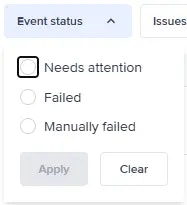 Once you've selected the status types to display, select **Apply**. Select **Clear** to unselect all the status type.
### Filter by issue type
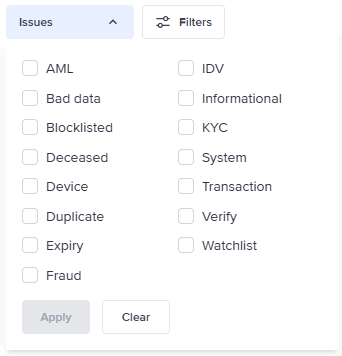
Use the **Issues** dropdown menu to select the issue types of the entities to display.
Once you've selected the issue types to display, select **Apply**. Select **Clear** to unselect all the issue types.
Once you've selected the status types to display, select **Apply**. Select **Clear** to unselect all the status type.
### Filter by issue type
Use the **Issues** dropdown menu to select the issue types of the entities to display.
Once you've selected the issue types to display, select **Apply**. Select **Clear** to unselect all the issue types.
 ### Filters overview modal
Select the **Filters** button to open the **Filters** modal. Using the Filters modal, you can view all the possible filters that can be applied to the entities displayed in the entities table.
### Filters overview modal
Select the **Filters** button to open the **Filters** modal. Using the Filters modal, you can view all the possible filters that can be applied to the entities displayed in the entities table.
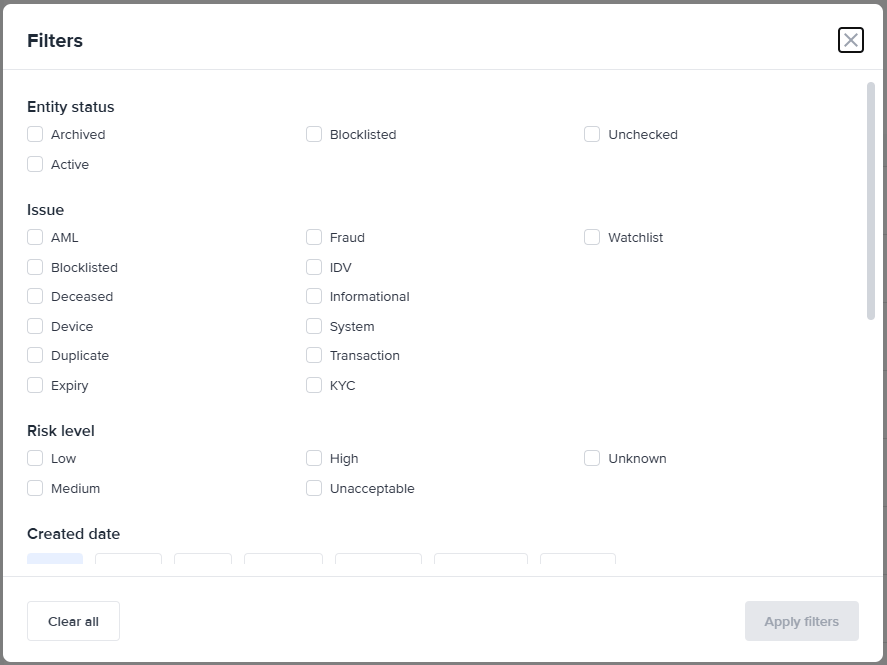 The filters you can select are categorized according to the following:
* Entity status
* Issue
* Risk level
* Created date
* Last updated
* Workflow
* Event status
* Assignee
Select the filter criteria you prefer, and then select **Apply filters** to enable those filters. To start over, select the **Clear all** button to remove your selection.
### Sorting entities
Select the sorting icons (up and down arrows) beside the **CREATED** and **UPDATED** column headers to sort the entities in the table. A single blue arrow highlights the current sort direction (ascending or descending):
* A single blue up arrow means the entities are displayed in ascending order.
* A single blue down arrow means the entities are displayed in descending order.
The filters you can select are categorized according to the following:
* Entity status
* Issue
* Risk level
* Created date
* Last updated
* Workflow
* Event status
* Assignee
Select the filter criteria you prefer, and then select **Apply filters** to enable those filters. To start over, select the **Clear all** button to remove your selection.
### Sorting entities
Select the sorting icons (up and down arrows) beside the **CREATED** and **UPDATED** column headers to sort the entities in the table. A single blue arrow highlights the current sort direction (ascending or descending):
* A single blue up arrow means the entities are displayed in ascending order.
* A single blue down arrow means the entities are displayed in descending order.