> ## Documentation Index
> Fetch the complete documentation index at: https://docs.frankieone.com/llms.txt
> Use this file to discover all available pages before exploring further.
# Portal User Experience
## Navigating the Portal
The FrankieOne Portal provides users with the visual interface for managing their account.
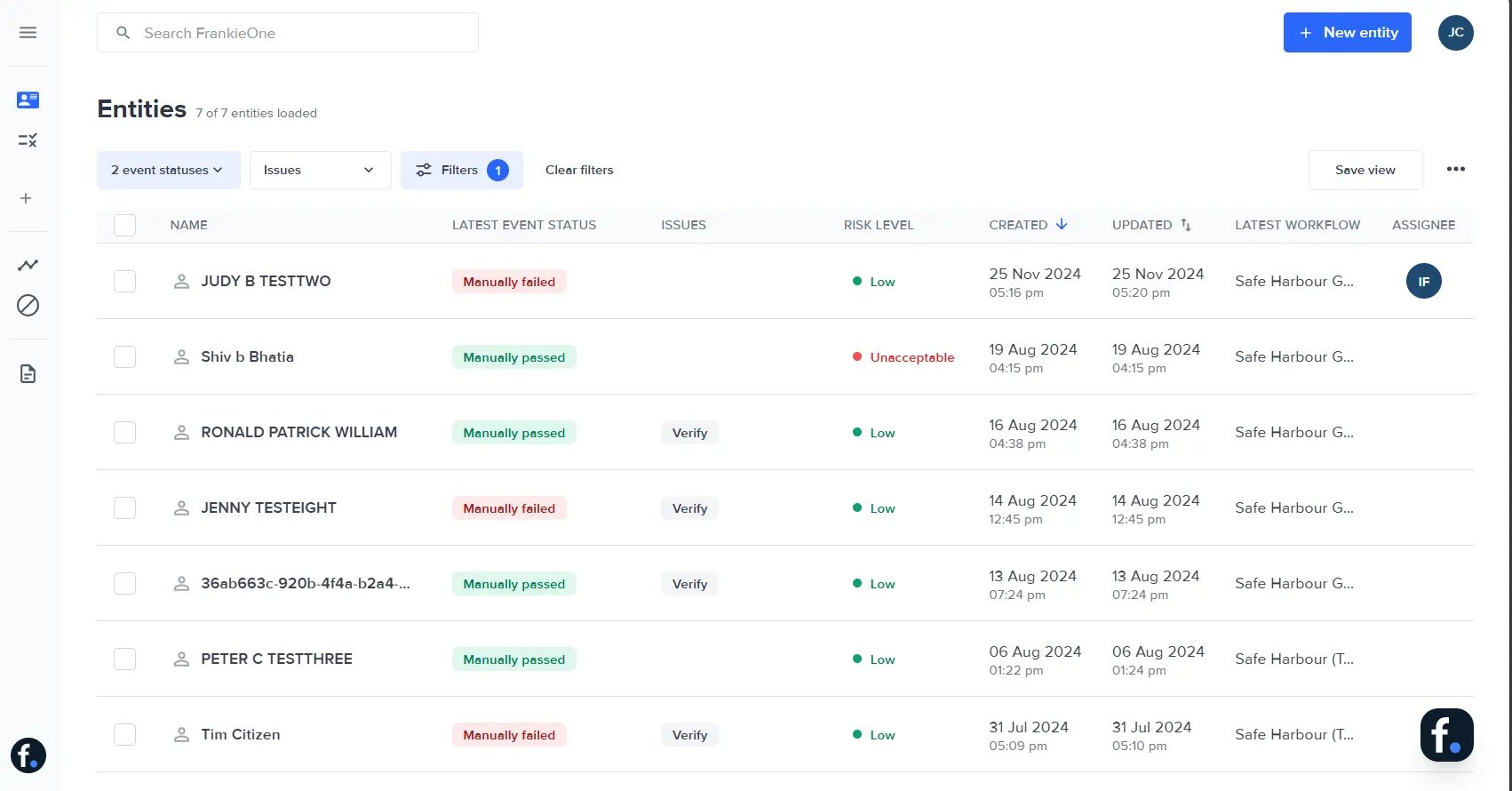 This navigation provides a simple and intuitive interface, giving the user the option to expand and collapse the sidebar as needed, to display information better.
By default, the navigation bar is expanded to show the full text of menu options. To collapse it, select the collapse button.
This navigation provides a simple and intuitive interface, giving the user the option to expand and collapse the sidebar as needed, to display information better.
By default, the navigation bar is expanded to show the full text of menu options. To collapse it, select the collapse button.
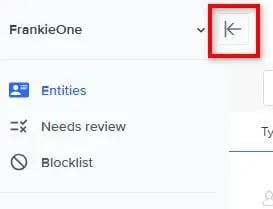 To expand the navigation again, select the menu (burger) icon.
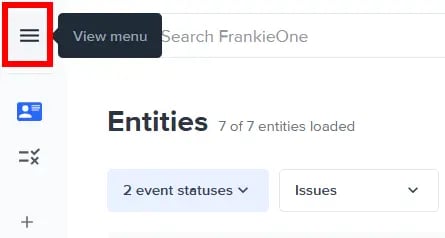 The side bar contains links to the different pages of the Portal. As you select any of the links, the main content section will display the selected page.