> ## Documentation Index
> Fetch the complete documentation index at: https://docs.frankieone.com/llms.txt
> Use this file to discover all available pages before exploring further.
# Features
> Explore the key features and fraud signals that power FrankieOne’s Fraud and Activity Monitoring solutions.
> **FrankieOne Fraud v2 is now available.** This page documents v1 of the Fraud and Activity Monitoring product. For the latest documentation, see [Fraud and Transaction Monitoring (v2)](/docs/fraud-and-transaction-monitoring-introduction).
## Fraud checks
FrankieOne provides the following solutions that customers can use to prevent fraud when using Onboarding Fraud Checks.
Assesses whether the email is disposable, numeric, contains similarities to the user’s name, how old it is, how risky the domain is, and its general risk in our fraud provider networks.
Assesses whether the number is associated with a risky line type like VoIP (Voice over Internet Protocol), the risk of the carrier, whether the phone name matches the user’s profile with their telco, or if it’s reported as fraudulent.
Uses cookies and device fingerprinting to detect suspicious devices (like emulators or scripts) and sessions (such as proxies or remote desktops). Flags devices or IPs linked to multiple users to identify potential synthetic accounts and session relationships.
Analyzes mouse and typing patterns to detect fraud, such as frequent copy-pasting, rapid input, and unnatural mouse movements.
Assesses whether the user is located where they say they are, is using a VPN, or is in a high-risk location.
## Rules
### Creating rules
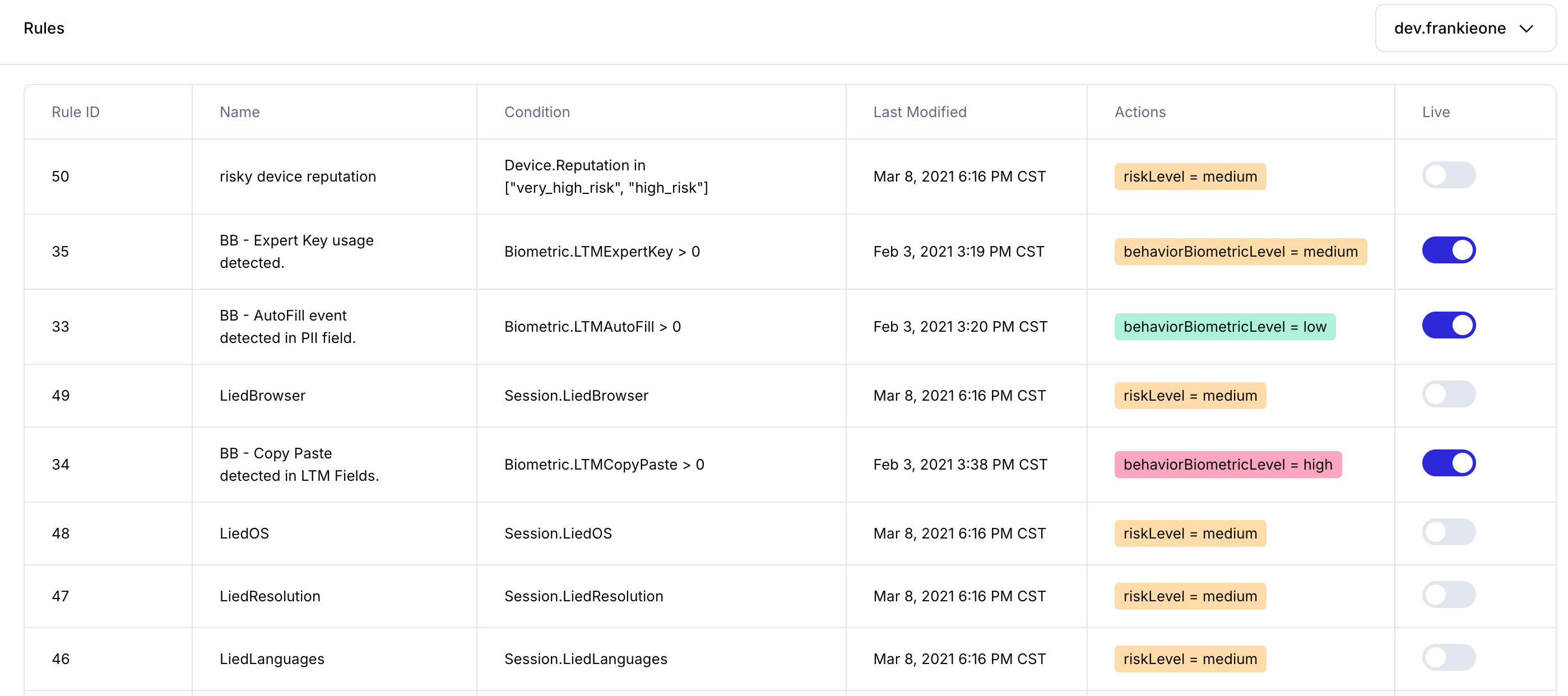
Rules determine which fraud signals trigger alerts and at what thresholds. Rules are configured in the fraud solution provider dashboard, which you can access through a link in the FrankieOne Portal.
You can create rules using a wide range of user, phone, email, device, and location signals.
 ### Shadow mode
If a rule is in Shadow mode, that means it will run and capture metrics, but it won’t update the risk level of a session. Running rules in shadow mode allows you to collect additional data about each session and experiment with which risk signals are most associated with fraud, before the rules affect entity risk levels.
## Results in the Portal
In the Portal, you can view fraud check results alongside your KYC and KYB checks in a single view.
### Entity Status
When you have one or more rules in Live mode that are fired during a user session, the entity status in the Portal will reflect the highest risk found across your fraud checks. If one of the checks (email, phone, device, and others) returns a high risk or very high risk, the status of the check will be **Failed**, and subsequently, the Entity status will Fail as well.
When your rules are all in Shadow mode, they won't affect the Entity Status, however, you will still be able to see which rules have been executed in our provider's dashboard.
When a user is run through a recipe with account creation fraud checks, and it fails for any reason, you can see the specific risks associated with the failure on the overview page.
### Shadow mode
If a rule is in Shadow mode, that means it will run and capture metrics, but it won’t update the risk level of a session. Running rules in shadow mode allows you to collect additional data about each session and experiment with which risk signals are most associated with fraud, before the rules affect entity risk levels.
## Results in the Portal
In the Portal, you can view fraud check results alongside your KYC and KYB checks in a single view.
### Entity Status
When you have one or more rules in Live mode that are fired during a user session, the entity status in the Portal will reflect the highest risk found across your fraud checks. If one of the checks (email, phone, device, and others) returns a high risk or very high risk, the status of the check will be **Failed**, and subsequently, the Entity status will Fail as well.
When your rules are all in Shadow mode, they won't affect the Entity Status, however, you will still be able to see which rules have been executed in our provider's dashboard.
When a user is run through a recipe with account creation fraud checks, and it fails for any reason, you can see the specific risks associated with the failure on the overview page.
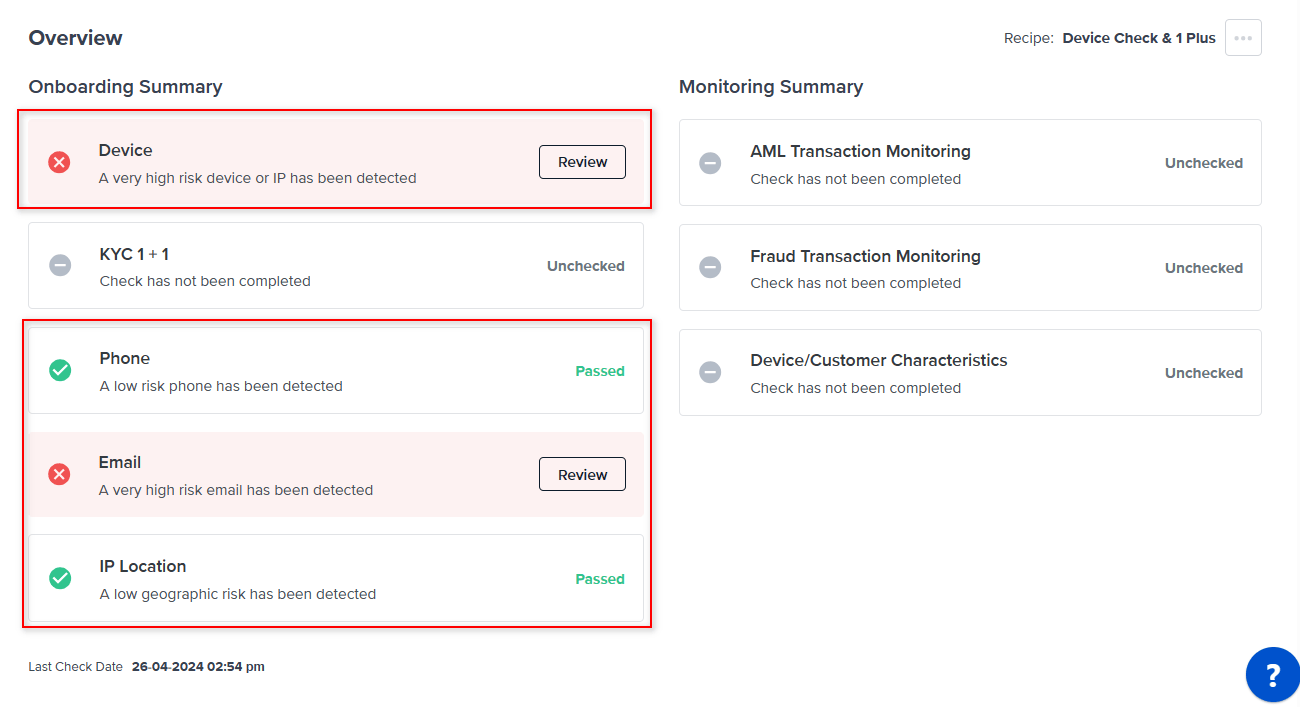 To view the details of any check that had risks detected, select the **Review** button.
 Alternatively, select the **Personal Info** tab and view the check result details.
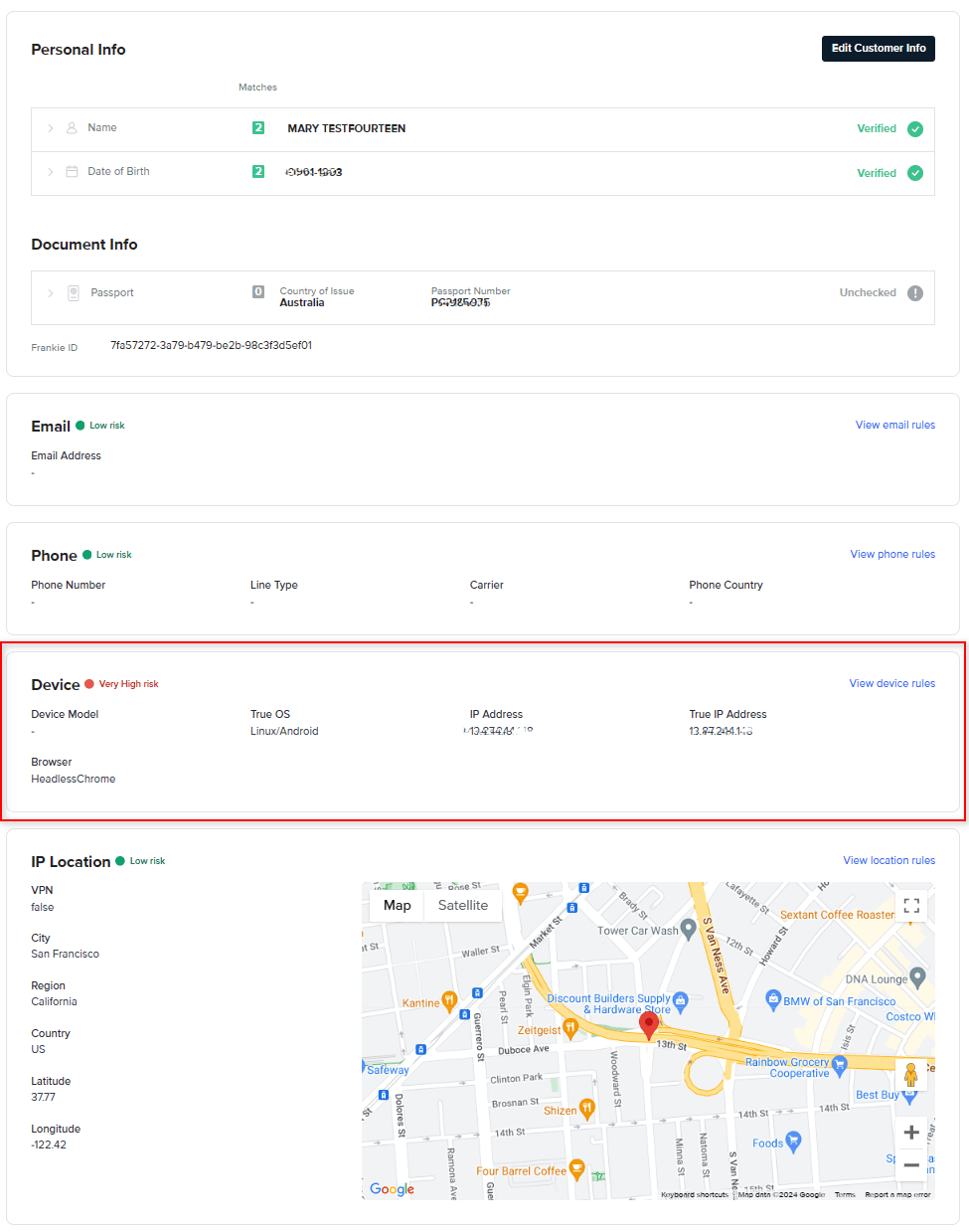 Each check results summary provides an overview of the information checked, and issues detected. There is also a link to display the rules that were applied to that specific check.
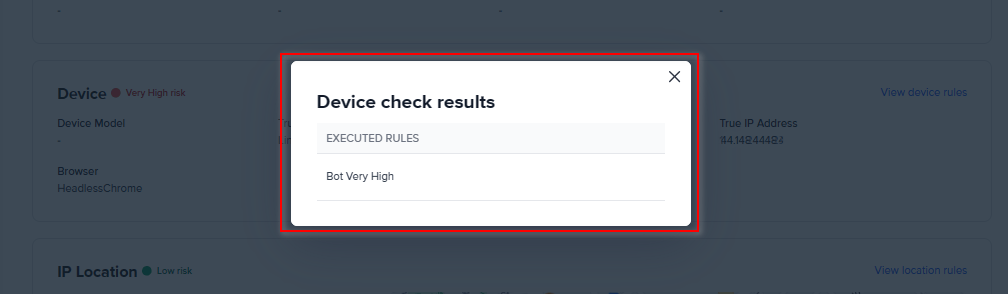
For example, for the Device check results, you can select the **View device rules** link to open the rules that were run as part of the recipe and rulesets.
Each check results summary provides an overview of the information checked, and issues detected. There is also a link to display the rules that were applied to that specific check.
For example, for the Device check results, you can select the **View device rules** link to open the rules that were run as part of the recipe and rulesets.