> ## Documentation Index
> Fetch the complete documentation index at: https://docs.frankieone.com/llms.txt
> Use this file to discover all available pages before exploring further.
# OneSDK Fraud Detection & Prevention
> OneSDK’s Fraud Detection system evaluates potential fraud risks by analyzing device characteristics and form-filling behavior during user onboarding. This enables real-time risk assessment to help you make informed decisions about user registration.
##### Account Configuration Required
To use device characteristics and behavioral biometrics, your account must be configured by FrankieOne. Contact your Customer Success representative to enable these features.
## Implementation Overview
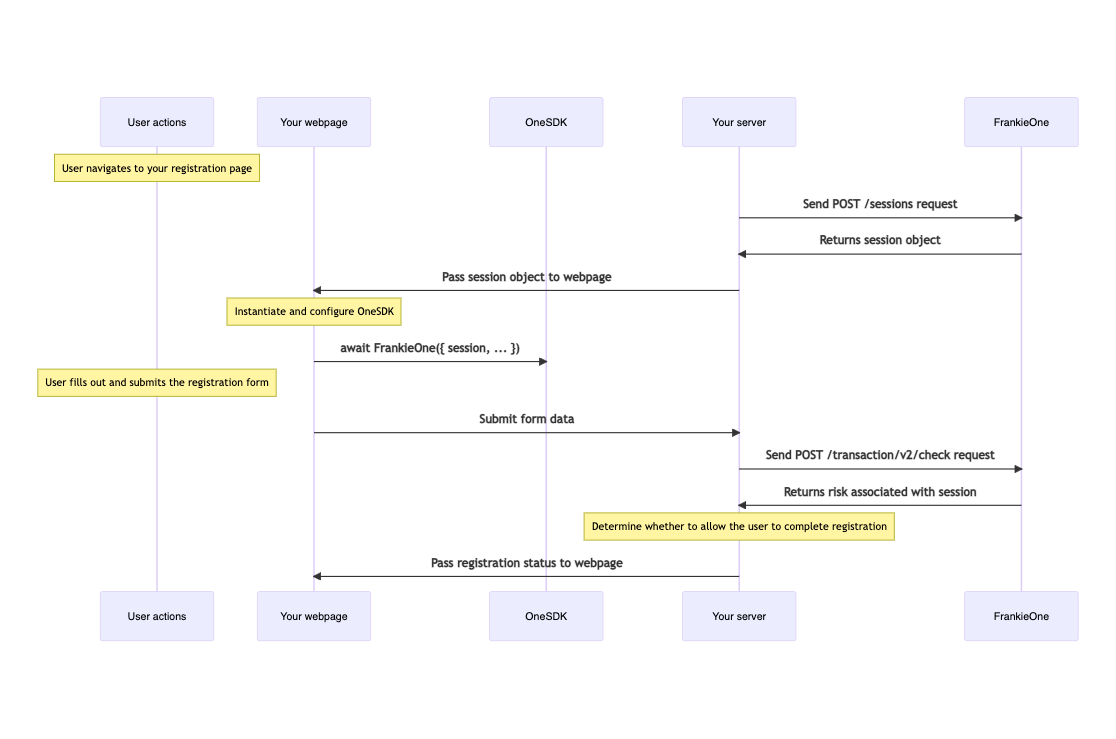 ## Integration Steps
Your server needs to create a temporary session before serving the frontend.
Note: The sample code below is just an example. **Never generate tokens on the frontend** — doing so can expose your credentials. Always generate tokens securely on your backend and pass them to your app as needed.
```javascript theme={null}
// Fetch authentication token from backend
const tokenResultRaw = await fetch('https://backend.kycaml.uat.frankiefinancial.io/auth/v2/machine-session', {
method: 'POST',
headers: {
// Create Basic Auth header using customer ID and API key
authorization: 'machine ' + btoa(`${CUSTOMER_ID}:${API_KEY}`),
'Content-Type': 'application/json',
},
body: JSON.stringify({
permissions: {
preset: 'one-sdk',
// Customer reference options: pass either unique customer reference or existing EntityID
reference: "customer-reference", // Custom customer reference
entityId: "abc-def-ghi" // Existing entity ID (if exists)
},
}),
});
```
Set up OneSDK with the provided session data.
```javascript theme={null}
const oneSdk = await OneSDK({
session: tokenResultRaw, // Pass authentication token
mode: "production", // Set to production environment
recipe: {
ocr: {
maxDocumentCount: 3, // Maximum allowed documents for OCR
},
},
});
// Initialize device component for registration
const device = oneSdk.component("device", {
activityType: "REGISTRATION", // Set activity type
sessionId: "YOUR_CUSTOM_SESSION_KEY", // Custom session identifier
});
// Start device monitoring
device.start();
```
You can check entity's fraud indicator from Portal, or via KYC Entity Risk endpoint, read more [here](/api-reference/risk/get-an-entitys-risk-level-scorecard).
## Using Sardine
### Initialization
Once you have initialized OneSDK instance, you can create a device check component
Setting up Device Check
```javascript theme={null}
// Initialize device check component with registration activity
const device = oneSdk.component("device", {
activityType: "REGISTRATION",
sessionId: `session-${new Date().toISOString()}`, // Generate unique session ID using timestamp
});
// Begin device data collection
device.start();
```
### Capture Phone and Email for Fraud check
Using Individual’s module to [capture phone number and email](/docs/v1/onesdk/oneSDK/implementation-guide/module/individual), OneSDK will also allow you to run Fraud checks on these details.
## Event System
Emitted when Device Characteristics component is successfully mounted
```javascript theme={null}
device.on('DEVICE:MOUNT', () => {
console.log('Mounting Sardine');
});
```
Signals unsucessful mount
```javascript theme={null}
device.on('DEVICE:MOUNT:ERROR', () => {
console.warn('Sardine mount failed');
});
```
## Best Practices
* Initialize OneSDK as early as possible in your application lifecycle
* Keep the session object readily available in your frontend state
* Consider implementing session recovery mechanisms
* Never expose your FrankieOne API credentials in the frontend
* Implement proper session timeout handling
* Always validate session data on your server
## Risk Level Handling
Standard processing
* Continue with normal flow
* Regular verification
Enhanced verification
* Additional identity checks
* Manual review option
Restricted processing
* Block registration
* Flag for review
##### Need Help?
For technical support or to enable fraud detection features, contact your FrankieOne Customer Success representative or visit our support portal.
## Integration Steps
Your server needs to create a temporary session before serving the frontend.
Note: The sample code below is just an example. **Never generate tokens on the frontend** — doing so can expose your credentials. Always generate tokens securely on your backend and pass them to your app as needed.
```javascript theme={null}
// Fetch authentication token from backend
const tokenResultRaw = await fetch('https://backend.kycaml.uat.frankiefinancial.io/auth/v2/machine-session', {
method: 'POST',
headers: {
// Create Basic Auth header using customer ID and API key
authorization: 'machine ' + btoa(`${CUSTOMER_ID}:${API_KEY}`),
'Content-Type': 'application/json',
},
body: JSON.stringify({
permissions: {
preset: 'one-sdk',
// Customer reference options: pass either unique customer reference or existing EntityID
reference: "customer-reference", // Custom customer reference
entityId: "abc-def-ghi" // Existing entity ID (if exists)
},
}),
});
```
Set up OneSDK with the provided session data.
```javascript theme={null}
const oneSdk = await OneSDK({
session: tokenResultRaw, // Pass authentication token
mode: "production", // Set to production environment
recipe: {
ocr: {
maxDocumentCount: 3, // Maximum allowed documents for OCR
},
},
});
// Initialize device component for registration
const device = oneSdk.component("device", {
activityType: "REGISTRATION", // Set activity type
sessionId: "YOUR_CUSTOM_SESSION_KEY", // Custom session identifier
});
// Start device monitoring
device.start();
```
You can check entity's fraud indicator from Portal, or via KYC Entity Risk endpoint, read more [here](/api-reference/risk/get-an-entitys-risk-level-scorecard).
## Using Sardine
### Initialization
Once you have initialized OneSDK instance, you can create a device check component
Setting up Device Check
```javascript theme={null}
// Initialize device check component with registration activity
const device = oneSdk.component("device", {
activityType: "REGISTRATION",
sessionId: `session-${new Date().toISOString()}`, // Generate unique session ID using timestamp
});
// Begin device data collection
device.start();
```
### Capture Phone and Email for Fraud check
Using Individual’s module to [capture phone number and email](/docs/v1/onesdk/oneSDK/implementation-guide/module/individual), OneSDK will also allow you to run Fraud checks on these details.
## Event System
Emitted when Device Characteristics component is successfully mounted
```javascript theme={null}
device.on('DEVICE:MOUNT', () => {
console.log('Mounting Sardine');
});
```
Signals unsucessful mount
```javascript theme={null}
device.on('DEVICE:MOUNT:ERROR', () => {
console.warn('Sardine mount failed');
});
```
## Best Practices
* Initialize OneSDK as early as possible in your application lifecycle
* Keep the session object readily available in your frontend state
* Consider implementing session recovery mechanisms
* Never expose your FrankieOne API credentials in the frontend
* Implement proper session timeout handling
* Always validate session data on your server
## Risk Level Handling
Standard processing
* Continue with normal flow
* Regular verification
Enhanced verification
* Additional identity checks
* Manual review option
Restricted processing
* Block registration
* Flag for review
##### Need Help?
For technical support or to enable fraud detection features, contact your FrankieOne Customer Success representative or visit our support portal.