> ## Documentation Index
> Fetch the complete documentation index at: https://docs.frankieone.com/llms.txt
> Use this file to discover all available pages before exploring further.
# Managing Associated Parties
> Add additional associated parties to an Organisation
##### Validation
* There is no validation to enforce only a total of 100% ownership being added via the associated parties.
* If a customer is hidden on the onboarding and monitoring list while added as an associated party when removed they won’t be unhidden automatically. **This behaviour isn’t reversible.**
### To add existing or new associated parties to an Organisation via the Portal
Navigate to the **Owners & Officeholders** tab inside an organisation.
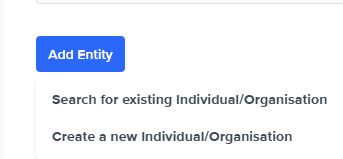
Scroll to the bottom of the page and click on the **Add Entity** which then lets you choose one of two options
* Search for existing Individual/Organisation
* Create a new Individual/Organisation
**Note on role for adding associated parties:**\
A specific user role is not required to add an associated individual to a business entity. To manually associate entities, a valid ownership query result is needed. This can be obtained by running a “Single Level” or an “Ownership Query” report.
#### Search for existing Individual/Organisation
Step 1 - Search for an Individual/Organisation by Full name, Family name, Customer ID, Frankie ID, ACN or ABN.\
Step 2 - Select the entity from the list.\
Step 3 - Choose the role type from the available list.\
Step 4 - Enter the Beneficially or Non-Beneficially held Ownership % (Optional).\
Step 5 - Click on **Add**.\
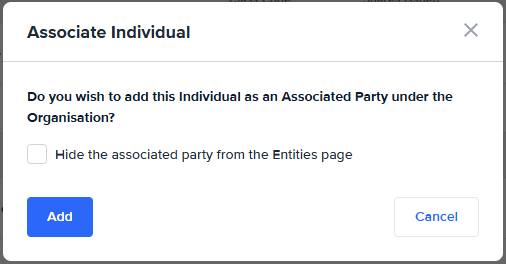
Step 6 - In the confirmation popup, select whether to hide the Individual from the Entities page (Unchecked by default).
#### Create a new Individual/Organisation
Step 1 - Choose whether it’s an Individual or a Business.
##### If an individual
Step 2 - Enter the required details.\
Step 3 - Choose the role type from the available list.\
Step 4 - Enter the Beneficially or Non-Beneficially held Ownership % (Optional).\
Step 5 - Click on **Add**.\
Step 6 - In the confirmation popup, select whether to hide the Individual from the Entities page.
##### If an Organisation
Step 2 - Search for a Business Name, ABN or ACN.\
Step 3 - Select a Business from the list of identified businesses.\
Step 4 - Choose the role type from the available list.\
Step 5 - Enter the Beneficially or Non-Beneficially held Ownership % (Optional).\
Step 6 - Click on **Add**.\
Step 7 - In the confirmation popup, select whether to hide the Organisation from the Entities page.
##### Note on hiding associated party from
If you select **Hide the associated party from the Entities page** when initially creating an associated party, and later run a report or check on that entity, it will still appear on the Entities page. This happens because the Portal automatically promotes the entity to a focus entity, allowing you to view and review it.
### Once an **Associated Party** is added you can maintain them going forward
* Sending them a KYC link\
The added parties can be sent a KYC check link at an individual level.
* Updating an associated party\
The roles of the party and the Beneficially or Non-Beneficially held Ownership % can be updated.
* Removing an associated party