> ## Documentation Index
> Fetch the complete documentation index at: https://docs.frankieone.com/llms.txt
> Use this file to discover all available pages before exploring further.
# Individual Verification Report
## What’s an Individual Verification Report
An Individual Verification Report is a snapshot of the latest results of checks run for an individual entity. The content of the report includes:
* Profile summary including personal information and check summary
* Summary of KYC checks
* Summary of ID checks
* ID document details
* Summary of Biometrics and OCR reports, and
* Summary of AML checks
This report comes in PDF format.
##### Example usage
This report can be used as a certificate, or a reference for auditing purposes. As part of your customer onboarding flow, you may require an Individual Verification Report to be attached to your records for reference. Users can request and download a PDF report via the [Generate Individual Verification Report API](/docs/v1/api/kyc-api-endpoints/reference/entity/entity-kyc-report) or Portal, and attach the download to their records.
## Generating a report in the Portal
##### Feature request
This feature isn’t enabled by default in the Portal. Please reach out to FrankieOne Customer Support to enable it in your account.
There are multiple ways in the Portal you can generate an Individual Verification report:
1. Navigate to the **Overview** tab within an Individual profile.
1. Select **Generate a new Individual Verification Report**(represented by the file icon), or
2. Select the menu button (represented by three dots \*\*… \*\*) beside the **Recipe** field. Select **Generate Individual Verification Report**.\\
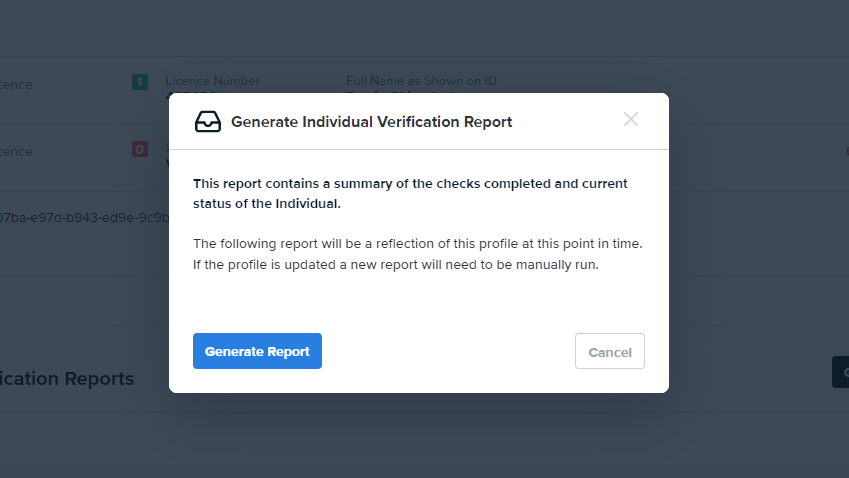
 2. Navigate to the **Personal Info** tab within an Individual profile. Proceed to the **Individual Verification Reports** section, and select the **Generate Report** button.
 Selecting one of the above options will begin report generation. Users will be notified about the report generation completion either in the modal or via a toaster notification.


 ## View and open reports
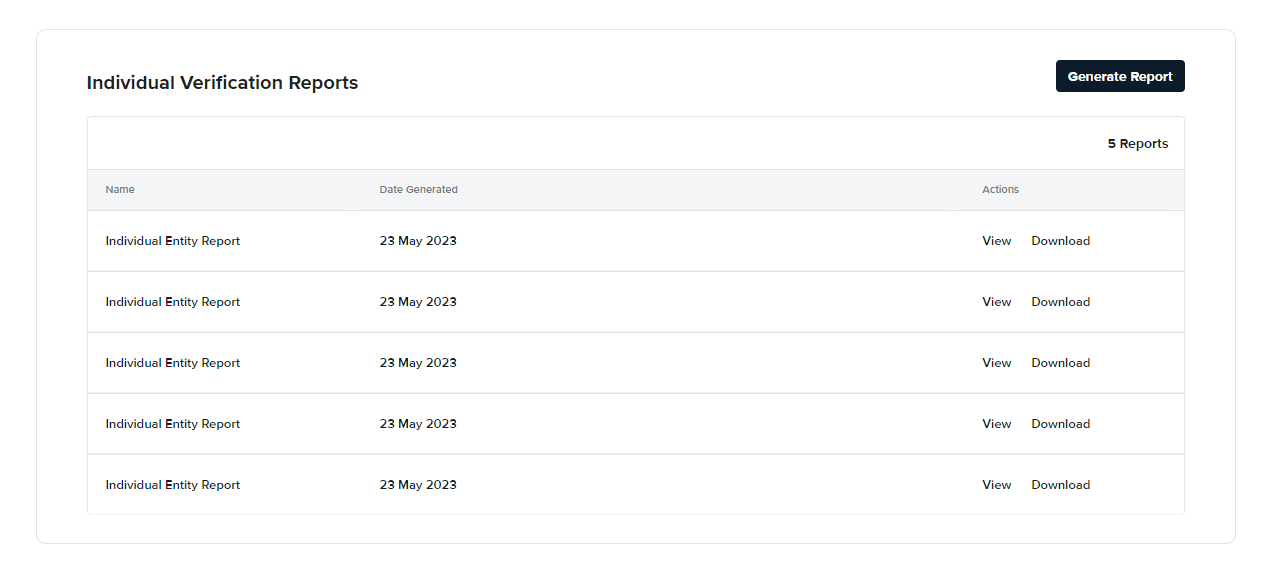
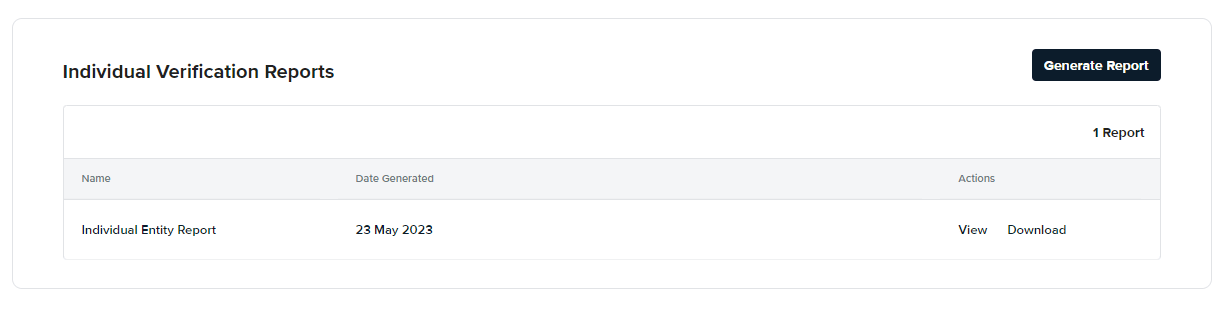
To access Individual Entity Reports, proceed to the **Personal Info** tab of an Individual entity. The page features a section called **Individual Verification Reports** , used to handle the generation, display and download of these reports. Select **View** to review the generated PDF file on your browser, or select **Download** to save a copy in your computer.
## View and open reports
To access Individual Entity Reports, proceed to the **Personal Info** tab of an Individual entity. The page features a section called **Individual Verification Reports** , used to handle the generation, display and download of these reports. Select **View** to review the generated PDF file on your browser, or select **Download** to save a copy in your computer.