> ## Documentation Index
> Fetch the complete documentation index at: https://docs.frankieone.com/llms.txt
> Use this file to discover all available pages before exploring further.
# Portal Notifications
The FrankieOne Portal provides a convenient way to review that notification on entity events. The event notification feature provides a quick overview of real-time notifications for time-sensitive entity updates.
This section will walk you through the steps to view notifications, understand their significance, and manage your notification settings within the FrankieOne Portal.
## Accessing Notifications
To access notification lists, select notification icon (bell) besides the **Profile** menu.
 The notification list will be displayed.
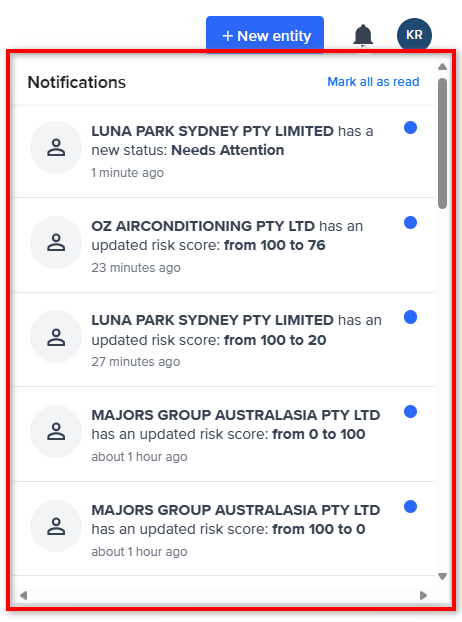 Notifications occur in real-time and are automatically refreshed in the Portal. This ensures that you receive timely updates for time-sensitive entity changes.
### Notification Details
Each notification includes essential information such as:
* Entity (Individual/Organization) name
* Message (Status or Risk)
* Time elapsed since the event occurred
* Unread icon
* Mark as read option
## Managing Notifications
### Unread Notifications Counter
The notification icon displays a counter to indicate the number of unread notifications. This counter (red dot with number) shows the number of unread notifications in the list. Once you open the list, the unread notification will be marked by blue dot. This blue dot disappears once you click the notification.
### Direct Navigation
Clicking on a notification will direct you to the relevant record in the Portal. You will only be able to access entity records that you have appropriate access.
### Mark all as read
To skip reading all notification items, select **Mark all as read** to mark all items as read and remove the unread marks (blue dot).
## Setting Notification settings
You can manage your notification settings by accessing the notification settings page in the Portal.
To access the Notification settings page:
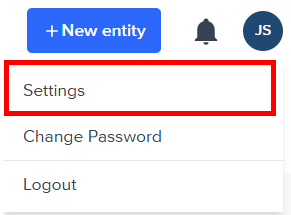
Select the Profile menu, then Settings.
Notifications occur in real-time and are automatically refreshed in the Portal. This ensures that you receive timely updates for time-sensitive entity changes.
### Notification Details
Each notification includes essential information such as:
* Entity (Individual/Organization) name
* Message (Status or Risk)
* Time elapsed since the event occurred
* Unread icon
* Mark as read option
## Managing Notifications
### Unread Notifications Counter
The notification icon displays a counter to indicate the number of unread notifications. This counter (red dot with number) shows the number of unread notifications in the list. Once you open the list, the unread notification will be marked by blue dot. This blue dot disappears once you click the notification.
### Direct Navigation
Clicking on a notification will direct you to the relevant record in the Portal. You will only be able to access entity records that you have appropriate access.
### Mark all as read
To skip reading all notification items, select **Mark all as read** to mark all items as read and remove the unread marks (blue dot).
## Setting Notification settings
You can manage your notification settings by accessing the notification settings page in the Portal.
To access the Notification settings page:
Select the Profile menu, then Settings.
 In the Settings page, select the Notifications tab. The Notifications settings are displayed.
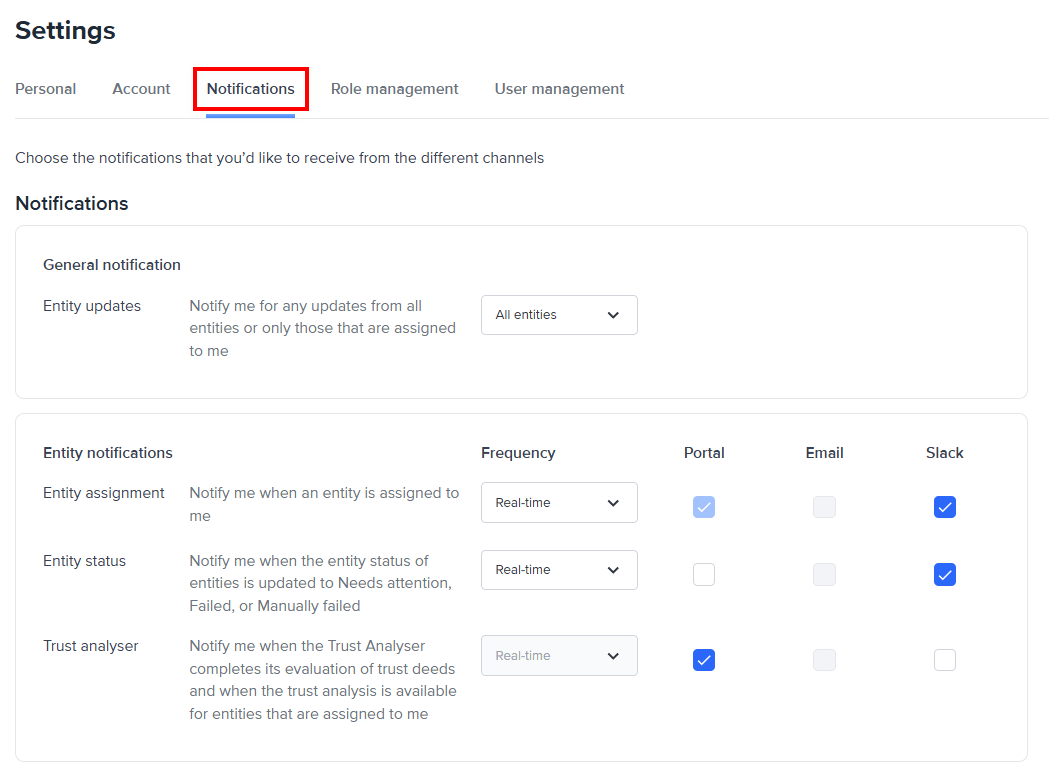 Choose your preferred notification options:
- Admin users can subscribe to all notifications or just to assigned entities.
- For real-time notifications, you will start receiving notifications for your selected event types.
- For batch notifications (daily or weekly), you will receive notifications in bulk with each of the Event notifications sent out by FrankieOne during the selected period.
### Email notifications
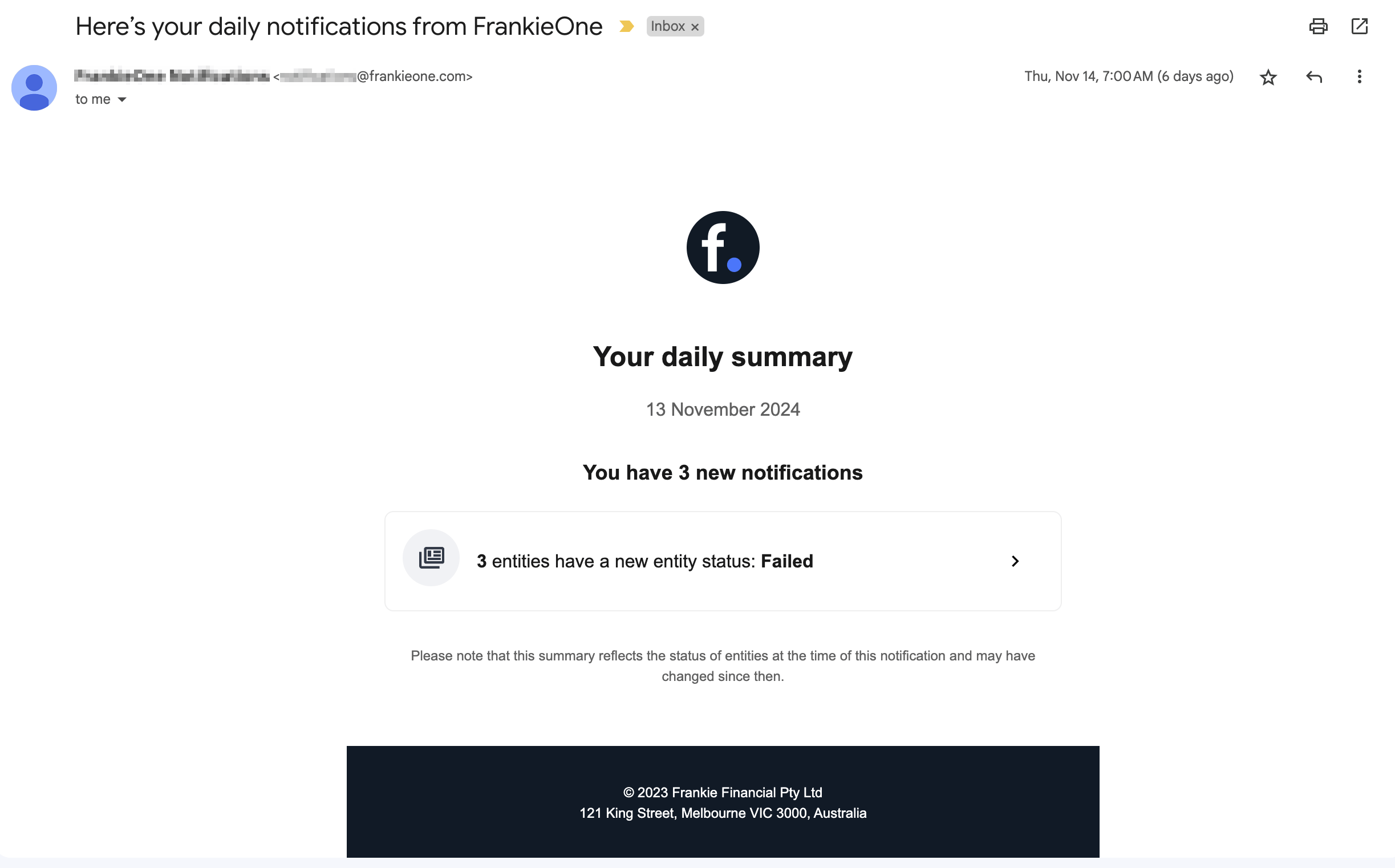
If you select to receive notifications through your email, please take note of the following:
* You will receive batch notifications on the email address used to register for the Portal.
* Real-time notification is not enabled for email to avoid flooding your inbox with event notifications. Note this made available since it can useful during testing or monitoring systems after a recent change, but not recommended or preferred by operators long term. You can opt to set the frequency to daily or weekly.
* Daily and weekly notifications are set to be sent at 7:00 AM (based on the time set for the Portal). This means that if you set the notification frequency today, you will start receiving the batch notification the following day.
 ### Slack notifications
For Slack notifications, please note the following:
* Your Slack email should be the same as your Portal email.
* Slack workspace admins are the only ones that can approve Slack integration. The approval or flow for connection depends on your Slack workspace policies.
#### Slack configuration
To enable Slack notifications, connect your Slack account to the FrankieOne Slack app. To do so, go to **Settings > Account**. Under **Integration** , select **Connect** on the Slack row.
### Slack notifications
For Slack notifications, please note the following:
* Your Slack email should be the same as your Portal email.
* Slack workspace admins are the only ones that can approve Slack integration. The approval or flow for connection depends on your Slack workspace policies.
#### Slack configuration
To enable Slack notifications, connect your Slack account to the FrankieOne Slack app. To do so, go to **Settings > Account**. Under **Integration** , select **Connect** on the Slack row.
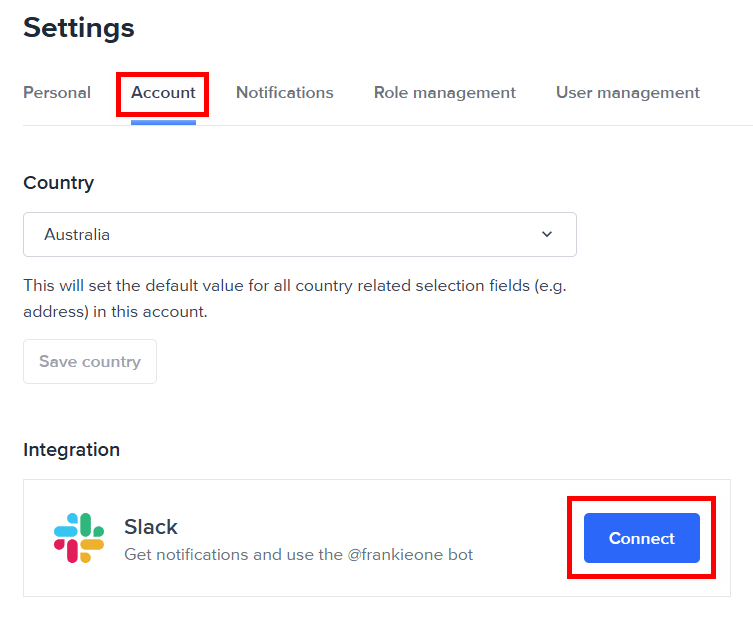 You will be prompted to provide permission to the FrankieOne app to access your Slack workspace. Select **Allow**.
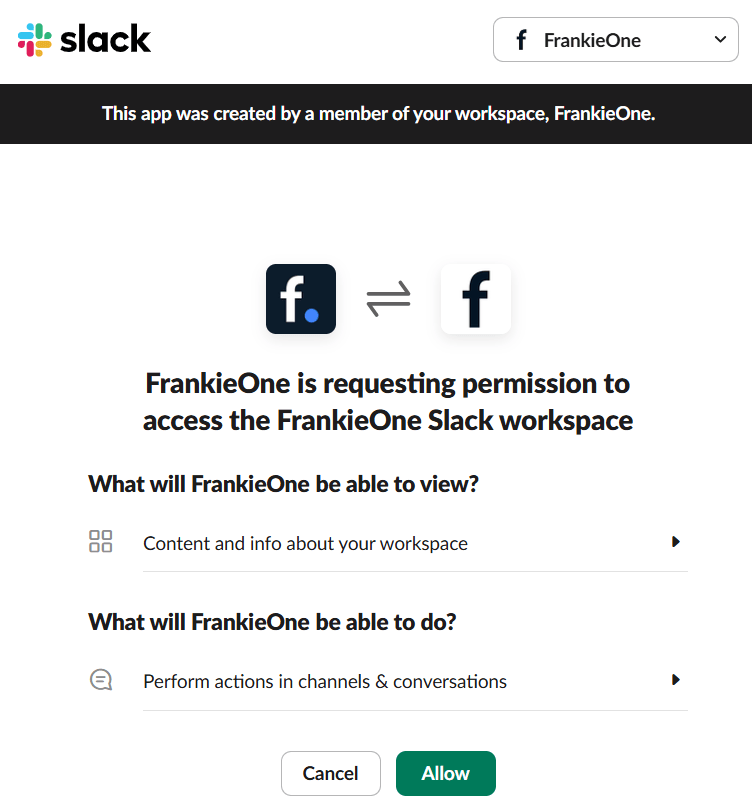 The Slack connection will be activated and the Slack row will display the **Disconnect** button, in case you need to disconnect from the Slack app.
You will now receive event notification on your Slack from FrankieOne.
The Slack connection will be activated and the Slack row will display the **Disconnect** button, in case you need to disconnect from the Slack app.
You will now receive event notification on your Slack from FrankieOne.