> ## Documentation Index
> Fetch the complete documentation index at: https://docs.frankieone.com/llms.txt
> Use this file to discover all available pages before exploring further.
# FrankieOne Single Sign-On (SSO) with Okta
## Prerequisites
Ensure you’ve obtained the metadata from FrankieOne for your environment.
## Procedure
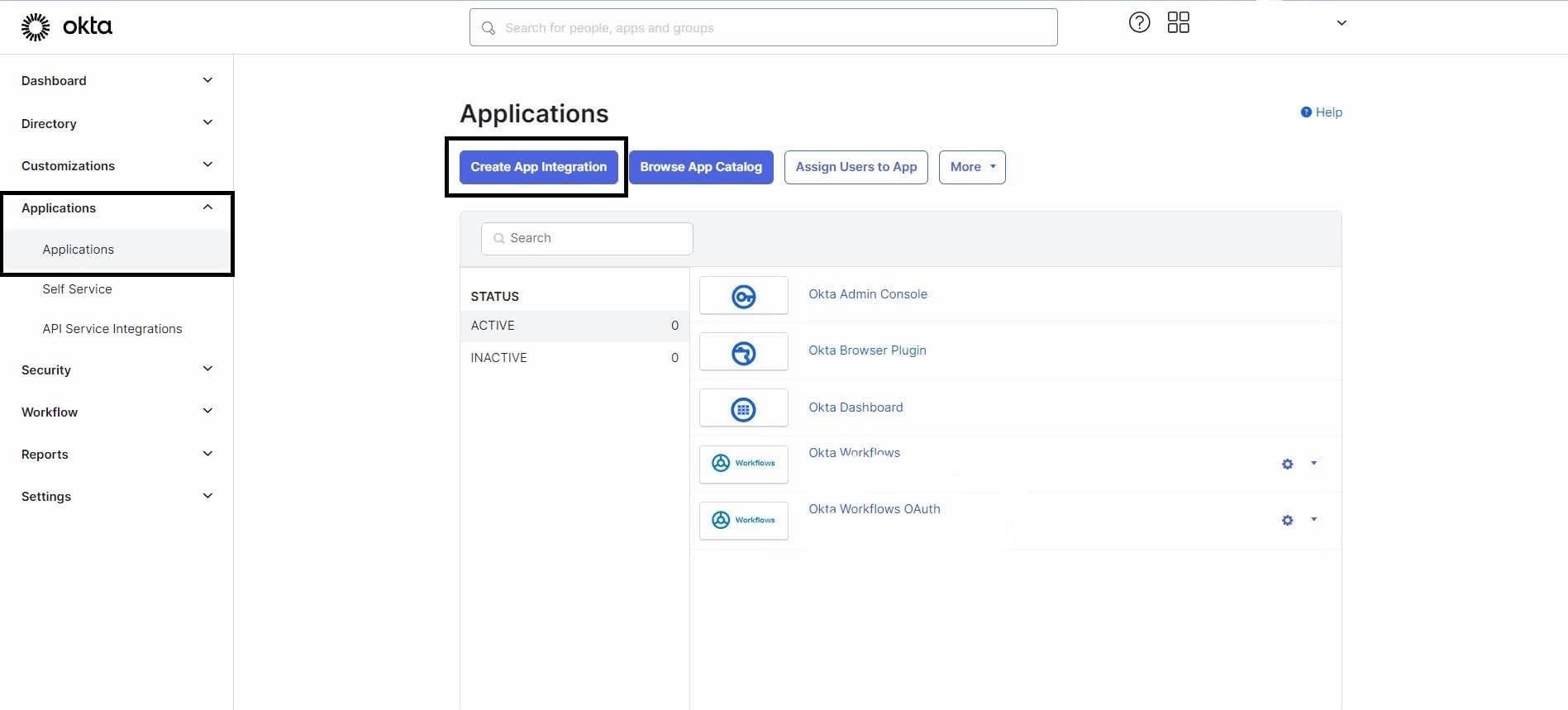
1. Navigate to the Okta Admin Dashboard > Applications > Applications > Create App Integration.
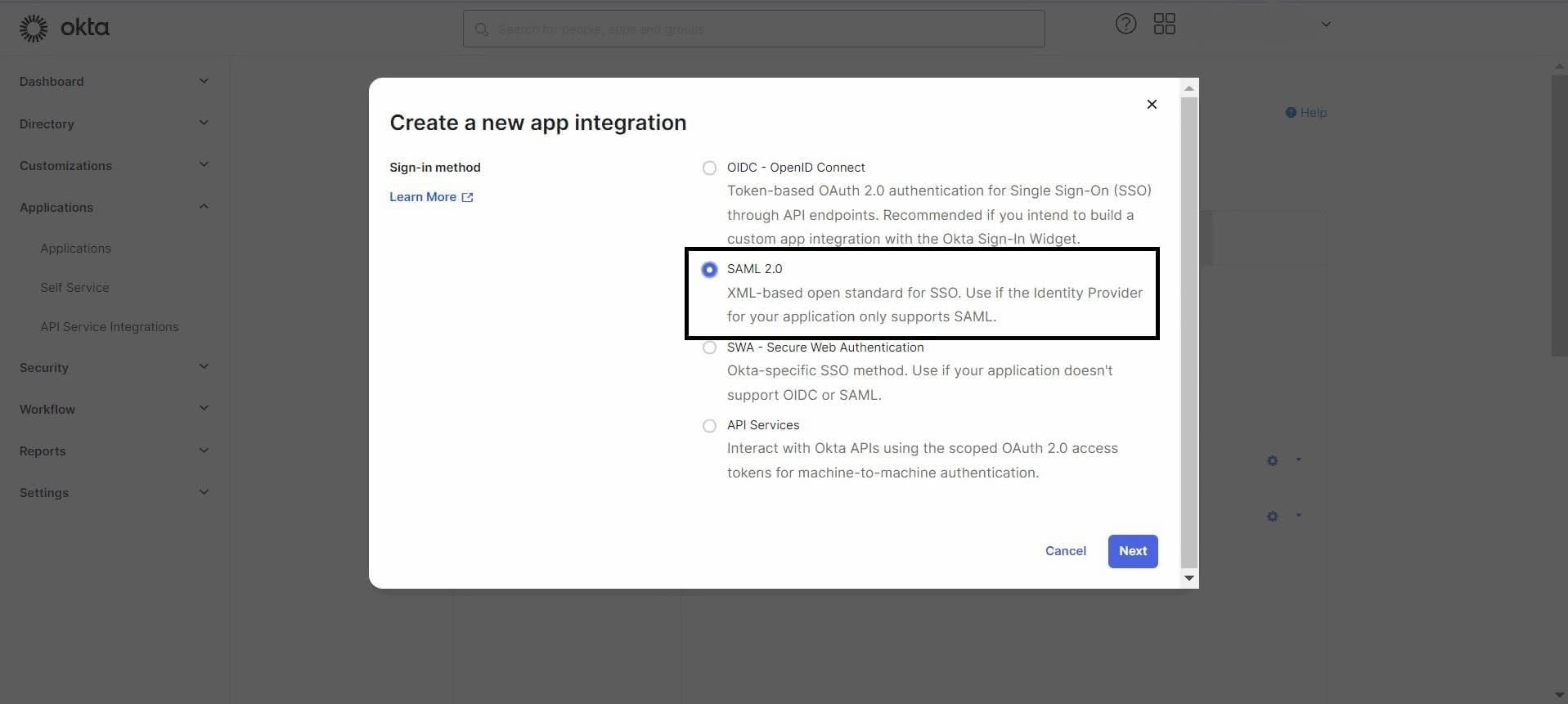
 2\. Choose the SAML 2.0 option and select **Next**.
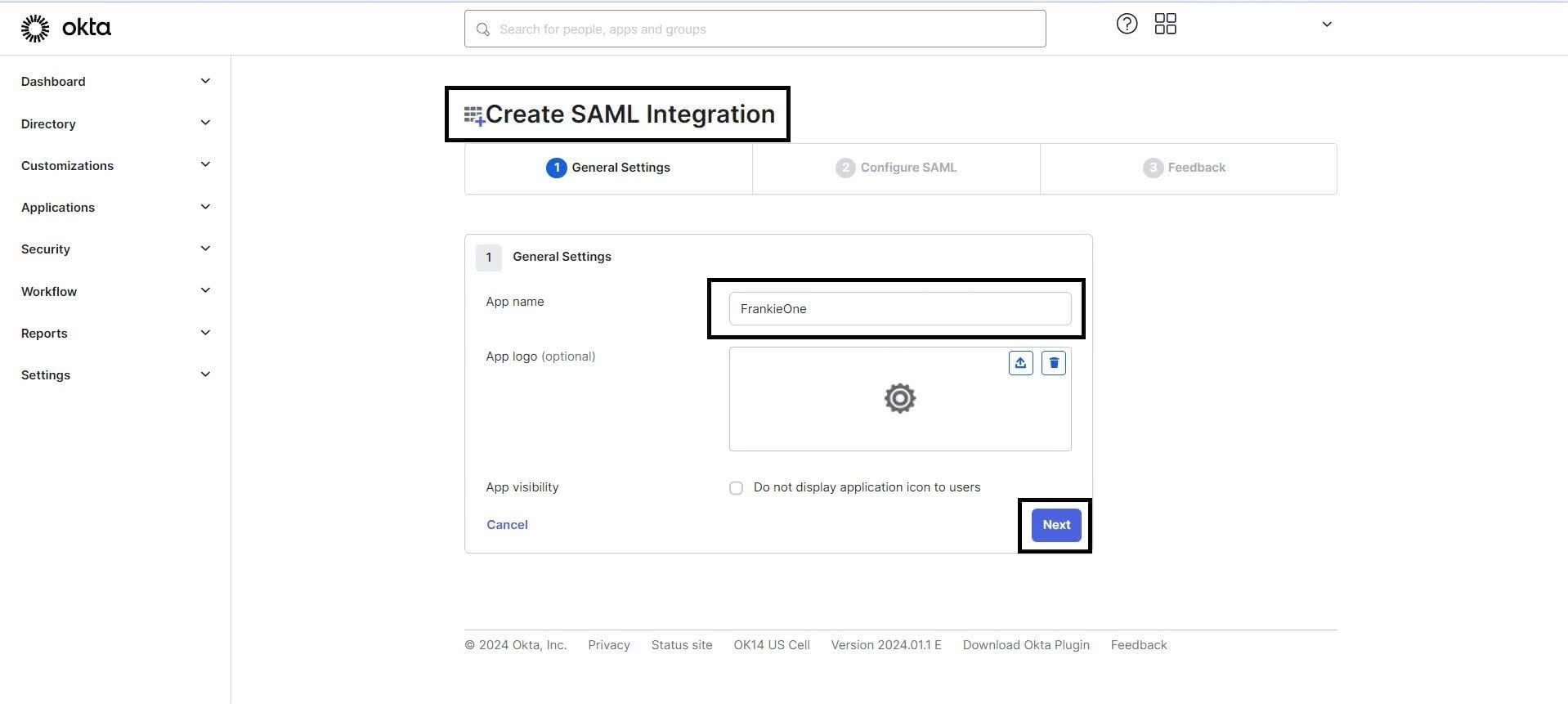
 3\. In the\*\* General Settings\*\* tab, assign a name to your application and select **Next**.
 4\. In the Configure SAML tab, use the metadata provided by FrankieOne to fill in the details under the General section as follows:
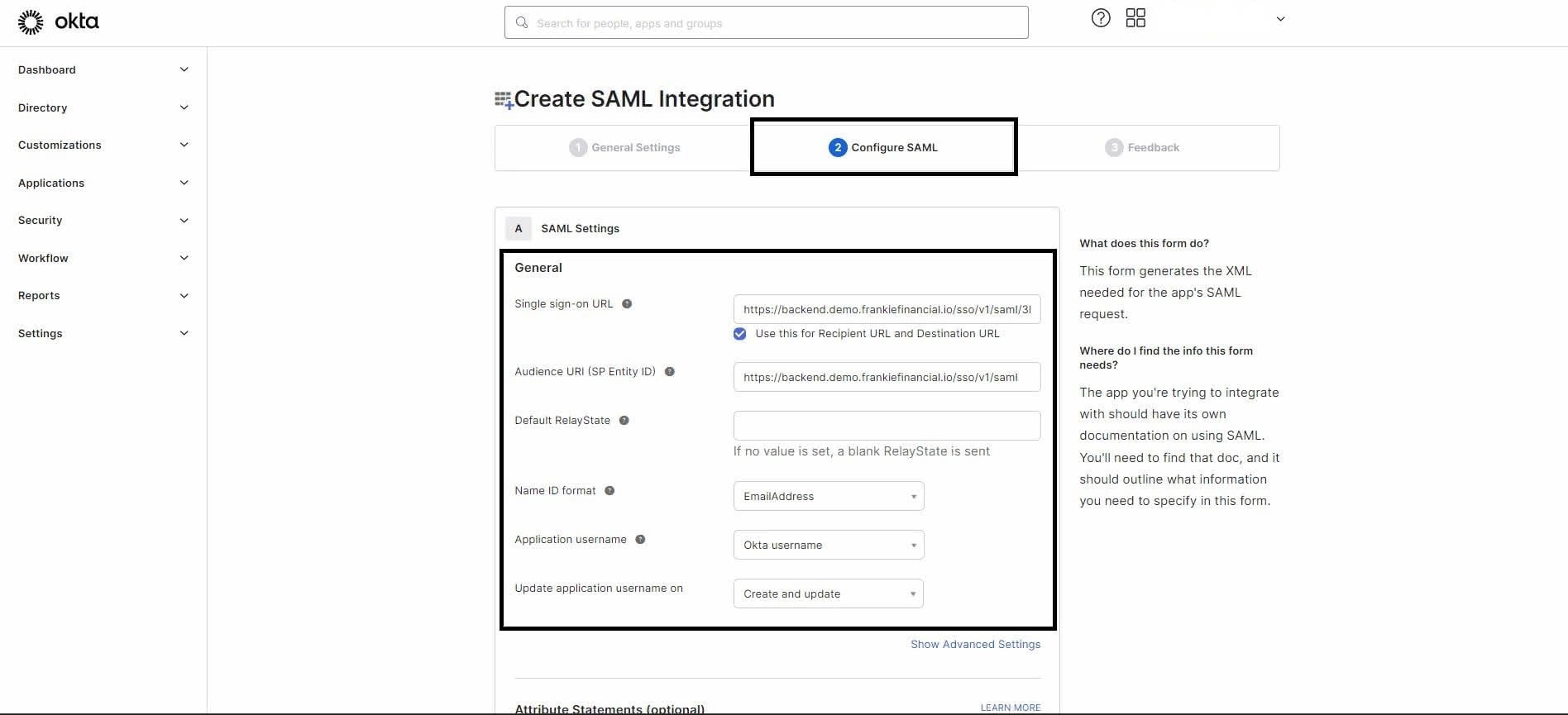
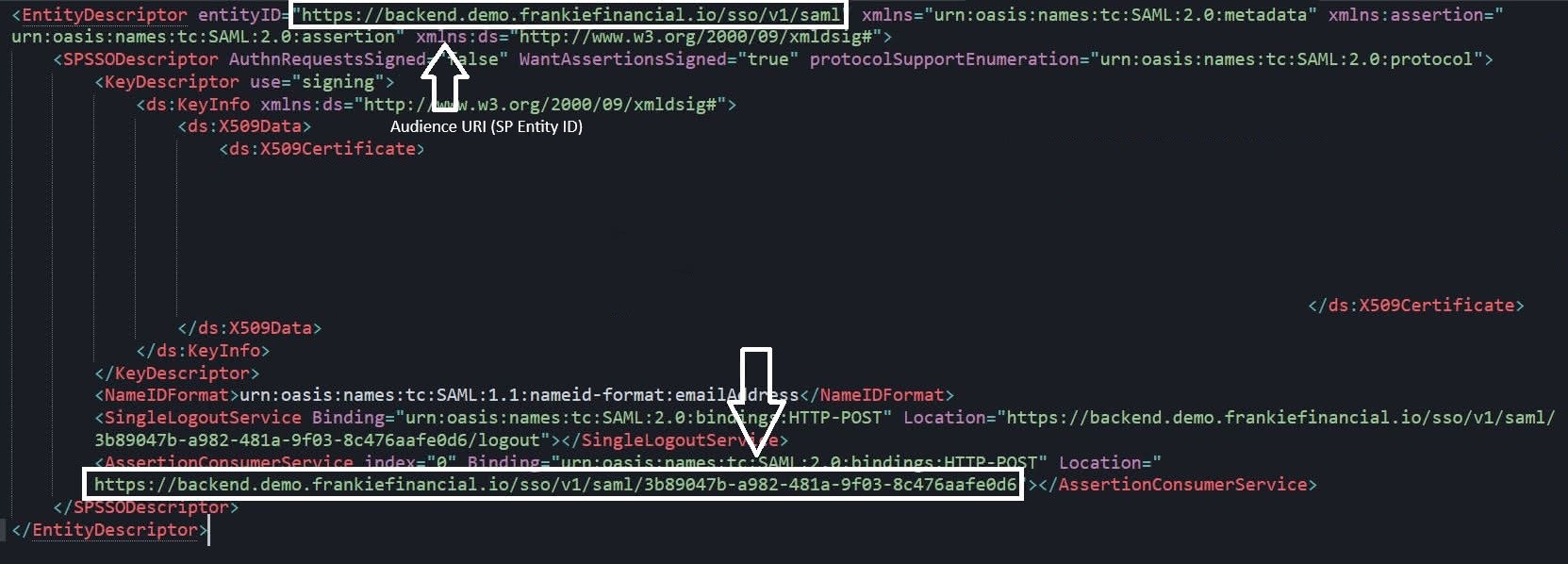 * Single sign-on URL: ``
* Audience URL (SP Entity ID): ``
* Default RelayState: ``
* Name ID format: Choose `Emailaddress` from the drop-down options.
* Application username: Choose `Okta username` from the drop-down options.
* Update application username on: Choose `Create and update` from the drop-down options.
5. In the Attribute Statements (optional) section, add attributes as shown in the screenshot.
* Single sign-on URL: ``
* Audience URL (SP Entity ID): ``
* Default RelayState: ``
* Name ID format: Choose `Emailaddress` from the drop-down options.
* Application username: Choose `Okta username` from the drop-down options.
* Update application username on: Choose `Create and update` from the drop-down options.
5. In the Attribute Statements (optional) section, add attributes as shown in the screenshot.
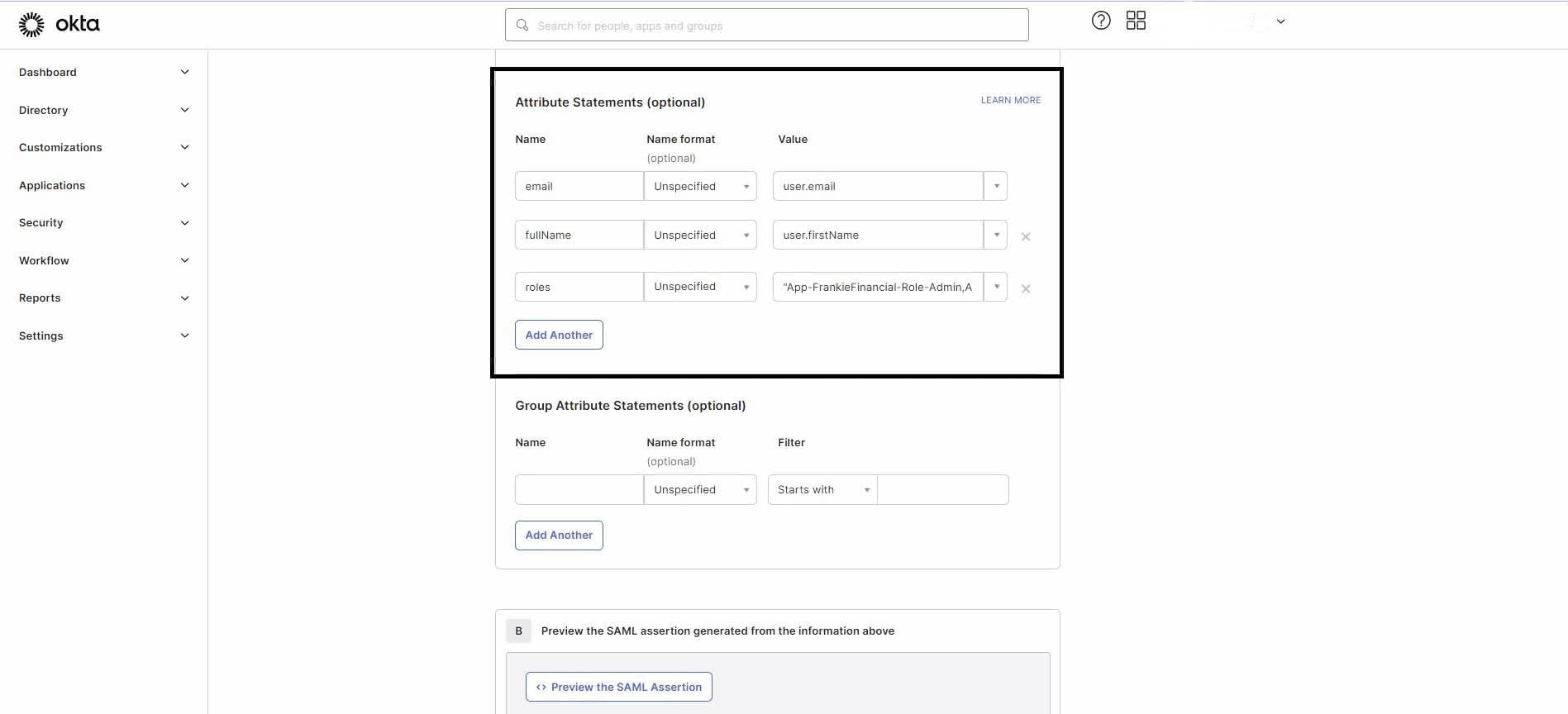 **Note: All three attributes shown in the screenshot are mandatory. The “roles” attribute can have multiple values separated by a comma and enclosed in double quotes.**
6. Select Next, then go to the Feedback tab, where you can choose the appropriate option based on your setup.
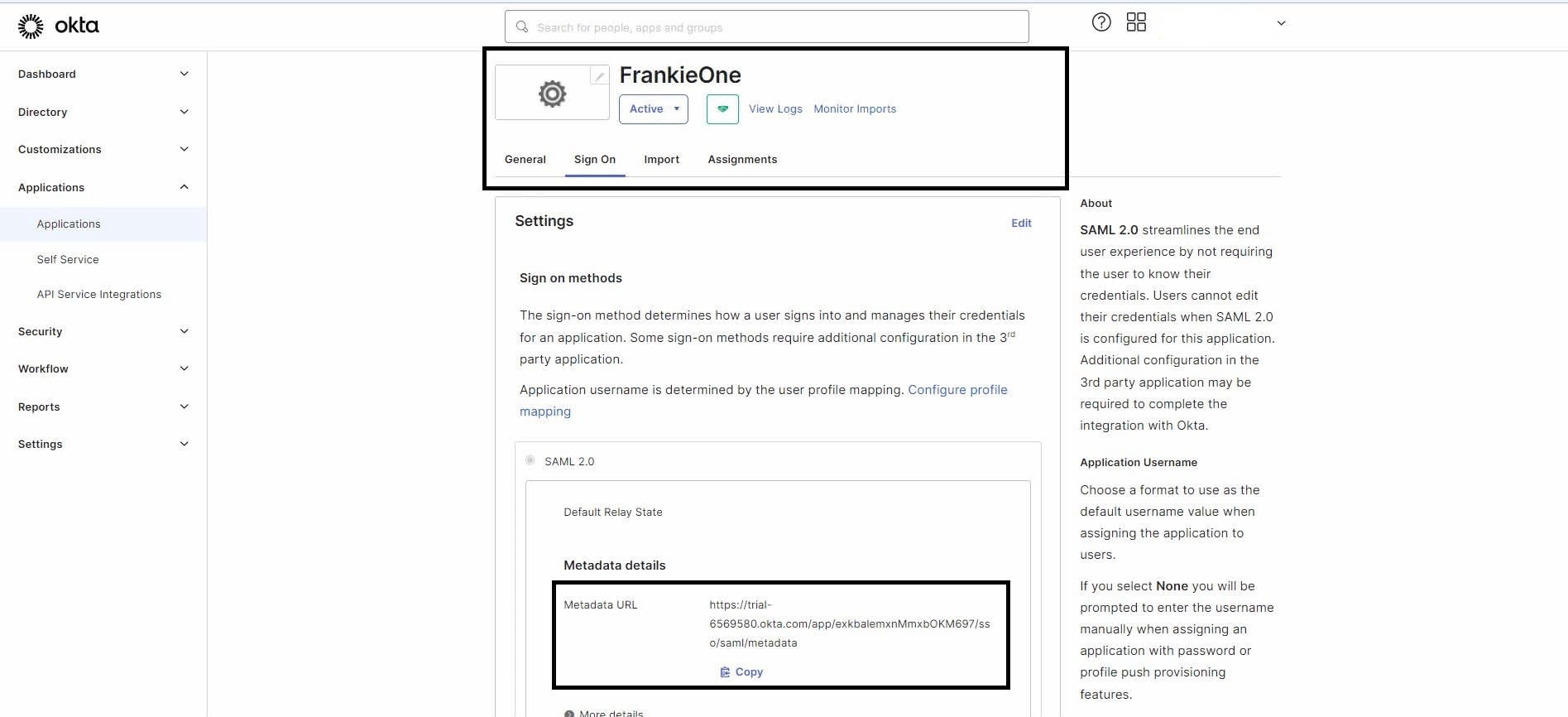
7. After creating the application, you’ll see the application’s\*\* Sign On\*\* settings page, which includes the link to the metadata. Share this metadata with us (FrankieOne) to complete the SSO setup.
**Note: All three attributes shown in the screenshot are mandatory. The “roles” attribute can have multiple values separated by a comma and enclosed in double quotes.**
6. Select Next, then go to the Feedback tab, where you can choose the appropriate option based on your setup.
7. After creating the application, you’ll see the application’s\*\* Sign On\*\* settings page, which includes the link to the metadata. Share this metadata with us (FrankieOne) to complete the SSO setup.
 ## Notes
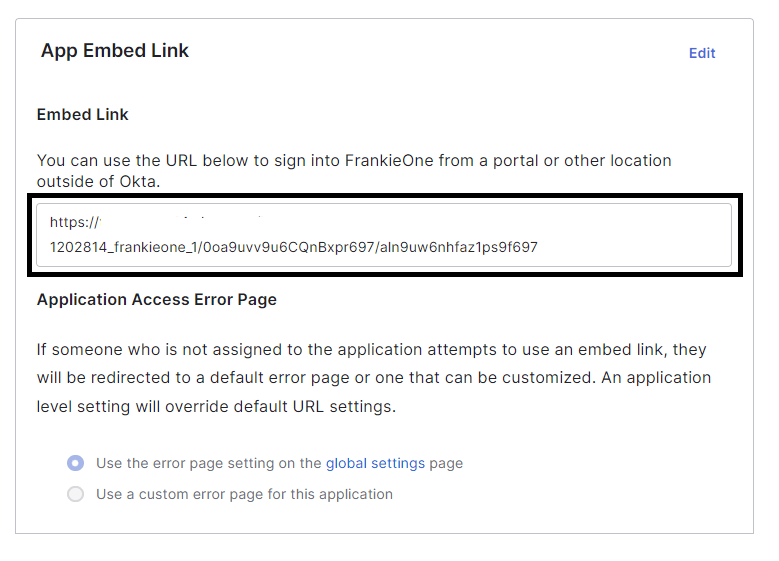
* You can access the FrankieOne Portal using the App Embed Link available under the General tab on the application’s home page.
## Notes
* You can access the FrankieOne Portal using the App Embed Link available under the General tab on the application’s home page.
 * If end users encounter permission errors from Okta, assign the respective users to this newly created application.