> ## Documentation Index
> Fetch the complete documentation index at: https://docs.frankieone.com/llms.txt
> Use this file to discover all available pages before exploring further.

# Manage Users

> How to manage users in the FrankieOne portal

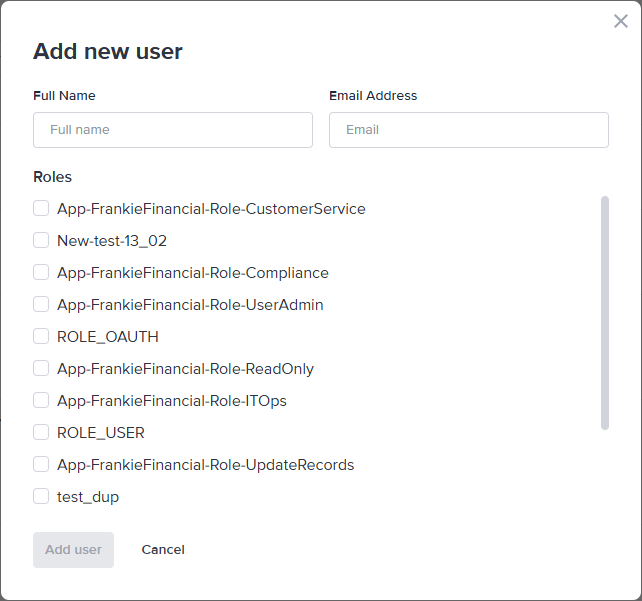
To manage roles in the FrankieOne Portal, select the **Profile** menu, then select **Settings**.

<p align="center">
  <img src="https://mintcdn.com/frankieone-f5583b1b/WwBouLTTlPxYhDwU/images/v1/portal/users/03b2bea-profile_settings.png?fit=max&auto=format&n=WwBouLTTlPxYhDwU&q=85&s=6e02ca68b7ea5773149b19cd37ded3fa" alt="Profile Settings Screenshot" width="378" height="222" data-path="images/v1/portal/users/03b2bea-profile_settings.png" />
</p>

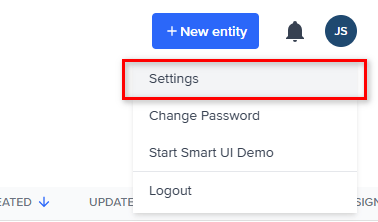
From the **Settings** page, select **User Management**.

## User Management

The User Management tab displays a list of all users currently registered in your FrankieOne portal as well as the roles that are assigned to them.

<img src="https://mintcdn.com/frankieone-f5583b1b/WwBouLTTlPxYhDwU/images/v1/portal/users/0a43cc0-manage_users.png?fit=max&auto=format&n=WwBouLTTlPxYhDwU&q=85&s=214d9f553251cdcfa545f46a4ddf34ae" alt="" width="1292" height="593" data-path="images/v1/portal/users/0a43cc0-manage_users.png" />

## Add a New user

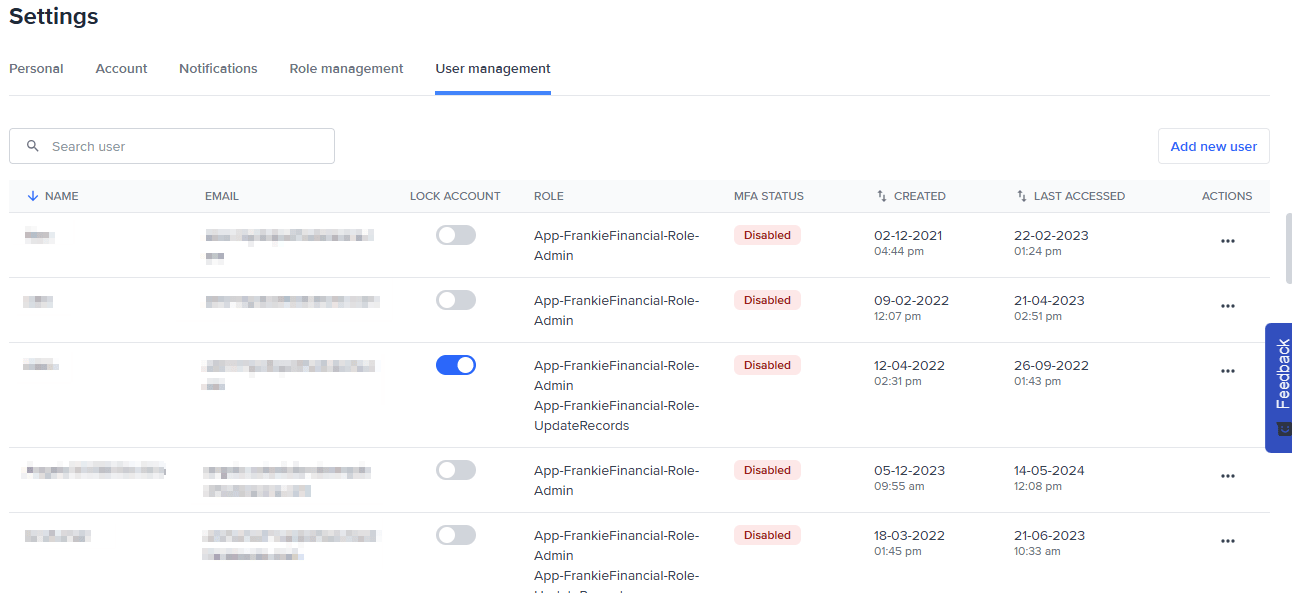
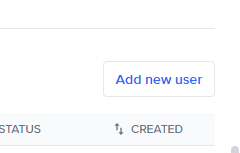
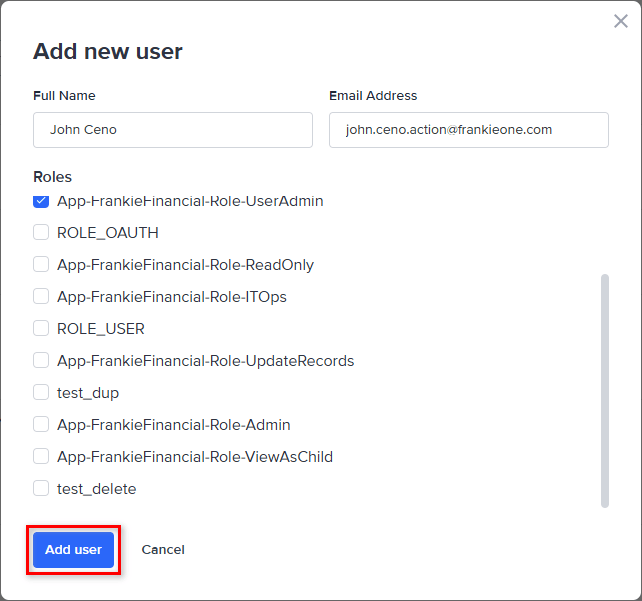
Click the **Add new user** button and enter the name and email address.
<p align="center">
  <img src="https://mintcdn.com/frankieone-f5583b1b/WwBouLTTlPxYhDwU/images/v1/portal/users/16d93f9-image.png?fit=max&auto=format&n=WwBouLTTlPxYhDwU&q=85&s=9c67991a90c6c3560cf7a4aae2e69246" alt="Add New User Screenshot" width="240" height="153" data-path="images/v1/portal/users/16d93f9-image.png" />
</p>

In the **Add new user** setup, ensure that at least one role is assigned to the new user, otherwise they won’t be able to access the Portal.

<img src="https://mintcdn.com/frankieone-f5583b1b/kuSfFEj6euwHKbOF/images/v1/portal/users/a373966-add_new_user.png?fit=max&auto=format&n=kuSfFEj6euwHKbOF&q=85&s=f4e9fd0909502e2c23efe03865de0fce" alt="" width="642" height="601" data-path="images/v1/portal/users/a373966-add_new_user.png" />

Click the **Save** icon to create the new user.
<img src="https://mintcdn.com/frankieone-f5583b1b/WwBouLTTlPxYhDwU/images/v1/portal/users/57821f0-and_new_user_filled.png?fit=max&auto=format&n=WwBouLTTlPxYhDwU&q=85&s=bd6ab1977a9c501d142e0f7a2b3ab61d" alt="" width="642" height="601" data-path="images/v1/portal/users/57821f0-and_new_user_filled.png" />

An email will be sent to the user with information on setting their password.

## Lock a User

Locking a user prevents the user from having access to the FrankieOne Portal, however leaves their profile in the FrankieOne system for audit purposes.

<img src="https://mintcdn.com/frankieone-f5583b1b/WwBouLTTlPxYhDwU/images/v1/portal/users/790884c-lock_user.png?fit=max&auto=format&n=WwBouLTTlPxYhDwU&q=85&s=b7d89013506356449ea45ff5562679fb" alt="" width="1064" height="125" data-path="images/v1/portal/users/790884c-lock_user.png" />

## Reset the Password

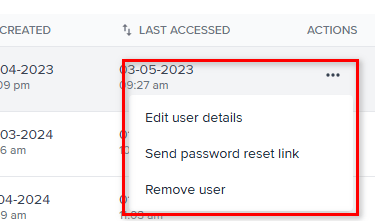
To send a reset password link to a user, click the lock icon associated with that user. This will email a link to the user with instructions on resetting their password.
<p align="center">
  <img src="https://mintcdn.com/frankieone-f5583b1b/WwBouLTTlPxYhDwU/images/v1/portal/users/4f50e5f-reset_password.png?fit=max&auto=format&n=WwBouLTTlPxYhDwU&q=85&s=8187169e485d5694a8575af6db6d8567" alt="Reset Password Screenshot" width="387" height="221" data-path="images/v1/portal/users/4f50e5f-reset_password.png" />
</p>