> ## Documentation Index
> Fetch the complete documentation index at: https://docs.frankieone.com/llms.txt
> Use this file to discover all available pages before exploring further.
# Viewing your KYC rulesets
The KYC Rulesets page lets you see the verification rules configured for your account in one place. No more emails or spreadsheets to answer "what runs on this workflow?" or "why did this entity pass?".
## Accessing your KYC rulesets
You can view your account's KYC rulesets by clicking **Rulesets** under **Risk and rules** on the sidebar. The page is only visible to users with one of the following roles:
1. Administrator
2. Super Admin
3. Compliance Officer
## How to view your account rulesets
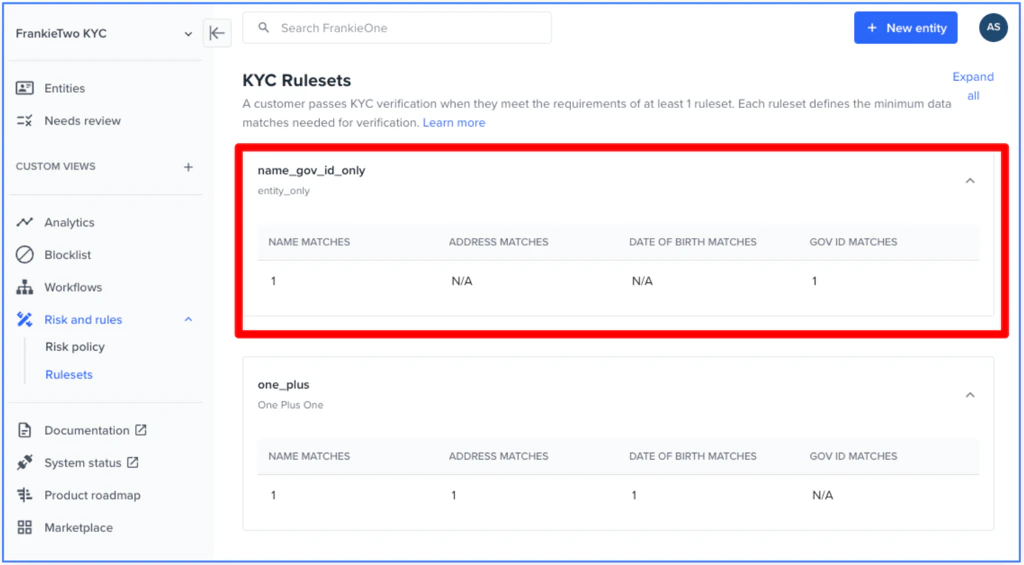
A customer passes KYC verification when they meet the requirements of at least one ruleset. Each ruleset defines the minimum data matches needed for verification.
 ### **Understanding match requirements**
Each ruleset specifies the minimum number of matches required across four data types:
* **Name matches** — sources that must verify the entity's name
* **Address matches** — sources that must verify the entity's address
* **Date of birth matches** — sources that must verify the entity's date of birth
* **Government ID matches** — sources that must verify the entity's government ID
For example, the `one_plus` ruleset requires `1×` name match and `1×` (address OR DOB) match. No government ID is required.
For more information, see [A Detailed Guide to eKYC Rulesets - frankieone](https://docs.frankieone.com/docs/ekyc-rulesets)
## How to see why an entity passed or failed
You can view the ruleset evaluation for a specific entity from the page.
### **Understanding match requirements**
Each ruleset specifies the minimum number of matches required across four data types:
* **Name matches** — sources that must verify the entity's name
* **Address matches** — sources that must verify the entity's address
* **Date of birth matches** — sources that must verify the entity's date of birth
* **Government ID matches** — sources that must verify the entity's government ID
For example, the `one_plus` ruleset requires `1×` name match and `1×` (address OR DOB) match. No government ID is required.
For more information, see [A Detailed Guide to eKYC Rulesets - frankieone](https://docs.frankieone.com/docs/ekyc-rulesets)
## How to see why an entity passed or failed
You can view the ruleset evaluation for a specific entity from the page.
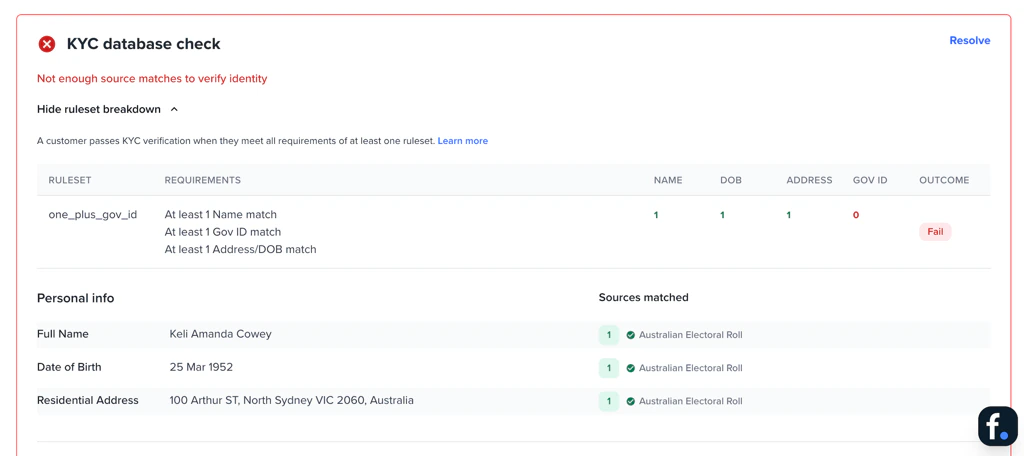 1. **KYC step result** — the verification step that ran, with the applied ruleset shown in the workflow label (for example, `Ruleset: one_plus_gov_id`)
2. **Ruleset match requirements** — the data and match thresholds required by the applied ruleset
3. **Matches found** — the data points that were successfully matched
4. **Outcome** — the outcome of the KYC check (eg Pass, Fail)
This breakdown shows which ruleset was applied, what was required, what was matched, and the outcome.
## How to see Required vs. optional checks
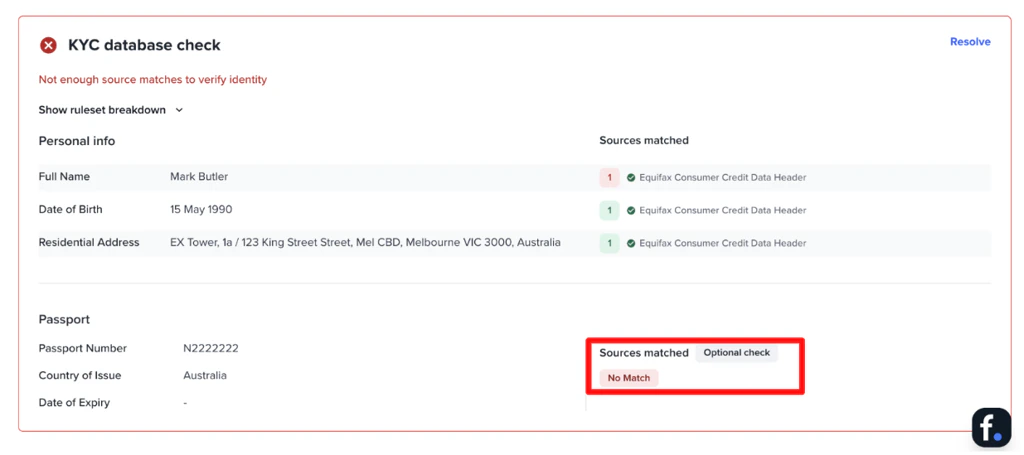
When you review a verification result, you'll see two types of checks:
* **Required checks that did not match** — checks the ruleset required, where no source confirmed the data. These cause the verification to fail and are shown as a failure.
* **Optional checks that did not match** — checks that weren't required by the ruleset, or where another rule already satisfied the requirement. These are acceptable and are shown with an **Optional** badge alongside the source.
The distinction helps you tell at a glance whether an unmatched check is a real problem (required but missing) or expected (optional and accounted for).
1. **KYC step result** — the verification step that ran, with the applied ruleset shown in the workflow label (for example, `Ruleset: one_plus_gov_id`)
2. **Ruleset match requirements** — the data and match thresholds required by the applied ruleset
3. **Matches found** — the data points that were successfully matched
4. **Outcome** — the outcome of the KYC check (eg Pass, Fail)
This breakdown shows which ruleset was applied, what was required, what was matched, and the outcome.
## How to see Required vs. optional checks
When you review a verification result, you'll see two types of checks:
* **Required checks that did not match** — checks the ruleset required, where no source confirmed the data. These cause the verification to fail and are shown as a failure.
* **Optional checks that did not match** — checks that weren't required by the ruleset, or where another rule already satisfied the requirement. These are acceptable and are shown with an **Optional** badge alongside the source.
The distinction helps you tell at a glance whether an unmatched check is a real problem (required but missing) or expected (optional and accounted for).
 ## Coming soon
* Granular KYC issue codes on entity profiles for faster troubleshooting of failed verifications
* Historical ruleset change tracking
## Coming soon
* Granular KYC issue codes on entity profiles for faster troubleshooting of failed verifications
* Historical ruleset change tracking