> ## Documentation Index
> Fetch the complete documentation index at: https://docs.frankieone.com/llms.txt
> Use this file to discover all available pages before exploring further.
# Resolving Alerts
> This guide explains how to resolve alerts in the FrankieOne Portal for Transaction and Activity Monitoring (TM). It covers the resolution workflow, re-evaluation of results, and how to add comments for audit purposes. Applies to: FrankieOne Transaction Monitoring — v2. Required permission: Modify transaction and activity alert statuses
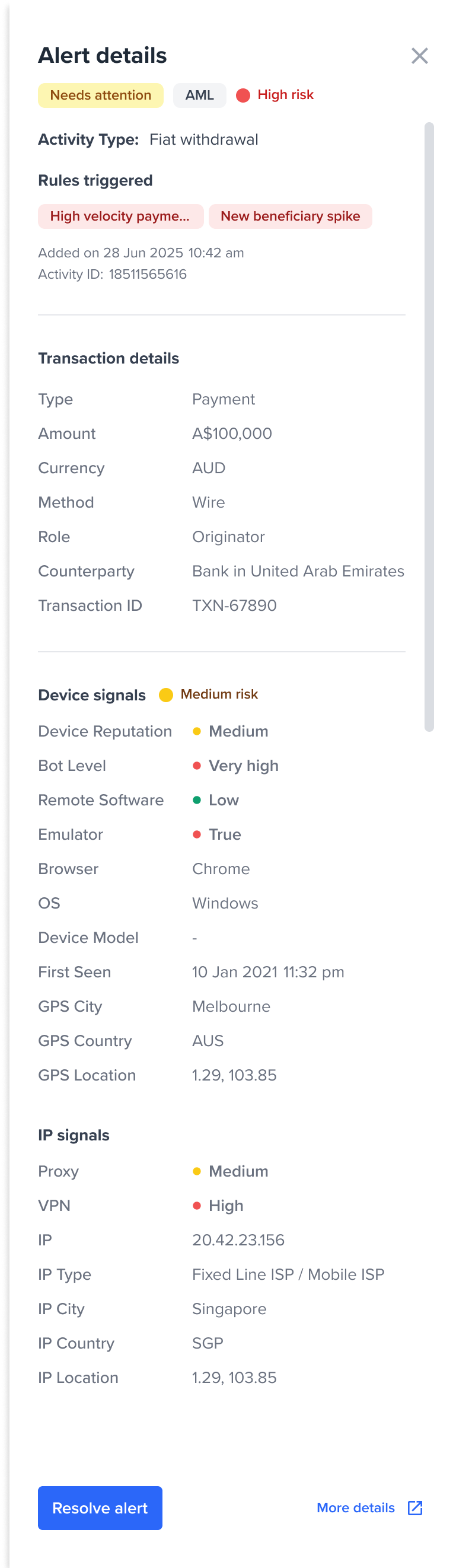
If you have the "Modify transaction and activity alert statuses" permission, you can resolve alerts directly from the alert details drawer. The **Resolve alert** button is located at the bottom-left corner.
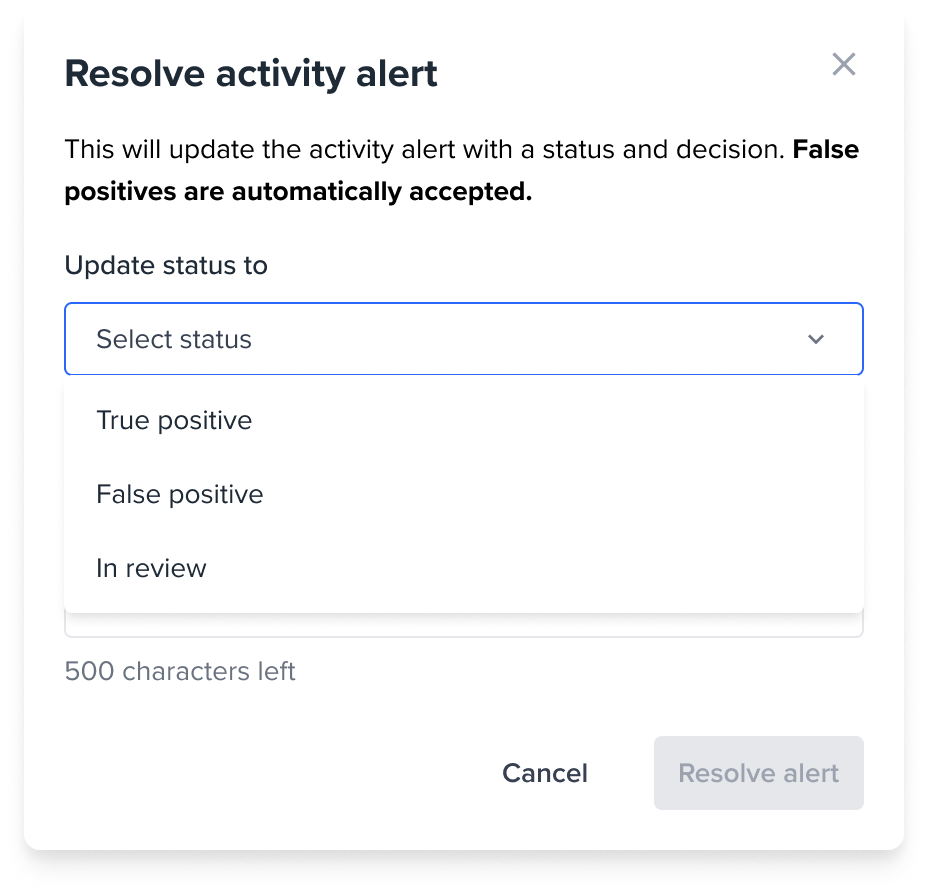
 A pop-up modal will appear, requiring you to select a status, approve or reject the alert if applicable, and leave a comment for auditability.
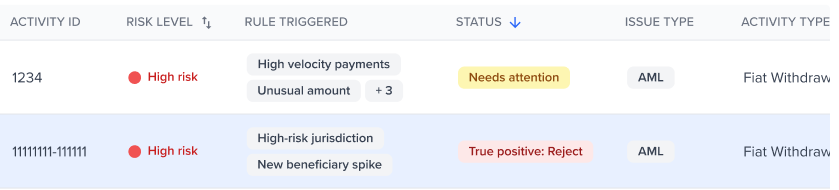
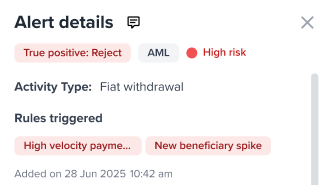
 When you select **Resolve alert**, the portal updates the status of the selected alert accordingly.
 #### Re-evaluation of results
Once all alerts within a specific check have been resolved, the portal will automatically [re-evaluate the monitoring workflow](/v2/docs/tm/implementation). This ensures that the entity's status and overall risk assessment are updated to reflect the most current decisions and changes.
### Comments
Comments are recorded each time the status of a specific alert is changed. The comment history displayed in the alert details drawer shows only the comments for the **currently selected alert**. When you select a different alert, the comment history updates to reflect that alert's history only.
To view comments for an alert, select the comment icon in the alert details drawer. All comments and status changes for that alert are listed in chronological order.
#### Re-evaluation of results
Once all alerts within a specific check have been resolved, the portal will automatically [re-evaluate the monitoring workflow](/v2/docs/tm/implementation). This ensures that the entity's status and overall risk assessment are updated to reflect the most current decisions and changes.
### Comments
Comments are recorded each time the status of a specific alert is changed. The comment history displayed in the alert details drawer shows only the comments for the **currently selected alert**. When you select a different alert, the comment history updates to reflect that alert's history only.
To view comments for an alert, select the comment icon in the alert details drawer. All comments and status changes for that alert are listed in chronological order.
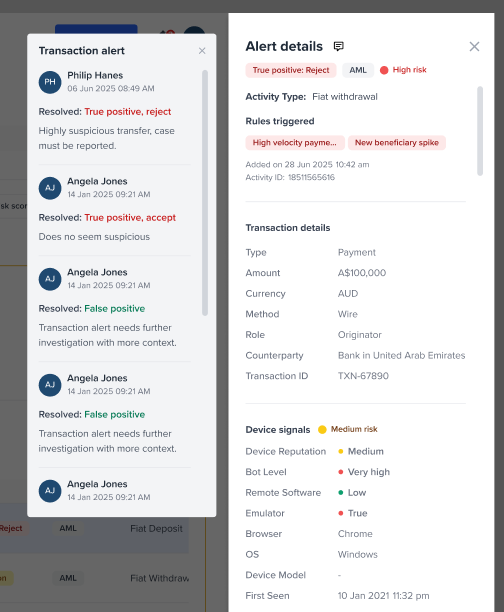 Because comments are tied to manual status actions, all actions — including resolving an alert, changing its status, or adding a comment — are recorded as part of the audit trail for compliance purposes. You can view these in the audit report.