> ## Documentation Index
> Fetch the complete documentation index at: https://docs.frankieone.com/llms.txt
> Use this file to discover all available pages before exploring further.
# Reviewing Activities
> This guide explains how to review activity history for an entity in the FrankieOne Portal, find the activity that triggered a specific alert, and investigate associated activities from routine-based alerts. Applies to: FrankieOne Transaction Monitoring (TM) — v2. Audience: Fraud Officers, Compliance Officers, Portal operators
### Video Guide
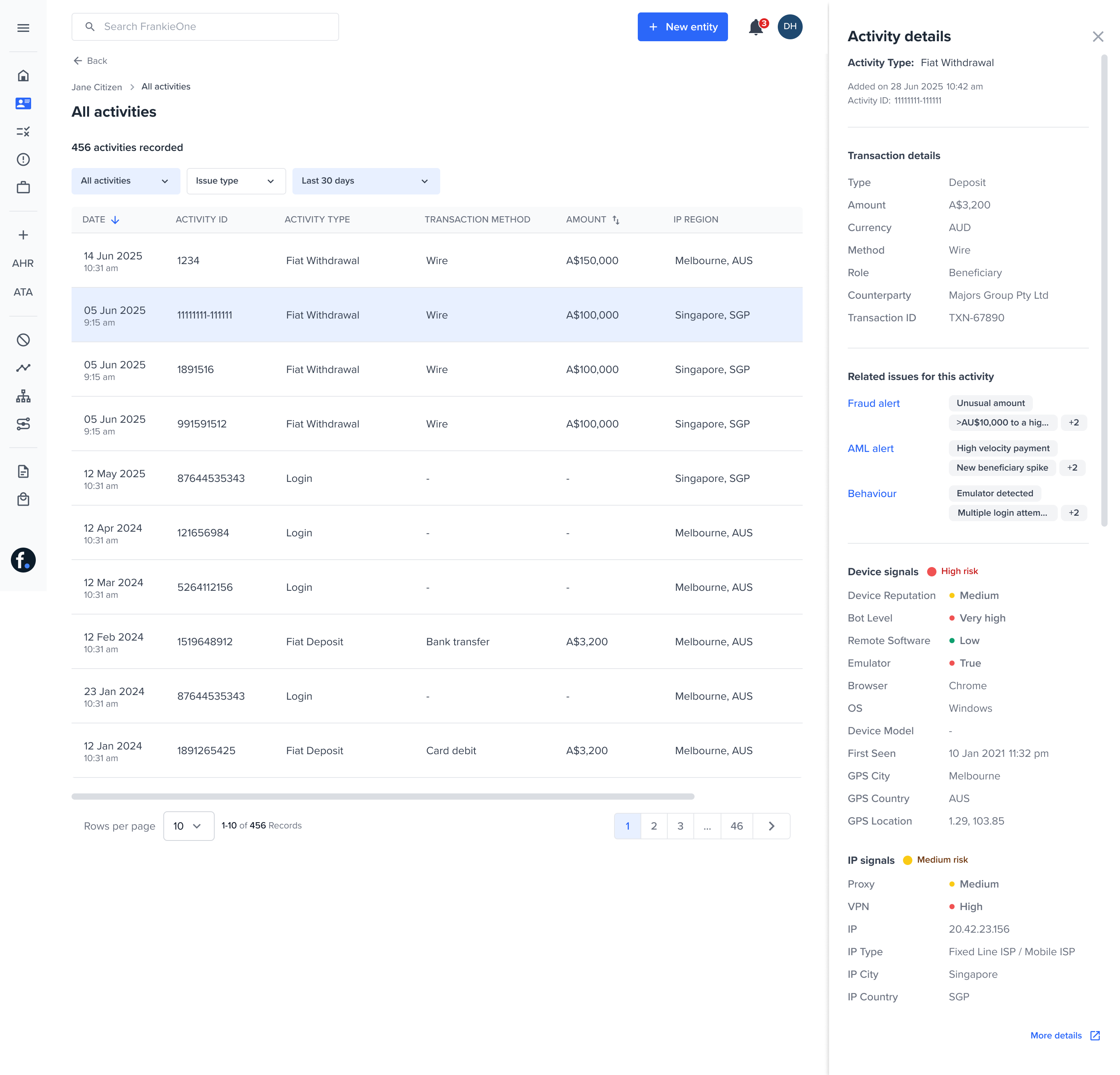
The video above demonstrates how to navigate to the Activities tab for an entity, filter by date range, and open the activity detail drawer to review transaction details and triggered rules.
## Viewing all activities
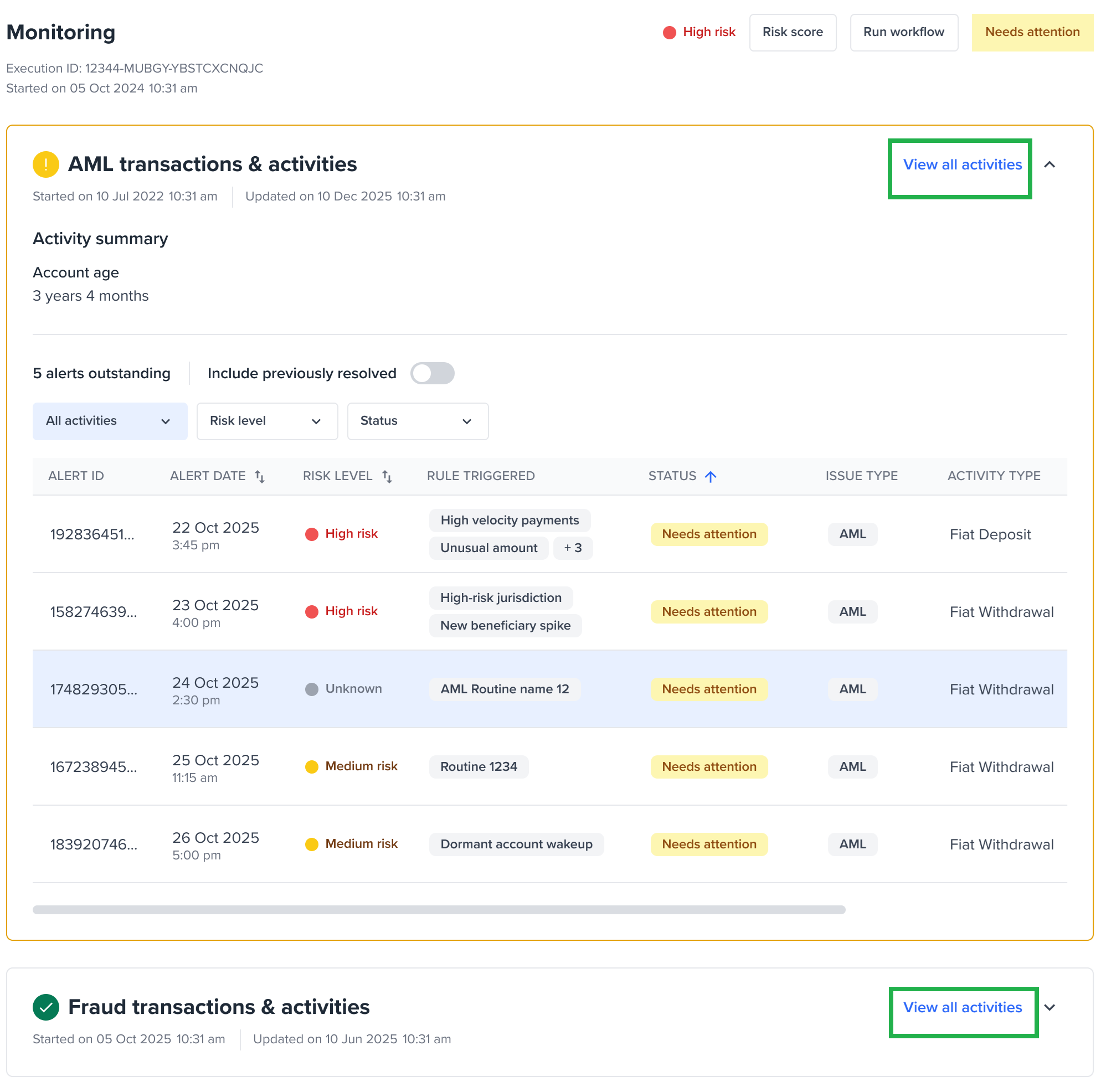
To view all recorded activities and transactions for a given entity or alert, select **View all activities** from the **Workflow events** tab. This will show you a history of all activities recorded for the entity
 ## Viewing the activity that caused an alert
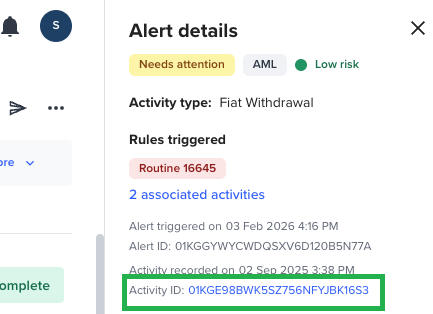 From any alert that includes an **Activity ID**, you can:
* Select the **Activity ID** to open the **Activities** page for the relevant entity.
* See the **selected activity** in the Activities table.
* View the **activity details drawer** automatically expanded for that activity.
* Review **all activities that occurred in the 30 days before** the selected activity.
* If needed, you can adjust the date range filters on the Activities page to look further back in time, or narrow down to a shorter investigation window.
**Activity data and entity data**
The party details shown in the activity details drawer — including address, email address, and phone number — reflect the data that was present at the time the activity was evaluated. If the entity's profile has been updated since the activity was submitted, the activity record retains the original snapshot.
FrankieOne selects the most relevant contact data point from an entity's profile using the following logic:
* **Address:** Residential addresses are preferred, then postal, then any other type. Within each type, the most recently updated address is selected.
* **Email address and phone number:** The entry marked as preferred (`isPreferred: true`) is selected. If no preferred entry exists, the most recently updated entry is selected.
This selection determines what is used for the analysis at the time of evaluation.
## Associated activities
### What is an associated activity?
You may receive **routine-based or batch alerts** from your provider, where a single routine run often flags a *set* of activities (for example, a velocity pattern, a cluster of withdrawals) rather than a single transaction.
In this case, the latest activity in that set will be flagged as a “Routine” alert, and all activities in that set will be considered “associated activities” to such an alert.
### Reviewing associated activities
From any alert that includes an **Activity ID**, you can:
* Select the **Activity ID** to open the **Activities** page for the relevant entity.
* See the **selected activity** in the Activities table.
* View the **activity details drawer** automatically expanded for that activity.
* Review **all activities that occurred in the 30 days before** the selected activity.
* If needed, you can adjust the date range filters on the Activities page to look further back in time, or narrow down to a shorter investigation window.
**Activity data and entity data**
The party details shown in the activity details drawer — including address, email address, and phone number — reflect the data that was present at the time the activity was evaluated. If the entity's profile has been updated since the activity was submitted, the activity record retains the original snapshot.
FrankieOne selects the most relevant contact data point from an entity's profile using the following logic:
* **Address:** Residential addresses are preferred, then postal, then any other type. Within each type, the most recently updated address is selected.
* **Email address and phone number:** The entry marked as preferred (`isPreferred: true`) is selected. If no preferred entry exists, the most recently updated entry is selected.
This selection determines what is used for the analysis at the time of evaluation.
## Associated activities
### What is an associated activity?
You may receive **routine-based or batch alerts** from your provider, where a single routine run often flags a *set* of activities (for example, a velocity pattern, a cluster of withdrawals) rather than a single transaction.
In this case, the latest activity in that set will be flagged as a “Routine” alert, and all activities in that set will be considered “associated activities” to such an alert.
### Reviewing associated activities
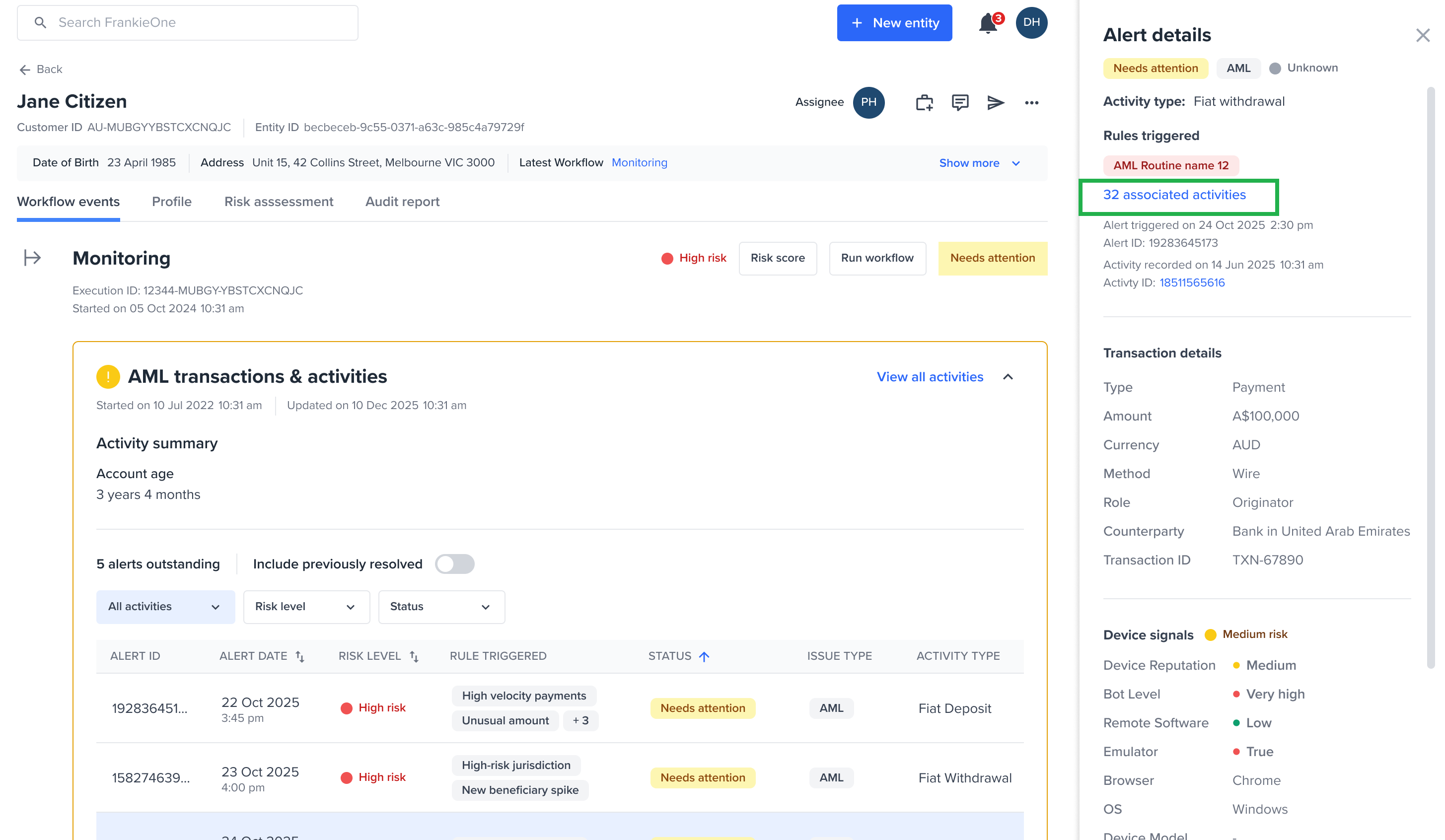 In the workflow tab, you may see an alert that might be a routine-based alert. When you select on that alert, you will see a link under the **Rules triggered** section showing the number of activities associated with that alert.
Select this link, and you will be redirected to the list of activities associated with this routine alert.
In the workflow tab, you may see an alert that might be a routine-based alert. When you select on that alert, you will see a link under the **Rules triggered** section showing the number of activities associated with that alert.
Select this link, and you will be redirected to the list of activities associated with this routine alert.
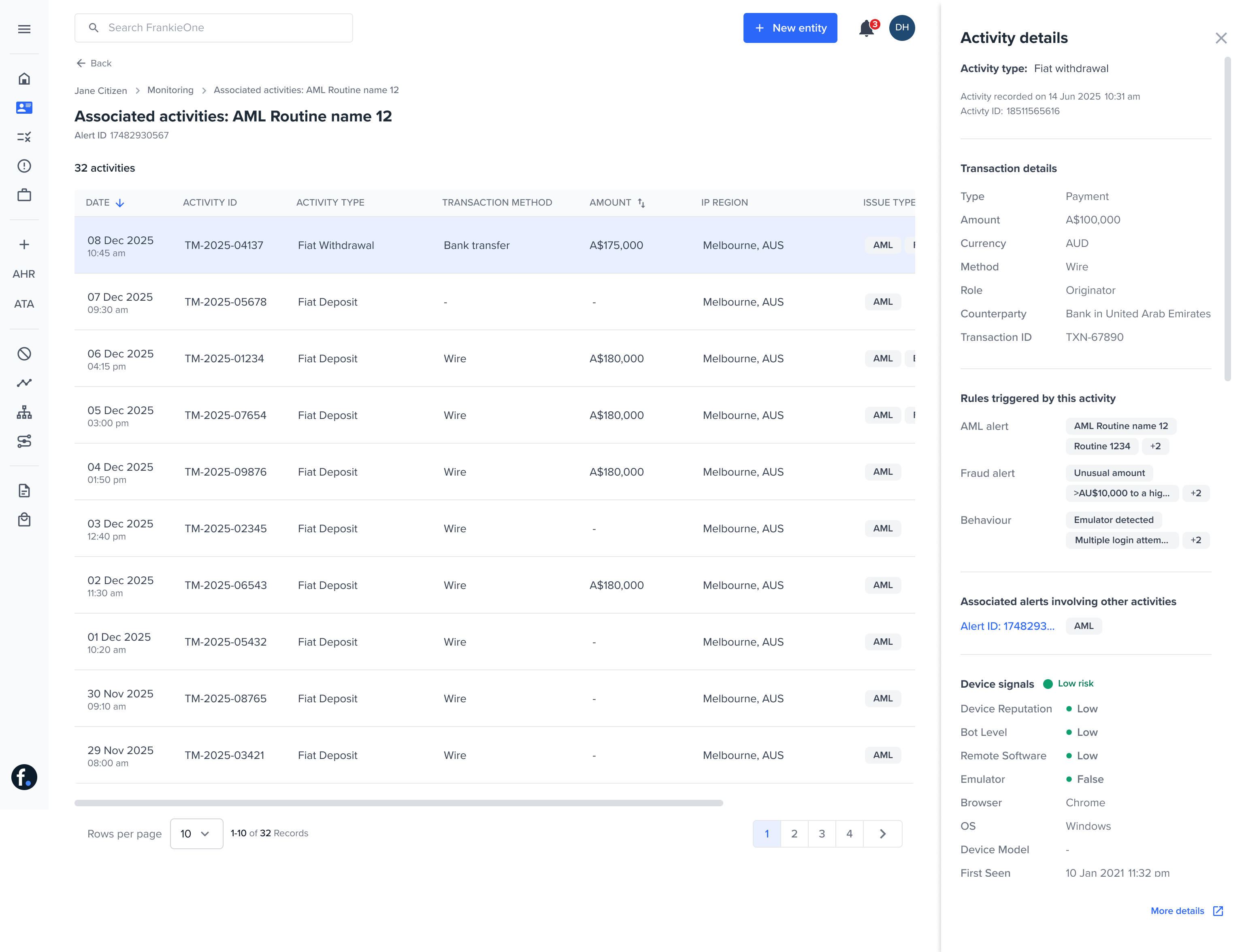 To find the original alert, open any associated activity and you will see a link to the original alert in the activity detail drawer. This will appear in the **All activities** table as well if an activity has been associated with another.
### Viewing alerts linked to an activity
When you open an activity in the activity details drawer, you can see any alerts that are directly associated with that activity. This is available on both the **All activities** page and the **Associated activities** page.
#### Rules triggered by this activity
To find the original alert, open any associated activity and you will see a link to the original alert in the activity detail drawer. This will appear in the **All activities** table as well if an activity has been associated with another.
### Viewing alerts linked to an activity
When you open an activity in the activity details drawer, you can see any alerts that are directly associated with that activity. This is available on both the **All activities** page and the **Associated activities** page.
#### Rules triggered by this activity
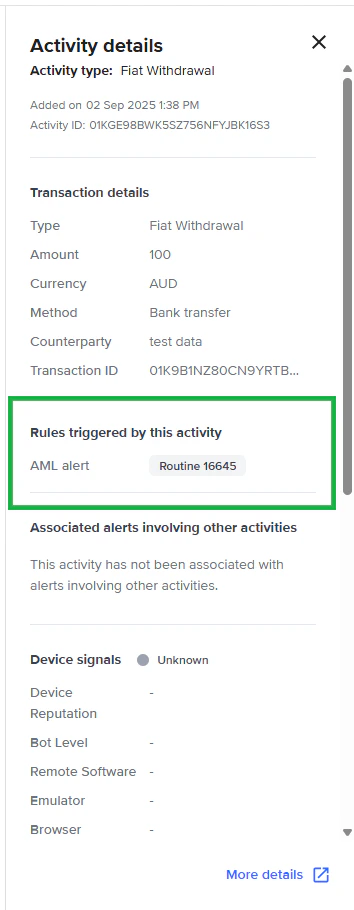
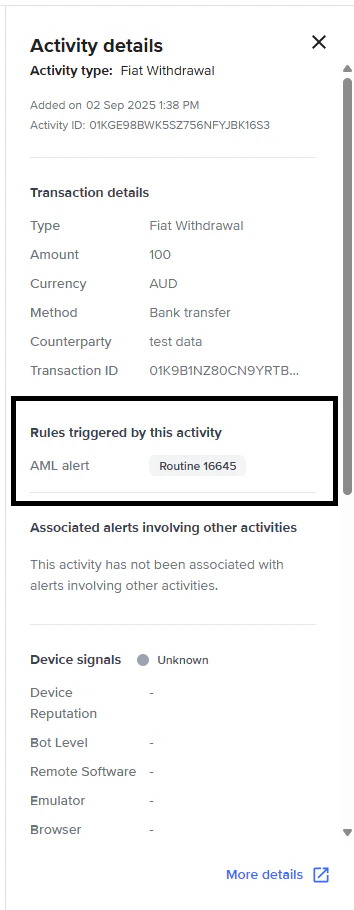 This section shows you all the rules triggered by this specific activity, grouped by alert type. These may show up as separate alerts or a single alert in the workflow tab view. This area will be empty if this activity did not trigger any alerts.
#### Associated alerts involving other activities
This section shows you all the rules triggered by this specific activity, grouped by alert type. These may show up as separate alerts or a single alert in the workflow tab view. This area will be empty if this activity did not trigger any alerts.
#### Associated alerts involving other activities
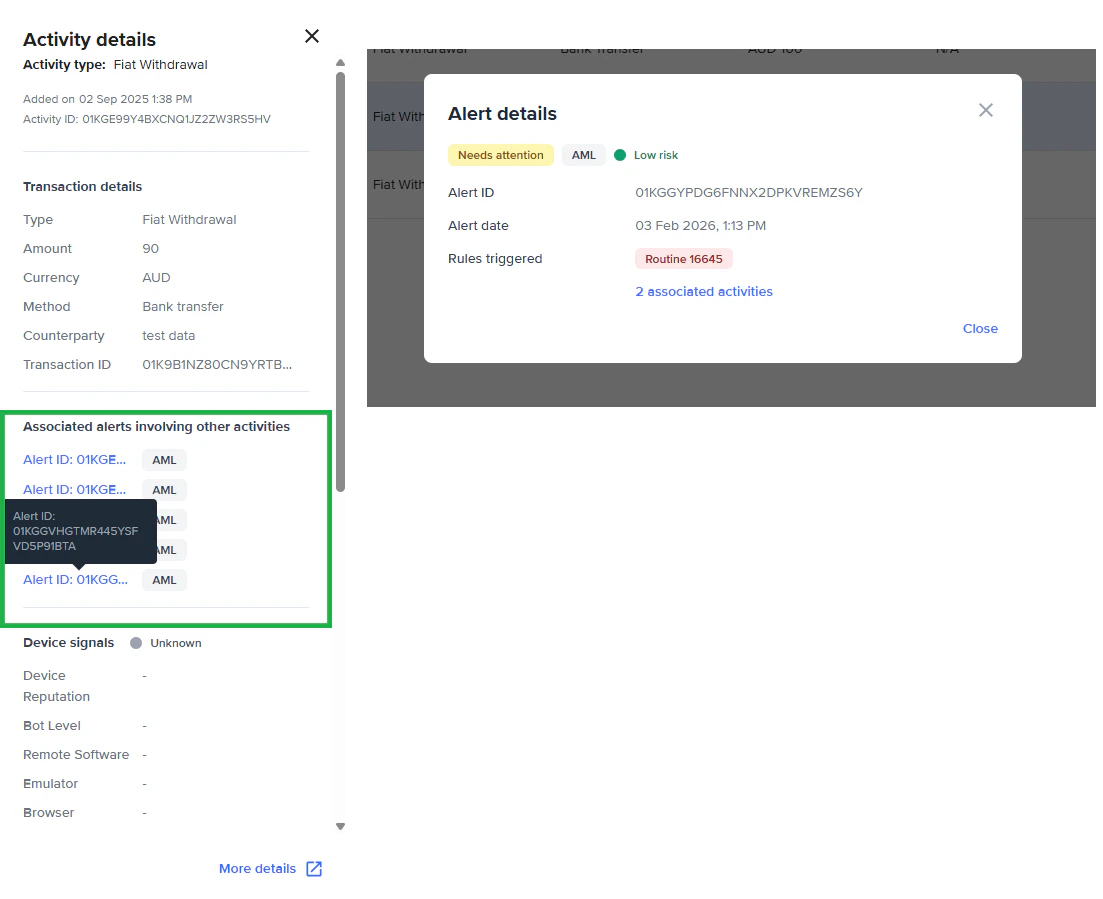 This section shows you alerts this activity is associated with because of a routine alert. This means that this activity is part of a group of activities found from a routine check. Simply click on the alert to view more details and to view the full list of activities found in that routine. This section will be empty if the activity is not associated with other activities from routine alerts.