

Introduction
FrankieOne has integrated with a number of ID Verification (IDV) services (speak with our sales team for the latest list. This article refers to Onfido , but applies to all supported services). These are services that can:- capture photos of identity documents (OCR Capture)
- capture selfie pictures/videos (Biometrics capture)
- validate the photo of the ID for evidence of forgery, tampering, etc (Document report)
- compare the selfie with the photo on the ID for facial similarity (Facial Similarity report)
- An
applicantID- which is a unique identifier the SDK will use to upload data to the IDV service. - A time-limited, single-use token that will be used to authenticate the applicant ID via the SDK.
Types of call to obtain a token
The FrankieOne API offers up 2 calls that can be used to obtain a token: These will allow you to create/update an entity, then obtain a new token. Calls to these endpoints will generate atoken and applicantId that can then be passed to the SDK when it’s activated in your native/web application.
Once your app has completed capturing the images, you then need to let us know it’s time to gather the data and run the comparison process. You do this with a call to the following endpoint:
This call will allow you to update any further entity details captured before we start downloading data. The download process can take anywhere from 1 to 5 minutes due to the fact that Frankie uses service providers that have human failover checks when the AI components can’t fully analyze the ID document images.
Pro TipFrankieOne recommends that OCR data shouldn’t be relied upon to capture pre-populated fields. Whilst very good and accurate in the majority of cases, the time taken (see above) and potential for mistakes can lead to a poorer customer experience.We recommend that details are captured manually and use the OCR process to verify that the data the users entered matches what was scanned in order to maintain the chain of trust.
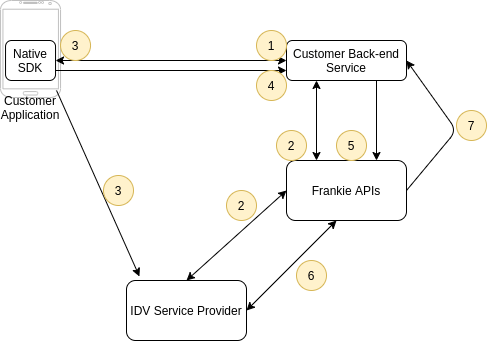
- The SDK or Service indicates that a document capture and facial similarity comparison is needed and thus a token is required.
- Customer’s Back-ends services call the FrankieOne getToken API, passing through what user data is available, along with application IDs (for native apps) or a referrer domain URL (for web apps).
applicantID from your configured service provider and return those to the calling Back-end Service.
- The
applicantIDand token are supplied to the SDK which is then activated.
- The app will then inform the Customer Backend Service that the capture process is complete and pass on any additional user data obtained (address, etc)
- The Backend Service will call the initProcess API, updating the user data if available.
- The FrankieOne service will then proceed to download the image and report data and save that into the database. It’s recommended that you background this call as it can take several seconds to initialise. Once all the data has been downloaded, the FrankieOne service will proceed with incorporating the results into the overall risk profile of the user.
- Once the risk assessment is complete, a notification webhook is pushed to the Customer service with the latest risk assessment results.
Using Onfido SDK to capture biometric information
The guide below provides a step by step process to implement the Onfido SDK to run a check with FrankieOne’s Biometrics flow described in IDV Service Flows.1. Creating an entity and getting a token
The first step is to create an entity and get a token to be used in initiating the Onfido SDK. This step can also be done as part of updating the entity details. Please see Create Entity and Get IDV Token to see the API call to create a new entity and get a token or Update Entity and Get IDV Token to see the API call to update an existing entity and get a token at the same time.Sample Request
Create Entity and Get Token
Sample Response
In the samples below... implies that there’s information that’s been removed for clarity’s sake.
Key Information in Getting the Token
From the response there’s key information that’s essential to keep and they’re:token: a temporary string that allows you to instantiate the Onfido SDK (discussed below).entity.entityId: The FrankieOne reference that you’ll need to save to interact with the record you’ve created.applicantID: The Onfido reference that we’ll persist on this entity moving forward.requestId: The unique reference for making this API call. Should you have any issues please send this along with a description of your issue to help@frankieone.com
2. Use the Onfido Token to capture information
In the example below we’ll implement the Web SDK in a plain HTML page with commented information. You’ll need the token from the first API call above.html
3. Initiate biometrics report process
Once the images have been captured by the user your backend needs to notify FrankieOne that the image capture process has been completed and we can start the process of running the analysis of the images captured and download them from Onfido. FrankieOne will also go through the process of comparing the data entered by the customer and the information that has been detected as part of the OCR process. The endpoint to initiate this process is the Update Entity and Initiate IDV Process endpoint.Sample Request
Sample Response
500 Error Response
If you get a 500 Error response similar to the one below then it means that the document capture process hasn’t occurred and there’s no images at Onfido.You would need the user to complete the Onfido SDK flow before running the initProcess API call.500 Error Response
200 OK Response
Understanding the initProcess API response
Assuming that the user has only put in one document ideally you’ll have three objects in the identityDocs objects array:- The id document that was processed either passport, national ID or Driver’s license, if you didn’t create one in the process of getting a token or running the initProcess one will be created for you.
- idType:
ATTESTATIONand idSubType:ID Validation- This is a report containing the analysis done on the document above to see if it has any signs of fraud or quality issues. - idType:
ATTESTATIONand idSubType:Photo Comparison- this is the comparison of the selfie with the document that’s been uploaded.
Key notes on getChecks result payload
entityProfileResult.actionRecommended: This field will let you determine if all the checks have passed or not.entityProfileResult.checkResults[]: Contains an array of all the checks that the recipe you chose should run and their results. If the field above isn’t a pass, drilling into this array will let you know what hasn’t been completed or has failed.entityResult.identityDocsCheck[]will contain an array with the documents and check results of all documents on the entity.entityResult.identityDocsCheck[x].idDocument: This is the document object for the ID you’re interacting with. It could be one of the idtypes highlighted earlier.entityResult.identityDocsCheck[x].idDocument.documentId: This is the UUID of this particular document and if you would like to interact with it you need to reference it.entityResult.identityDocsCheck[x].idDocument.docScan: if the full parameter was used you’ll get base64 content of the document if they’re available. e.g image of the selfie, image of the document etc.entityResult.identityDocsCheck[x].checkResult[]: This will contain results about checks that have been done on this document. If you have government ID data source verification you’ll see two objects in this array. One for the data sources and another one for the biometrics.
Full HTML Onfido Implementation
Full HTML Onfido Implementation
html