

Sample Implementation
Complete IDV Flow Implementation
If you use
see: Multi IDV, implementation section.
daon, you have to explicitly define the vendor name in provider object.see: Multi IDV, implementation section.
You can specify the identity verification provider at runtime by passing the
see: Multi IDV
provider option when initializing the IDV flow.see: Multi IDV
Event System
The IDV module uses an event-driven architecture to communicate state changes and results.
Core Events
Core Events
ready
Emitted when IDV is successfully mounted
detection_complete
Signals successful information detection
Result Events
Result Events
The results event provides comprehensive verification outcomes, including document data and entity references.
Input Required Events
Input Required Events
For Incode integrations, the ‘INTERRUPTED’ status typically indicates missing camera permissions.
Error Handling
Error Handling
For Incode integrations, refer to the Incode documentation for detailed error payload information.
Implementation Tips
- Always test the flow on both desktop and mobile devices
- Implement proper cleanup on component unmount
- Consider implementing retry logic for failed verifications
- Store the entityId for future reference
Typical Vendor Flows
- Onfido
- Incode
- Daon
1
Country Selection
Users select their country of origin
2
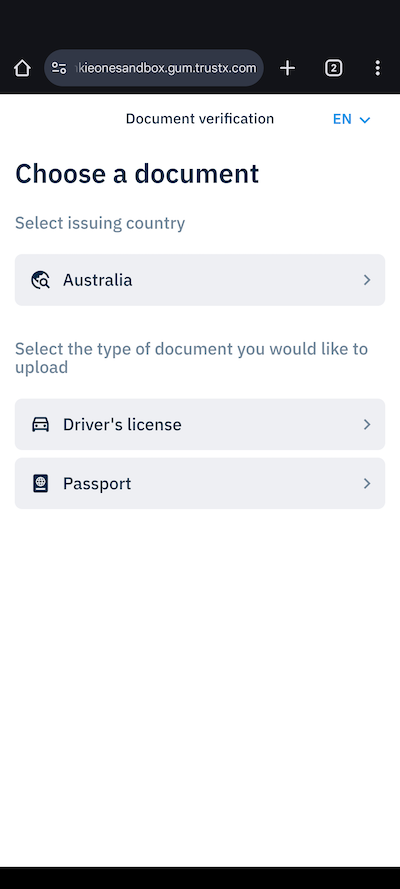
Document Selection
Users choose their identification document type
3
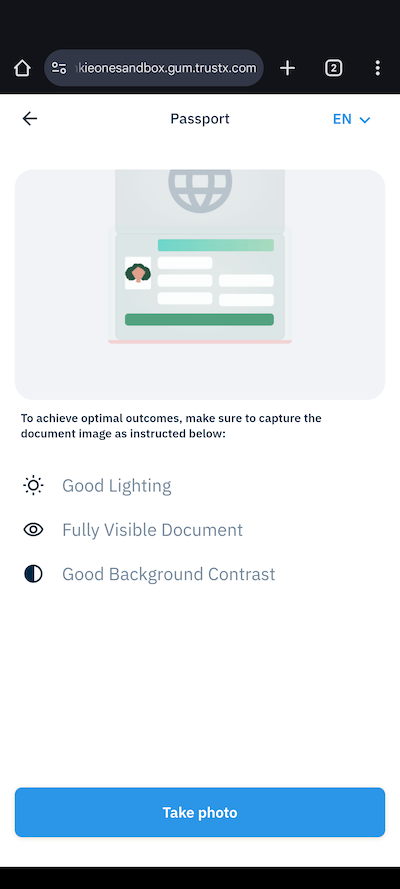
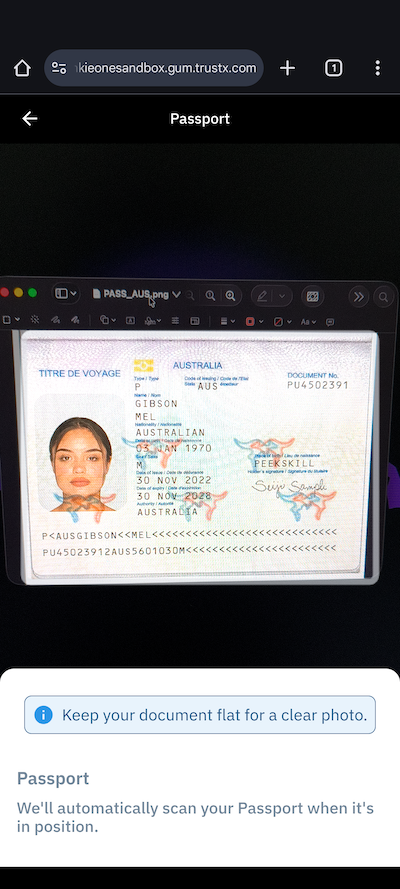
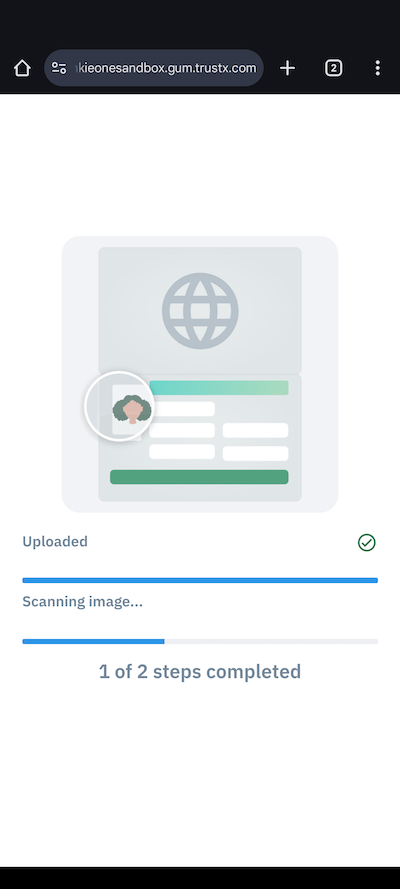
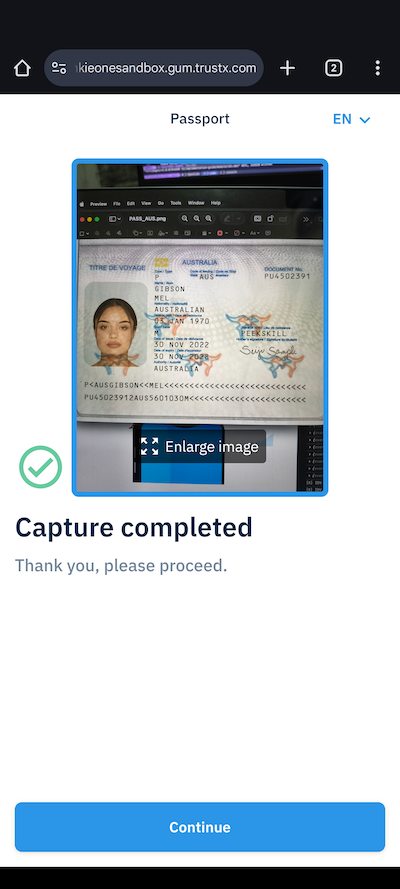
Document Upload
Users capture or upload their chosen document
4
Biometrics Process
System prepares for biometric capture
5
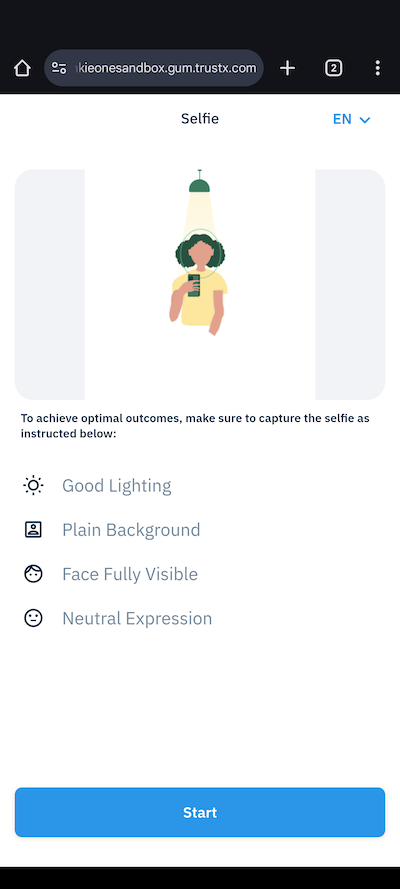
Biometric Capture
Users complete their biometric verification
Onfido provides a complete in-browser verification experience without requiring device switching.
Best Practices
Error Handling
- Implement comprehensive error handling
- Log errors for debugging
- Provide user-friendly error messages
User Experience
- Guide users through the verification process
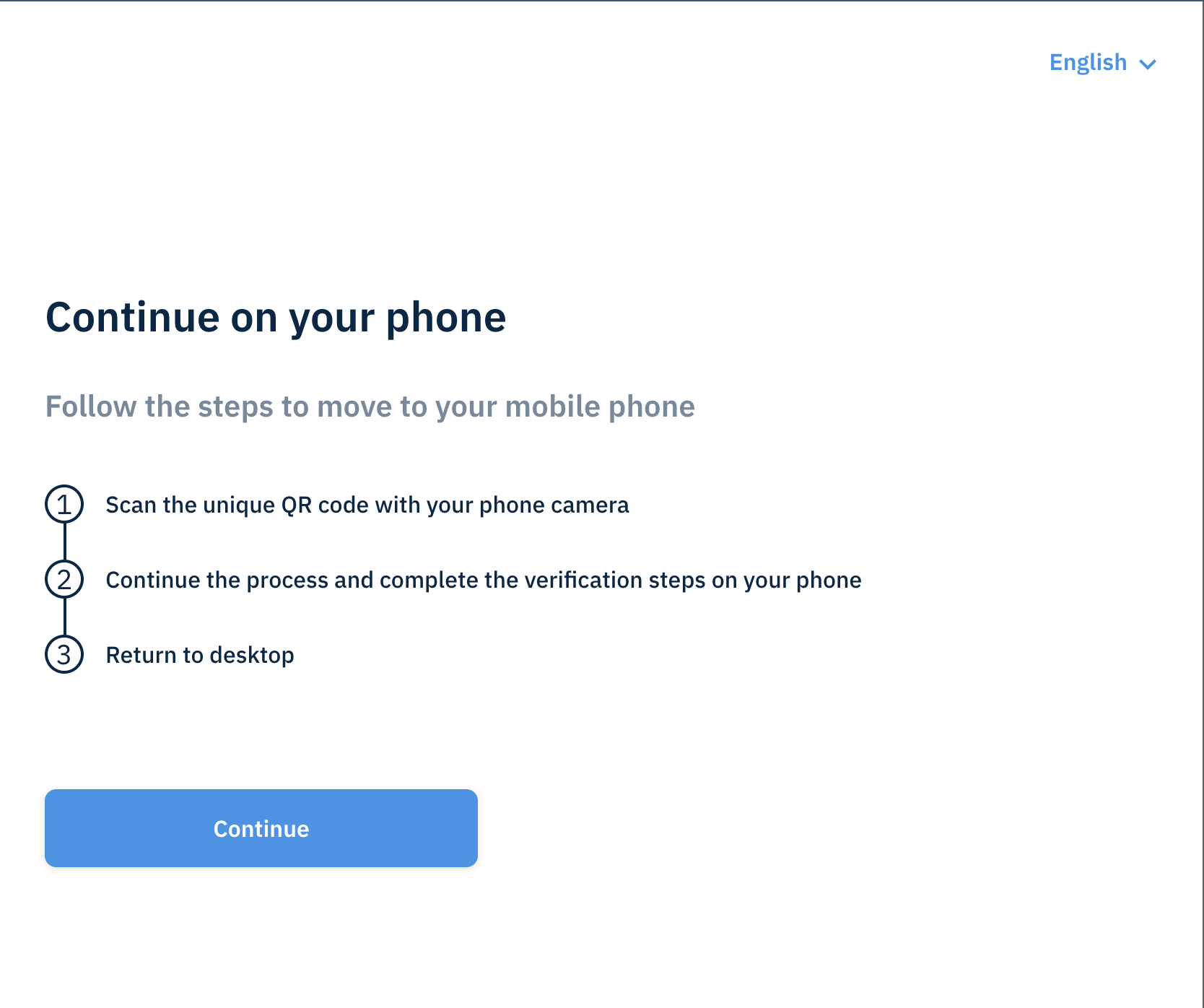
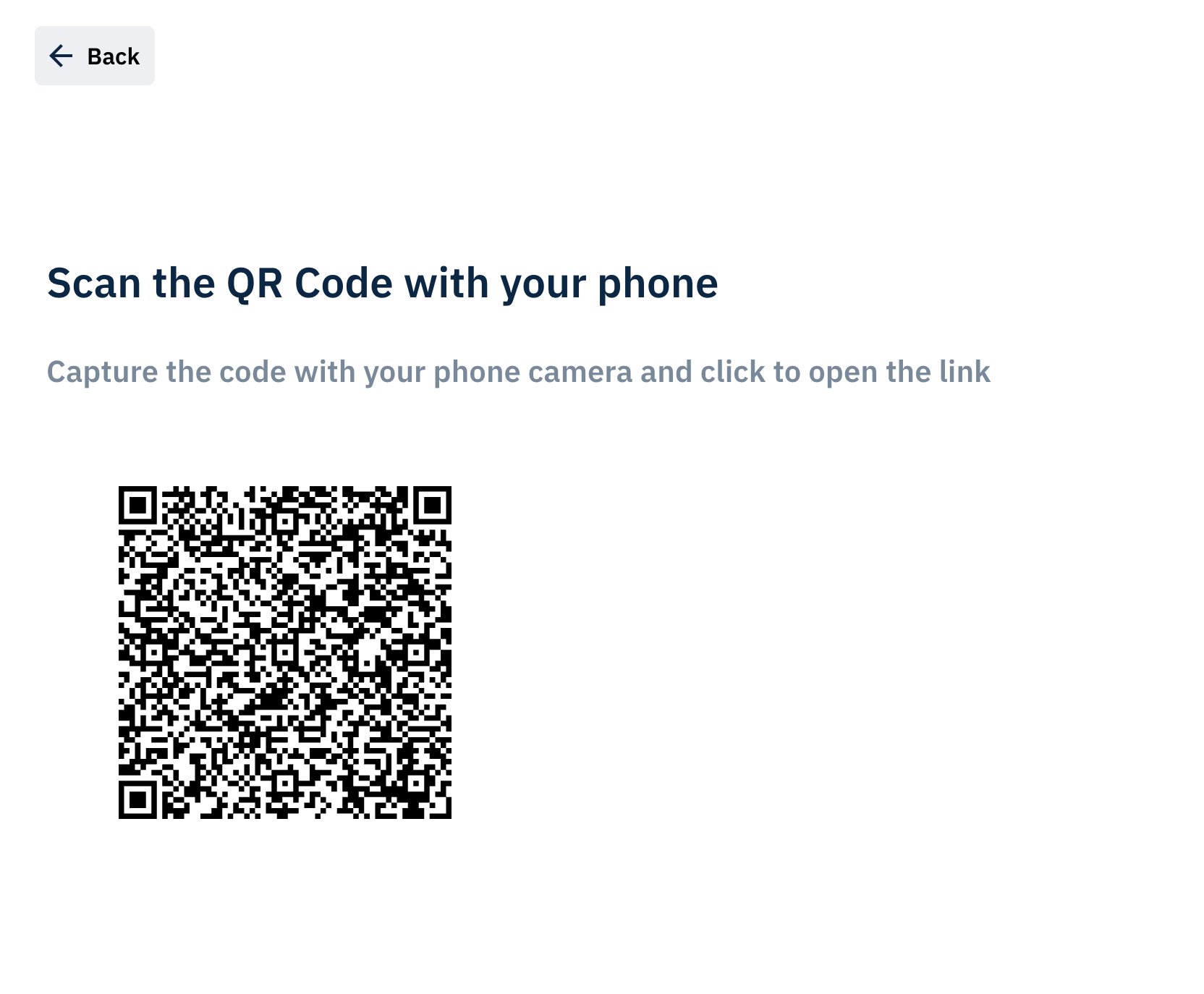
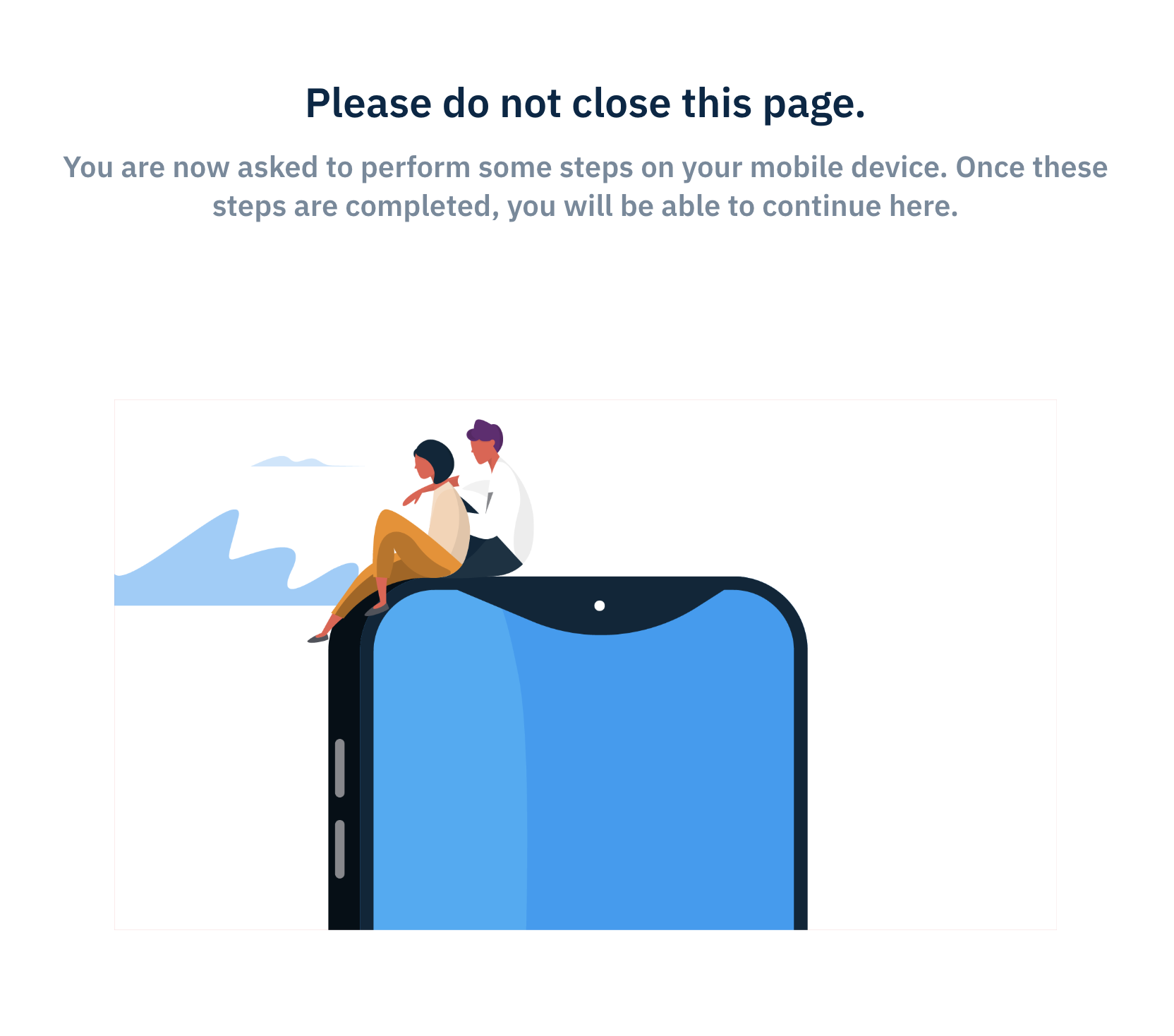
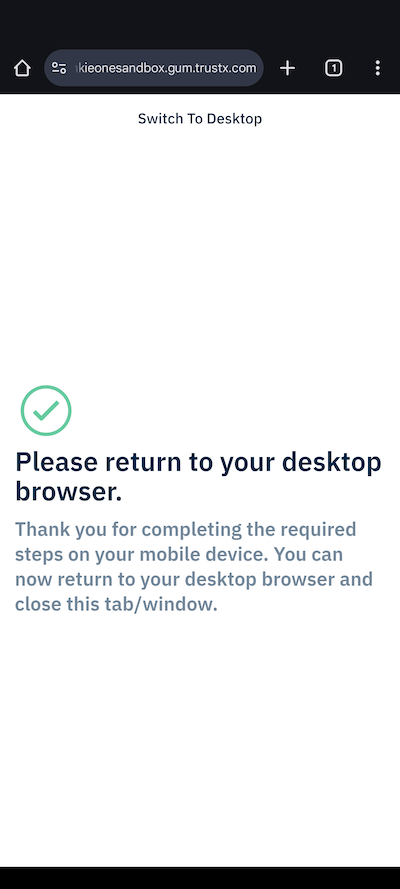
- Handle device transitions smoothly
- Provide clear instructions at each step
You may need to adjust your Content Security Policy (CSP) settings to allow the IDV module to function correctly. Refer to this page for more details.