

Review alerts
Once an activity has been deemed to be alerting, relevant workflows will be triggered and the alerts will be consumed and presented in the workflowResult object. This object is the key to understanding the outcome, the reason for any alerts, and the granular details of the checks performed. Operators will typically review these alerts via the Portal, where issues are flagged for manual review.via API
Get the result of the evaluation by calling the Get Workflow Execution Results endpoint. TheworkflowResult object in the response will contain the comprehensive details needed to interpret the outcome.
Get workflow execution result request
Get workflow execution result request
via Portal
To learn how Fraud and Compliance Officers can review alerts generated via Portal here, review Entity View.Interpreting the results
TheworkflowResult object provides a structured, top-down view of the evaluation. Here’s how to interpret the key sections, focusing on Transaction and Activity Monitoring:
Overall outcome (workflowResult top-level fields)
| API | Portal |
|---|---|
workflowExecutionState: This confirms the workflow’s technical status. It must be COMPLETED for the status to be considered final and for you to reliably review the activity’s details. Other states like IN_PROGRESS, ERROR, TIMEOUT, CANCELED, or TERMINATED indicate the workflow did not finish successfully. | Not displayed in Portal |
status : This represents a conclusive recommendation (configured status in your selected workflow) for the activity after evaluation and accounts for any manual overrides. For monitoring workflows, common/preferred statuses include - CLEAR (no negative information found) - REVIEW (requires manual review due to identified issues) |  No issues (CLEAR)  Needs attention (REVIEW) |
result: This field holds the original, automated outcome of the workflow before any manual changes. It is useful for auditing and understanding the system’s initial verdict versus any human intervention. | Not displayed in Portal |
Issues
This array will contain a list of problems that may require manual review. If the status is REVIEW, this array will provide the specific reasons why the activity needs further investigation. For Transaction and Activity Monitoring, this might include flags of different types for unusual transaction patterns, device anomalies, or AML concerns with issueCategory: ACTIVITY. The Portal will display these as “Activity” as seen in the image below.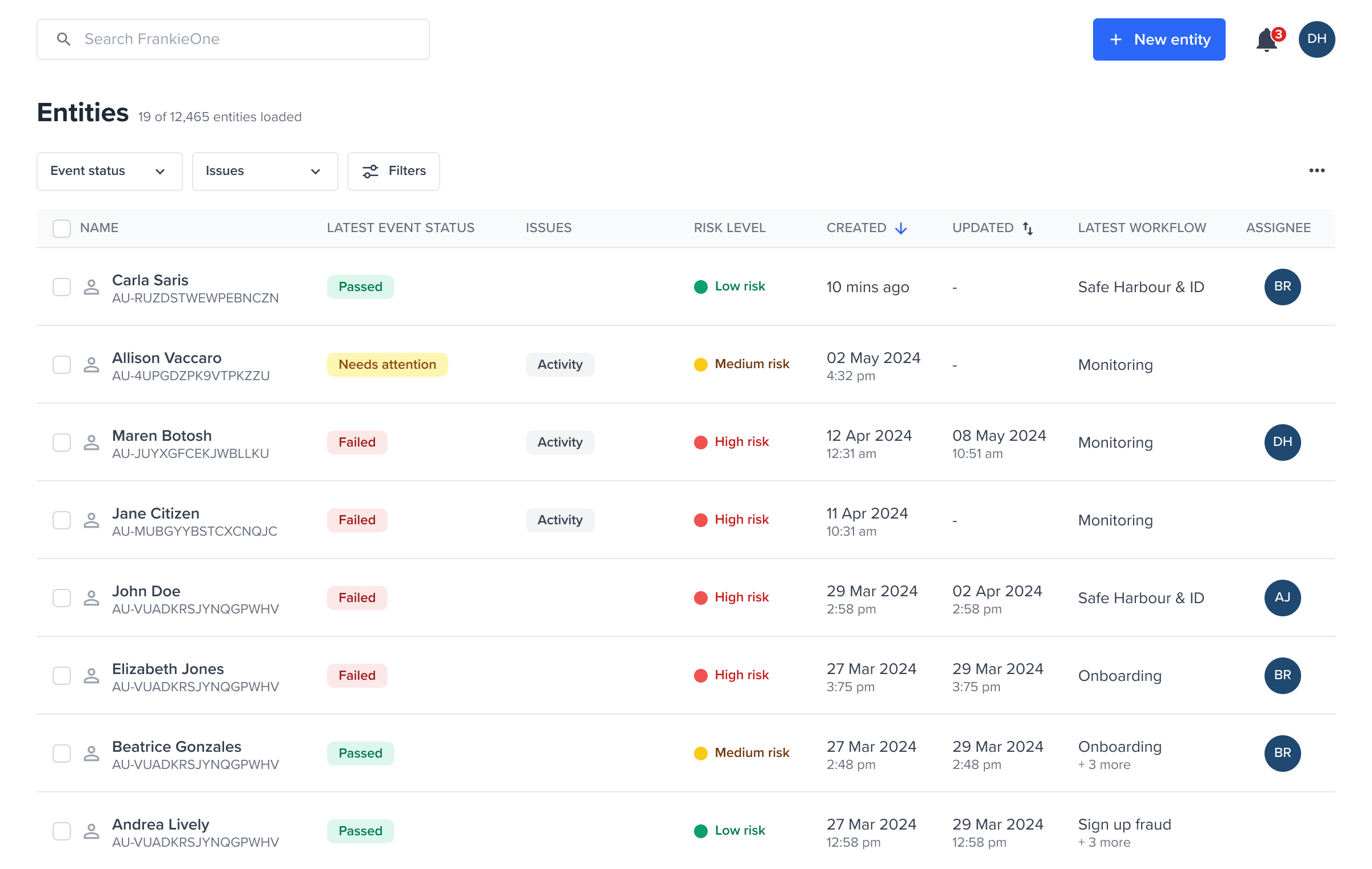 Entities flagged with issue Activity
Each issue corresponds to an alert (a process result) raised against the activity. Once you have reviewed these, set a manual outcome or apply tags — see Classifying activities and alerts.
Workflow step results
TheworkflowStepResults array is a log of each step in the workflow, explaining how the overall status was reached. Each object in this array corresponds to a step configured in your monitoring workflow (for example, AML check, device check, transaction velocity check).
stepName
stepName
API  stepName:
  stepName:
stepName: The name of the specific step that was executedACTIVITY_AML- a step dedicated to performing AML checks on the activity.ACTIVITY_FRAUD- a step dedicated to performing fraud checks on the activity.
stepName: ACTIVITY_AML is available stepName: ACTIVITY_FRAUD is availableresult
result
API 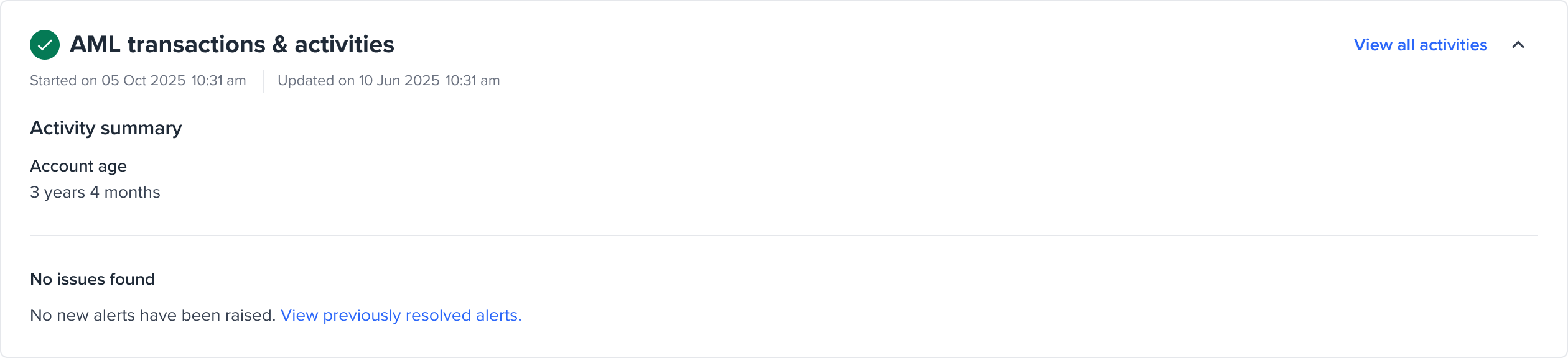
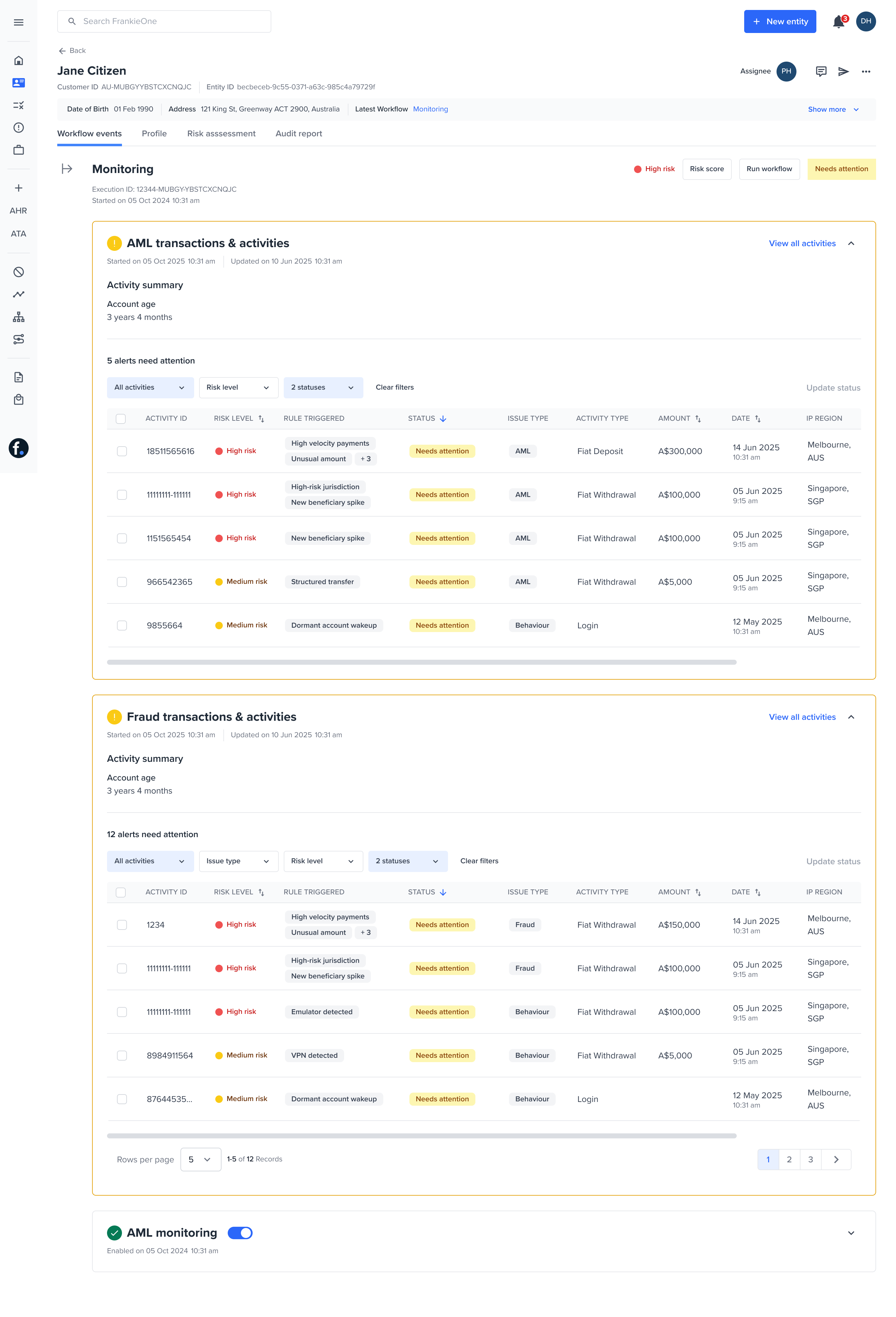
result: The outcome of this specific step. For monitoring, this can be:CLEAR(step passed): The step completed successfully without identifying any issues.HIT(step identified an issue): The step identified a potential issue or match according to its configured rules.ERROR(technical issue with the step): The step encountered an unrecoverable technical error during its execution. Portal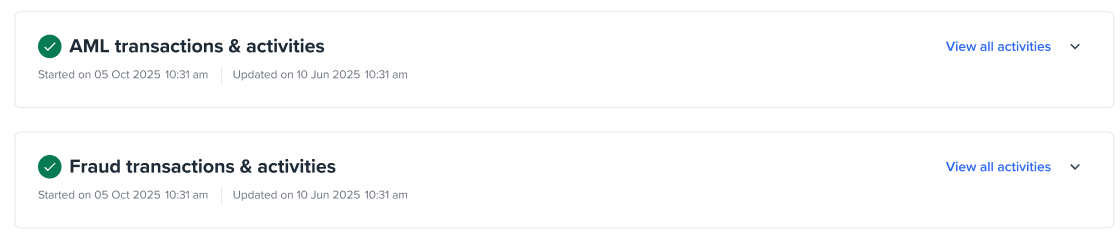
HIT, Expanded view
CLEAR, Expanded view HIT Expanded viewsummary
summary
API PortalNot displayed in Portal
summary: A concise, human-readable summary of the step’s outcome.risk
risk
API 
risk: The risk assessment specific to this step, including the score it contributed to the overall workflowRiskScore and workflowRiskLevel.Portal
Activity alerts
On evaluations each activity will have activity results, but only activity results that meet the risk threshold to trigger an alert are represented as a Process Result (PRO). These are the alerts that require action.
workflowStepResult at its processResults array. A Process Result (PRO) is the raw evidence from a single check against a single data source (for example, a specific device fingerprint provider, an AML watchlist provider).
processResultId: A unique identifier for this specific piece of evidence.systemStatus: The lifecycle status of this PRO (for example, VALID, STALE, MARKED_INVALID). A STALE status means the underlying entity data has changed since this check was performed and it might need re-evaluation. Only the alerts with a systemStatus: VALID will be displayed in Portal.class: The high-level category of the check performed, for Transaction and Activity Monitoring, it’sACTIVITY.objectType: The specific data element that was checked (for example, INDIVIDUAL, TRANSACTION, DEVICE).result: The outcome of this specific PRO (for example, MATCH for a hit, CLEAR for no hit, CREATED for data fetched).manualStatus: If an operator has manually reviewed this specific PRO, their conclusion (for example,TRUE_POSITIVE,FALSE_POSITIVE,IN_REVIEW) is recorded here. This is directly linked to the statuses described in Resolve alerts and re-evaluate.providerResult: An object containing details from the downstream data provider, including the source of the data.supplementaryData: A rich, context-specific object containing detailed metrics or extracted data, like AML hits details or specific device intelligence data. This is where most of the alerts or rows in the table gets its details as seen in the Portal.
Next step
You have interpreted the workflow result and identified the alerts raised by the activity. Next, record an outcome for each alert.- Classifying activities and alerts — set an alert’s manual status (for example,
FALSE_POSITIVE) or apply tags to an activity, via API. - Resolve alerts and re-evaluate — after resolving every alert, re-run the workflow so the entity’s status is updated.