

Prerequisites
- An account with the
kyb:apirole, on theDEFAULTservice. - API credentials — your
api_keyandX-Frankie-CustomerId. - Confirmation from your FrankieOne representative that international jurisdiction coverage is enabled for your account, and which countries are in your allowed list for profile and ownership (see Country restriction below).
Portal configuration (admins)
International KYB is switched on in Operations Center → Customers → [customer] → Configuration → KYB. Changes can take up to 10 minutes to take effect.- Portal Features tab — turn on KYB in Portal (enables KYB V2 in the Portal at all) and International KYB (the master switch for international organization search). With International KYB off, the Portal offers Australia only, regardless of the Countries tab.
- Countries tab — one row per country, with four independent settings: Portal (whether the country is selectable in the Portal’s dropdowns), Lookup (whether the registry lookup call is allowed — the connector itself is chosen automatically: CreditorWatch for Australia, Kyckr everywhere else), Profile, and Ownership.
- prefix excludes a country. Australia’s Portal setting is always on and cannot be removed.
Portal walkthrough
Step 1: Search for the business
From the organization search screen, select the country from the dropdown — this list only shows countries your account is configured to search — then search by name or registration number.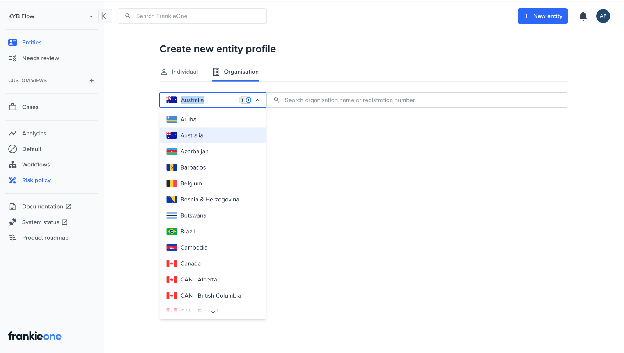
Selecting a country from the organization search dropdown.
Step 2: Review the result
Expand a result to view its full registry detail before creating the entity, so you can confirm you’ve selected the right organization. This comes from the same lookup response, with no extra loading step or additional cost.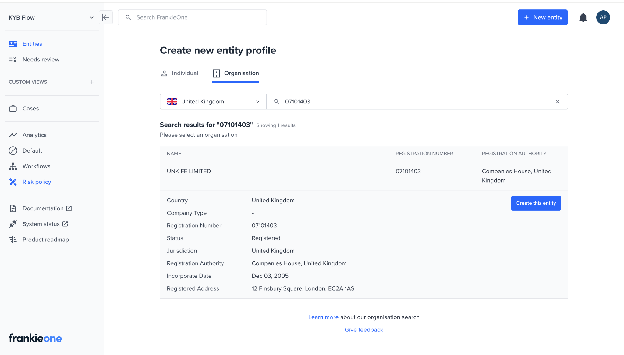
A search result expanded to show its registry details.
Step 3: Create the entity and run a check
Creating the entity from a selected result and running Profile or Ownership works the same way as it does for a domestic entity. The Overview tab shows the registry-sourced profile once the workflow completes; sparse fields are expected for jurisdictions with lighter registry publishing, not a rendering fault.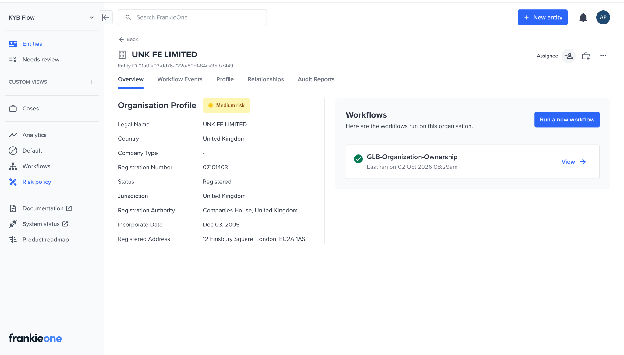
The Overview tab once the workflow completes.
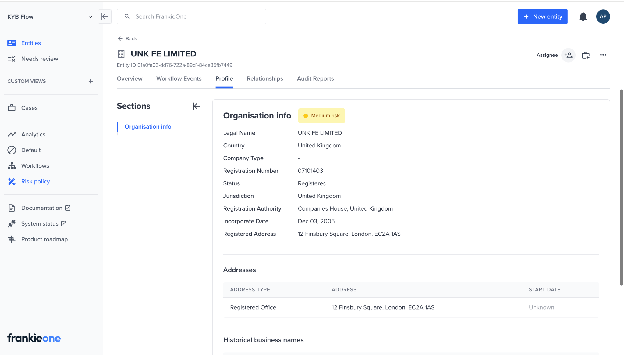
The Profile tab for an international organization.
Step 4: Review ownership
The Relationships tab shows Ultimate Beneficial Owners, Blocking Entities, Share Capital, and Officeholders, the same as domestic. Parties the registry couldn’t classify as an individual or organization appear with an explicit Unknown treatment rather than being hidden or mis-typed. If an ownership run hits its credit-cost ceiling before the tree fully resolves, the Relationships tab shows an in-progress or failure banner with a Continue report generation re-run option (gated on entity-write permission), and the entity where discovery stopped is flagged with theINSUFFICIENT_MAX_CREDIT_COST reason in the blocking-entities table. Re-running is a full new run rather than a resume, but running again within 24 hours reuses Kyckr’s already-cached profiles, so the search effectively goes deeper for the same budget. There’s no success toast; the in-progress banner is the feedback, and the officer stays on the Relationships tab.
When manually associating a party as an Organisation, the officer now searches the relevant business registry by country, name, or registration number — free-text entry has been removed for organizations. Switching country clears the current selection and search text. This doesn’t apply to Individuals, which still take manual details.
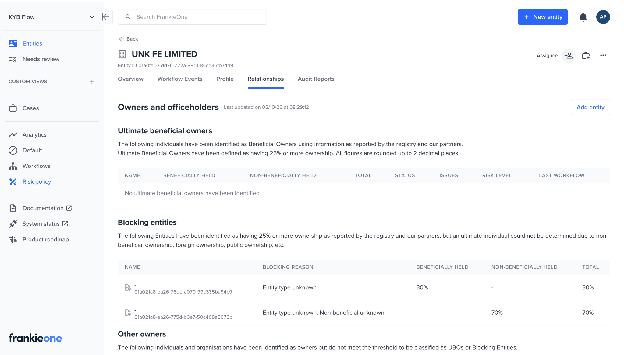
The Relationships tab, with Unknown parties listed as blocking entities.
Step 5: Generate a report
Generate a Profile Report or Ownership Report PDF from a completed workflow run, the same way as domestic. The template is selected automatically from the organization’s jurisdiction — there is no customer setting or API parameter for this.
The international profile report drops AU-only sections (ABR/ASIC extract, GST, state of registration, ANZSIC codes, historical business names) in favor of Industry Codes, Industry Declarations, Alternate Names, and Persons of Significant Control. AML screening results are deliberately never shown in a profile report — check the Portal for those. An empty section renders its heading with an explicit “none identified” message rather than being omitted.
API walkthrough
Step 1: Look up the business
Search a registry for a given region by name or registration number. Perform the lookup using the lookup organizations endpoint.Request - Lookup by Name
Response - Lookup by Name
Unlike a domestic AU lookup, an international result may not include
status.normalized — Kyckr only provides a normalized legal status once a full profile is purchased, not at lookup time.organizationToken from the match you intend to process — you’ll use it to create the entity in the next step.
Extracting the token
Step 2: Create the organization
Create the entity from theorganizationToken, using the create an organization entity endpoint.
Request - Create Organization
Response - 201 Created
entityId — you need it for every subsequent call.
Step 3: Execute a workflow
RunGLB-Organization-Profile for registry details, or GLB-Organization-Ownership for the full beneficial-ownership tree. Both have Force-Refresh variants that always re-fetch instead of reusing recently cached provider data.
Request - Execute Workflow
Response - Workflow Started
workflowExecutionId to poll for the result.
Step 4: Poll for the result
Request - Get Workflow Execution
Response - Execution Complete
Check both fields.
workflowExecutionState reports whether the execution finished; workflowResult.status carries the verification outcome (COMPLETE, REVIEW, FAIL, and others). A COMPLETED execution can still return an outcome such as REVIEW that needs a closer look — for an ownership run, that’s often INSUFFICIENT_MAX_CREDIT_COST on a blocking entity rather than a hard failure (see Credit budget below). Hitting the credit ceiling is not a failure: a partial tree is still returned.
Step 5: Retrieve the enriched organization
Request - Get Organization
Step 6: Review AML and ownership insights
Run AML screening and review ownership insights the same way as domestic — the same policy engine, blocking definitions, and 25% UBO threshold apply. A few blocking reasons are distinctly international:Country restriction
Profile and ownership coverage are each governed by a separate, per-customer allow-list. As currently deployed:- Profile — 76 countries by default.
- Ownership — 15 countries by default, narrower than profile since recursive UBO coverage is narrower than basic company data.
Credit budget and ownership depth
Recursive UBO discovery works by ordering the focus company’s profile, unwrapping it to find shareholders, then ordering further profiles until every shareholder is identified, a blocking entity stops a branch, or the run’s configured credit ceiling is reached.- Hitting the ceiling is not a failure. The operation succeeds and returns a partial tree, with
INSUFFICIENT_MAX_CREDIT_COSTas the blocking reason on the entity where discovery stopped. - Company profiles requested in the last 24 hours are cached at no extra cost. Re-running ownership on the same company within that window effectively deepens the tree further, since the already-ordered profiles come from cache.
- Results can only be retrieved for 30 days from creation.
Troubleshooting
References
- Global KYB overview — what’s covered, coverage tiers, and FAQs.
- US Business Verification — the separate flow for US-registered businesses.
- Understanding Organization Ownership — what the ownership fields on the organization object mean.
- Interpreting Workflow Results — parse the full
workflowResultobject. - Anti-Money Laundering — screen the parties extracted from an ownership tree.