Video Guide
Resolve alerts
If you have the “Modify transaction and activity alert statuses” permission, you can resolve alerts directly from the alert details drawer. The Resolve alert button is located at the bottom-left corner.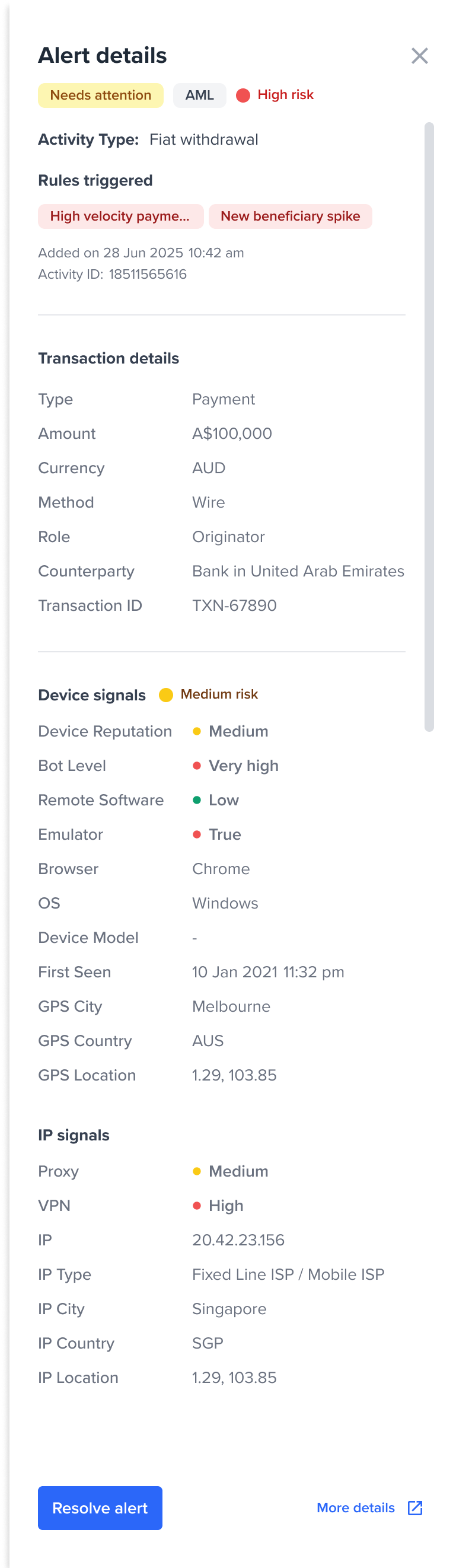
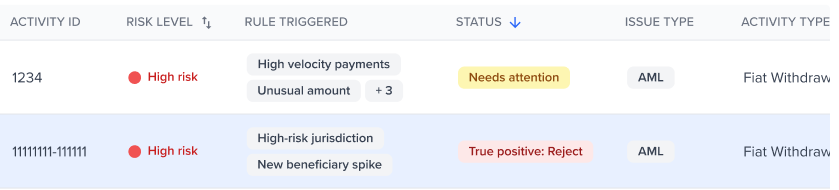
Re-evaluation of resultsOnce all alerts within a specific check have been resolved, the portal will automatically re-evaluate the monitoring workflow. This updates the entity’s risk score and workflow status to reflect the resolved alerts.
Reasons
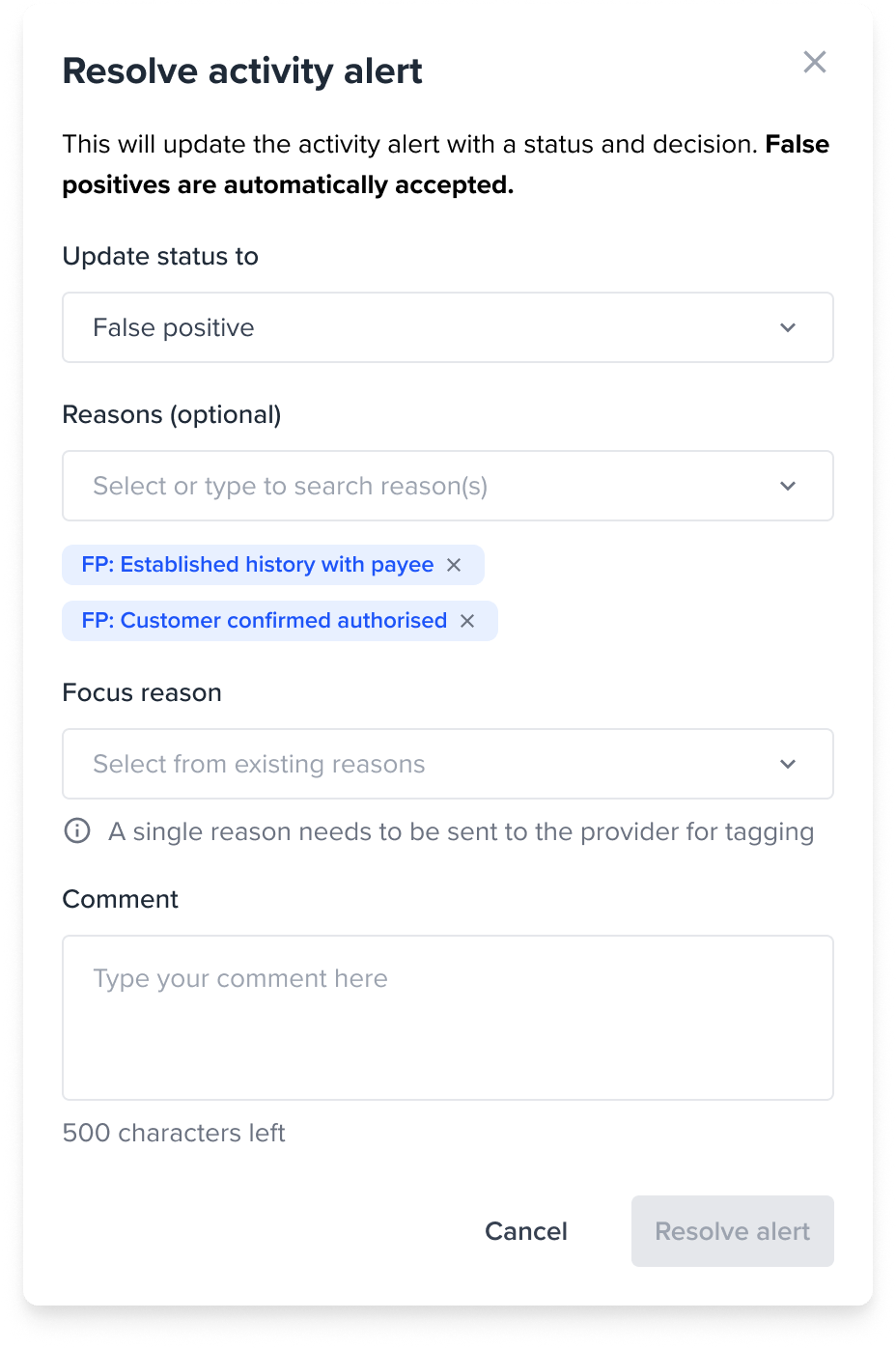
When you resolve an alert, you record one or more Reasons that explain the decision made.- The available Reasons depend on the status you select. Selecting a status filters the list to the Reasons that apply to that outcome. For the full list of available Reasons, see Tags and Reasons reference.
- You can apply more than one Reason to a single alert. If you apply more than one Reason to an alert, you will need to select a Focus reason. The Focus reason will be sent to the monitoring provider.
- True Positive reasons you apply to an alert automatically cascade to the associated activity. False Positive and In Review reasons apply to the alert only and do not cascade.
- Reason changes are captured in the audit trail alongside the status change, so the resolution and the reasons behind it are recorded together for compliance purposes.
Comments
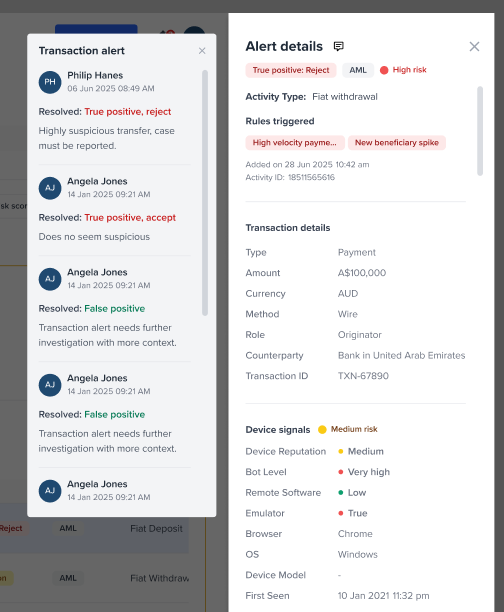
Comments are recorded each time the status of a specific alert is changed. The comment history displayed in the alert details drawer shows only the comments for the currently selected alert. When you select a different alert, the comment history updates to reflect that alert’s history only. To view comments for an alert, select the comment icon in the alert details drawer. All comments and status changes for that alert are listed in chronological order.