

Video Guide
The video above demonstrates how to navigate to the Activities tab for an entity, filter by date range, and open the activity detail drawer to review transaction details and triggered rules.
Viewing all activities
To view all recorded activities and transactions for a given entity or alert, select View all activities from the Workflow events tab. This will show you a history of all activities recorded for the entity.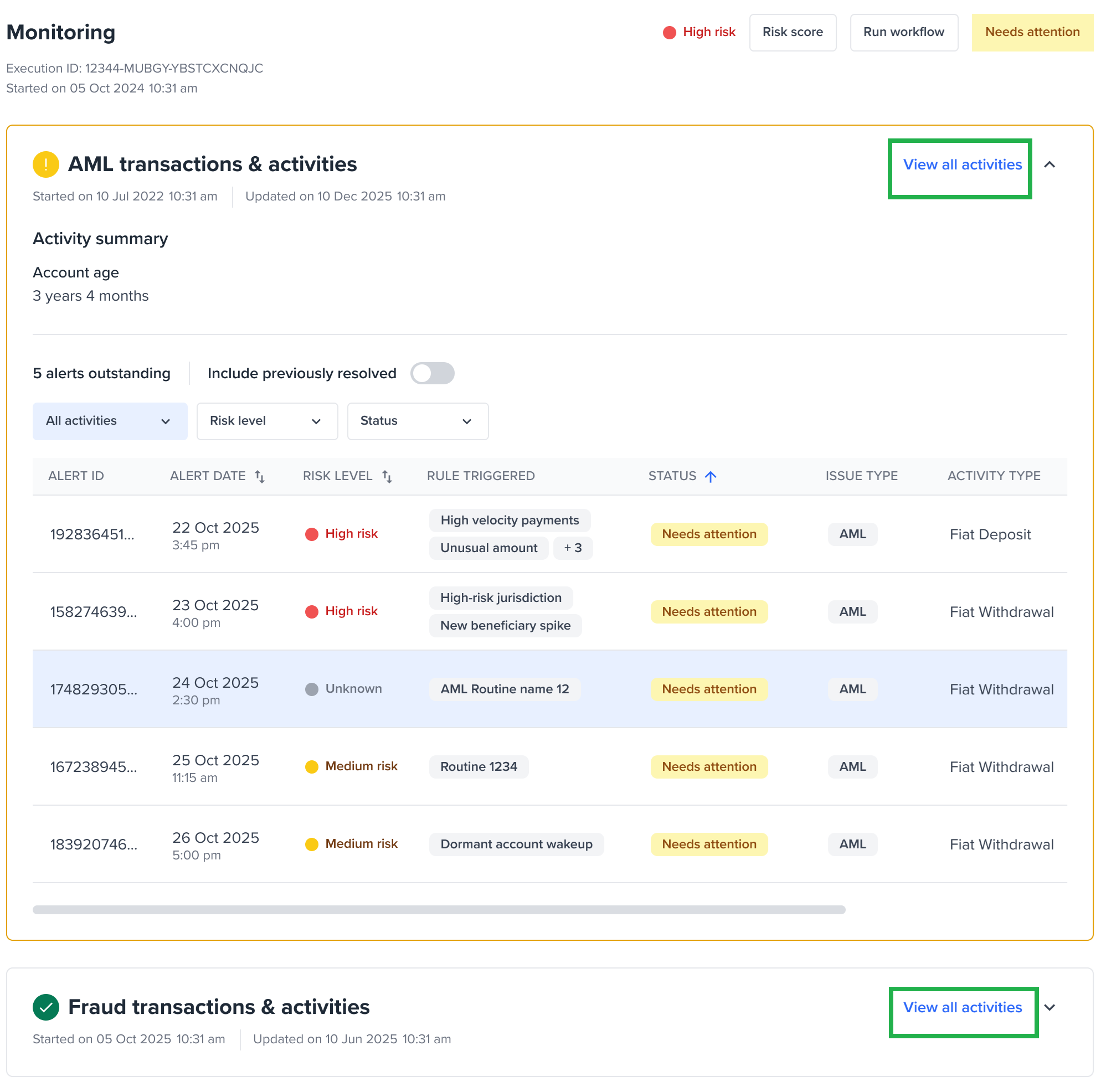
Link to all activities page
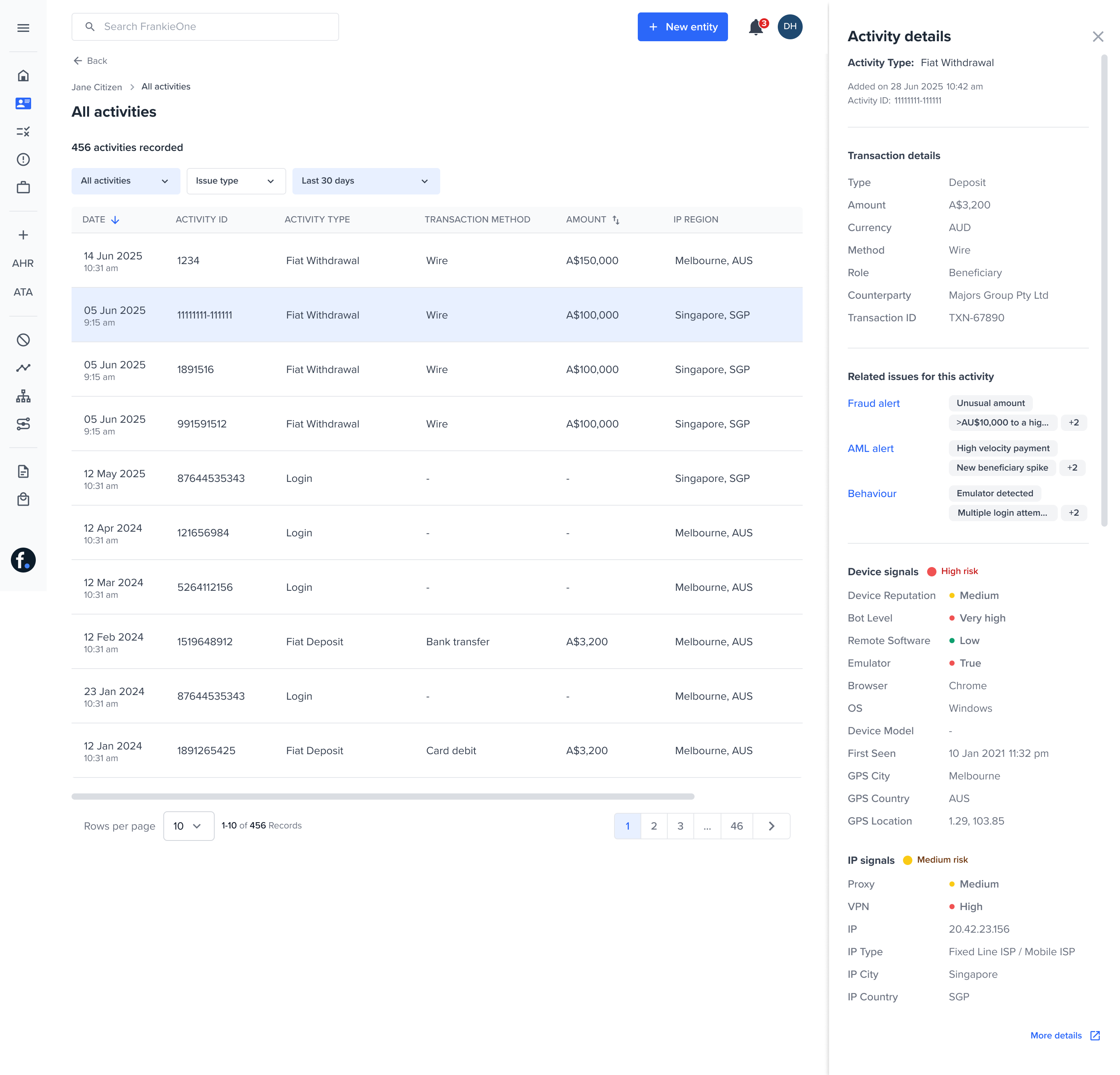
This view is limited by default to the last 3 months of activities. You can extend this by changing the filters at the top of the table.
Viewing the activity that caused an alert
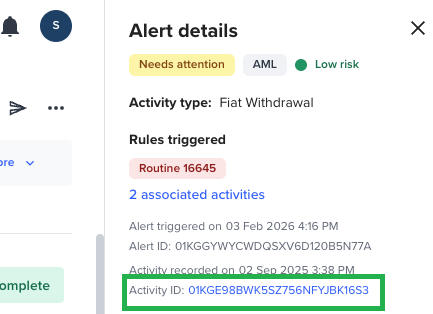
- Select the Activity ID to open the Activities page for the relevant entity.
- See the selected activity in the Activities table.
- View the activity details drawer automatically expanded for that activity.
- Review all activities that occurred in the 30 days before the selected activity.
- If needed, you can adjust the date range filters on the Activities page to look further back in time, or narrow down to a shorter investigation window.
Activity data and entity dataThe party details shown in the activity details drawer reflect the data that was present at the time the activity was evaluated. If the entity’s profile has been updated since the activity was submitted, the activity record retains the original snapshot.The most relevant contact data point is selected from the entity’s profile using the following logic.For individuals:
- Address: Residential addresses are preferred, then postal, then any other type. Within each type, the most recently updated address is selected.
- Email address and phone number: The entry marked as preferred (
isPreferred: true) is selected. If no preferred entry exists, the most recently updated entry is selected.
- Address: Place of Business is preferred, then Registered Office, then any other type. Within each type, the most recently updated address is selected.
- Email address and phone number: Only registry-provided contact data is used. The most recently updated entry is selected.
Associated activities
What is an associated activity?
You may receive routine-based or batch alerts from your provider, where a single routine run often flags a set of activities (for example, a velocity pattern, a cluster of withdrawals) rather than a single transaction. In this case, the latest activity in that set will be flagged as a “Routine” alert, and all activities in that set will be considered “associated activities” to such an alert.Reviewing associated activities
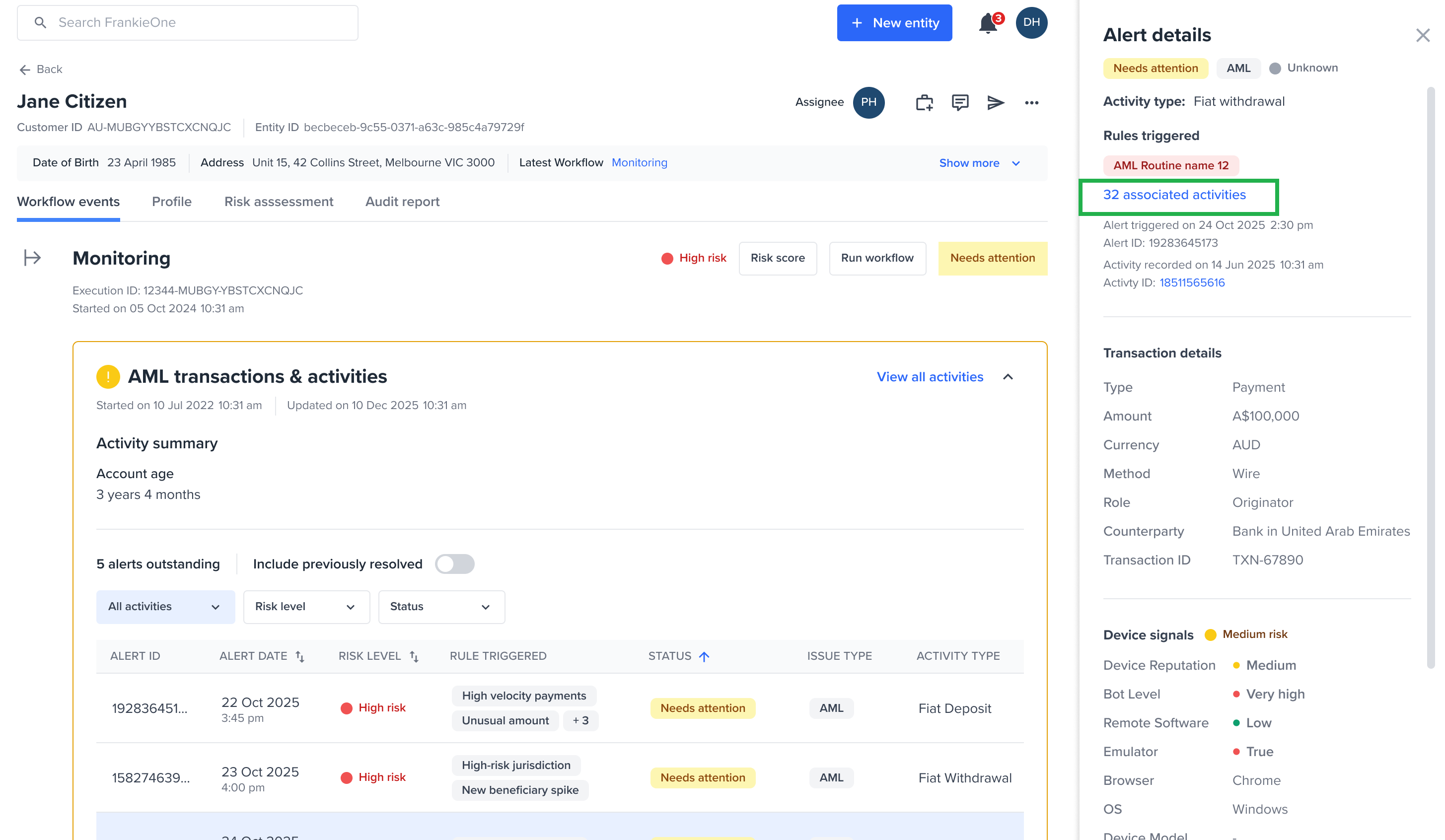
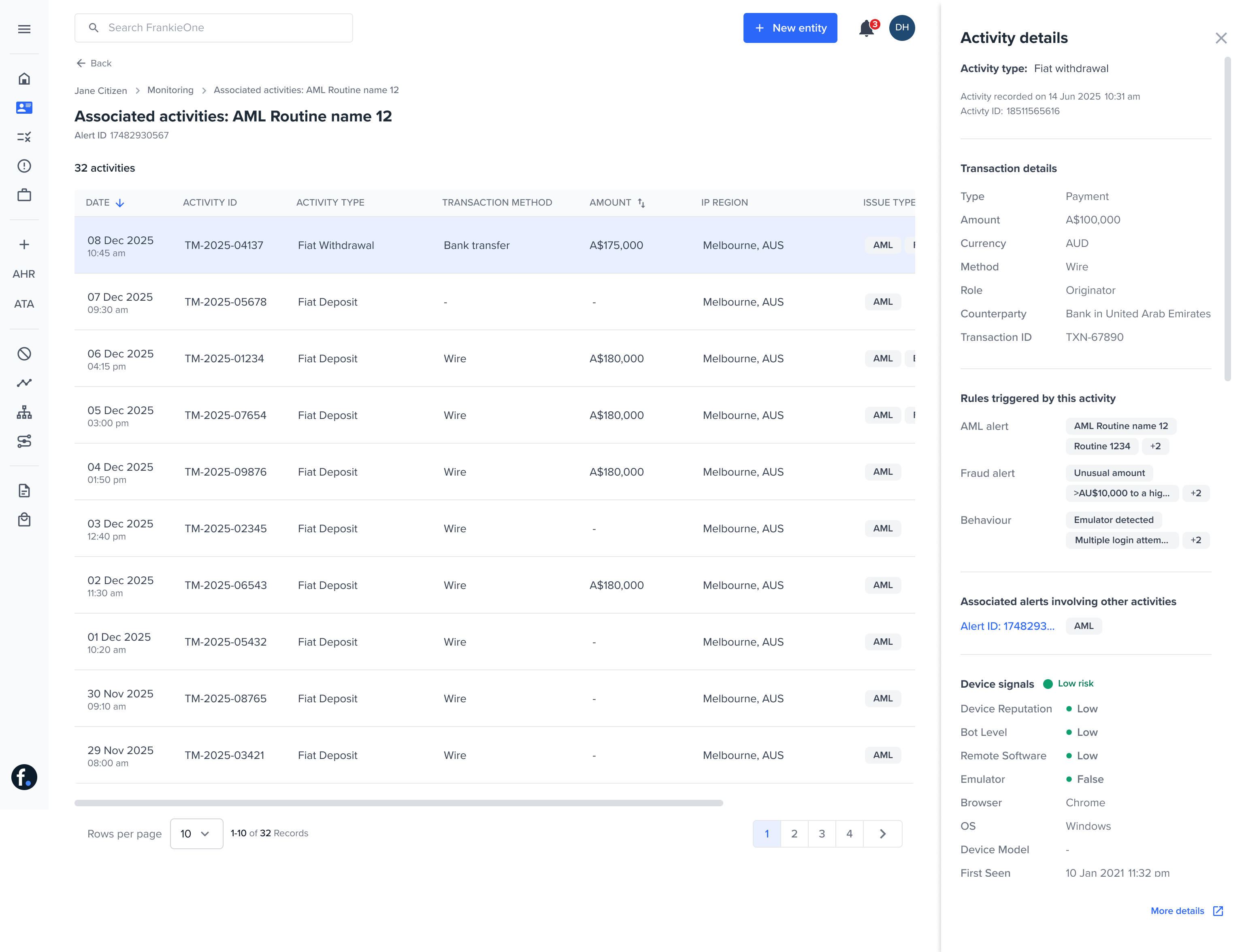
Viewing alerts linked to an activity
When you open an activity in the activity details drawer, you can see any alerts that are directly associated with that activity. This is available on both the All activities page and the Associated activities page.Rules triggered by this activity
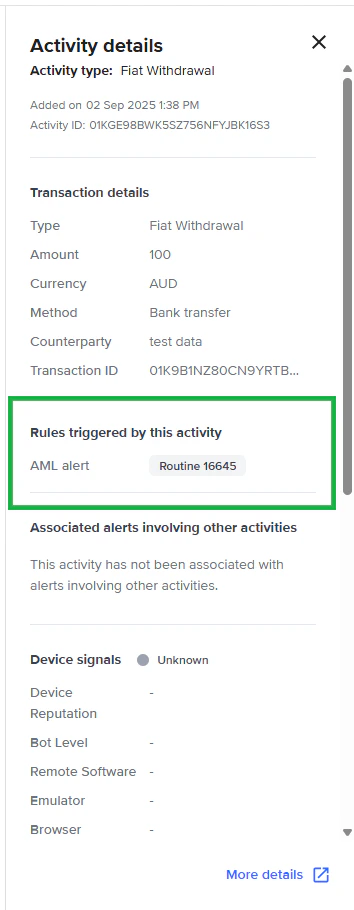
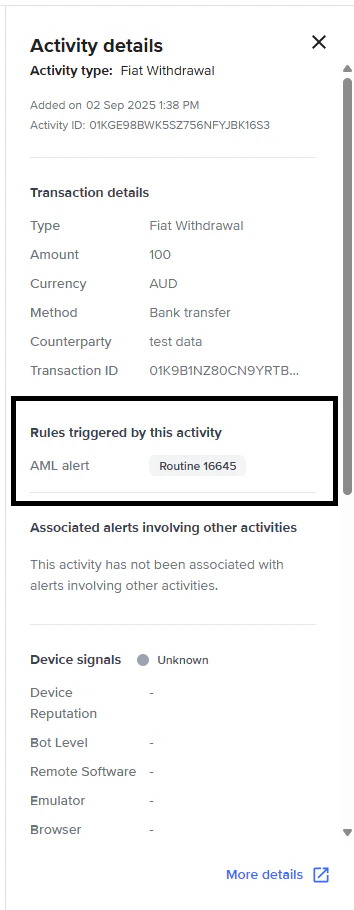
Shows the Rules triggered by this activity section, listing all rules this specific activity triggered, grouped by alert type.
Associated alerts involving other activities
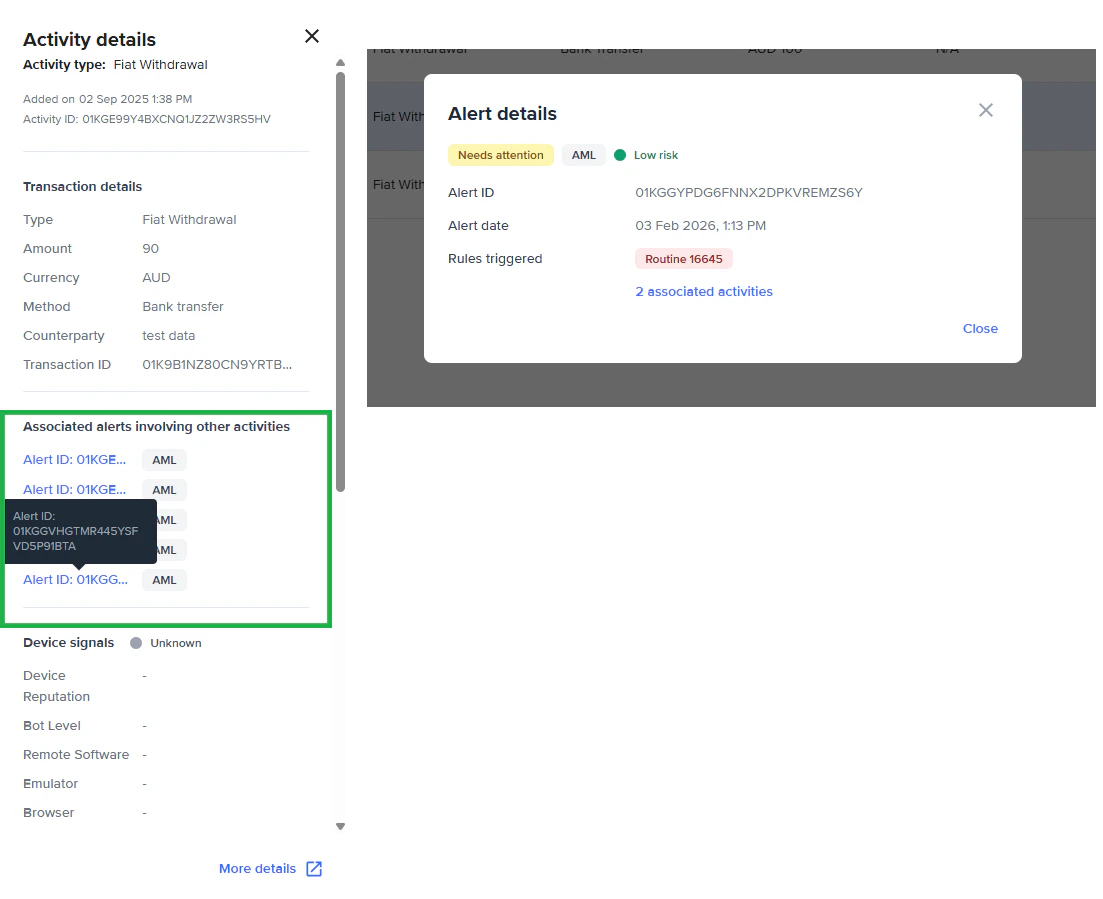
Shows the Associated alerts involving other activities section, listing alerts this activity is linked to through a routine alert.
Classifying an activity
Reviewing an activity may lead you to classify it. In the Portal, you classify an activity by applying one or more Reasons to it from the activity details drawer.
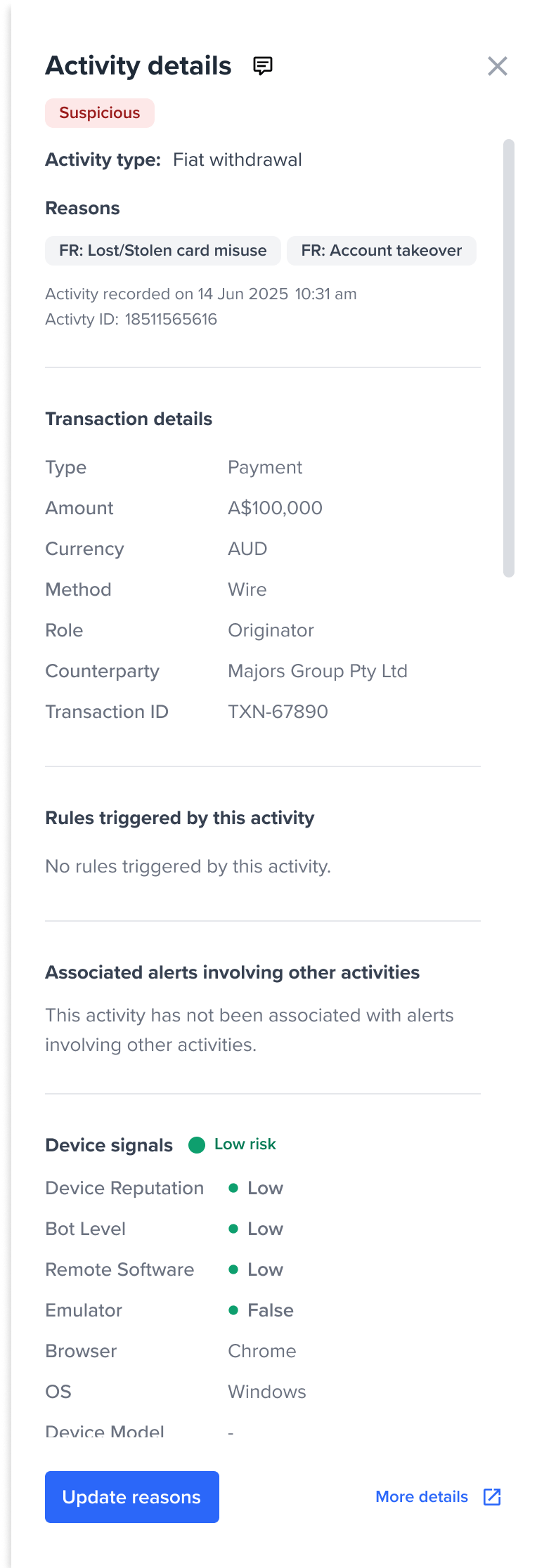
Activity details drawer showing Reasons applied to the activity.
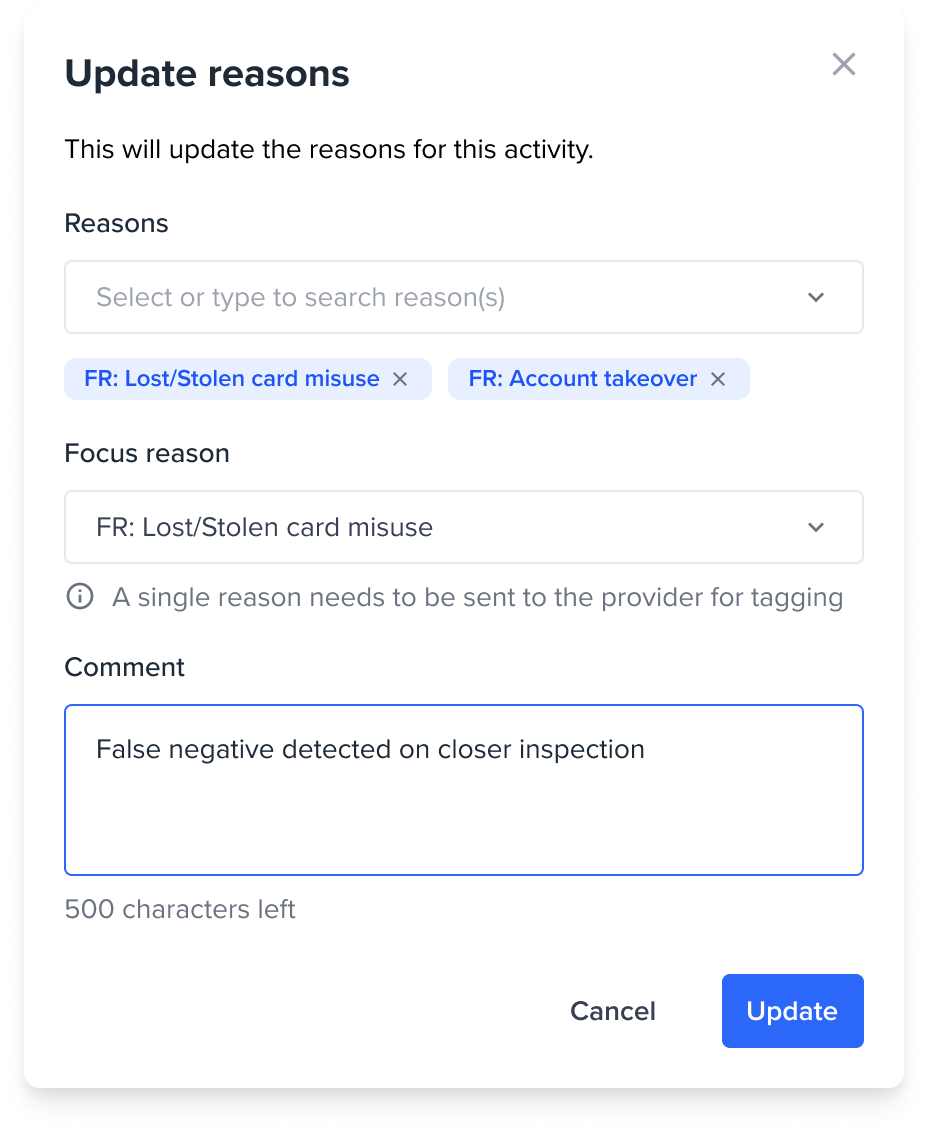
Selecting Reasons to classify an activity. The available Reasons are filtered to True Positive outcomes only.
- Activities take true-positive Reasons only. False positive and In review are alert outcomes and are not applied directly to an activity.
- An activity can receive Reasons two ways: applied directly here, or cascaded automatically when you resolve an alert that the activity raised. See Resolving alerts.
- To remove a classification, remove the Reason from the activity. When an activity has all of its true-positive reasons removed, the Portal shows it as Not suspicious.
- Reasons applied directly to an activity stay on the activity. They do not cascade up to any alert — this is the reverse of resolving an alert, where the alert’s Reasons cascade down to the activity. Reason changes on an activity are captured in the audit trail with the actor, timestamp, and outcome.