

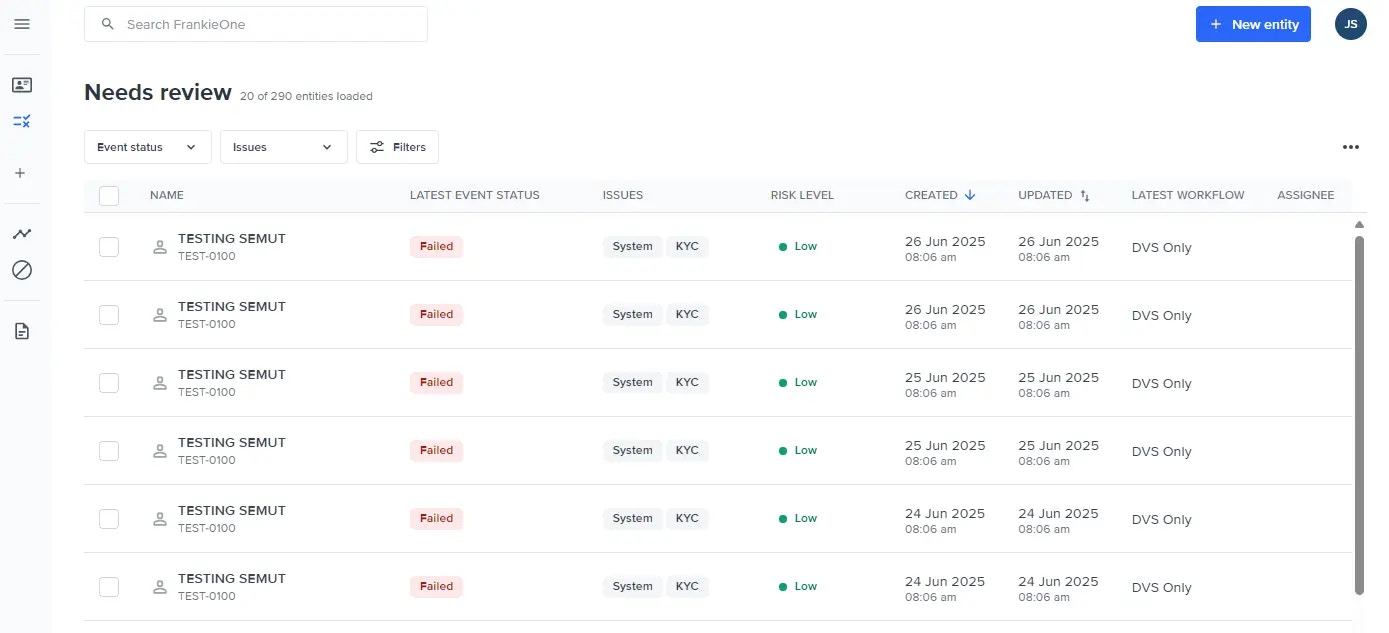
List Filtering & Sorting
You can also filter the entities displayed in the entities table using the filtering options available under the search bar.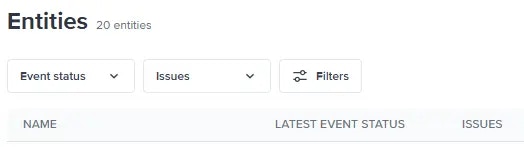
Filter by event status
Use the event status dropdown menu to select the status types of the entities to display.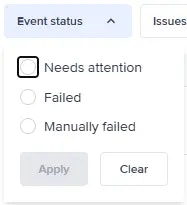
Filter by issue type
Use the Issues dropdown menu to select the issue types of the entities to display. Once you’ve selected the issue types to display, select Apply. Select Clear to unselect all the issue types.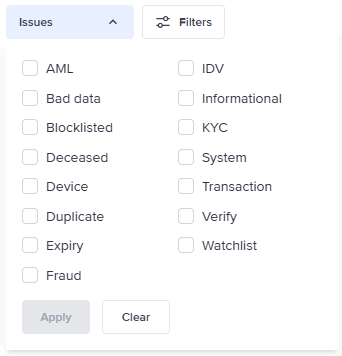
Filters overview modal
Select the Filters button to open the Filters modal. Using the Filters modal, you can view all the possible filters that can be applied to the entities displayed in the entities table.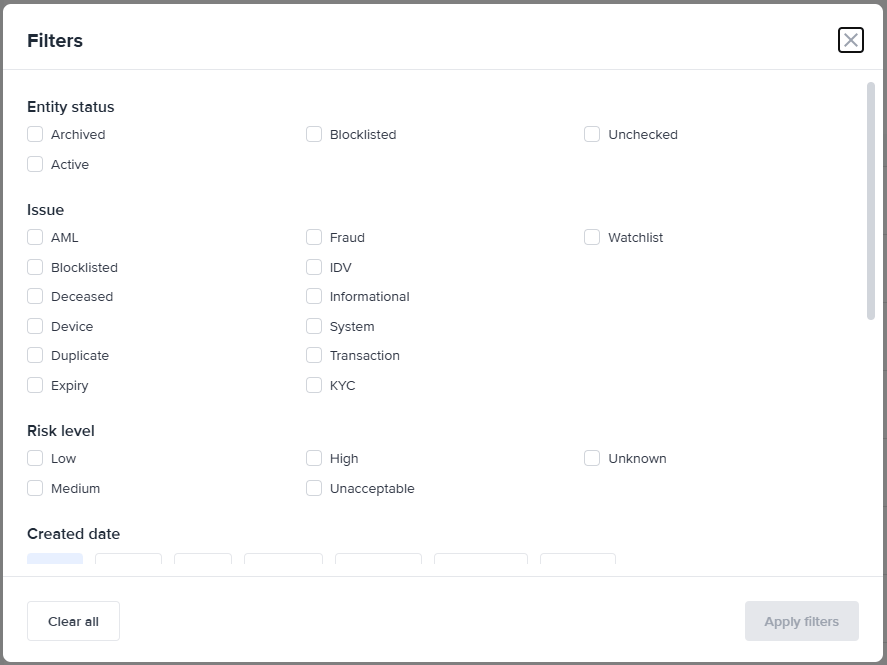
- Entity status
- Issue
- Risk level
- Created date
- Last updated
- Workflow
- Event status
- Assignee
Sorting entities
Select the sorting icons (up and down arrows) beside the CREATED and UPDATED column headers to sort the entities in the table. A single blue arrow highlights the current sort direction (ascending or descending):- A single blue up arrow means the entities are displayed in ascending order.
- A single blue down arrow means the entities are displayed in descending order.