

Navigating the Portal
The FrankieOne Portal provides users with the visual interface for managing their account.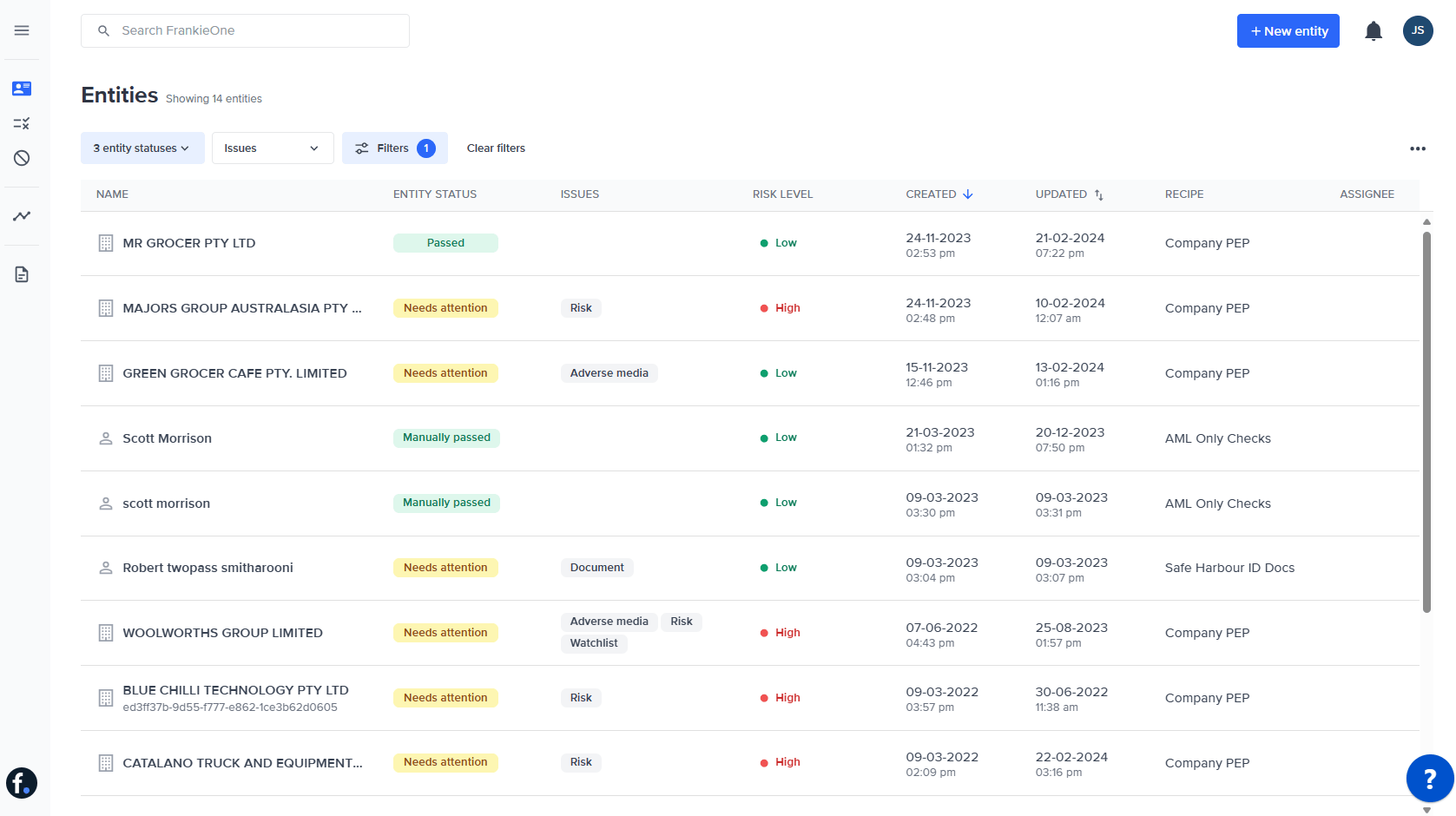
The default view of the Portal.
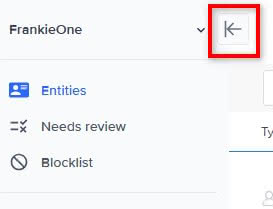
The collapse button.
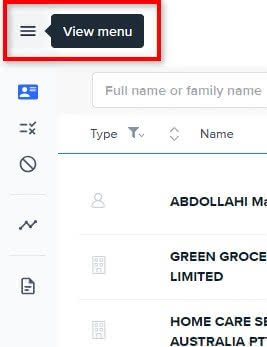
The menu icon.
Entities
The Entities page contains a list of all profiles for that selected account. You can use the filters in each column to sort the lists. You can also use the search feature to find a profile within the list.
Search for profile by name, ID or registration.
Needs Review
The Needs Review page contains a list of all profiles that haven’t passed or needs to be manually reviewed to pass or fail checks. Similar to the Entities page, you can use the filters in each column to sort the lists. You can also use the search feature to find a profile within the list.Blocklist
The Blocklist page displays all profiles that FrankieOne automatically or manually adds to the blocklist. Learn more about blocklists here. You can actively select and manage profiles on the blocklist.Analytics
The Analytics page contains the Dashboard and System Monitoring tabs. The Dashboard tab provides a quick overview of the metrics for user onboarding, provide critical business intelligence to operators and customers. Learn more about the Dashboard here. The System Monitoring tab provides an up-to-date monitoring and status of the FrankieOne platform and its core systems, and different services.Searching for entities
The FrankieOne Portal provides a convenient way to search for entities. A Search bar appears at the top of every page.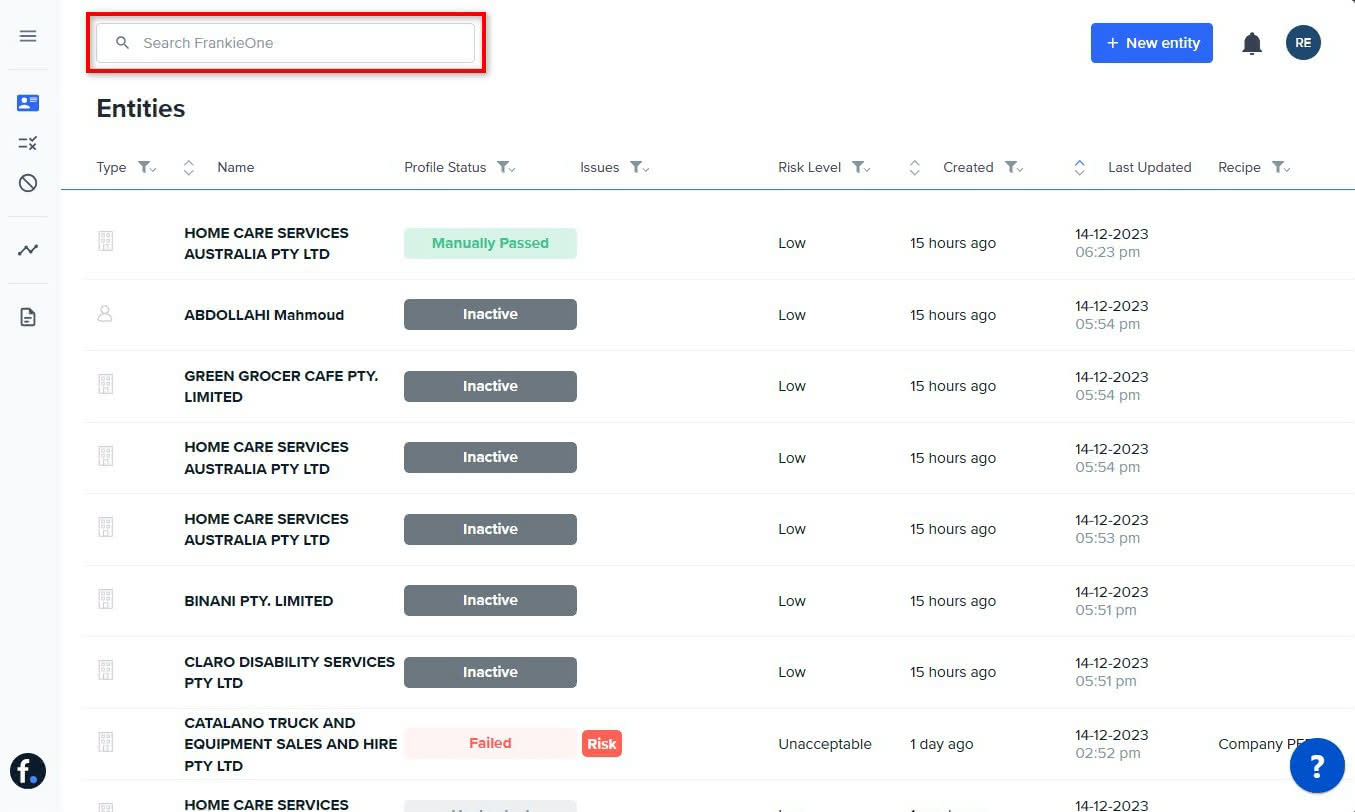
How to search
To search for an entity in the Portal:- Click on the search field. The search bar will be expanded to show search options.
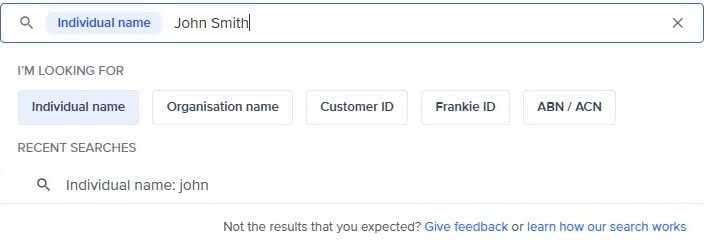
- Enter the search term.
- Select the type of entity identifier type, whether it’s the Individual name , Organization name , Customer ID , Frankie ID , or ABN/ACN. By default, Individual name is selected.
- To perform the search using the information you entered, press Enter on your keyboard.
- You can repeat a previous search by selecting it from the Recent Searches.
- To perform a new search using a different search term, select the x icon, and enter your new search term.
Searchability of Fields by Entity Status
The table below outlines the searchable fields for each status.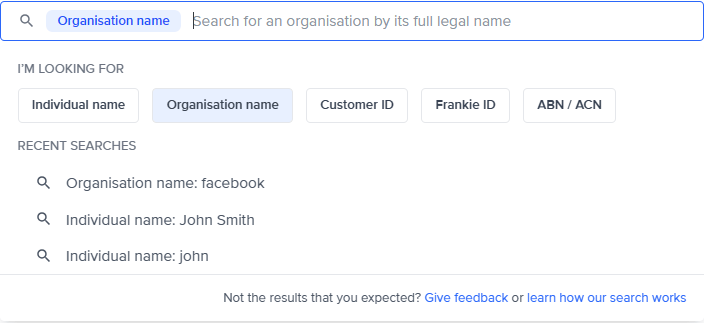
Search term character limits
The maximum character length for a search term is 100, and the minimum is 1.If you perform a search for an entity using a search term that’s too long or too short, no search results will be displayed.Filtering entities
You can also filter the entities displayed in the entities table using the filtering options available under the search bar.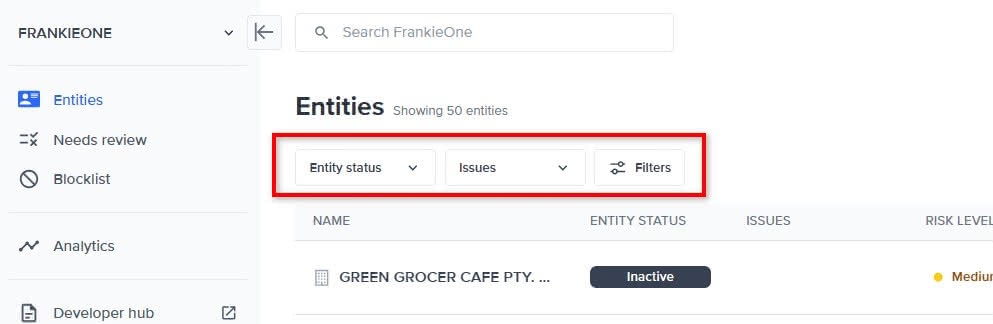
Filtering options for entities.
Filter by entity status
Use the Entity status dropdown menu to select the status types of the entities to display.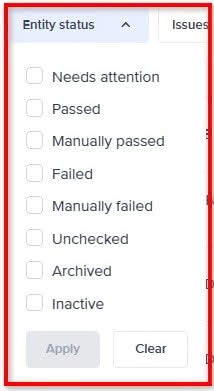
Entity status dropdown menu.
Filter by issue type
Use the Issues dropdown menu to select the issue types of the entities to display.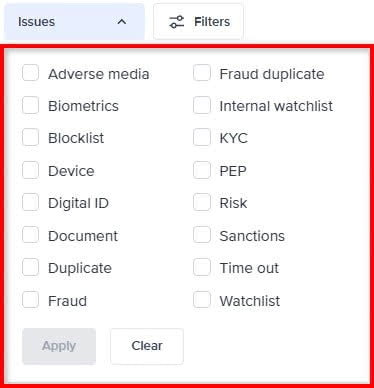
Issues status dropdown menu.
Filters overview modal
Select the Filters button to open the Filters modal. Using the Filters modal, you can view all the possible filters that can be applied to the entities displayed in the entities table.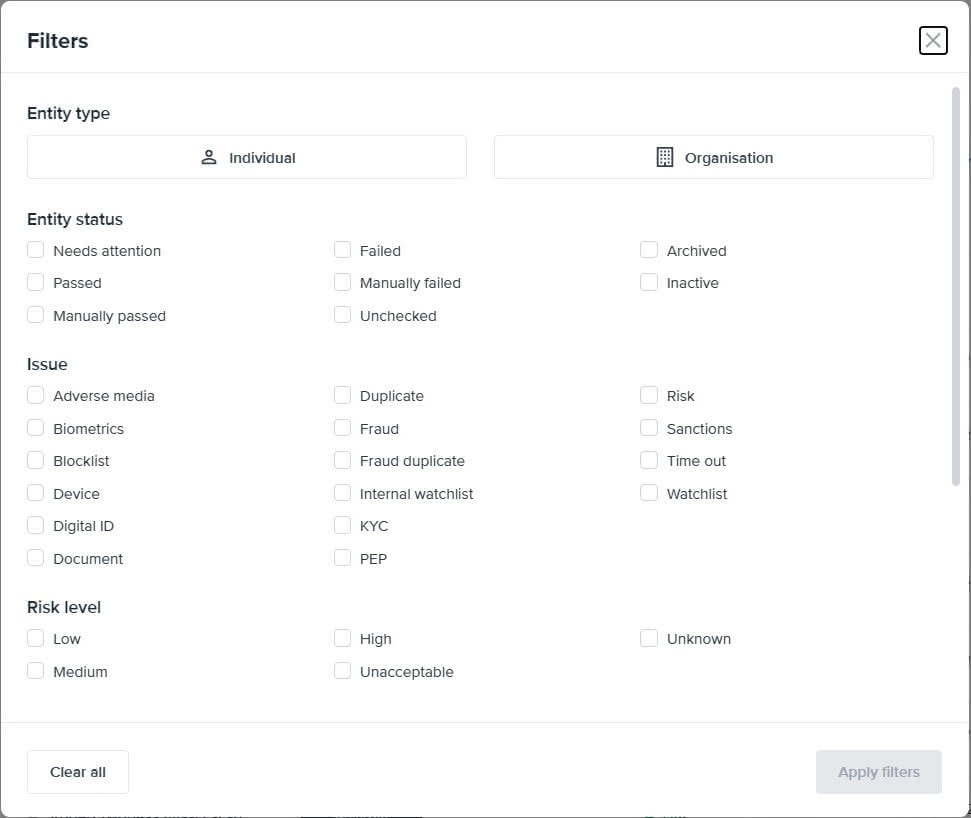
- Entity type
- Entity status
- Issue
- Risk level
- Created date
- Recipe
- Assignee
Sorting entities
Select the sorting icons (up and down arrows) beside the CREATED and UPDATED column headers to sort the entities in the table. A single blue arrow highlights the current sort direction (ascending or descending):- Single blue up arrow means the entities are displayed in ascending order.
- Single blue down arrow means the entities are displayed in descending order.
