

Issue tags
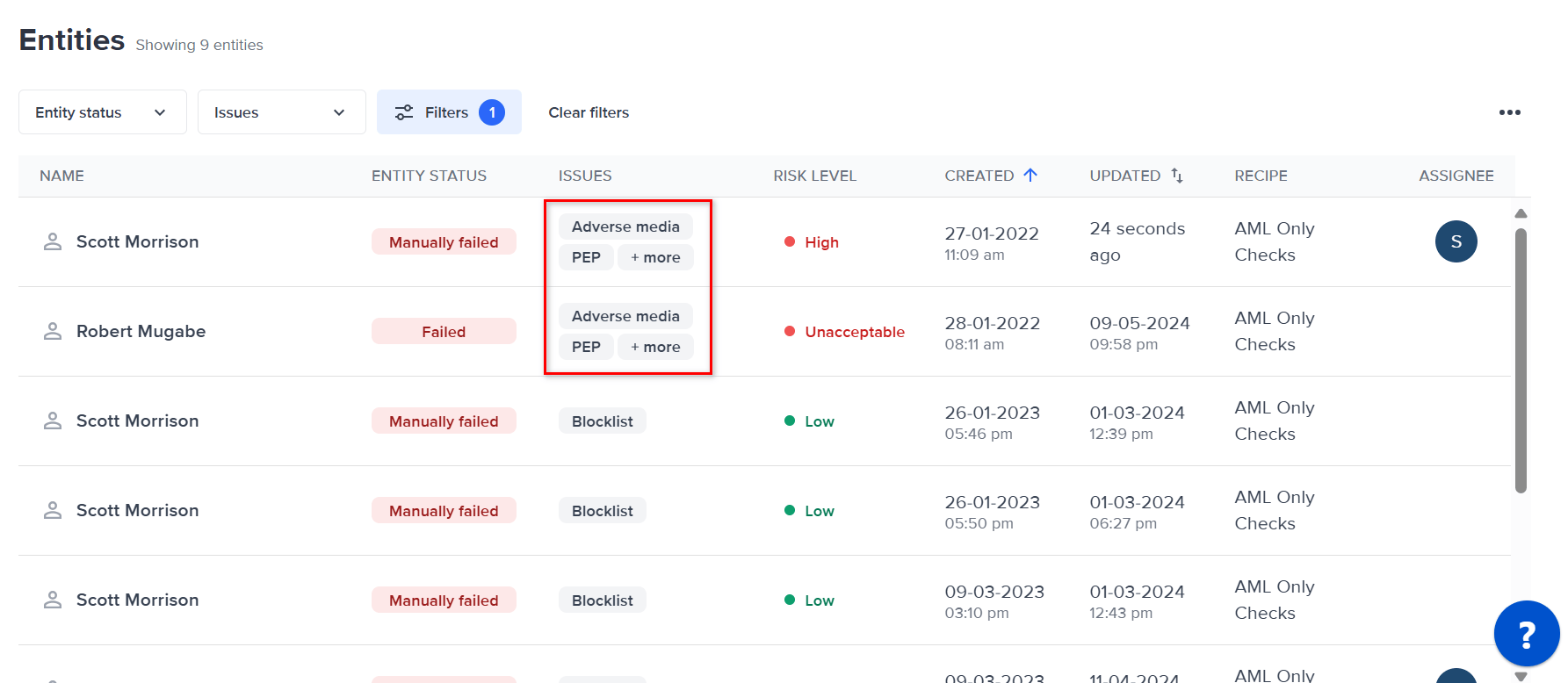
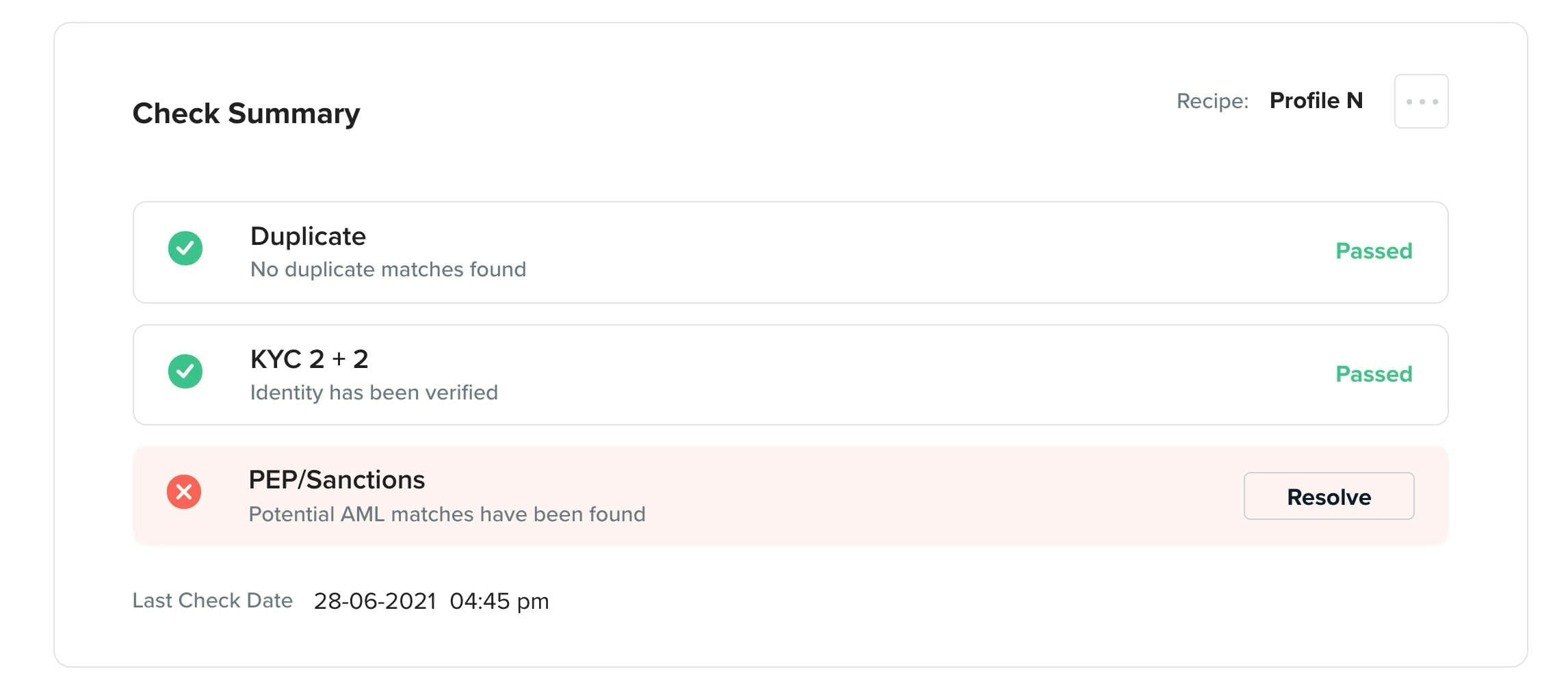
If a new customer has a potential AML match, their profile will show one or more of the following issue tags in the Onboarding List :
To show only profiles with potential AML matches, select Filters on the Entities list, select these tags under Issue, then select Apply filters.
View potential AML matches
Open the customer profile and select the AML Screening tab. The AML profile database search results section has two parts: the parameters used for the search, and the matches returned against them.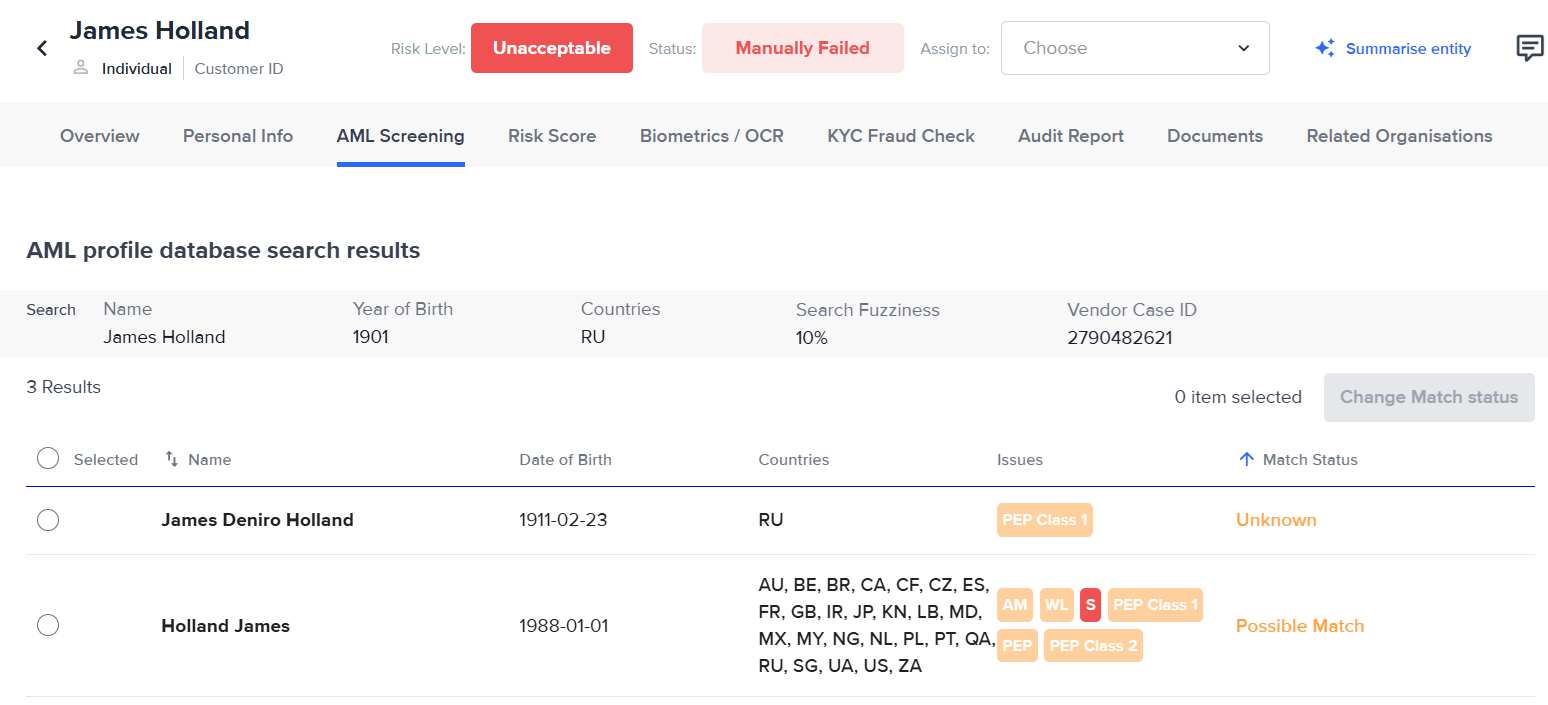
Search parameters
The Search row shows the parameters FrankieOne sent to the screening provider for this check. Use it as the reference point when you assess a match.
AML search results table columns
The results table shows a summary of each match. It does not show everything the screening provider returned. Each possible match is listed as a row. Open a match to see the full record.
Review details of an AML match
Select a row in the results table to open AML database result details.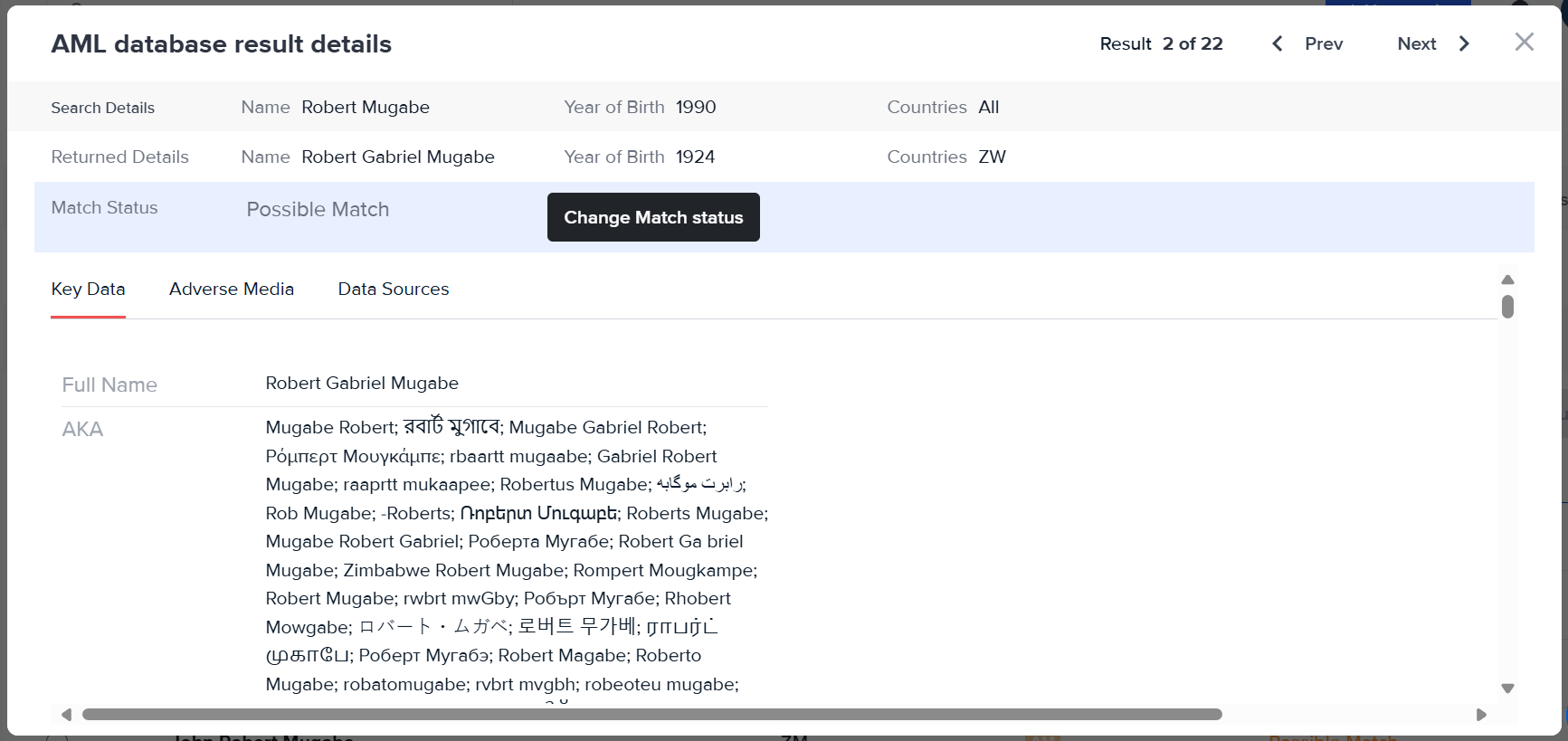
- Search Details shows the Name, Year of Birth, and Countries searched.
- Returned Details shows the Name, Year of Birth, and Countries held for the matched profile, and the Match Strength.
- Match Status shows the current status and the Change Match status action. Where a search returned several matches, use Prev and Next to move between them without closing the window. The counter shows which result you are viewing.
The results table shows a fixed set of columns, but Key Data shows the provider’s full record. Check Key Data before you conclude that the provider did not return a detail.
At the bottom of the Key Data tab, Listing shows each list the matched profile appears on, grouped by category. Each entry includes the list name, source URL, when the listing started and, where applicable, ended, the country codes recorded against it, and the AML types that apply. Some sources return additional fields, so the details vary between entries. For the full structure behind these listings, see AML result set elements, which describes each element the screening provider returns.
Dates of birth on a match
Date of birth appears in several places on an AML match. They are not the same value repeated. Each one is either the date you searched, the result of comparing that date against the matched profile, or a date the screening provider holds for the matched profile.
The results table and Key Data read from different sources, so Key Data can show a date where the results table is blank. This is expected. Date of birth does not apply to organizations.
Change the match status
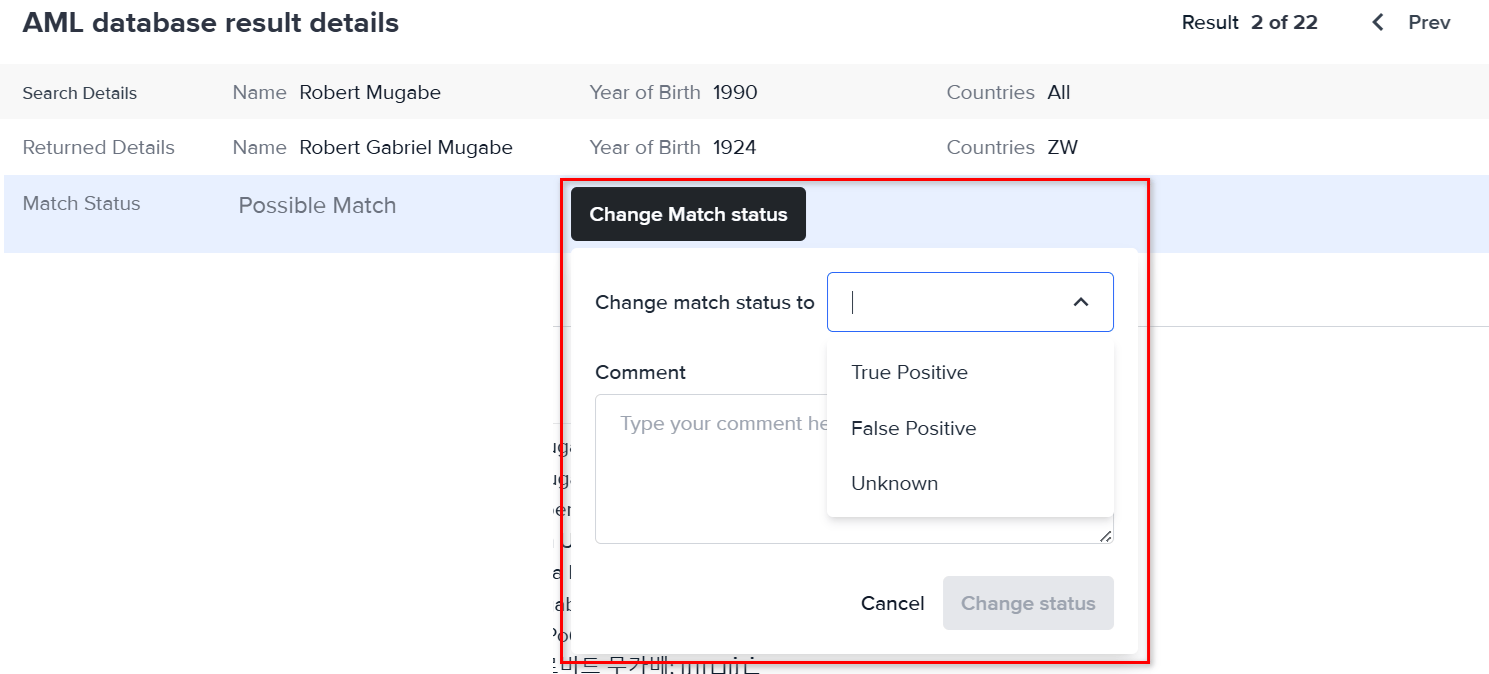
Review the match detail before you change the status. New matches start at Possible Match.- Select a row in the results table to open the AML database result details modal.
- Review the match, then select Change Match status.
- In Change match status to, select True Positive, False Positive, or Unknown.
- In Comment, enter the reason for your decision. A comment is required.
- Select Change status. To change several matches at once, select them in the Selected column of the results table, then select Change Match status above the table.
What each status means
You can set True Positive, False Positive, or Unknown from Change Match status. Possible Match is assigned by the system, and True Positive Approved and True Positive Rejected are set from the approve or reject banner.
How match statuses affect the check and the profile
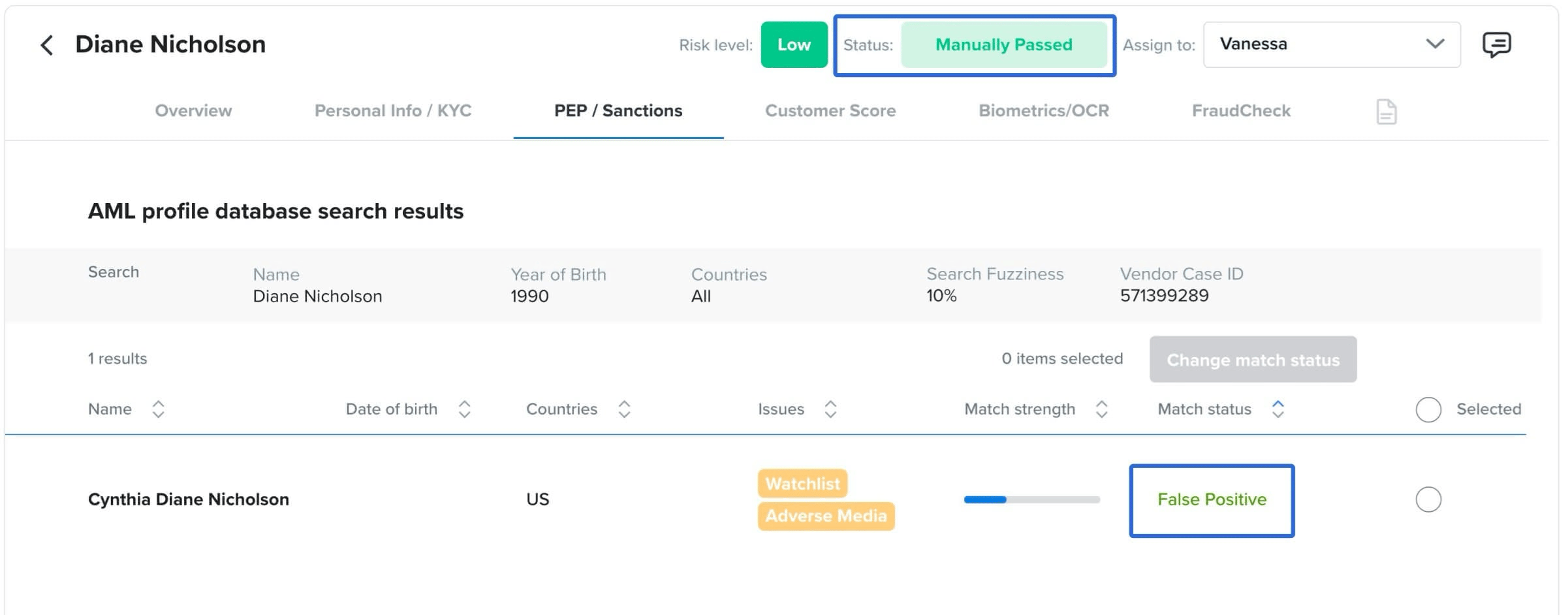
Depending on your account configuration, the profile status updates when you resolve its matches:
- If every match is marked False Positive, the profile moves to Manually Passed.
- If any match is marked True Positive or Unknown, the profile moves to Manually Failed.
Approve or reject a customer with a true positive match
When any match is marked True Positive, the AML Screening tab shows a banner asking whether to approve or reject the customer.- Select Approve or Reject.
- Every match currently marked True Positive updates to True Positive Approved or True Positive Rejected. Matches with any other status, including earlier approve or reject decisions, stay as they are. The banner closes once no matches are marked True Positive. The profile status stays Manually Failed after either decision.