

Prerequisites
Ensure you’ve obtained the metadata from FrankieOne for your environment.Procedure
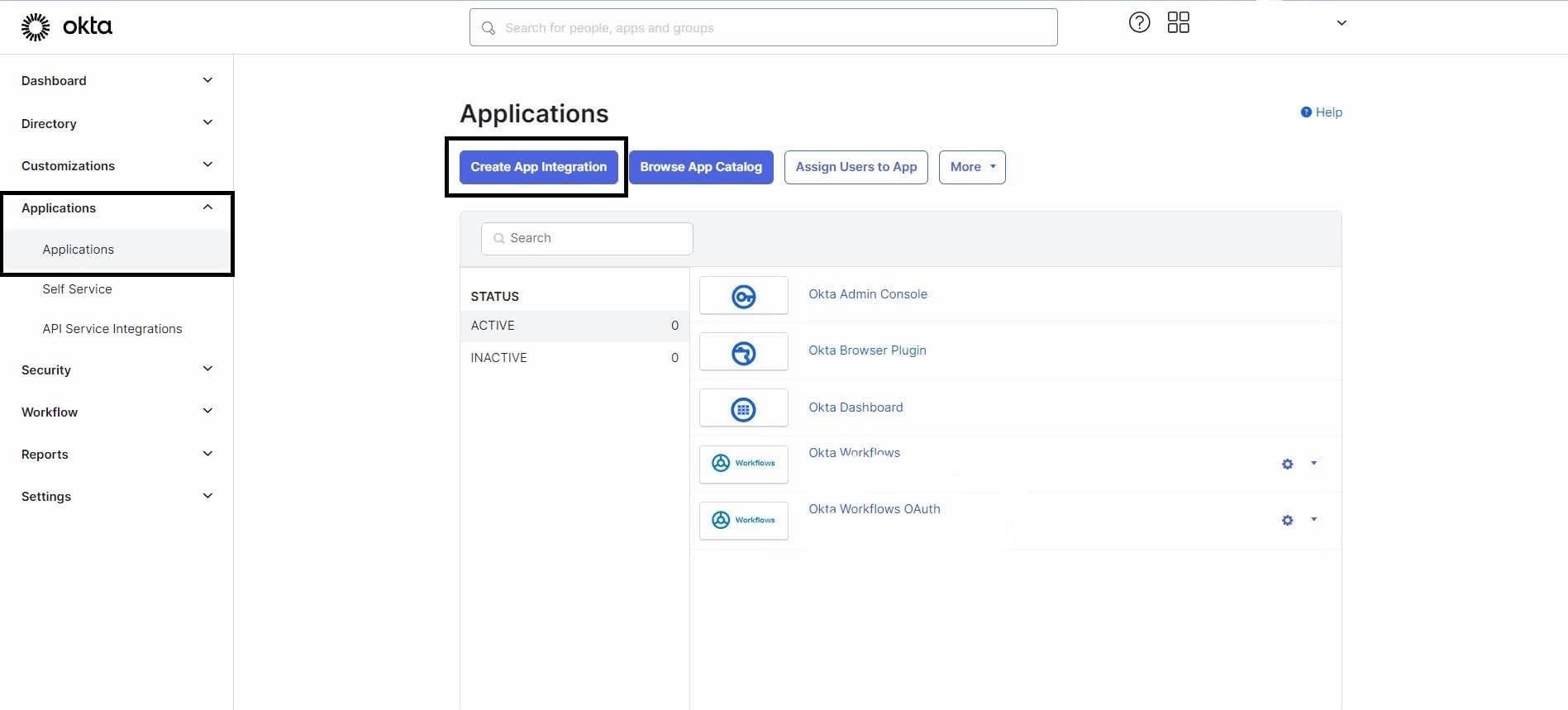
- Navigate to the Okta Admin Dashboard > Applications > Applications > Create App Integration.
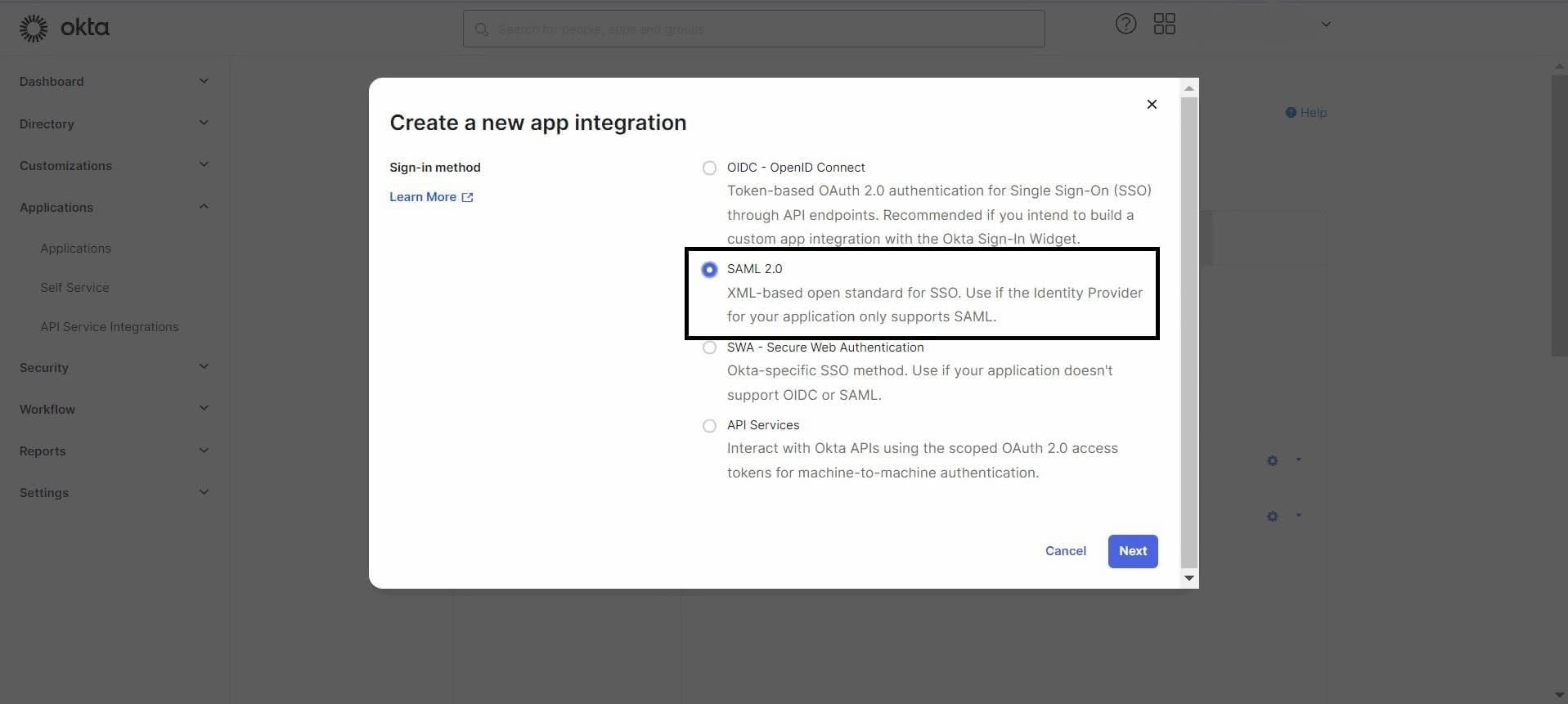
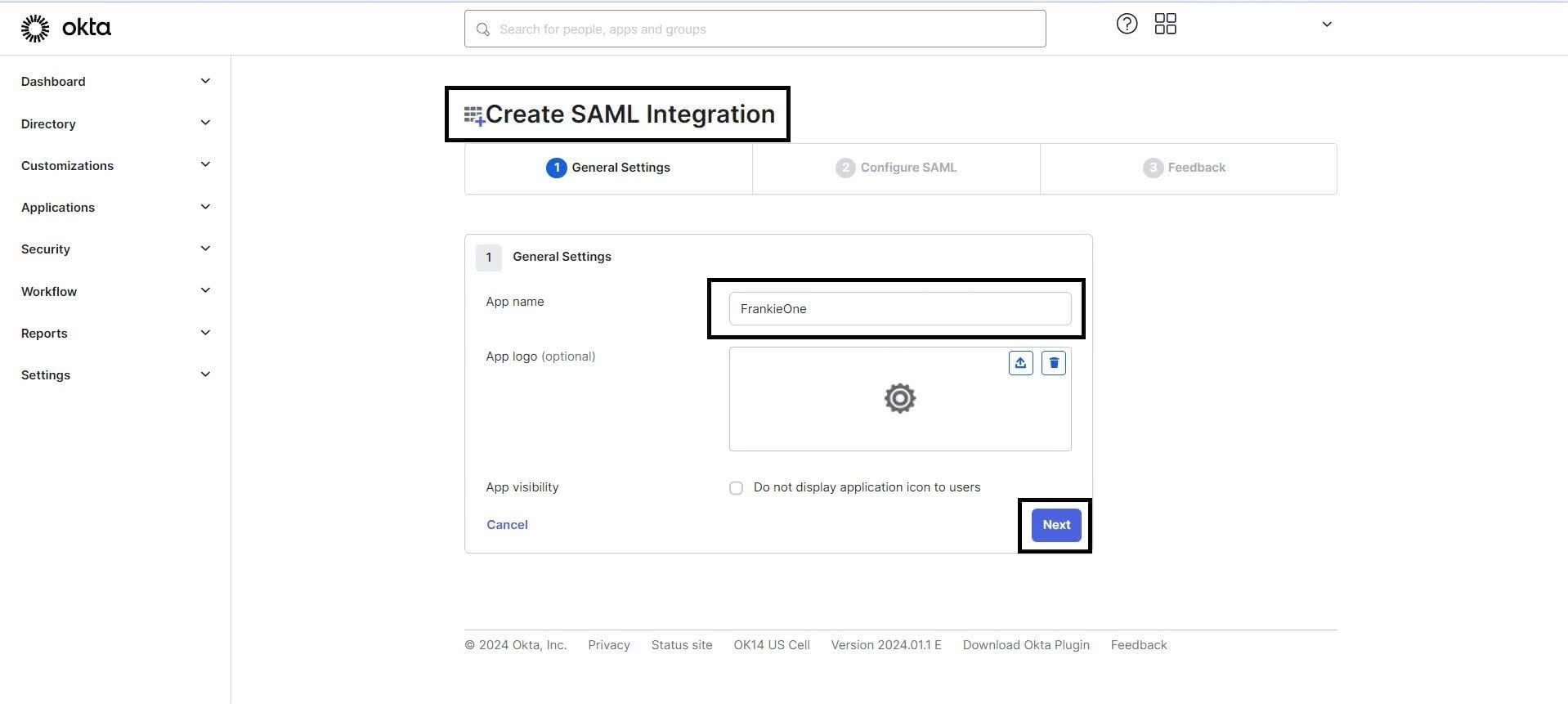
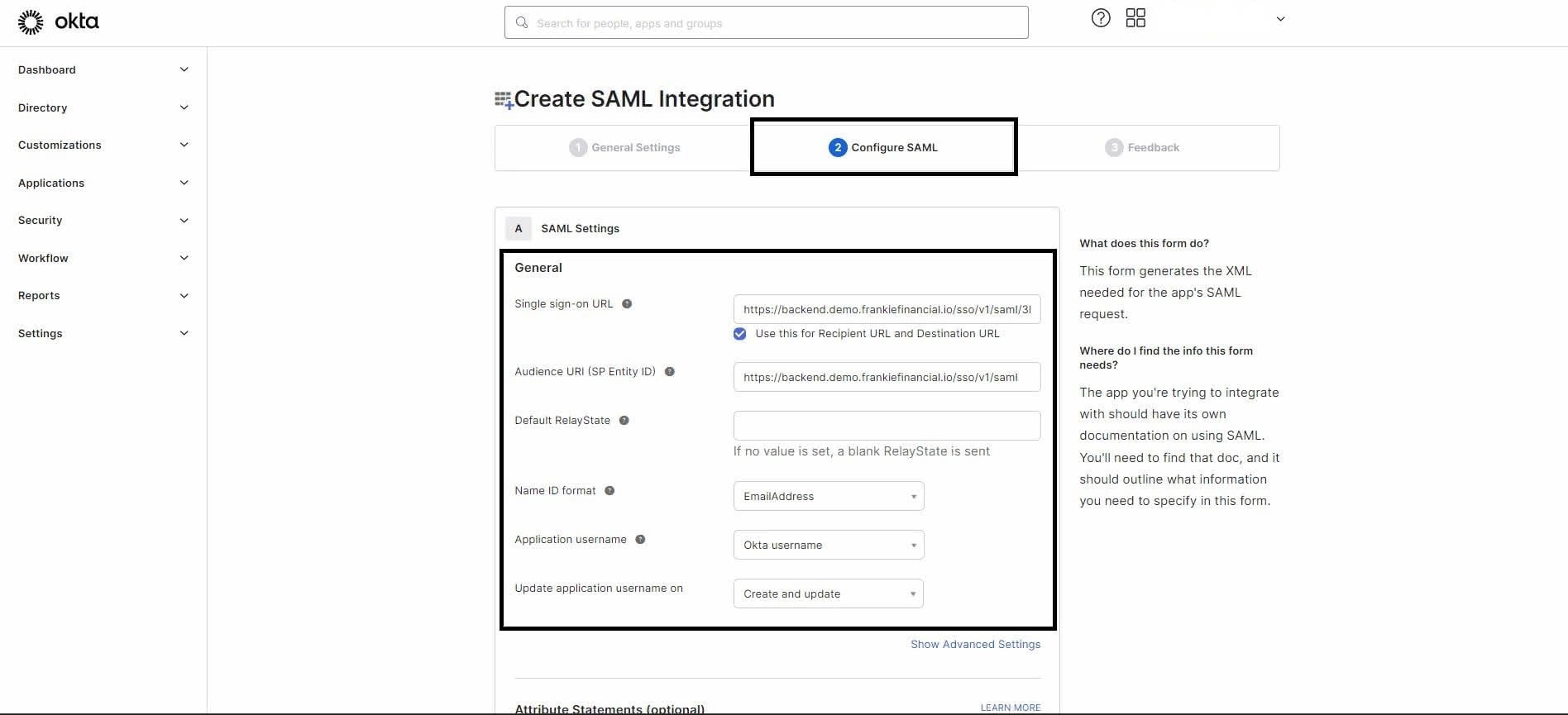
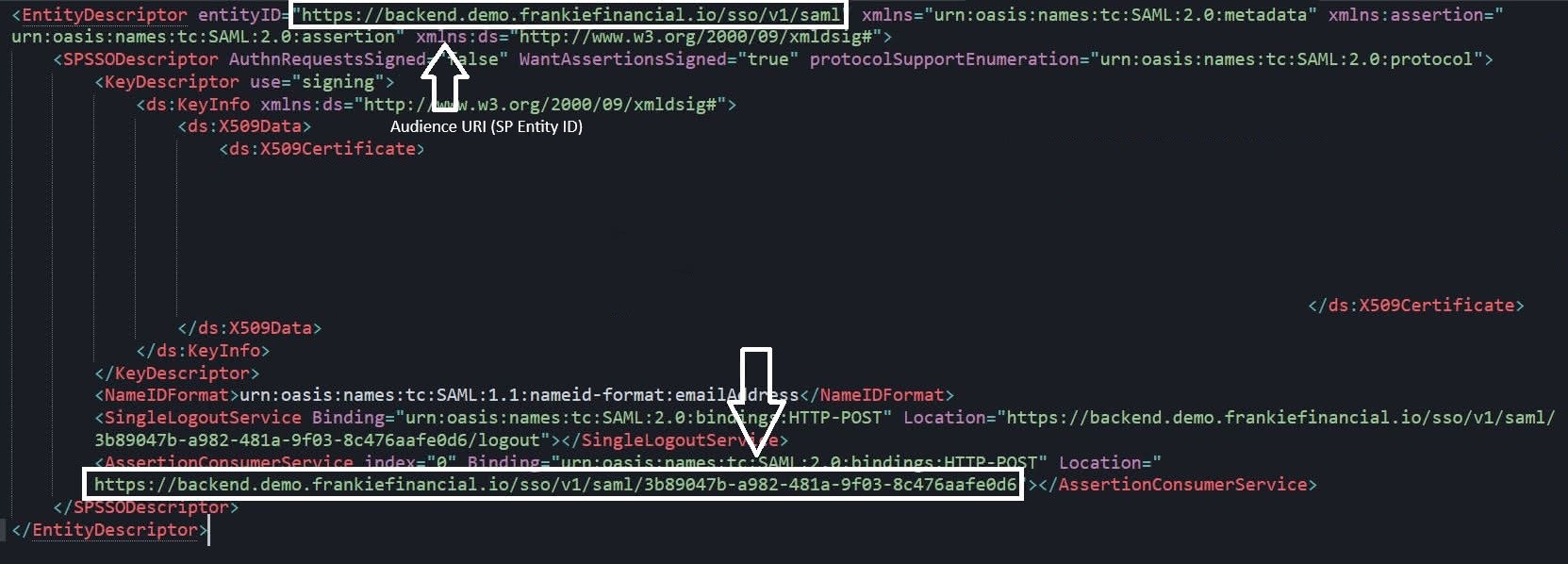
- Single sign-on URL:
<AssertionConsumerService.Location value from the metadata> - Audience URL (SP Entity ID):
<EntityDescriptor.entityID value from the metadata> - Default RelayState:
<Leave it blank> - Name ID format: Choose
Emailaddressfrom the drop-down options. - Application username: Choose
Okta usernamefrom the drop-down options. - Update application username on: Choose
Create and updatefrom the drop-down options.
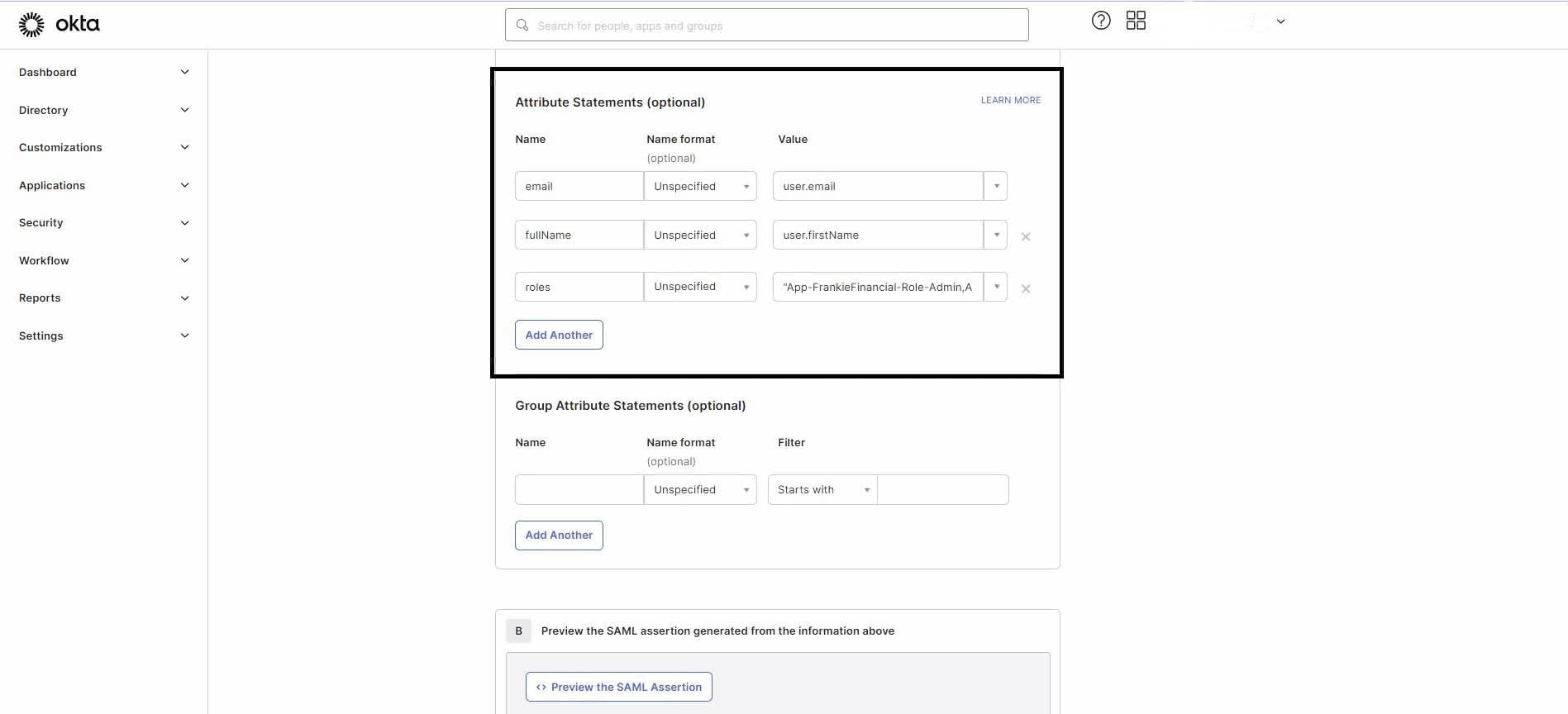
- In the Attribute Statements (optional) section, add attributes as shown in the screenshot.
- Select Next, then go to the Feedback tab, where you can choose the appropriate option based on your setup.
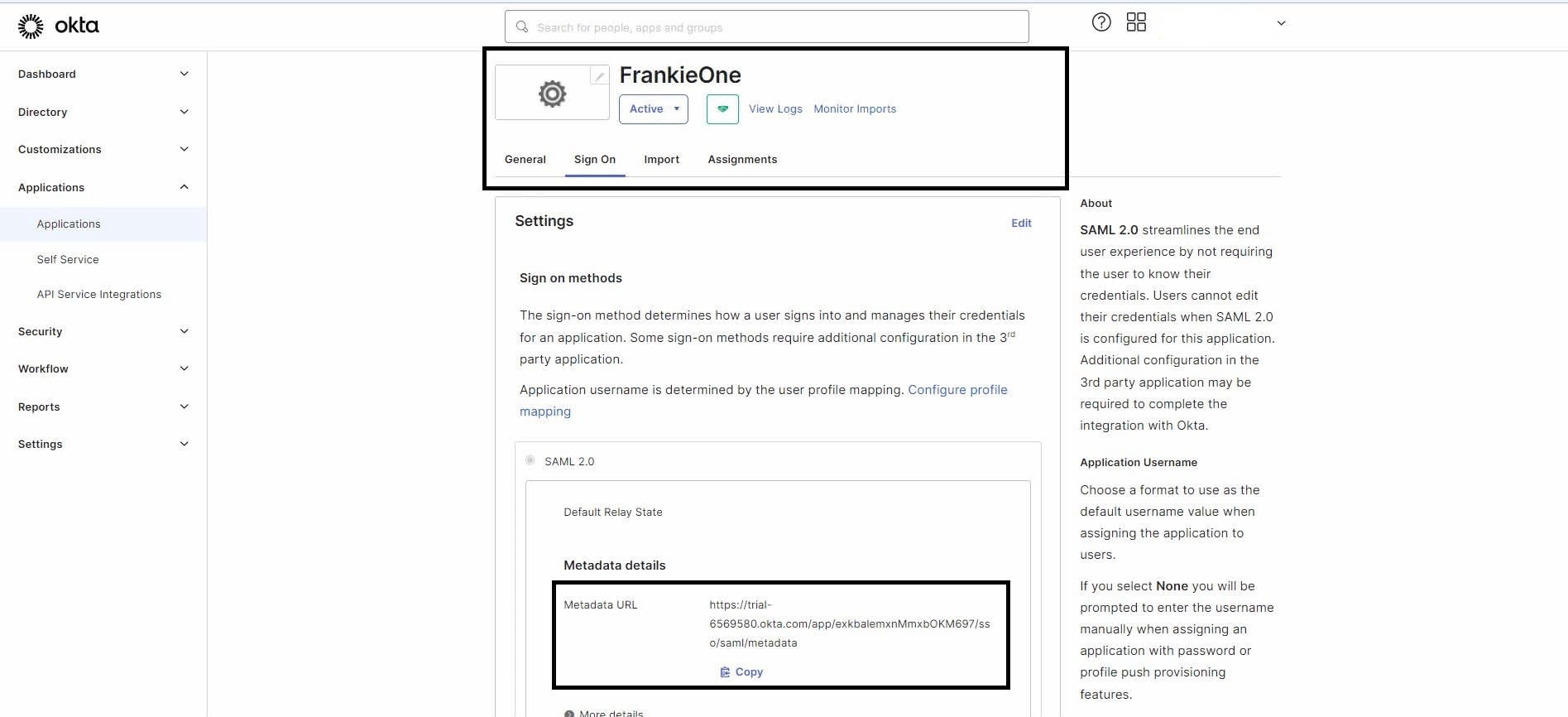
- After creating the application, you’ll see the application’s** Sign On** settings page, which includes the link to the metadata. Share this metadata with us (FrankieOne) to complete the SSO setup.
Notes
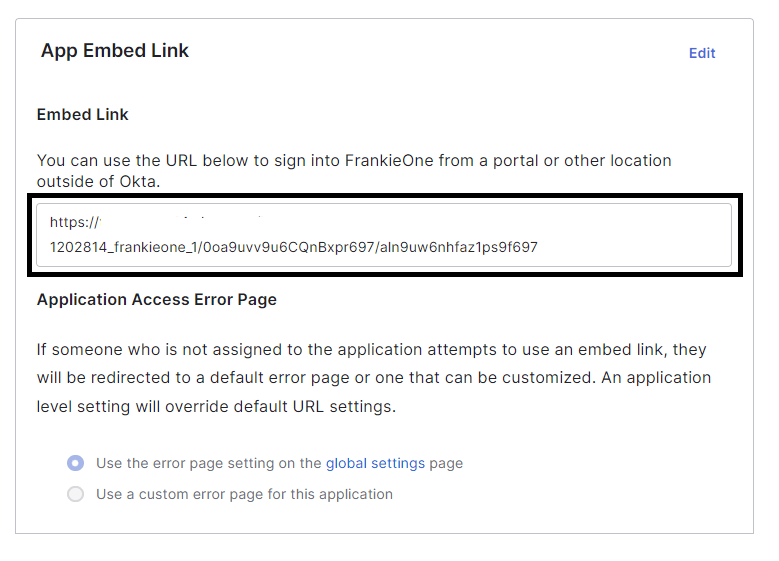
- You can access the FrankieOne Portal using the App Embed Link available under the General tab on the application’s home page.
- If end users encounter permission errors from Okta, assign the respective users to this newly created application.