

Viewing entity risk
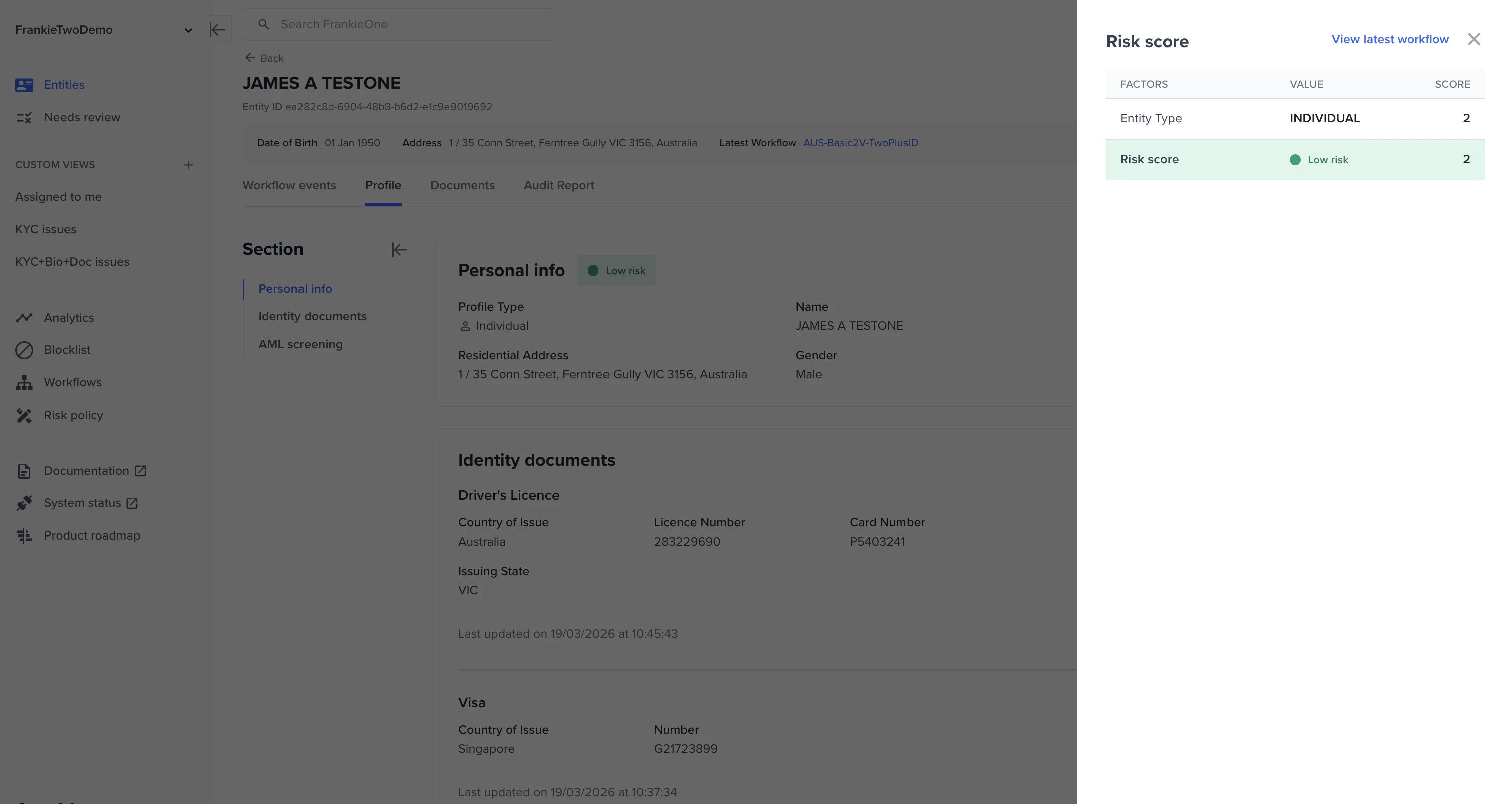
The Entity risk score is always determined by the latest workflow risk.
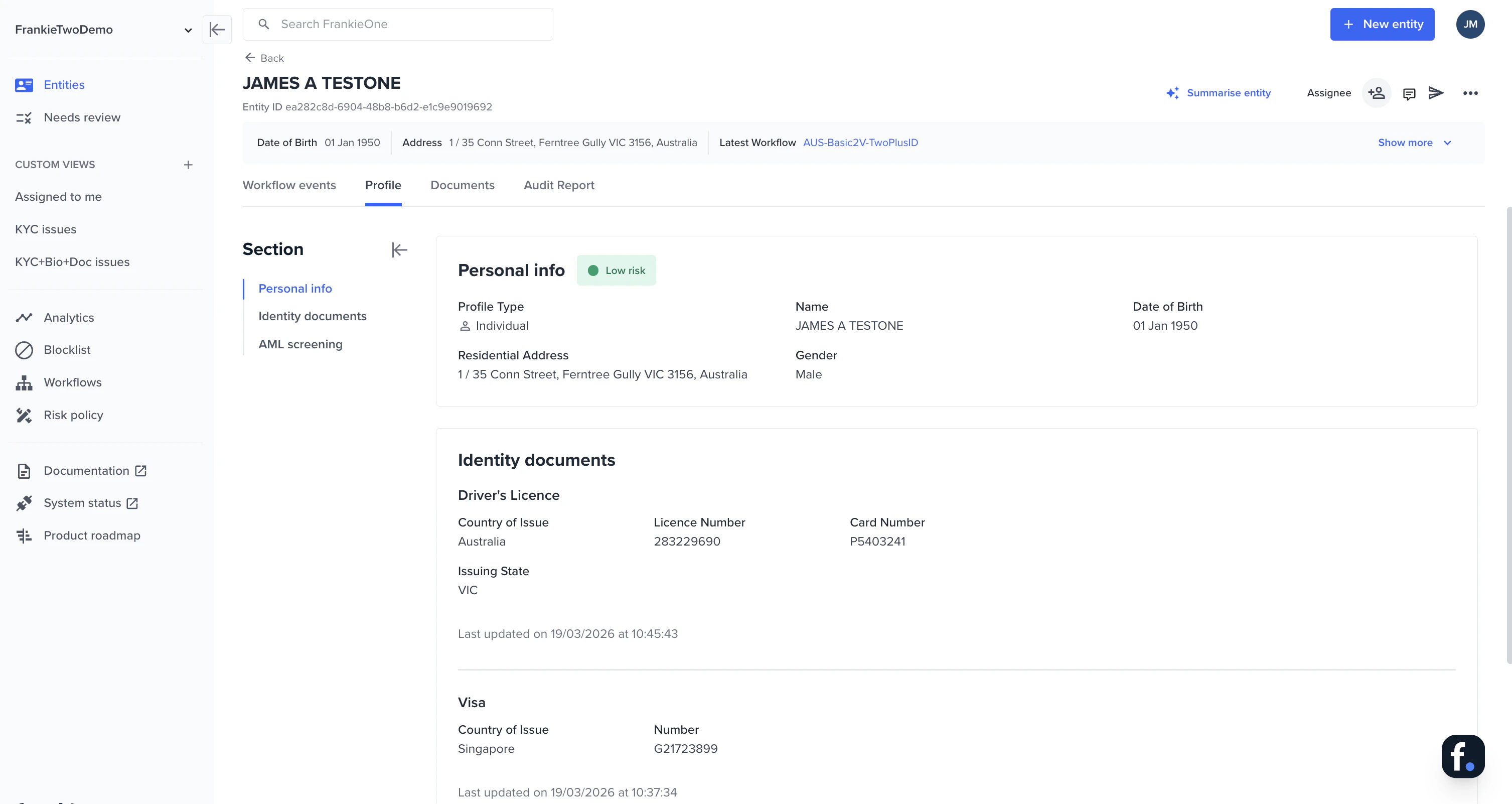
- Navigate to an Entity page and click the Profile tab.
- The Entity risk is shown as a color-coded badge in the Personal info section.
- When you click on the badge, the risk scorecard panel will appear on the right side of the screen. All the risk values here are based on the entity’s latest workflow risk.
Viewing latest workflow risk
If the same workflow has been run multiple times, only the workflow risk of the latest run/attempt is displayed.
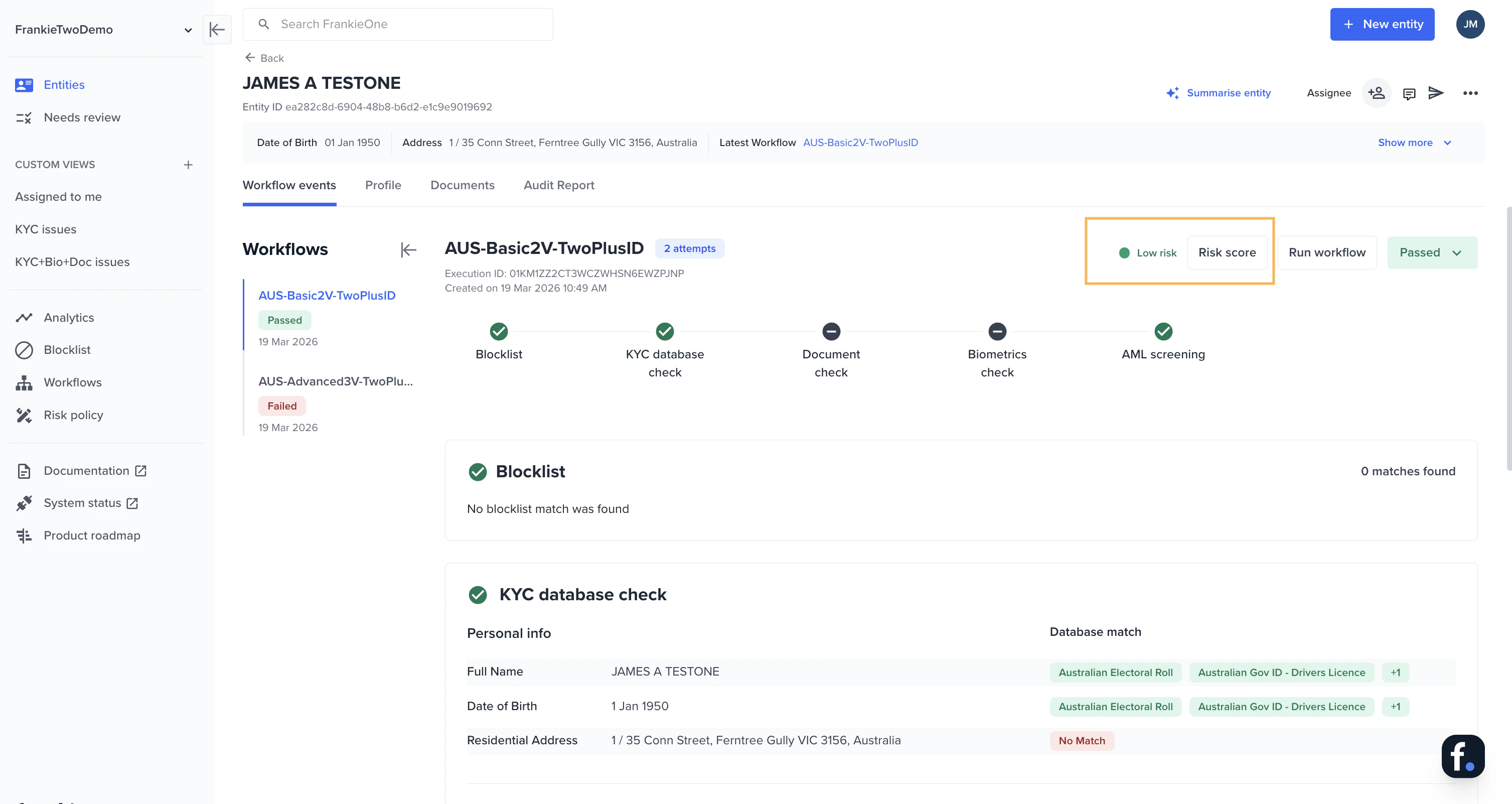
- In the Portal, navigate to an Entity page to view its workflow events.
- By default, the first workflow you see is also the latest one. The workflow risk level is shown on the right side. Click the Risk score button — this will open a panel on the right side of the screen.
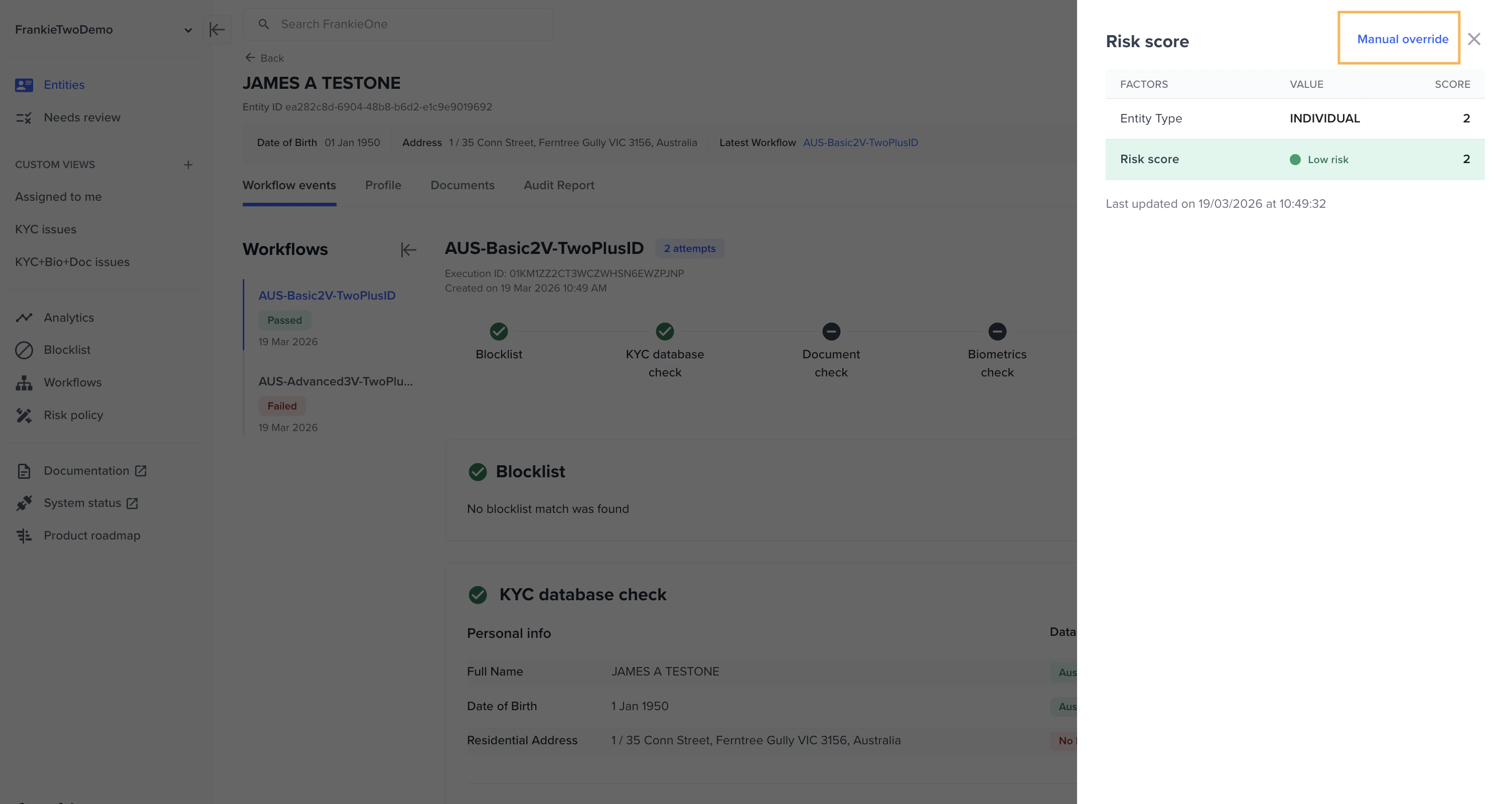
- The risk scorecard panel shows all risk factors and scores used in the workflow run.
Viewing an outdated workflow risk
There may be cases where different workflows were run for an Entity.
- In the Workflow Events tab, navigate to an older workflow.
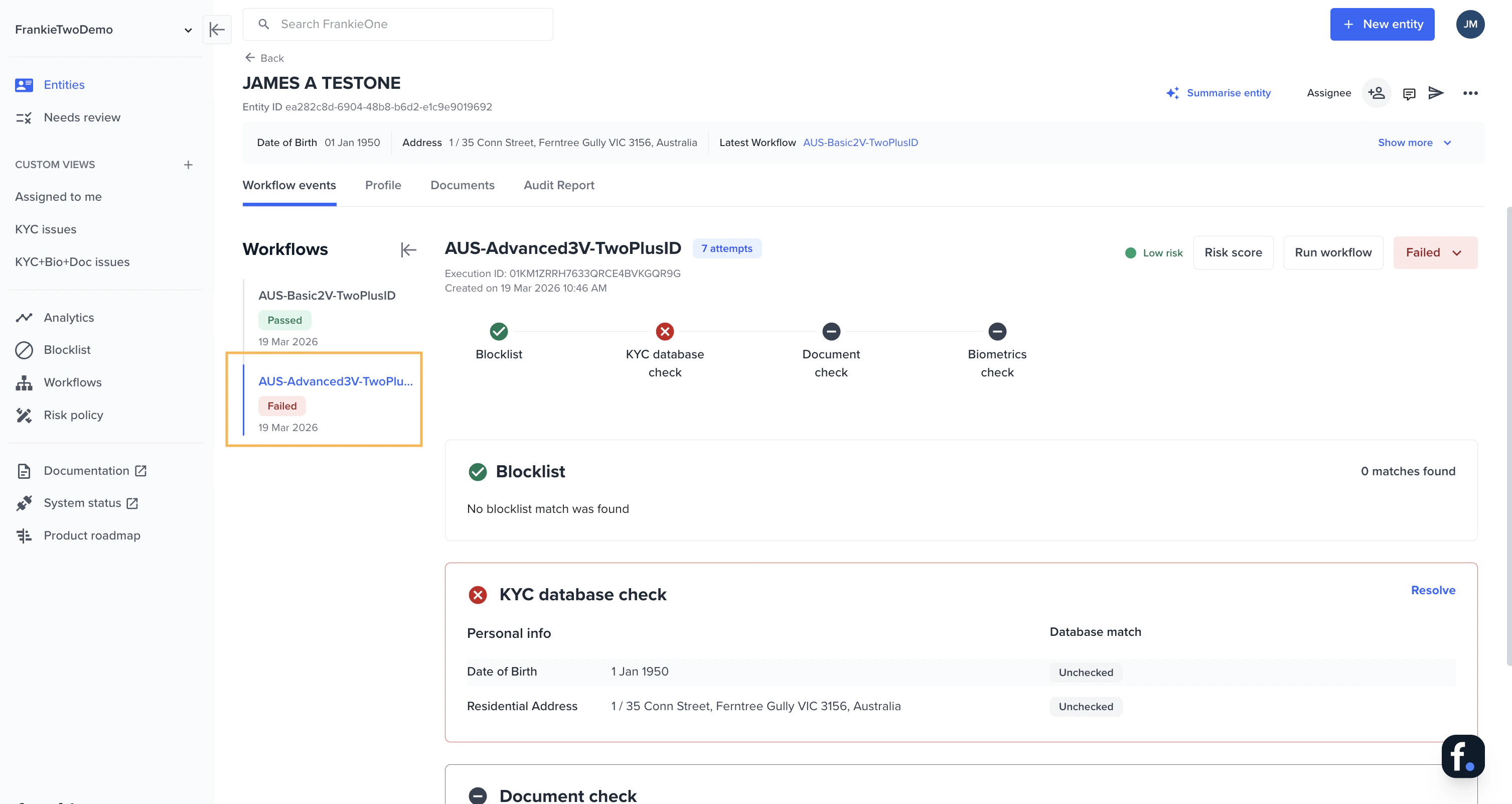
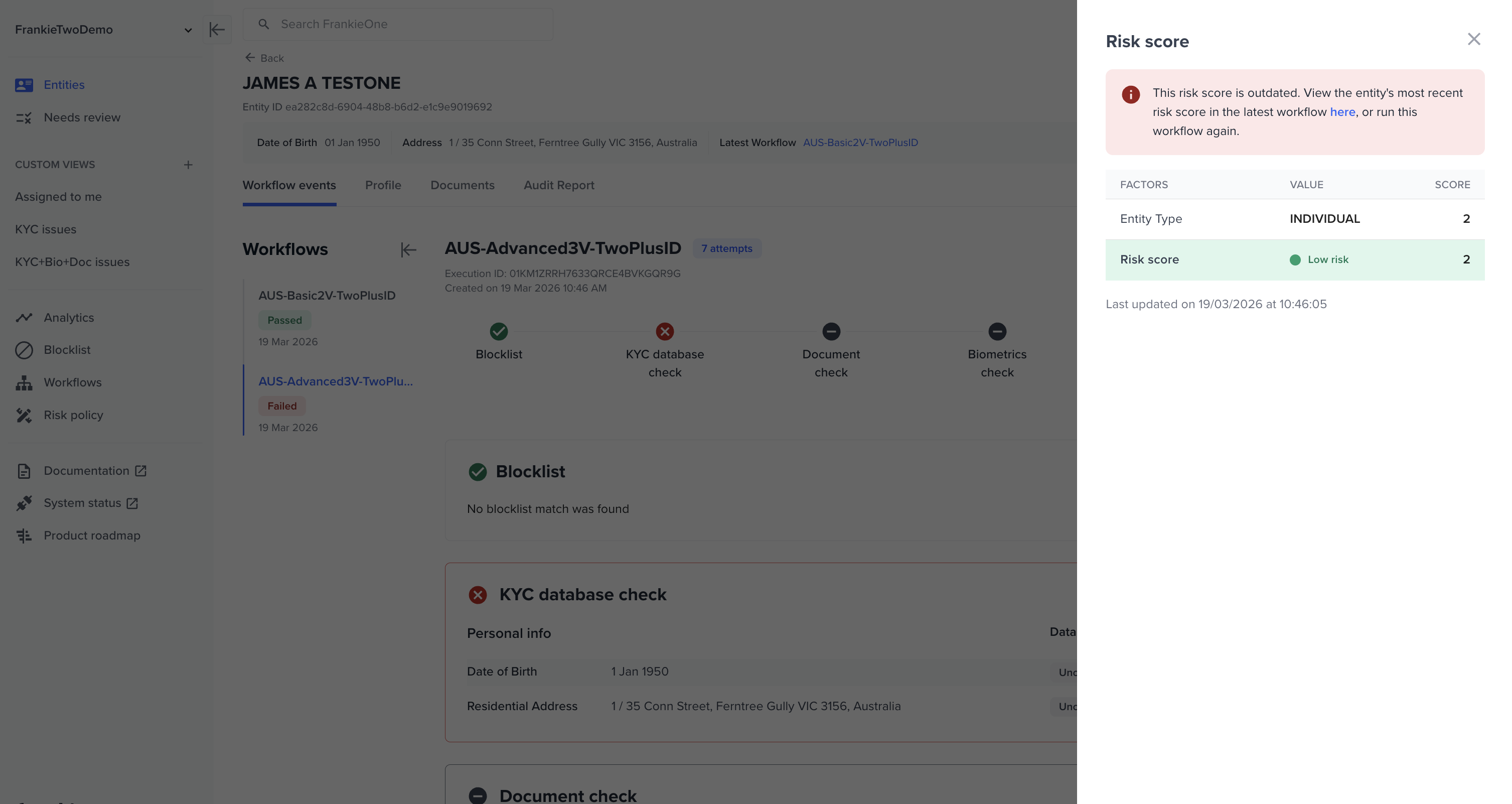
- When you click the Risk score button and open the risk scorecard, you should instantly see that this workflow risk score is already stale. You can choose to view the latest workflow risk, or run the workflow again to get a fresh risk assessment.
Overriding risk
In some cases, the workflow risk may need to be manually overridden - for example, to escalate it to Medium or High following a manual review that identifies additional concerns.Who can use this feature: Administrators, Operators and Compliance Officers have the relevant permissions by default
- Navigate to the Entity’s latest workflow event and click Risk score.
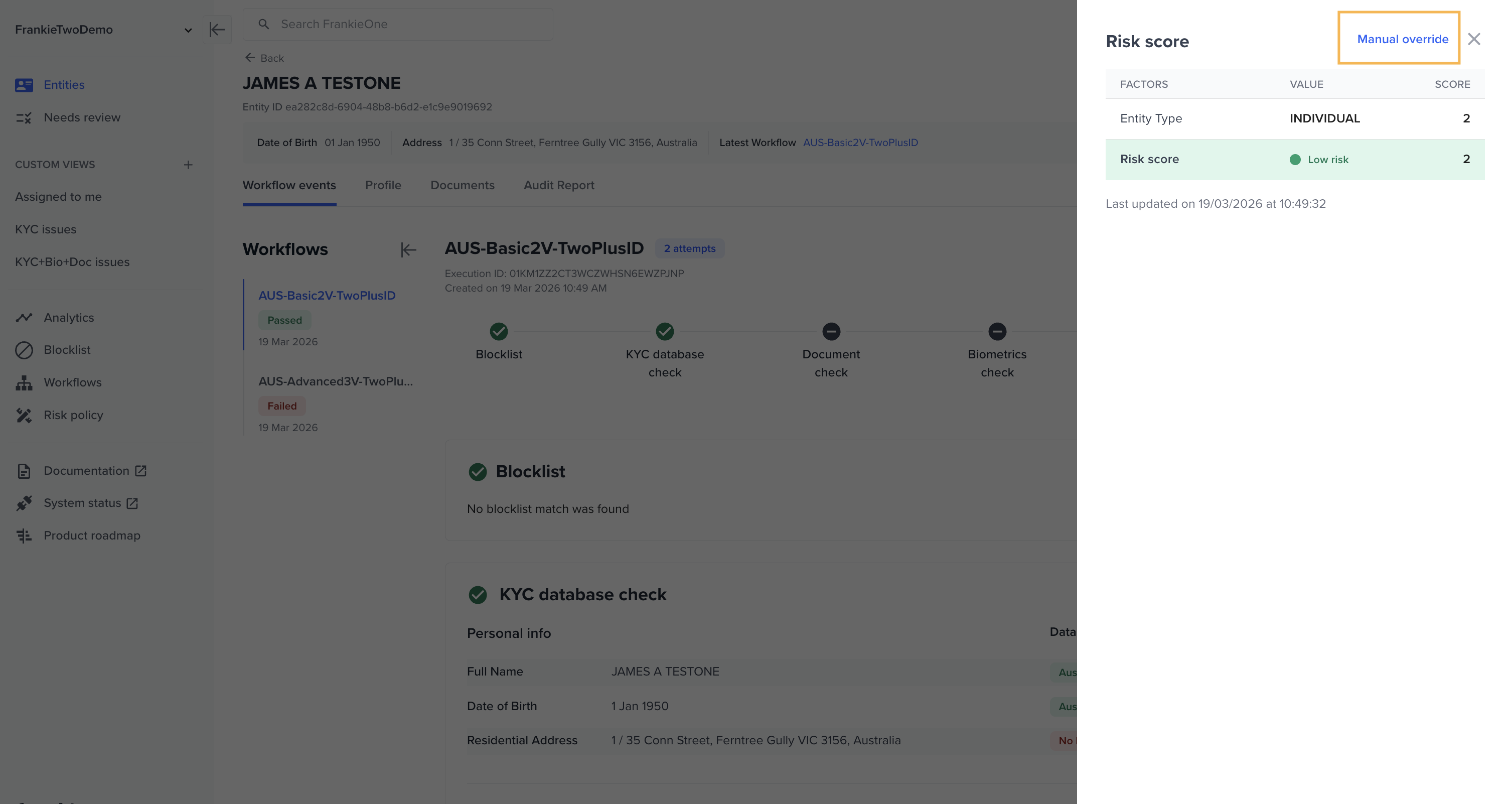
- Click Manual override on the top right corner.
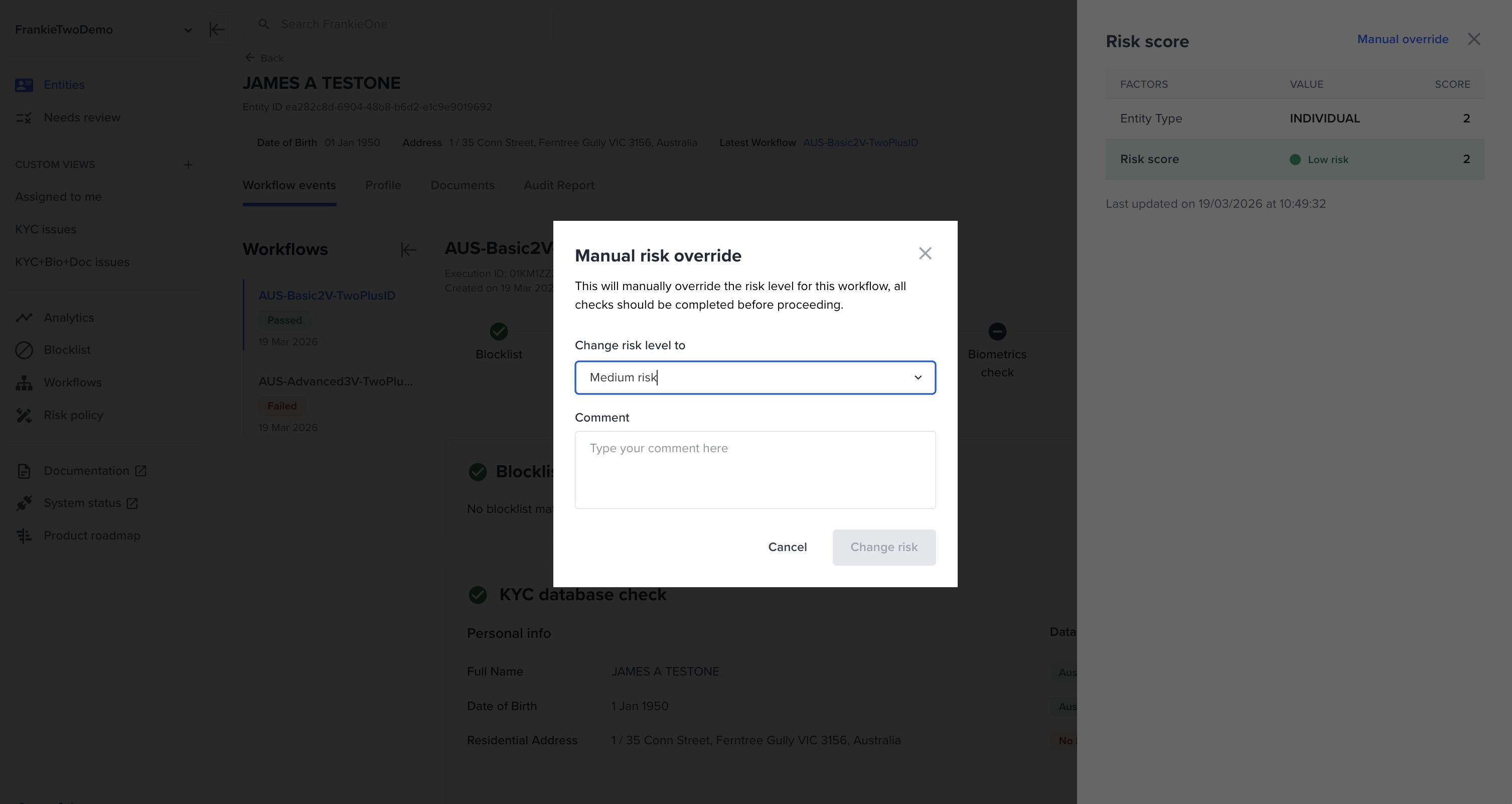
- Select the new risk level and add a comment to record any rationale/note for audit trail purposes.
- After you proceed, the override will be immediately reflected in the risk scorecard.
A manual override will remain in effect until any underlying risk factor changes in a future workflow run. When that happens, the system recalculates risk and clears the old override.
Best practicesResolve individual risk factors where possible (e.g. mark false positives) rather than overriding the total score. This keeps your audit trail clean and ensures risk reflects the entity’s actual profile.