

Only KYC risk factors are visible at the moment (KYB coming soon)
Accessing your risk configuration
You can view your account’s risk configuration by clicking Risk Policy on the sidebar. The page is only visible to users with any of these roles:- Administrator
- Super Admin
- Compliance Officer
- Risk & Compliance Officer*
Important: Only Risk & Compliance Officers have the permission to publish configuration changes, which can take effect immediately. Assign this role only to authorised members of your team. Learn more about user roles and permissions here.
How to view your risk configuration
All the factors, scores, and values in the page are pulled directly from your account’s live risk configuration. On the top right side, you can also choose to download a PDF version for your reference.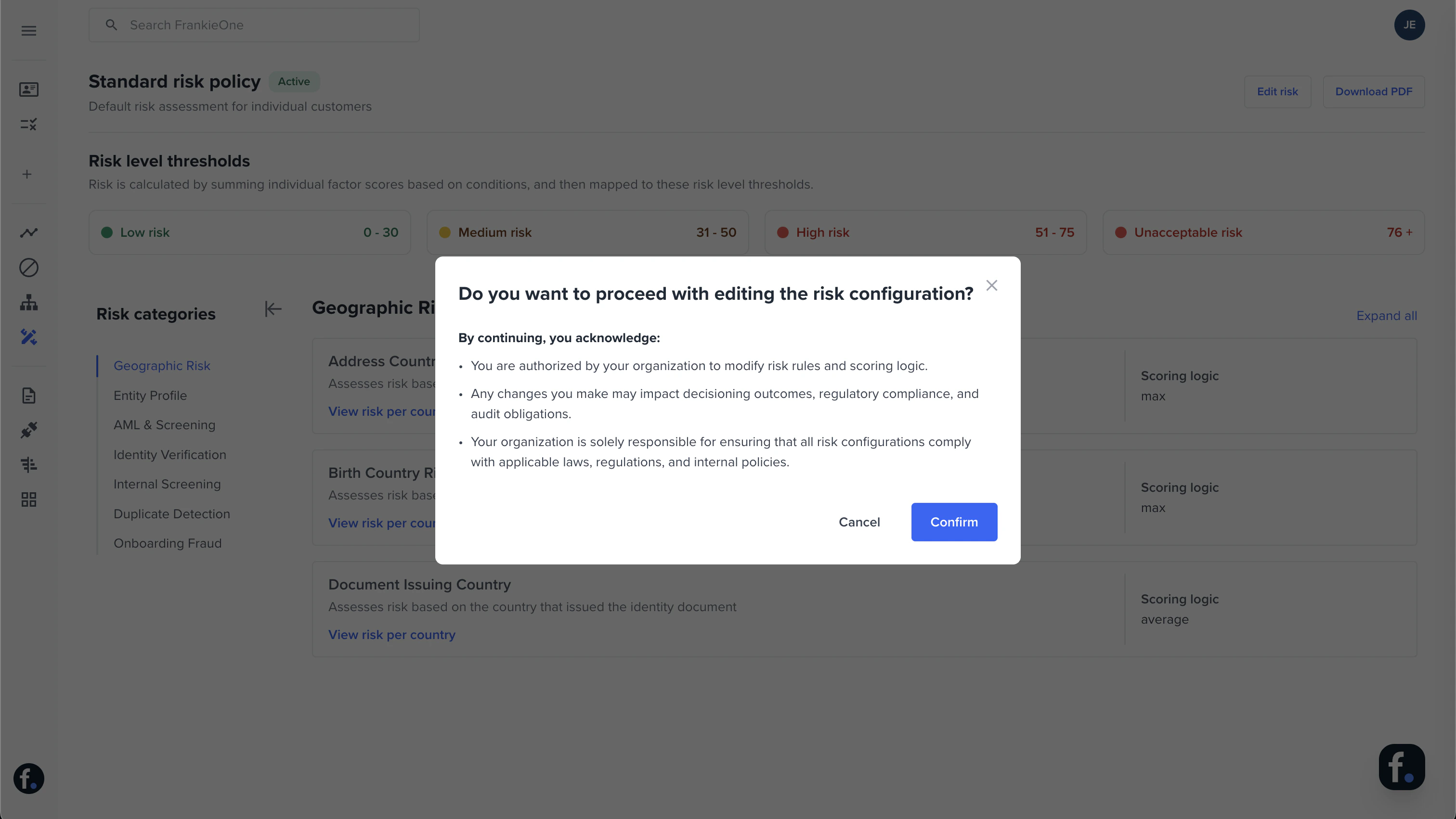
- Risk level thresholds
- Risk categories
- Risk factor name
- Scoring logic
- Risk factor levels
- Level ranges (applicable only to specific risk factors)
- Risk factor score
How to update your risk configuration
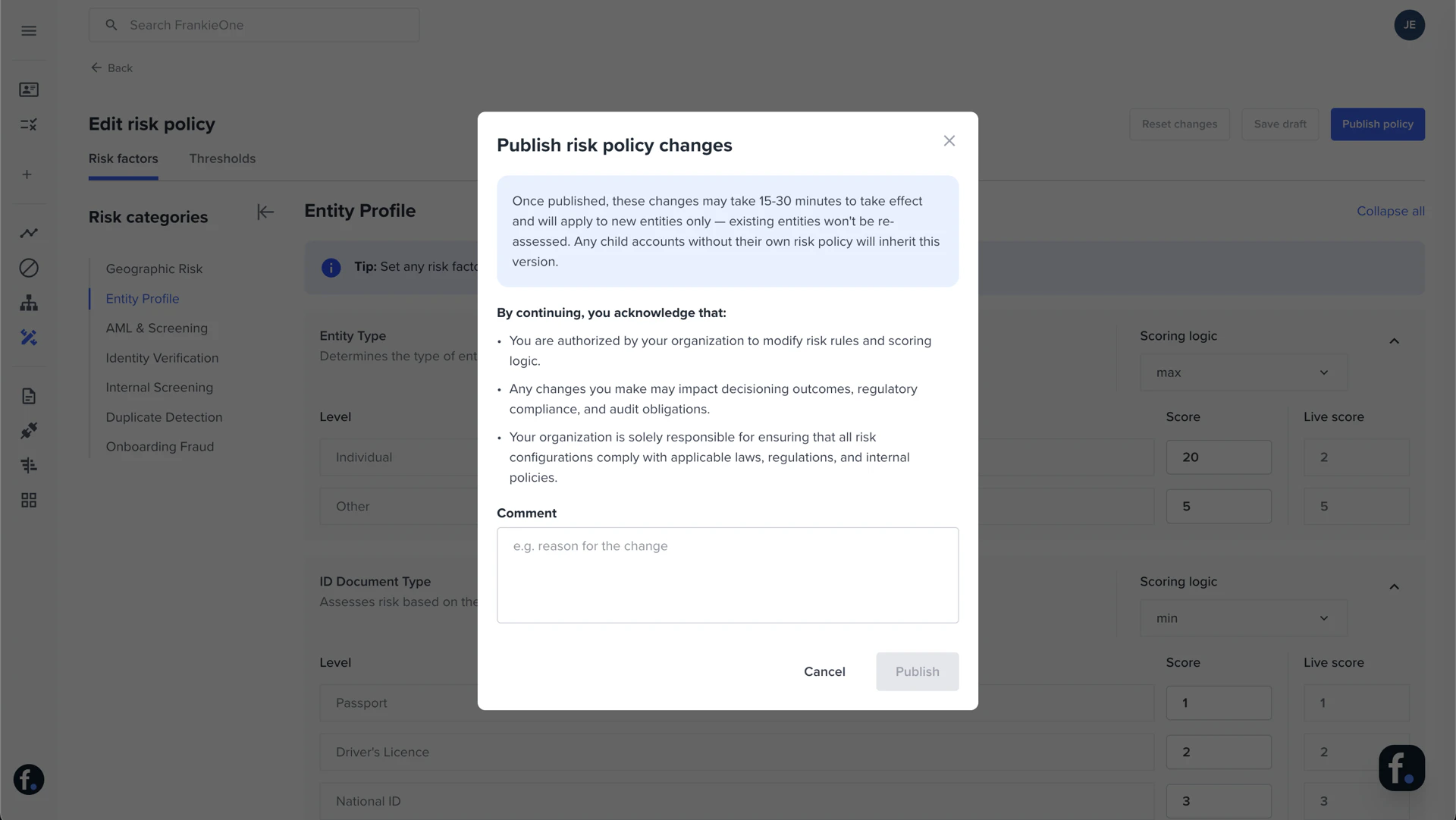
You can publish changes to your live risk configuration directly from the Portal.- Click Edit Risk on the top right. Only users with the Risk & Compliance Officer role will be able to see this button.
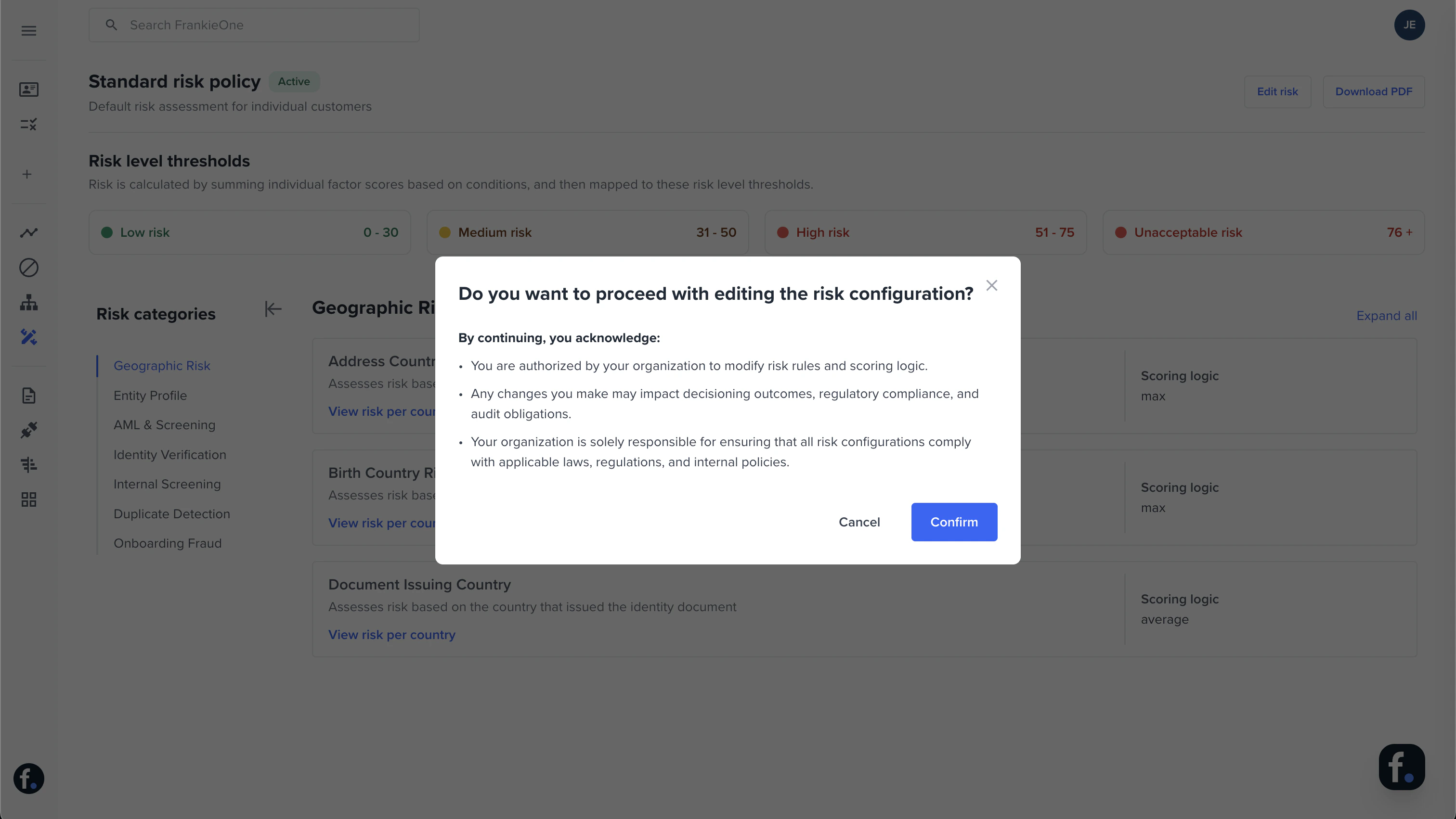
- Confirm that you’re authorized to make risk changes.
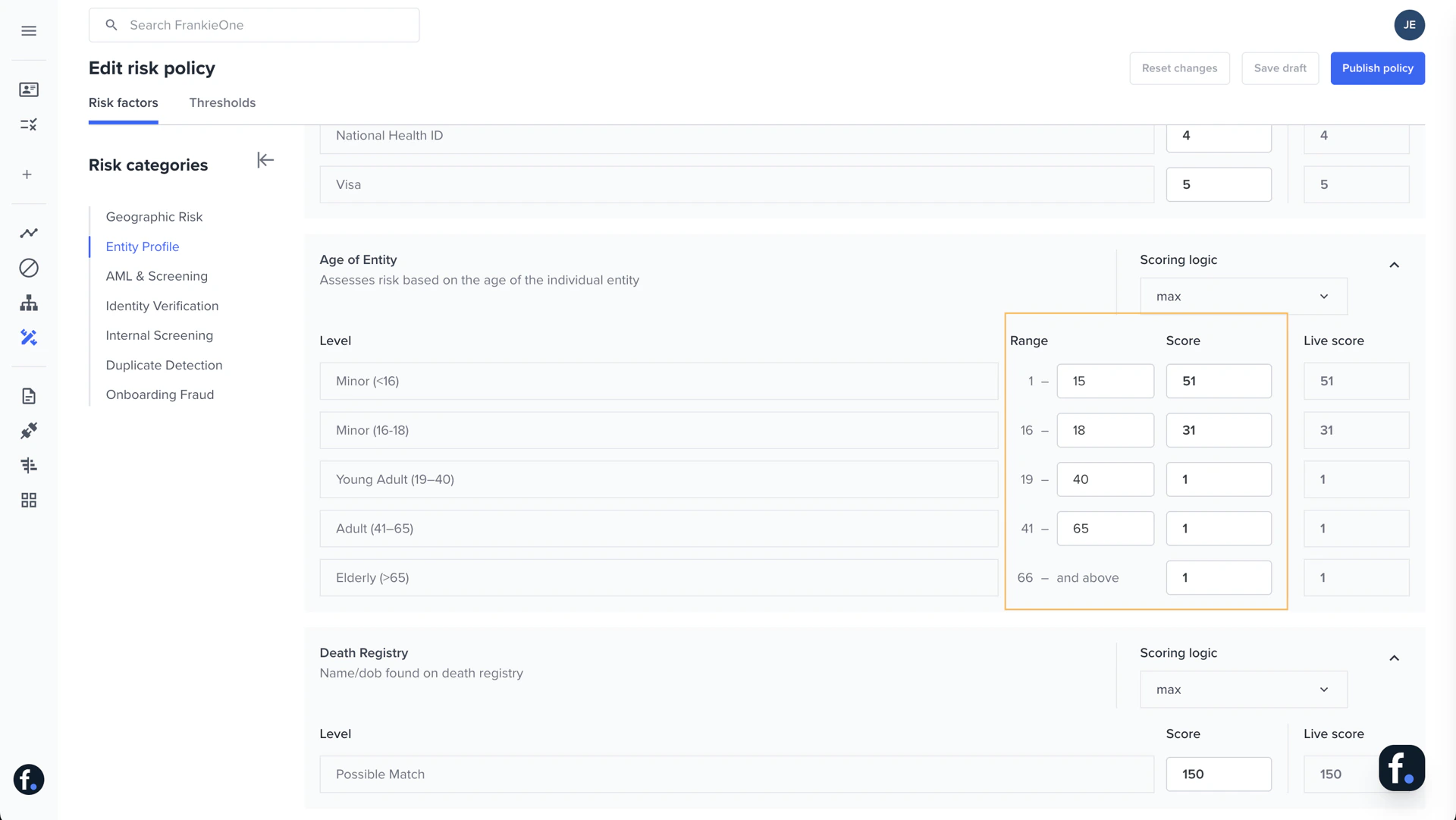
- In the Risk factors tab, you can:
- Update the score for each risk factor and see its live/current score for reference
- Update the max values for ranges in specific risk factors like Age of Entity, PEP Count, etc.
- Set the score to 0 if you prefer to exclude it from your customers’ risk assessment
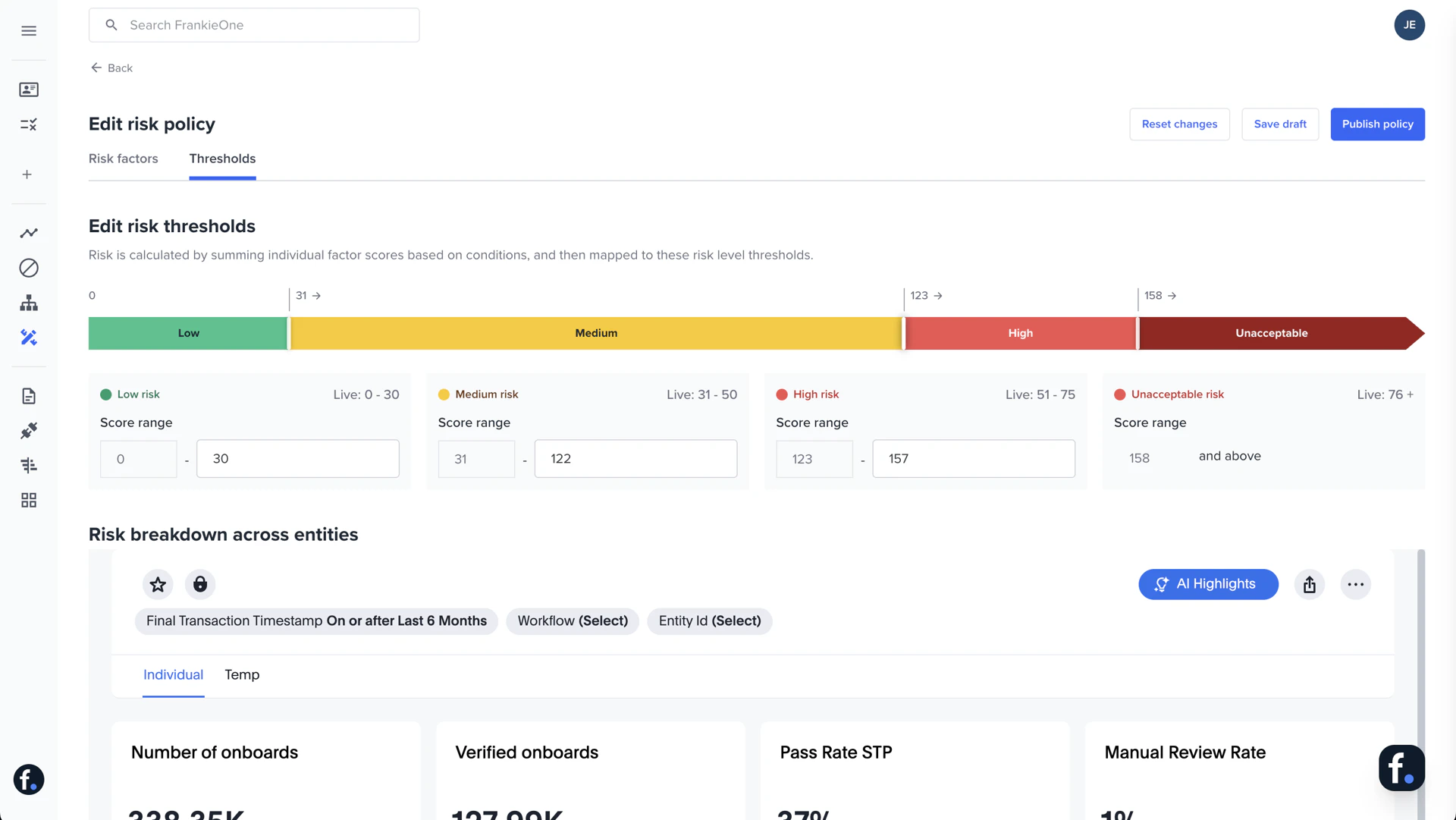
- In the Thresholds tab:
- You can set the max threshold for each risk level. Drag the slider or type the values directly.
- These thresholds are automatically validated to prevent gaps or overlaps — each level’s max must be lower than the next level’s min.
- You can also use the analytics section to see how existing entities are distributed across risk levels and calibrate your thresholds accordingly.
- Click Save draft to keep your progress, or Reset changes to revert all the values to their current live scores.
- Your changes remain in draft until you click Publish policy.
Coming soon
- Detailed version history
- Simulate changes before publishing