Entity View
To learn more about the Entity View, visit Entity ViewReviewing an entity
-
Workflow events - displays the workflow execution result which is a comprehensive result of all the all steps (checks) and outcome:
- Step results capture specific verification activities
- Process results contain detailed provider-specific outcomes
- Process results are tied to the entity, not the workflow execution
- Process results remain valid for future workflow executions unless they age out or are manually invalidated
- Profile - displays information that the was able to capture and store since the entity’s creation
- Audit report - captures important system events in a well-structured format. It serves as a comprehensive record of actions performed on customer data, helping to maintain transparency and accountability.
Multiple workflows
User Interface
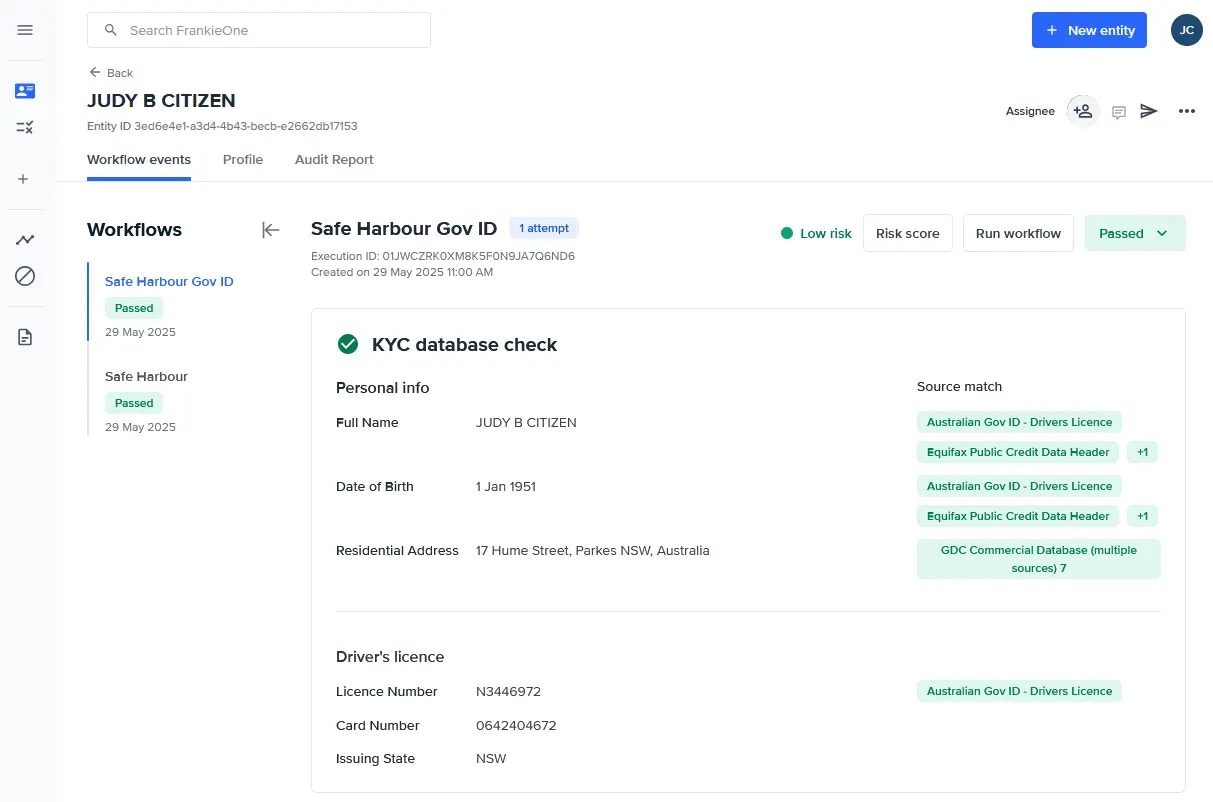
- Select the Risk score button to view the risk score breakdown.
- Select the Re-run button to run the selected workflow again.
- Update the status by selecting the appropriate one from the Workflow status dropdown.
Scenarios
Customer account is not configured to have multiple workflows
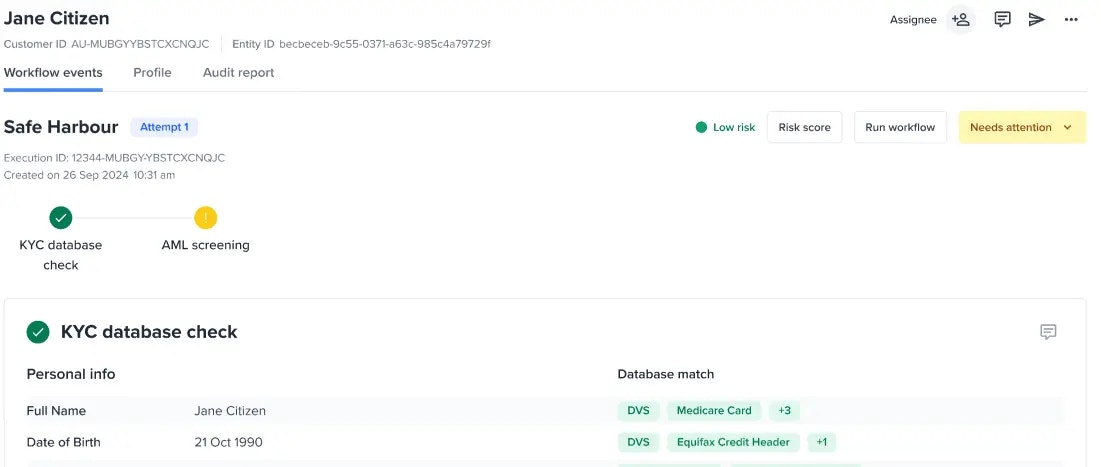
Customer account does not have a different workflow
When the same workflow is executed again, the Attempts badge will be increased Portal users will be able to see the multiple workflows navigation when they’ve ran a different workflow (see following scenario).Portal users decided to run another workflow
- New workflow navigation – see the latest and previous workflow executions for an entity.
- Selecting a workflow would display the results of the workflow execution.
Entity is not yet verified
Unverified entities will see the following screen: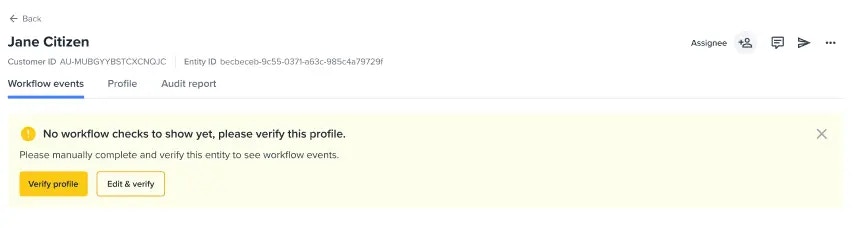
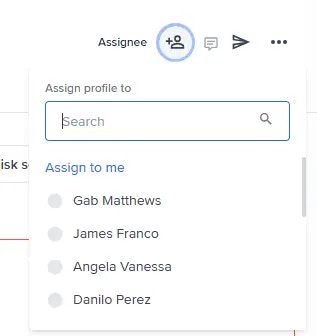
Assign users to an entity
To assign a user to a customer profile, locate the Assignee at top-right corner of the Entity View then select the icon beside it. Selecting will allow you to search for the users to assign the entity with. “Assign to me” is available as a action. By default, entities you created will be assigned to you.