To create a New Profile via the Portal
Navigate to the New Profile form by clicking the New Entity button.
Profile Type
You can create an Individual or Business profile type.
Select a Recipe
Select the Recipe you would like to apply to your new customer profile. This will determine the checks that are run on this customer.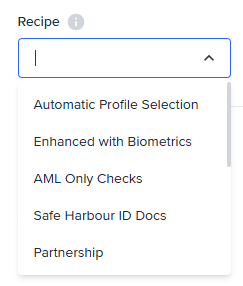
Personal Info
Use the form fields to enter the customer’s personal information. Fields will be optional or required based on the recipe and your FrankieOne configuration.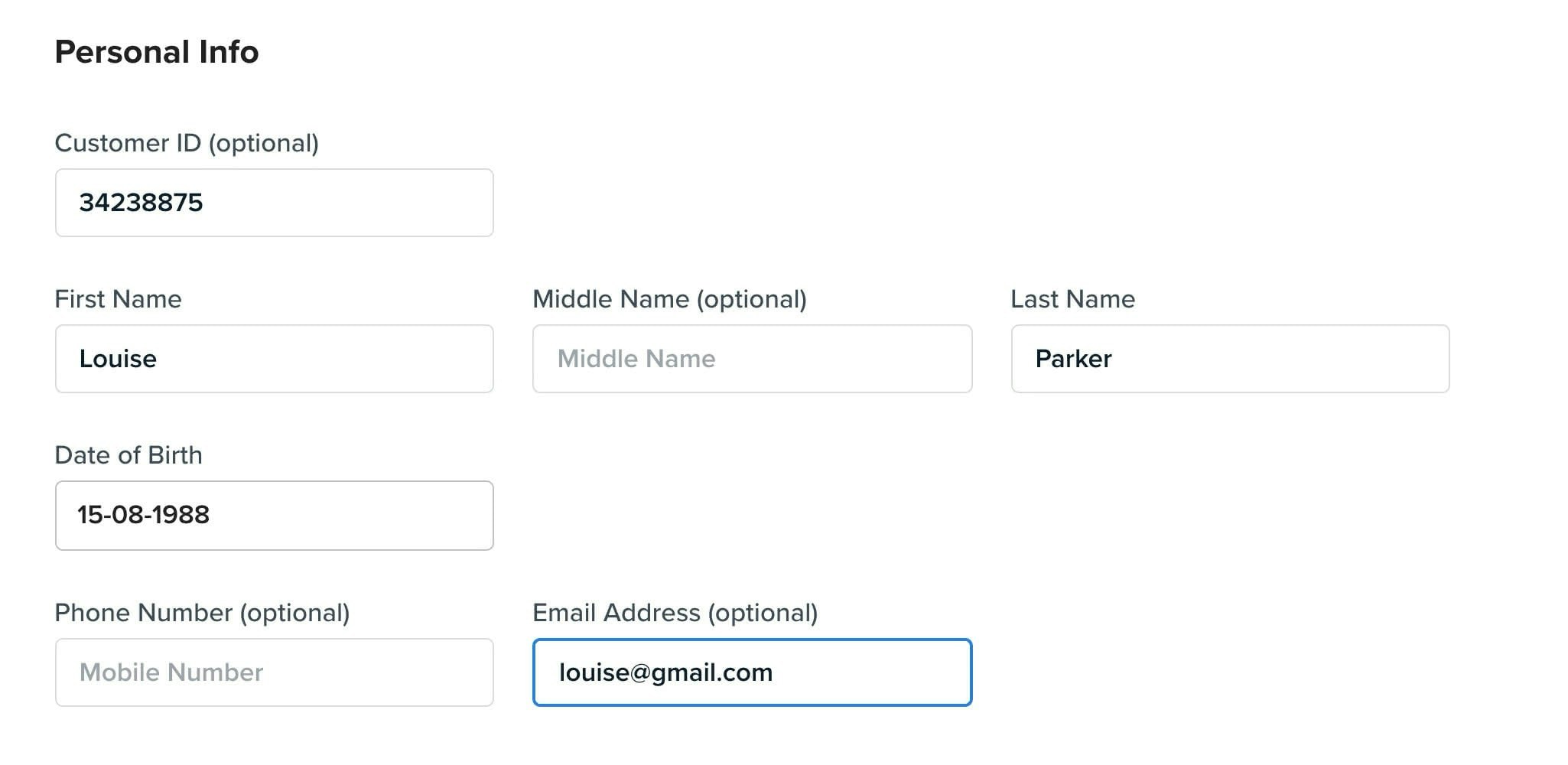
Personal Information Fields
Addresses
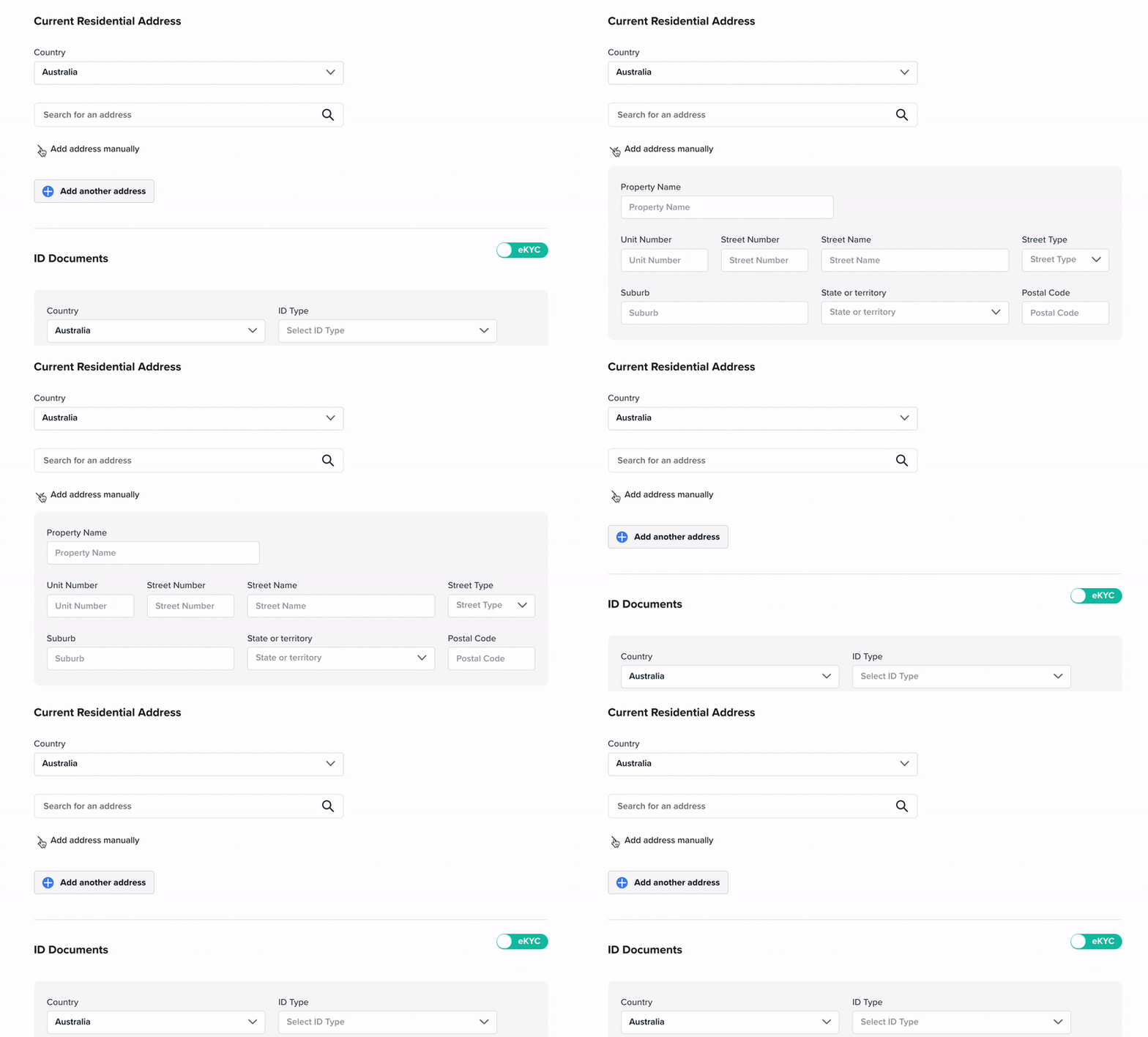
Use the address search field to quickly find an address and populate it into the correct fields.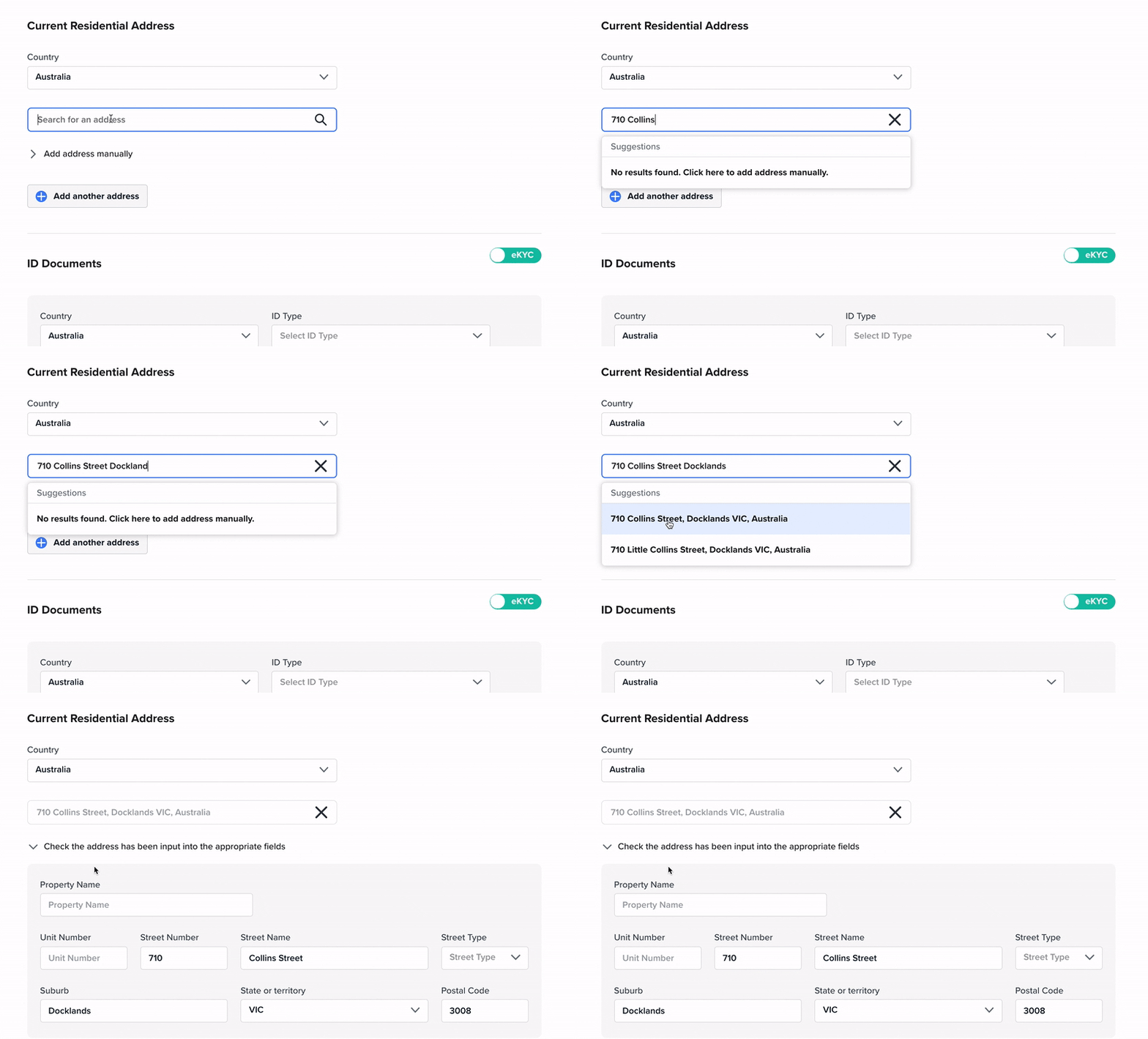
Add an ID Document
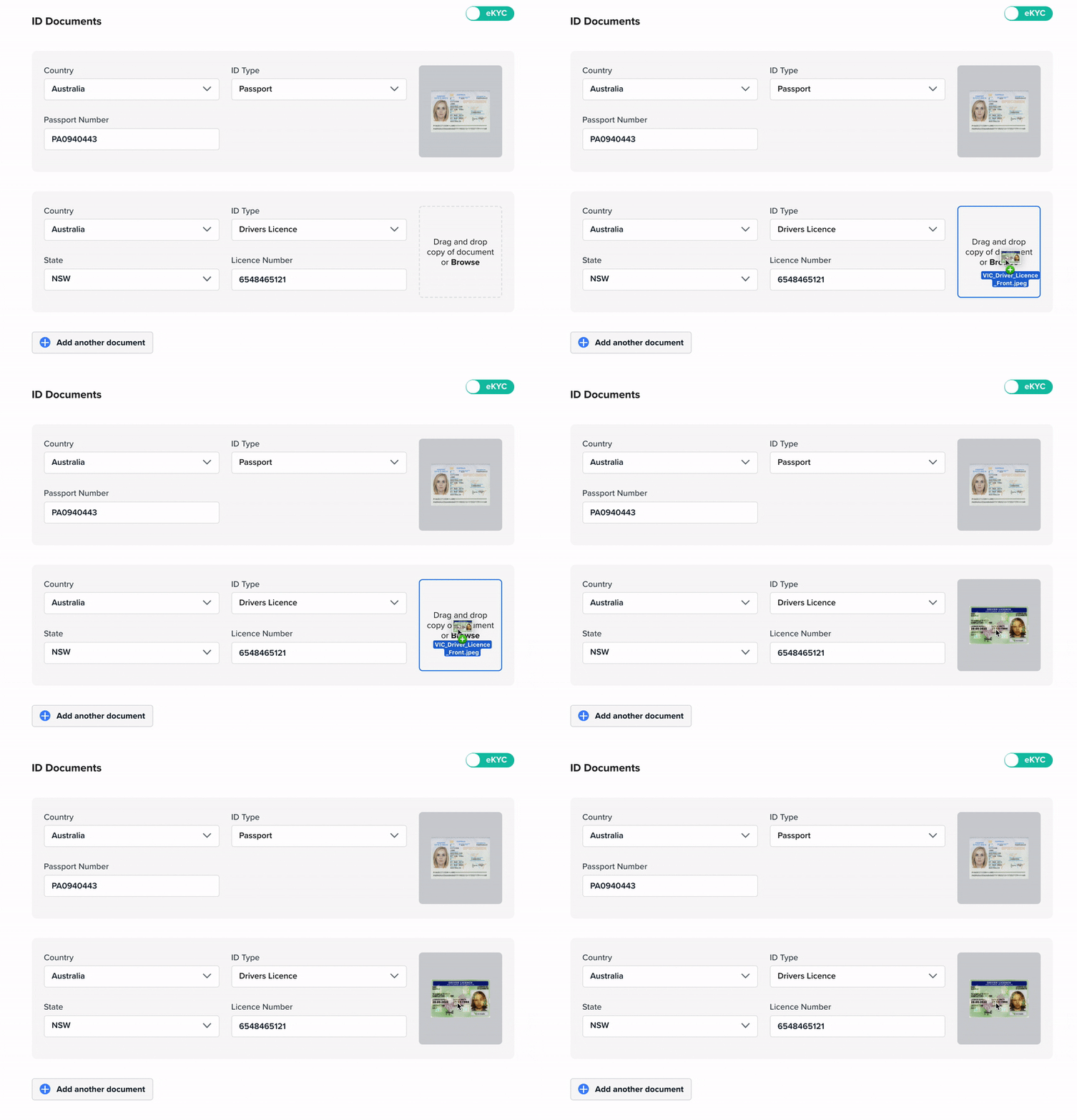
Click Add New Document to add an ID document to a customer profile. Different Recipes will have different requirements for the number and type of ID documents required and this will be set up in your FrankieOne configuration.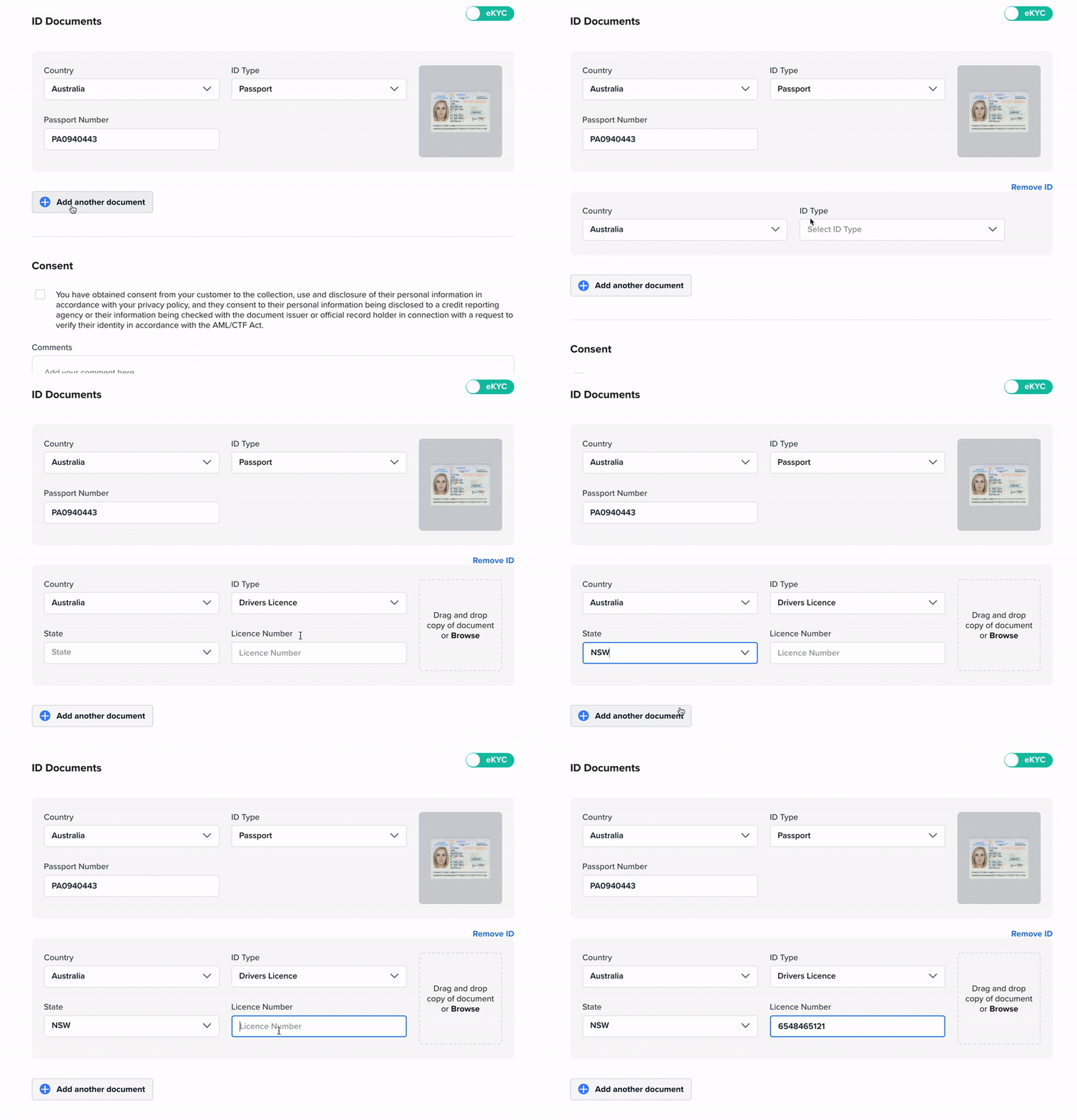
Consent
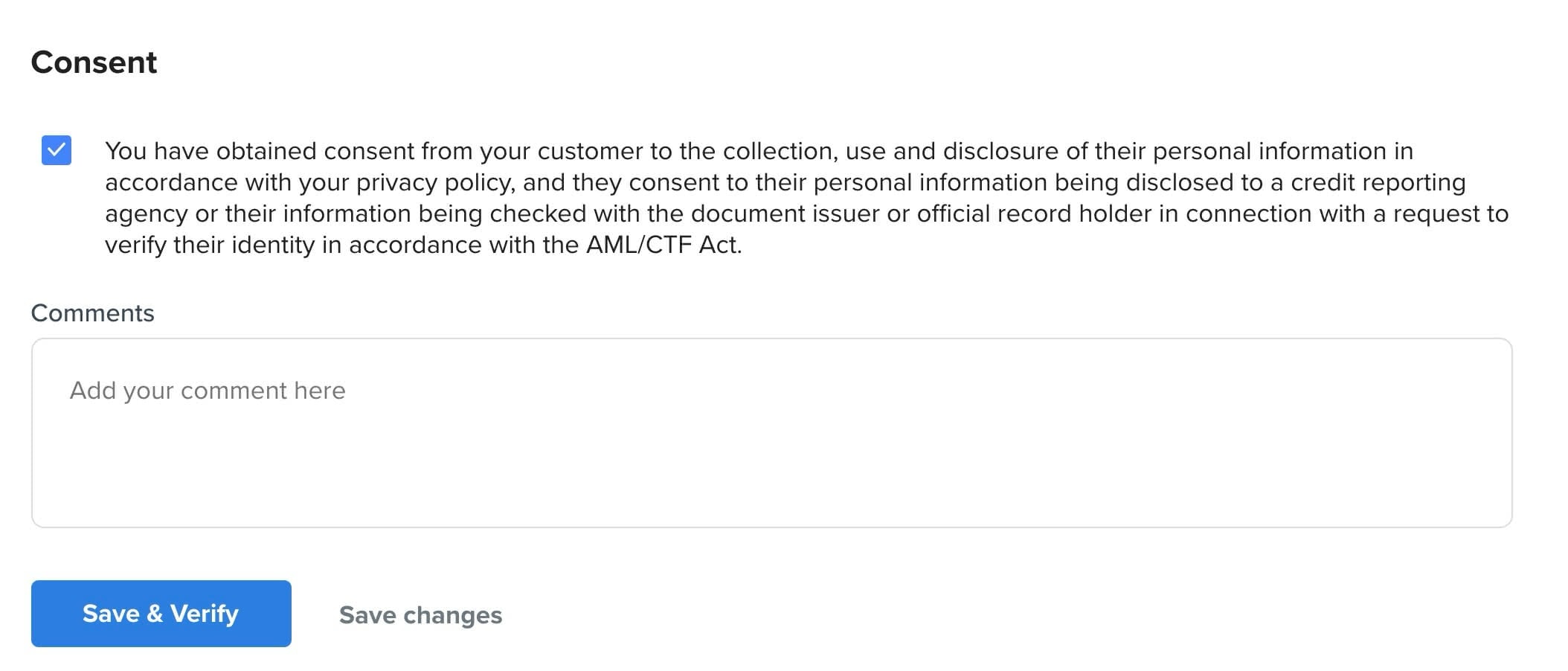
You must obtain Consent from your customer as per the AML/CTF act to run certain checks. You won’t be able to Save and Verify where consent is required as part of the selected Recipe.