Perform manual KYC
To perform manual KYC create a new entity.Enter the necessary information
1
Create New Profile
Select the New entity button to open the Create New Profile page. Then, select the Individual tab.
2
Enter Entity Information
Fill in the necessary information for the entity.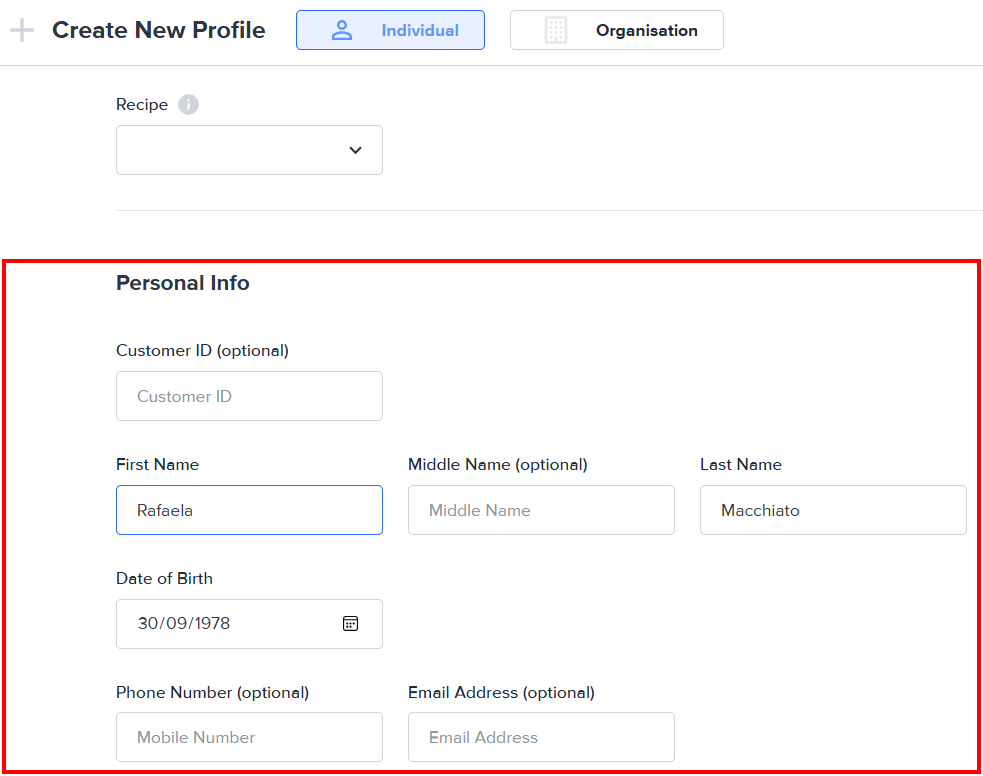
3
Configure ID Documents
In the ID Documents section, clear the eKYC button selection.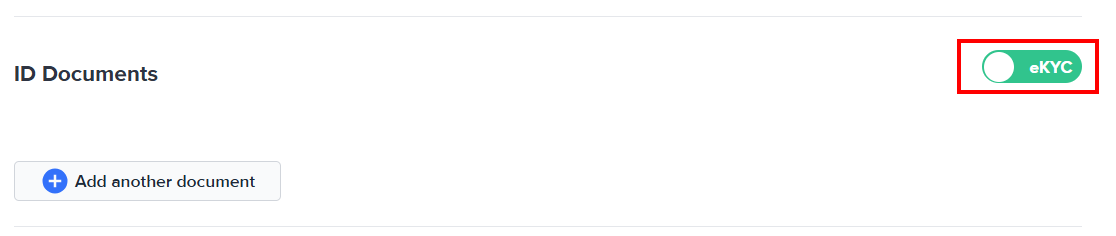
4
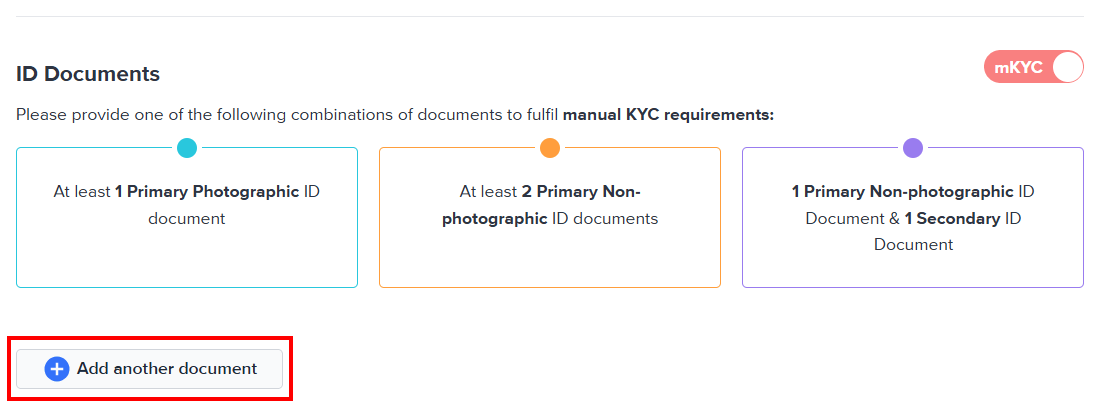
Add Document Details
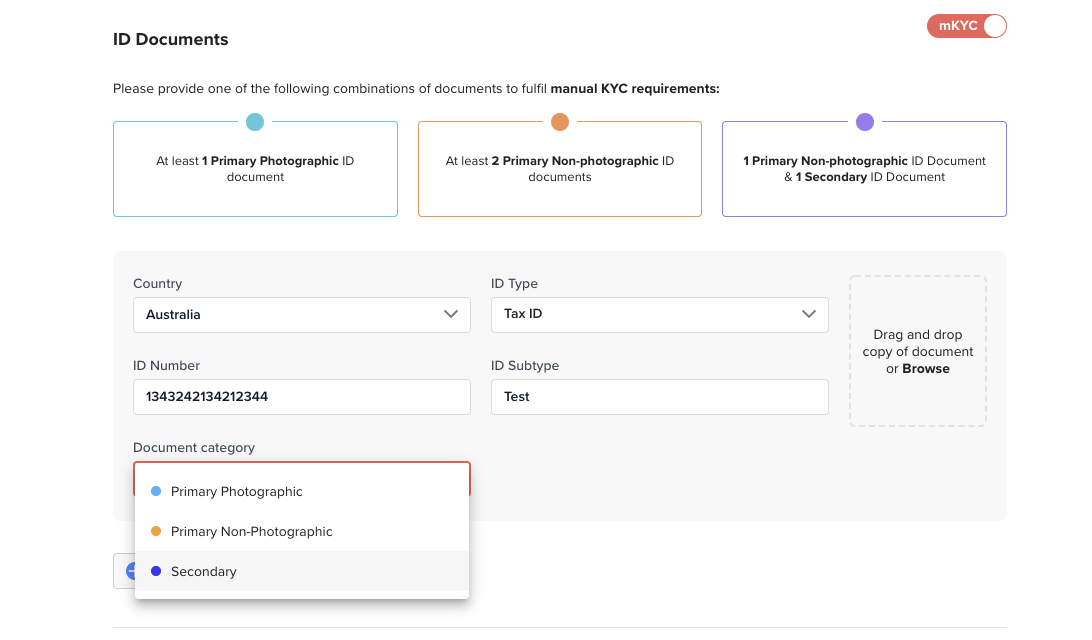
Select the country of issuance for the ID document from the Country drop-menu, and the document type from the ID Type drop-down menu.Additional data entry fields will be displayed depending on the ID type. The following screenshot shows the detail fields for an Australian Driver Licence (Victoria):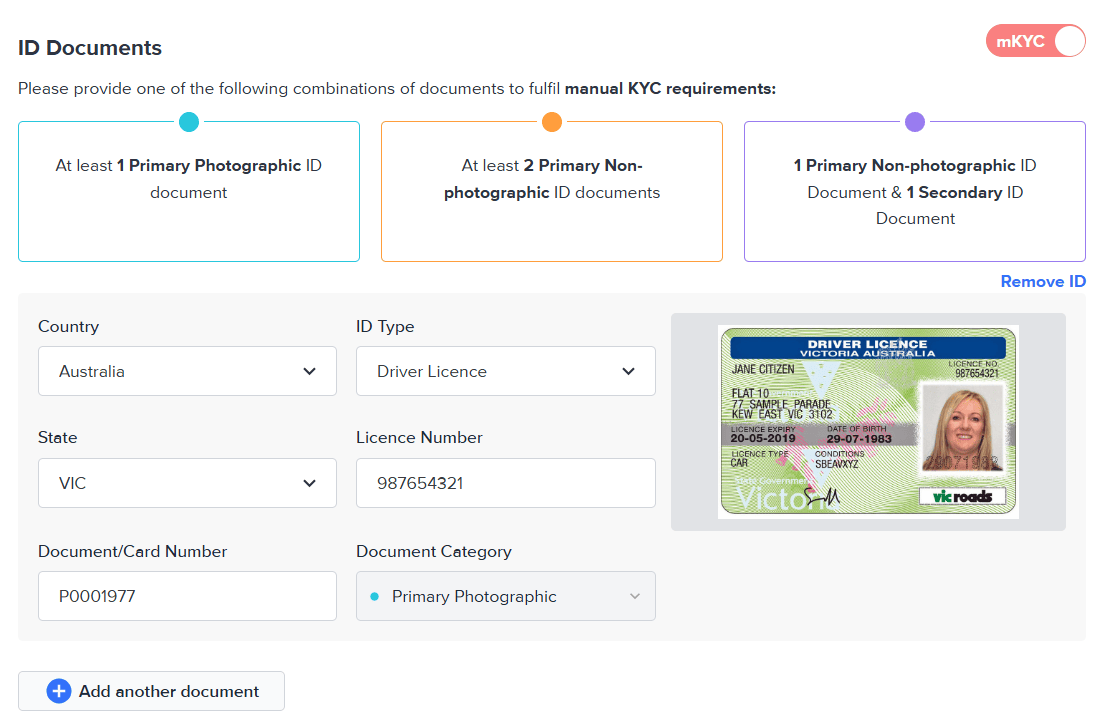
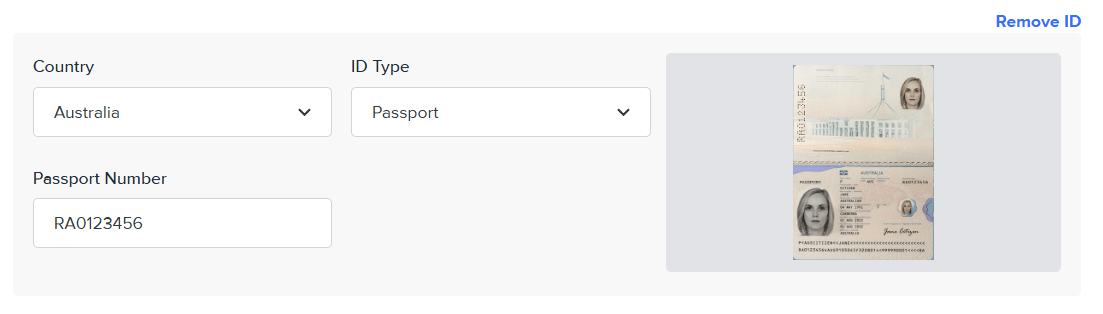
Please provide one of the following combinations of documents to fulfill manual KYC requirements:
- At least 1 Primary Photographic ID document
- At least 2 Primary Non-photographic ID documents
- 1 Primary Non-photographic ID document and 1 Secondary ID document
5
Upload Documents
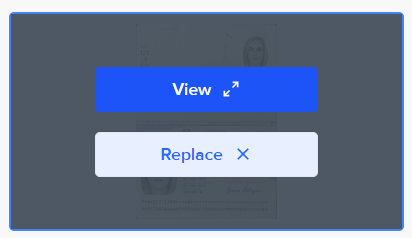
Drag and drop a copy of the required document into the image box.Alternatively, select the image box to open the file browser and locate the file to upload.

6
Manage Documents
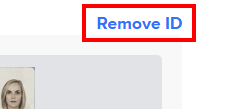
To remove an ID document, hover on its row and select Remove ID.
7
Add Consent
You must consent to manual KYC using the information and documents provided.Select the Consent tick box to attest that you have reviewed the customer identity documents and uploaded true copies of the reviewed documents for manual KYC verification.
8
Add Comments
Provide additional context and information for performing manual KYC on this entity.
9
Save and Approve
To complete the manual KYC on this entity, select Save & Approve.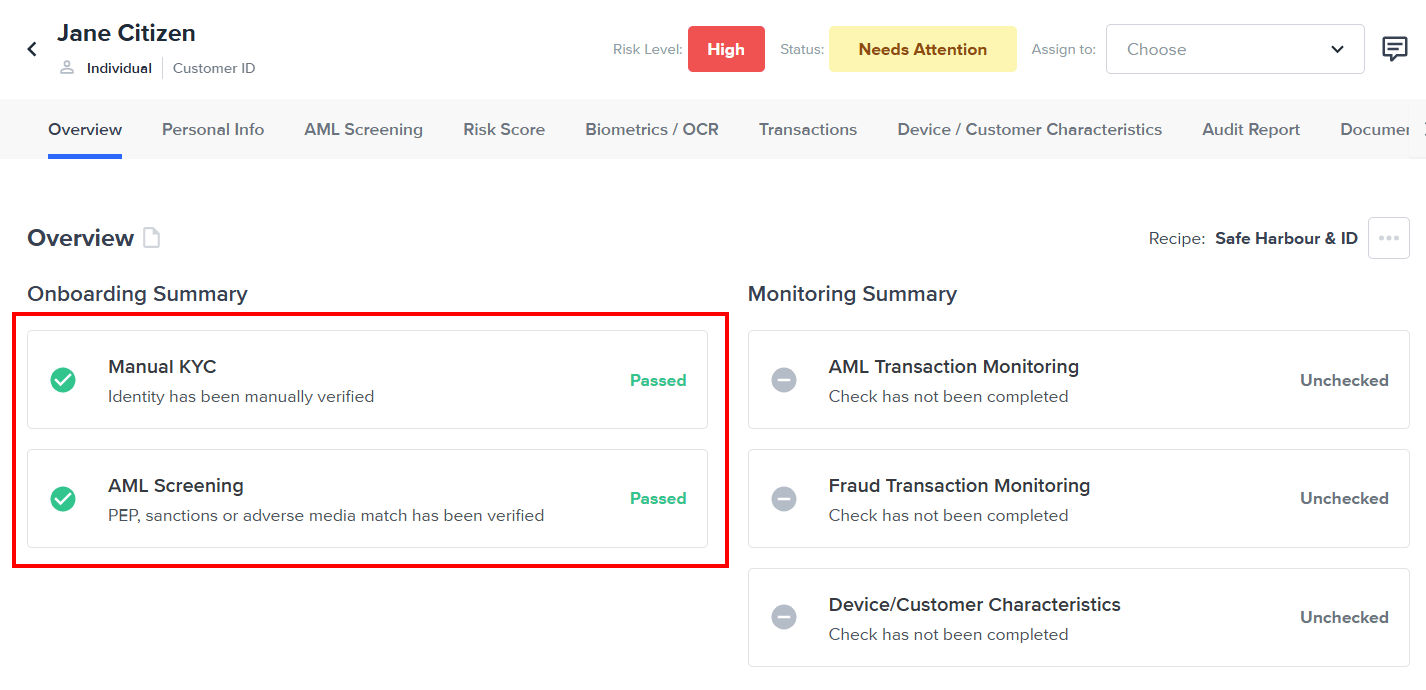
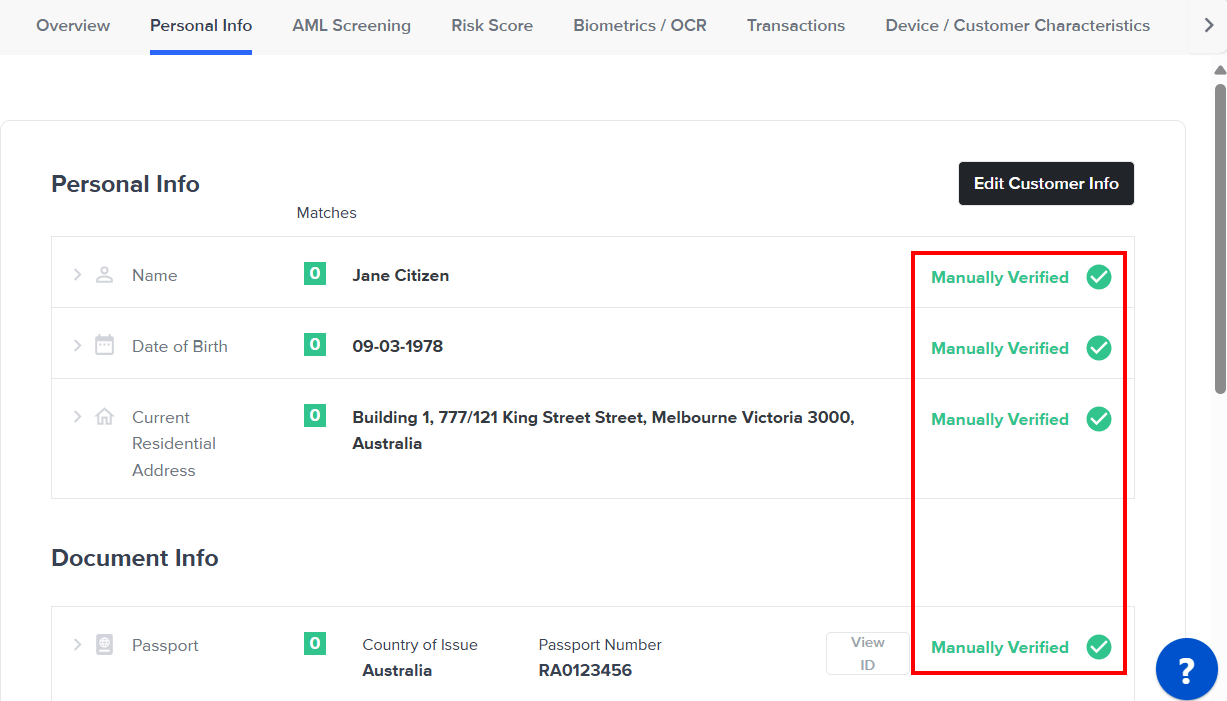

Acceptable ID documents
Primary Photographic
ID types with a photo such as driver’s licence or passport are considered primary photographic ID documents.Primary Non-Photographic
ID types without a photo such as Medicare or birth certificate are considered primary non-photographic ID documents.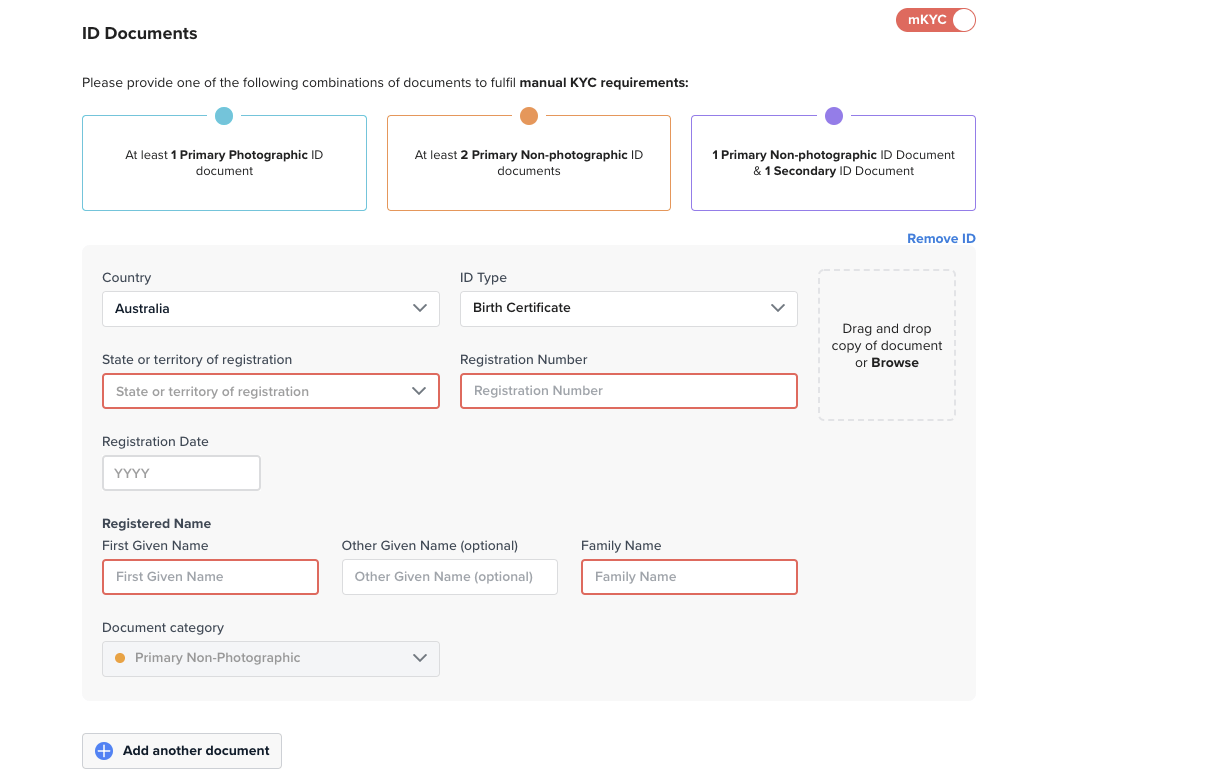
Secondary
It is possible to provide Secondary types of ID to support the manual verification. ID documents such as Tax IDs can be used.